April 1, 2026Dan Rodney/6 min read

Creating Snapshots: Free Lightroom Tutorial

Master Lightroom Snapshots for Professional Photo Editing

About This Tutorial

This hands-on tutorial focuses on managing your editing workflow through Lightroom's History and Snapshots features, essential tools for professional photo editors.

Topics Covered in This Lightroom Tutorial:

Master photo editing history management by learning to create strategic snapshots that preserve key stages of your development process

Core Learning Areas

History Management

Understanding how Lightroom tracks your editing actions in the Develop module. Learn to navigate and utilize your edit history effectively.

Snapshot Creation

Master the art of creating named snapshots at key points in your editing process. Preserve important stages of your development workflow.

Exercise Preview

lightroom preview3A

Exercise Overview

Professional photographers understand that the editing process is rarely linear—you'll often want to revisit earlier stages of your work or compare different creative directions. When you edit in the Develop module, Lightroom automatically maintains a comprehensive record of every adjustment in the History panel. However, relying solely on this chronological list can become unwieldy during complex edits.

This is where Snapshots become invaluable. Think of them as creative bookmarks that capture the precise state of your image at critical decision points in your workflow. Unlike the linear History panel, Snapshots allow you to jump between different creative interpretations instantly, making them essential for client work, A/B testing creative decisions, or simply maintaining organized development workflows that you can revisit months later.

Key Concept

Lightroom automatically stores every action you take in the Develop module. Snapshots allow you to bookmark and name specific states in this history for easy reference.

Editing a Photo to Create History

We'll begin by making targeted adjustments to build a foundation of editing history, then learn to strategically capture key moments with Snapshots.

  1. If you have not imported the photos that were imported in Exercise 2E:
    • Go into the Library module.
    • At the bottom left of the screen, click Import.
    • In the dialog box that appears, on the left under Source, navigate to Desktop > Class Files > Lightroom Class and select the Develop folder.
    • At the top, above the photos, make sure Add is selected (highlighted).
    • On the bottom right, click Import.
  2. In the Catalog panel, click on All Photographs.

  3. Double–click on the graveyard photo (_CAS4771) to select it and load it in the main preview area.

  4. Press the D key to enter the Develop module, where all your non-destructive editing magic happens.

  5. On the right, open the HSL / Color / B & W panel, and make sure HSL is highlighted, indicating it is selected. If it isn't, click on HSL to select it.

  6. Click on Luminance so that only the Luminance color sliders are visible. These controls adjust the brightness of specific color ranges without affecting their saturation—perfect for selective tonal adjustments.

  7. To bring out dramatic contrast in the sky, change the Blue channel to – 68, either by moving the slider to the left or typing the number in the text box. Notice how this darkens the blue tones while preserving detail.

  8. At the top-left corner of the panel, click the Targeted Adjustment tool target adjustment tool. This intelligent tool identifies which color channels correspond to specific areas of your image.

  9. With the Targeted Adjustment tool still selected, near the bottom of the photo, under the gravestones, slowly hover with your mouse over the grass.

    As you do this, look in the HSL / Color / B & W panel at the Luminance color sliders. You should see the Yellow and Green colors highlighted because the grass contains both yellow and green elements. This real-time feedback shows you exactly which sliders will affect the area you're targeting—a huge time-saver in complex images.

  10. Click the Targeted Adjustment tool again to deselect it and return to manual slider control.

  11. Still in the Luminance panel, make the following adjustments to brighten the foreground:
    • Bring the Yellow up to + 10.
    • Bring the Green up to + 10.
    • Press the backslash (\) key a few times to toggle between before and after views. This instant comparison is crucial for evaluating your adjustments objectively.
  12. On the left side, open the History panel to see a chronological list of every edit you've made. Each entry represents a state you can return to instantly.

HSL Luminance Adjustments Process

1

Access HSL Controls

Open the HSL/Color/B&W panel and select the Luminance tab to access brightness controls for individual color channels

2

Enhance Sky Detail

Reduce Blue channel luminance to -68 to bring out sky details and create more dramatic contrast

3

Use Targeted Adjustment

Activate the Targeted Adjustment tool to identify which color channels affect specific areas like grass (Yellow and Green)

4

Brighten Foreground

Increase Yellow and Green luminance to +10 each to brighten grass areas and balance the darker sky

Pro Tip

Use the backslash key to quickly toggle between before and after views to evaluate your adjustments in real-time.

Creating & Working with Snapshots

Now that we've established our initial edit, let's create strategic Snapshots to preserve different creative directions. This workflow becomes essential when working with clients who want to see multiple interpretations, or when you're unsure which creative direction will work best.

  1. On the left, next to the Snapshots, click the Create Snapshot icon create new preset.

  2. In the New Snapshot pop up:
    • In the Snapshot Name field, type Luminance Shift. Use descriptive names that will make sense to you months later.
    • Click the Create button.
    • You will see the Luminance Shift snapshot appear in the Snapshots panel, preserving this exact state of your image.
  3. On the right, open the Basic panel, which contains Lightroom's most fundamental and powerful adjustment tools.

  4. Under Presence, make the following two adjustments to enhance the image's visual impact:

    Clarity: Increase to + 30 (adds midtone contrast and punch)
    Vibrance: Increase to + 10 (intelligently boosts muted colors)
  5. On the left next to Snapshots, click the Create Snapshot icon create new preset again to capture this enhanced version.

  6. In the New Snapshot pop-up:
    • In the Snapshot Name field, type Clarity & Vibrance.
    • Click the Create button.
  7. In the Snapshots panel, click on the Luminance Shift snapshot. Watch as the photo instantly reverts to that earlier state, undoing the Clarity and Vibrance adjustments while preserving your HSL work.

  8. Click the Clarity & Vibrance snapshot to jump forward to your enhanced version. This instant switching between creative states is what makes Snapshots so powerful for client presentations and creative decision-making.

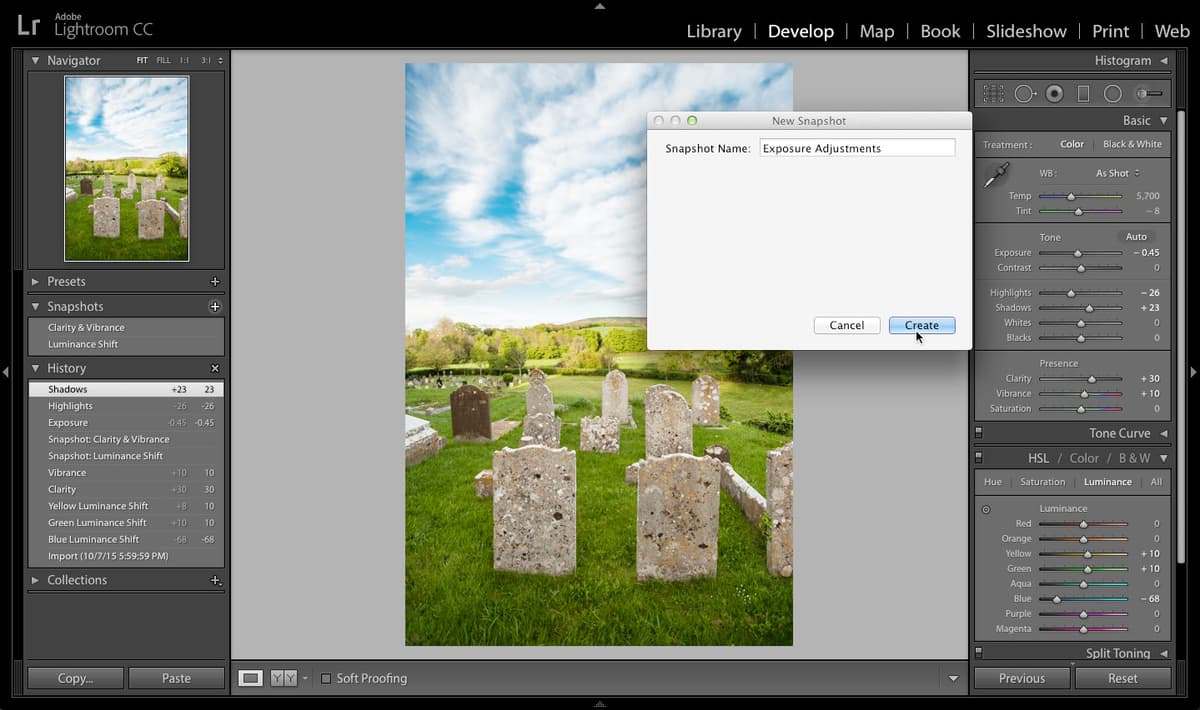
  9. In the Basic panel, make the following exposure adjustments to balance the overall tonality:
    • Decrease the Exposure to – 0.45 (reduces overall brightness).
    • Decrease the Highlights to – 26 (recovers blown highlight detail).
    • Increase the Shadows to + 23 (opens up shadow detail without affecting highlights).
    • Press the backslash (\) key to see the dramatic before and after transformation.
  10. On the left, next to Snapshots, click the Create Snapshot icon create new preset to preserve this balanced exposure version.

  11. In the New Snapshot pop up:
    • In the Snapshot Name field, type Exposure Adjustments.
    • Click the Create button.

    Notice that the snapshots are automatically organized in alphabetical order, making it easy to locate specific versions in complex projects with many snapshots.

  12. On the left, open the Presets panel, then open Lightroom B&W Presets and select B&W Look 4. This applies a professionally crafted black and white conversion that demonstrates how dramatically different a single image can look.

  13. Next to Snapshots, click the Create Snapshot icon create new preset to capture this monochrome interpretation.

  14. In the New Snapshot pop up:
    • In the Snapshot Name field, type B&W Look
    • Click the Create button.
  15. Click on each snapshot to view the different stages in the editing of the photo. Notice how each represents a complete creative direction that you can instantly switch between, compare, or use as a starting point for further refinement.

  16. Click on the B&W Look snapshot to select it as your active state.

  17. Next to Snapshots, click the Delete Selected Snapshot icon minus delete to remove the snapshot. This demonstrates that Snapshots can be managed and curated throughout your editing process—delete experimental versions that didn't work out, and keep the ones that represent viable creative directions.

Snapshot Creation Workflow

First Stage

Luminance Shift Snapshot

Created after HSL adjustments to preserve the enhanced sky and grass brightness settings

Second Stage

Clarity & Vibrance Snapshot

Captured the image state with added Clarity (+30) and Vibrance (+10) for enhanced detail and color

Third Stage

Exposure Adjustments Snapshot

Preserved the balanced exposure with reduced highlights and lifted shadows for optimal tonal range

Final Stage

B&W Look Snapshot

Applied black and white preset conversion before deletion to demonstrate snapshot management

Key Adjustment Values Applied

Blue Luminance
68
Clarity Boost
30
Highlights Reduction
26
Shadows Lift
23
Yellow/Green Luminance
10

Snapshots vs History Panel

Pros
Named references for easy identification of editing stages
Persistent across Lightroom sessions unlike temporary history
Allows non-linear navigation between different creative directions
Alphabetical organization keeps snapshots easily accessible
Cons
Requires manual creation and naming discipline
Can accumulate over time requiring periodic cleanup
Limited to current image only, not transferable to other photos
Workflow Enhancement

Snapshots enable you to experiment boldly with different creative directions, knowing you can always return to previous successful states instantly.

Key Takeaways

1Lightroom automatically records every editing action in the History panel, creating a complete trail of your development process
2Snapshots serve as named bookmarks that preserve specific states in your editing history for easy reference and comparison
3The HSL Luminance controls allow precise adjustment of brightness for individual color channels, essential for selective tonal enhancement
4Targeted Adjustment tools help identify which color channels affect specific areas of your image before making adjustments
5Creating snapshots at key editing stages enables non-linear workflow experimentation while maintaining access to previous versions
6Basic panel adjustments for Clarity and Vibrance should be applied after color corrections to build upon a solid tonal foundation
7Exposure, Highlights, and Shadows adjustments work together to optimize the overall tonal range and dynamic balance of an image
8Snapshots are automatically organized alphabetically, making consistent naming conventions important for efficient workflow management

RELATED ARTICLES