April 1, 2026Dan Rodney/7 min read

The Painter Tool: Free Lightroom Tutorial

Master Lightroom's Painter Tool for Efficient Photo Organization

Core Painter Tool Functions

Keywords

Apply searchable text tags to organize photos by subject matter. Essential for large photo collections.

Colored Labels

Visual color-coding system for quick photo categorization. Streamlines workflow organization.

Star Ratings

Assign quality ratings from 1-5 stars. Critical for photo selection and culling processes.

Topics Covered in This Lightroom Tutorial:

Master efficient image organization with the Painter tool: applying keywords, labels, and ratings with precision, plus advanced filtering techniques to streamline your workflow and locate images instantly.

Exercise Preview

lightroom preview2B

Exercise Overview

Professional photographers often manage thousands of images per project, making efficient organization crucial for productivity and client satisfaction. In this exercise, you'll master Lightroom's Painter tool—one of the most underutilized yet powerful features for batch image organization. You'll learn to rapidly apply keywords, colored labels, and star ratings to multiple images, then leverage these attributes to create sophisticated filtering systems. These skills are essential for maintaining organized catalogs that scale with your growing image library and enable quick asset retrieval during tight project deadlines.

Prerequisites Required

This exercise builds on previous tutorials 1A-2A. Complete those exercises first to ensure proper catalog setup and familiarity with basic Lightroom navigation.

Using the Painter Tool: Keywords

Keywords form the backbone of any professional image organization system. The Painter tool transforms keyword application from a tedious one-by-one process into an efficient batch operation, saving hours on large shoots.

  1. If you have not completed the previous exercises (1A–2A), finish them now before beginning this exercise. These foundational steps ensure your catalog is properly structured for advanced organization techniques.

  2. In the Catalog panel on the left, click on All Photographs. This provides a comprehensive view of your entire image collection for systematic organization.

  3. In the Toolbar at the bottom of the Library, click the Painter tool painter tool to pick up the painter.

    NOTE: If you don't see it, go to View > Show Toolbar. The Painter tool's spray-can icon reflects its function—you'll literally "paint" attributes onto your images.

  4. To the right of where you picked up the painter, from the Paint menu, select Keywords, as seen below:
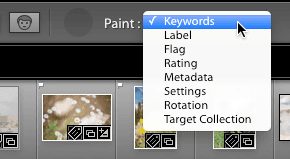
    screenshot painter keyword

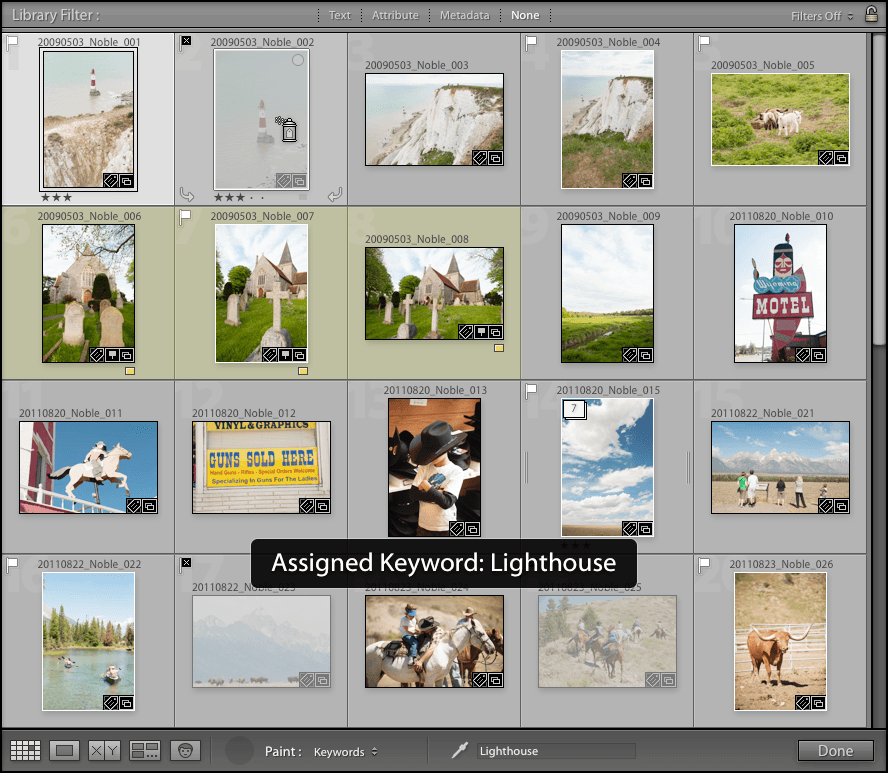
  5. You're going to paint keywords onto photos with surgical precision. Let's start with the lighthouse photos—architectural subjects that clients often request for specific branding or editorial use. In the text field to the right of the Paint menu, type Lighthouse.

  6. Click on the first lighthouse photo (200905_YourName_001) to spray on the keyword Lighthouse. Notice how the cursor changes to indicate the active painting mode.

  7. Click on the second lighthouse photo (200905_YourName_002) to do the same. This rapid-fire application method dramatically accelerates your keywording workflow compared to traditional metadata panels.

  8. Let's tackle the church photos next—another architectural category with distinct commercial applications. At the bottom, delete Lighthouse from the text field and type Church.

  9. To spray on the Church keyword you just created, click all three church photos. This batch application ensures consistent tagging across related images:
    • 20090503_YourName_006
    • 20090503_YourName_007
    • 20090503_YourName_008

Keyword Application Process

1

Access Painter Tool

Navigate to Library module toolbar and click Painter tool. Enable toolbar via View > Show Toolbar if not visible.

2

Select Keywords Mode

Choose Keywords from Paint menu dropdown. This configures the tool for text-based tagging.

3

Enter Keyword Text

Type desired keyword in text field. Use descriptive terms that match photo content for better searchability.

4

Apply to Photos

Click target photos to spray keyword tags. Each click applies the current keyword to the selected image.

Using the Painter Tool: Colored Labels

Color labels provide instant visual organization that transcends language barriers—crucial for international clients or collaborative workflows. Many professionals develop personal color-coding systems: red for urgent client selections, yellow for portfolio candidates, green for final deliverables.

  1. At the bottom of the Library, from the Paint menu, select Label. This switches your painter from keyword application to color label assignment.

  2. Click on the small yellow box to select a yellow label color. Yellow traditionally signals "review needed" or "potential portfolio piece" in many professional workflows.

  3. Click on all three church photos to label them in yellow. Watch how the colored indicators appear on each image thumbnail, creating immediate visual categorization.

Label Color Strategy

Establish consistent color meanings across projects. For example, use yellow for approved photos, red for rejects, and green for final selections to maintain workflow clarity.

Sample Photos by Category

Lighthouse Photos
2
Church Photos
3

Spray-On Ratings

Star ratings remain the gold standard for image evaluation across the photography industry. The Painter tool accelerates this critical selection process, especially valuable during client presentation deadlines.

  1. At the bottom of the Library, from the Paint menu, select Rating. You're now equipped to rapidly assign quality ratings across multiple images.

  2. To the right of the menu, click on the third dot to give it 3-star ratings. Three stars typically indicate "good technical quality, commercial potential"—a solid baseline for client presentation.

  3. Spray the two lighthouse photos. This consistent rating helps establish quality thresholds across your catalog.

  4. At the bottom of the screen, click the circle where you picked up the Painter tool painter tool to put it back. (Alternatively, you could click Done at the bottom right.) Always return tools to prevent accidental attribute application during regular navigation.

Painter Tool vs Manual Rating

Pros
Rapid batch rating of similar photos
Consistent rating application
Streamlined workflow for large collections
Visual feedback during application
Cons
Less precise than individual evaluation
Requires switching between rating levels
May encourage rushed assessment

The Painter Tool & Filters

Now we'll harness the organizational structure you've built. Lightroom's filtering system transforms scattered metadata into precise search results—essential for meeting client requests and maintaining professional efficiency.

  1. At the top of the screen, in the Library Filter panel, click on Attribute. This powerful panel turns your applied attributes into searchable criteria.

  2. In the Attribute panel that opens up, we don't want any of the options selected (they will be highlighted if selected). Click on any of the highlighted icons to gray them out and deselect them. Starting with a clean filter state ensures accurate results.

  3. Next to Color, select the small yellow box to filter and show only photos labeled in yellow. Instantly, your view narrows to show only the church photos—demonstrating the power of systematic organization.

  4. Click on the small yellow box again to deselect it. Notice how your full catalog returns, proving filters are non-destructive and completely reversible.

  5. Next to Rating you should see either an equal ( = ), greater than or equal to ( ≥ ), or less than or equal to ( ≤ ) sign. Click on that sign to bring up a menu. These operators provide precise control over rating-based searches.

  6. From the menu, choose Rating is equal to. This setting will show only images with exactly the rating you specify—perfect for consistent quality selection.

  7. Click on the third star to filter and show only photos with a 3-star rating. Your lighthouse images should appear, validating your organizational system's effectiveness.

  8. The Rating menu should already be set to the equal sign (=), so we've just filtered all the photos with a 3-star rating. This precision filtering capability becomes invaluable when managing large commercial shoots or portfolio reviews.

Attribute Filtering Setup

1

Access Attribute Panel

Click Attribute in Library Filter panel at top of screen. Ensures filtering interface is active.

2

Clear Previous Selections

Deselect any highlighted filter options by clicking them. Prevents interference from previous filter settings.

3

Apply Color Filter

Select yellow label box to display only yellow-labeled photos. Demonstrates immediate filtering results.

4

Configure Rating Filter

Set rating filter to equal and select 3-star level. Shows only photos matching exact rating criteria.

Filtering by Camera Attributes

Metadata filtering extends beyond your manual organization into the technical DNA of each image. This granular control proves invaluable for technical troubleshooting, gear evaluation, or client requirements based on specific capture parameters.

  1. In the Library Filter panel, click on the None tab. This resets all active filters, returning your full catalog view.

  2. Click on the Metadata tab. You're now accessing the rich technical data embedded in every digital image—information that modern cameras record automatically.

  3. Under Date, expand 2011 and click August. Date-based filtering helps track seasonal work patterns and locate images from specific shoots or time periods.

  4. Under Camera, select NIKON D700. This camera-specific filtering proves essential for gear performance analysis or when clients request images shot with particular equipment for consistency.

    Note the hierarchy, and the number next to each section, telling us how many photos are in each branch. These counts provide immediate insights into your shooting patterns and equipment usage.

  5. Under Lens, select 24.0-70.0 mm f/2.8. Lens-specific filtering helps identify your most-used focal ranges and can guide future equipment investments.

  6. Click on the section title Label and from the menu that appears, change Label to Aspect Ratio, as seen below:
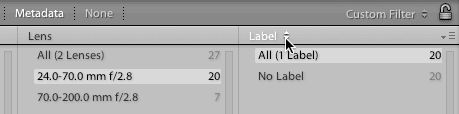
    screenshot aspect ratio

  7. Under Aspect Ratio, select Portrait. Aspect ratio filtering becomes crucial when preparing images for specific output formats or social media requirements.

  8. Mouse over the Aspect Ratio section title, then click on the menu panel menu and select Add Column. This customization allows you to build multi-layered search criteria tailored to your specific workflow needs.

  9. Click on the new section title, None, and select ISO Speed. ISO filtering helps identify low-light performance patterns and noise management needs across your work.

  10. Under the ISO Speed section, select ISO 200. This technical filtering demonstrates how you can locate images with specific exposure characteristics for quality control or technical analysis.

  11. In the Library Filter panel, click on the None tab. Always clear your filters when moving to new tasks to avoid confusion in subsequent exercises.

    We will continue to work with managing these photos in the next exercise, building upon these organizational foundations with advanced collection and export techniques.

Metadata Filter Categories

Camera Model

Filter by specific camera body used. Useful for comparing image quality across different equipment.

Lens Information

Sort by focal length and aperture specs. Essential for analyzing lens performance and shooting patterns.

Technical Settings

Group by ISO speed and aspect ratio. Critical for technical analysis and composition studies.

Hierarchical Filtering Power

Lightroom's metadata hierarchy shows photo counts at each level, enabling precise filtering from broad categories to specific technical parameters for efficient photo location.

Key Takeaways

1The Painter Tool enables rapid application of keywords, colored labels, and star ratings across multiple photos simultaneously
2Keywords should be descriptive and consistent to maximize searchability and organization effectiveness in large photo catalogs
3Colored labels provide visual organization cues and can be filtered to show specific photo categories instantly
4Star ratings applied via Painter Tool allow for quick quality assessment and batch processing of similar photos
5Library Filter Attribute panel works seamlessly with painted attributes to create powerful photo selection workflows
6Metadata filtering by camera, lens, and technical settings enables precise photo location based on equipment and shooting parameters
7Hierarchical filtering shows photo counts at each level, helping photographers understand their shooting patterns and collection composition
8Combining painted attributes with metadata filters creates sophisticated photo management systems for professional workflows

RELATED ARTICLES