April 1, 2026Dan Rodney/5 min read

Creating Develop Presets

Master Lightroom Develop Presets for Professional Workflows

Lightroom Develop Presets Benefits

Time Efficiency

Apply consistent adjustments across multiple images instantly. Save time by reusing common settings for similar photo types.

Workflow Consistency

Maintain a uniform editing style across your entire photo collection. Perfect for architectural or commercial photography.

Import Automation

Apply presets automatically during photo import. Streamline your initial processing workflow for maximum productivity.

Topics Covered in This Lightroom Tutorial:

Creating a Develop Preset, Saving & Applying a Develop Preset

Exercise Preview

lightroom preview3H

Exercise Overview

Every professional photographer knows the frustration of applying the same develop settings repeatedly across similar images. Develop presets eliminate this redundancy by allowing you to save and instantly apply complex adjustment combinations with a single click. This workflow optimization is particularly valuable for photographers who shoot consistent image types—architectural photographers routinely apply clarity, vibrance, and exposure adjustments to enhance structural details and building materials, while portrait photographers might standardize skin tone and lighting corrections. By mastering preset creation and application, you'll dramatically reduce post-processing time while maintaining consistent visual standards across your portfolio. Whether you're processing hundreds of wedding photos or preparing architectural imagery for client presentations, presets serve as your foundation for efficient, professional-grade image development.

Preset Use Cases

Presets are most effective for general adjustments that apply to specific photo genres. Architectural photographers commonly use clarity, vibrance, and exposure adjustments as their baseline settings.

Common Preset Applications

Architectural Photography

Enhanced clarity and vibrance bring out structural details and make buildings more visually compelling.

Portrait Photography

Skin tone adjustments and softening effects create consistent portrait processing workflows.

Creating a Develop Preset

  1. If you have not imported the photos that were imported in Exercise 2E:
    • Go into the Library module.
    • At the bottom left of the screen, click Import.
    • In the dialog box that appears, on the left under Source, navigate to Desktop > Class Files > Lightroom Class and select the Develop folder.
    • At the top, above the photos, make sure Add is selected (highlighted).
    • On the bottom right, click Import.
  2. Make sure you are in the Library module.

  3. In the Catalog panel on the left, click on All Photographs.

  4. Click the picture of the US Capitol (_CAS2423) to select it.

  5. Press the D key to switch to the Develop module.

  6. Click on the Capitol building's dome to zoom in on it and examine the architectural details more closely.

  7. In the Basic panel on the right, increase the Clarity to + 60. This adjustment enhances mid-tone contrast, making architectural elements appear more defined and textured.

  8. Press the backslash key ( \ ) to see the image before the adjustment. Notice how the enhancement may appear overly aggressive for professional standards.

  9. Press the backslash key ( \ ) again to return to the adjusted view.

  10. In the Basic panel, reduce the Clarity to + 55. This more conservative approach maintains architectural detail while preserving natural aesthetics.

  11. Click on the Capitol photo to zoom out and evaluate the overall compositional impact.

  12. Press the backslash key ( \ ) to compare the before state.

  13. Press the backslash key ( \ ) again to return to the adjusted image.

  14. In the Basic panel, make the additional adjustments below to create a balanced architectural treatment:

    Vibrance: Increase to + 25
    Contrast: Increase to + 10

Now that you've fine-tuned these settings to enhance architectural photography, it's time to save this combination as a reusable preset for future projects.

Setting Up Your Workspace

1

Import Exercise Files

Navigate to Desktop > Class Files > Lightroom Class and select the Develop folder. Ensure Add is selected before importing.

2

Select Base Image

Choose the US Capitol image (_CAS2423) from All Photographs in the Catalog panel for creating your preset.

3

Switch to Develop Module

Press the D key to enter Develop module where you can make precise adjustments to your selected image.

Architecture Preset Settings

Clarity
55
Vibrance
25
Contrast
10
Fine-Tuning Adjustments

Use the backslash key to toggle between before and after views. This helps you evaluate whether adjustments enhance the image without overdoing the effect.

Saving & Applying a Develop Preset

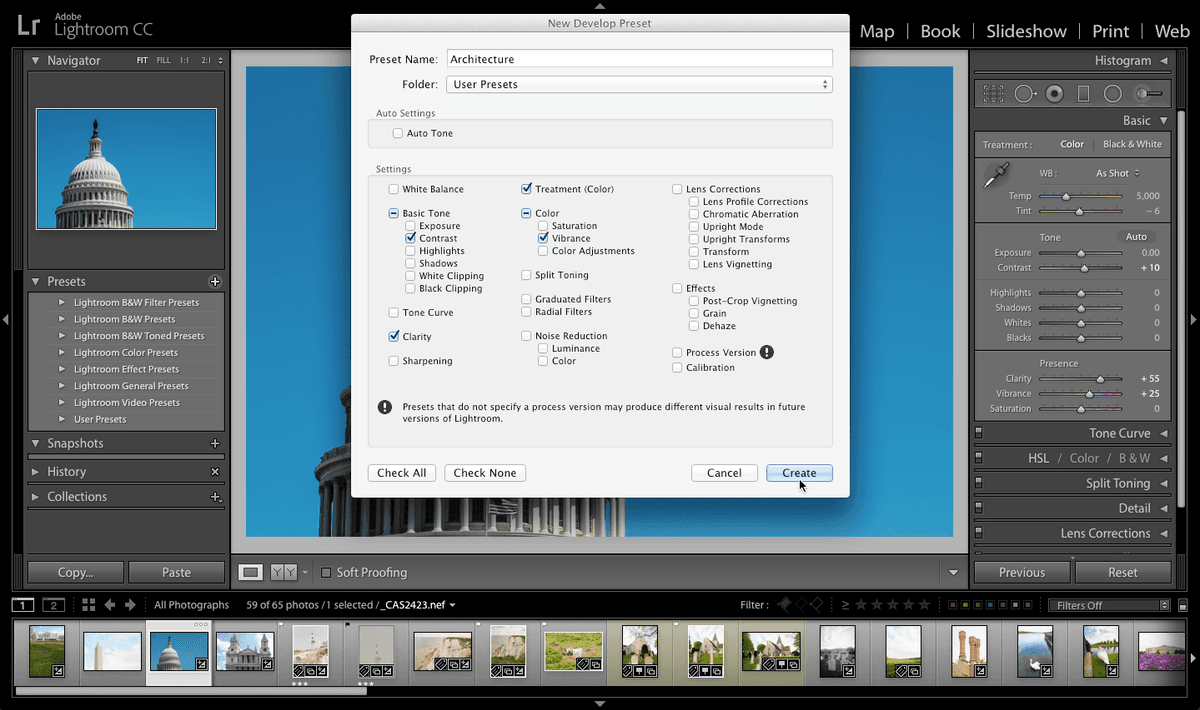
  1. In the Presets panel on the left, click the Create New Preset button create new preset.

  2. In the New Develop Preset window:
    • In the Preset Name field, type Architecture. Choose descriptive names that reflect the preset's intended use for easier organization as your preset library grows.
    • At the bottom, click the Check None button to ensure you're only saving the specific adjustments you want.
    • Under Basic Tone, check Contrast.
    • Check Clarity.
    • Under Color, check Vibrance.
    • Click the Create button to finalize your preset.
  3. In the Presets panel, expand the User Presets folder to confirm that your new Architecture preset has been successfully added to your preset library.

  4. Press G to return to Grid View where you can efficiently navigate between images.

  5. Double–click the Washington Monument (_CAS2135) to view it in Loupe View.

  6. In the Quick Develop panel on the right, from the Saved Preset menu, choose User Presets > Architecture.

    Watch as your custom preset instantly transforms the Washington Monument photo, applying the exact same professional-grade adjustments you crafted for the Capitol building.

  7. In the Filmstrip panel below the photos, locate the photo of the NYC 9/11 Memorial (_CAS4132) and click it to select it.

    NOTE: If the Filmstrip isn't visible, navigate to Window > Panels > Show Filmstrip to enable this essential workflow tool.

  8. In the Quick Develop panel on the right, from the Saved Preset menu, choose User Presets > Architecture. Notice how the preset enhances the memorial's architectural elements while maintaining appropriate reverence for the subject matter.

  9. In the Filmstrip panel below the photos, find the photo of the church façade (20111008_swny_030) and click it to select it.

  10. In the Quick Develop panel on the right, from the Saved Preset menu, choose User Presets > Architecture. The preset's versatility becomes evident as it enhances this religious architecture with the same professional polish.

    NOTE: Your User Presets integrate seamlessly into Lightroom's import workflow. In the Apply During Import panel on the right, access the Develop Settings menu to automatically apply presets to images as they enter your catalog—a powerful time-saver for high-volume shoots. This import-time application ensures consistency from the moment images enter your workflow, eliminating the need for individual preset application during initial processing.

Creating Your Custom Preset

1

Open New Preset Dialog

Click the Create New Preset button in the Presets panel to open the preset creation window.

2

Configure Preset Settings

Name your preset 'Architecture' and click Check None. Then selectively check Contrast, Clarity, and Vibrance options.

3

Save and Organize

Click Create to save your preset. It will appear in the User Presets folder for easy access.

Preset Application Workflow

0/4
Import Integration

User Presets automatically appear in the Apply During Import panel. Use the Develop Settings menu to apply presets as photos are imported into your Library for immediate processing.

Key Takeaways

1Develop presets save time by applying consistent adjustments to similar image types across your photo library
2Create presets using general settings like clarity, vibrance, and contrast that work well for specific photography genres
3The preset creation process involves making adjustments, using Create New Preset, and selectively choosing which settings to include
4Use the backslash key to toggle before and after views when fine-tuning preset adjustments for optimal results
5Apply presets through Quick Develop panel in Library module or automatically during photo import process
6Test presets on multiple similar images to ensure consistent and effective results across your intended photo types
7User Presets folder organizes custom presets for easy access and application in both Library and Develop modules
8Presets work best for baseline adjustments rather than specific corrections that vary significantly between individual images

RELATED ARTICLES