Converting Part of an Image to B&W Using Masks
Lightroom vs Photoshop
Lightroom for Volume
Process hundreds of photos quickly with consistent edits.
Photoshop for Pixel-Level
Composites, retouching, and detailed corrections.
Round-Trip Workflow
Right-click → Edit In Photoshop, returns as a copy in Lightroom.
Non-Destructive
Both apps preserve originals — edits stored separately.
Noble Desktop's Graphic Design Certificate covers Photoshop alongside the broader Adobe toolkit that complements Lightroom in any photography workflow.
Enhance your Lightroom skills as this detailed tutorial guides you through the process of using the Adjustment Brush tool to make selective portions of an image black and white, offering step-by-step instructions and visuals for clarity.
Exercise Preview
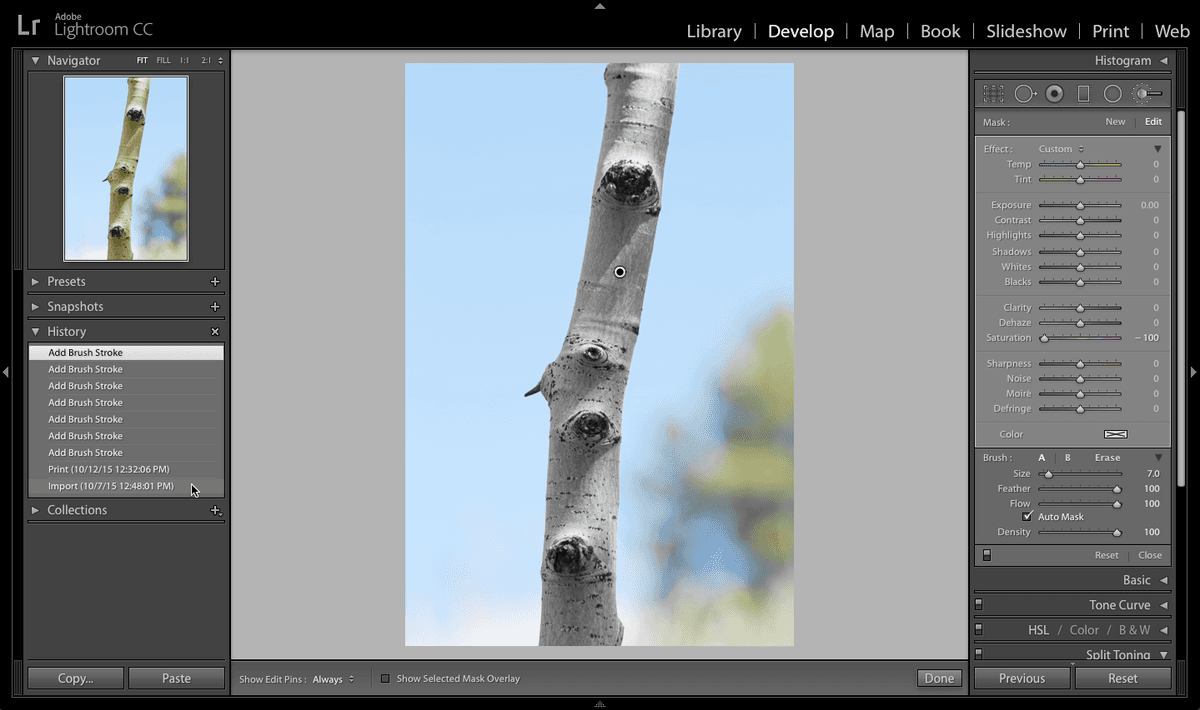
Making the Tree Black & White
Make sure you’re in the Library module.
Expand the Catalog panel, located on the left, if it is not already open.
Click on All Photographs.
Click on the photo of the tree branch (20110831_YourName_039). (If you don’t see this photo, complete Exercise 1A: The Library Module to import it.)
Press D to enter the Develop module.
Click the Adjustment Brush tool
 on the right side.
In the tool options that are revealed below the Adjustment Brush tool (you may have to scroll up in the panel), double–click on the word Effect to reset all the sliders to zero.
We are going to make the tree branch black & white and leave the rest of the image in color by brushing negative saturation on the tree branch. Move the Saturation slider all the way to the left (− 100).
If the Brush panel (under the Effect panel) isn’t already open, expand it.
Make sure that Auto Mask is checked. This will automatically create a mask when we paint that will make it easier to keep the effect contained to the part of the photo we want.
Use the following keystrokes to resize the Adjustment Brush by making it smaller or bigger so it is an appropriate size for painting over the tree trunk:
Left bracket ( [):Makes the brush smaller Right bracket ( ]):Makes the brush bigger Brush the tree trunk to desaturate it, making sure not to take the + sign outside the edge of the trunk or the black & white will bleed over into the sky. Keeping the + sign inside the edge of the trunk keeps us from desaturating the background because we checked on Auto Mask. Don’t worry if you accidentally desaturate some of the background, we will perfect it shortly.
Press O to show the mask. The area you brushed should appear red.
If you missed any spots on the tree branch, paint over them now.
- If you accidentally brushed over some of the background, use the steps below to finesse the mask:
- Go to the Adjustment Brush options module on the right.
- In the Brush section, click the word Erase.
- Paint over the background sections to Erase any of the black and white effect they may have.
If while correcting the background, you inadvertently erased the black and white effect from the tree trunk:
- Go to the Adjustment Brush module at right and select Brush A.
- Brush the mask back on to the tree.
- Another way to switch to the tool’s erase function is to hold down the Opt (Mac) or ALT (Windows) key and paint over the mask section that you want to erase.
- Remember that you can adjust the brush size using the left and right brackets on the keyboard.
- Use a smaller brush to get the edges.
Press O to hide the mask and see the photo. Sweet!
Making the Background Black & White
Another stylish color adjustment is to keep the tree in color and make the background of the image black & white by brushing the background.
In the History panel on the left, select the original photo. (It should be the last entry at the bottom that starts with Import.)
Click the Adjustment Brush tool
on the right side, if it isn’t already selected.The Saturation slider should still be all the way to the left with the number in the box to the right reading − 100. If it isn’t, move the slider all the way to the left now.
Press the right bracket (
]) to make the Adjustment Brush tool bigger since the areas to brush are larger.Press O to show the mask.
Brush over the background and remember that as long as the plus + sign doesn’t go over the edge of the tree, because we have Auto Mask checked, the brush should just find the edge of the tree.
- Finesse the mask using the pointers below:
- If you have mask sections to erase, hold down Opt (Mac) or ALT (Windows) and paint over the mask section that you want to erase.
- For detailed work, you may want to select a smaller brush and/or enlarge the picture.
Press O to hide the mask and see that the tree is in color and the rest of the picture is black & white.
At the bottom of Adjustment Brush options, to the left of Reset | Close, click the Switch icon
 to flip between before and after.
Click the Done button at the bottom of the window.
Click the Before & After icon
 to see the before and after next to each other. Awesome results!