April 1, 2026Dan Rodney/6 min read

Creating a Book: Free Lightroom Tutorial

Master Lightroom Book Module for Professional Photo Albums

Lightroom Book Module Benefits

Integrated Publishing

Direct connection to Blurb service for seamless book creation and ordering. No need for external design software.

Professional Layouts

Built-in templates and layout options for creating publication-ready photo books with proper margins and spacing.

PDF Export

Export complete books as PDF files for review, approval, or printing through alternative services.

Topics Covered in This Lightroom Tutorial:

The Book Module, Editing Page Layout, Deleting Pages, Exporting a Book As a PDF

Tutorial Learning Path

1

Book Module Setup

Configure Blurb settings, size options, and cover type for your photo book project

2

Layout Design

Customize page layouts, adjust photo positioning, and add text elements to enhance your book

3

Page Management

Remove unwanted pages and reorganize photos for better visual flow and storytelling

4

Export Process

Generate PDF files for preview and prepare books for professional printing services

Exercise Preview

lightroom previewB5

Exercise Overview

Professional photographers often overlook Lightroom's Book module, yet it remains one of the most efficient tools for creating polished photo books and client presentations. This comprehensive exercise walks you through the complete workflow—from initial layout design to final PDF export. You'll master Lightroom's integrated Blurb publishing service, which streamlines the entire process from digital layout to professionally printed books that you can deliver directly to clients or use for portfolio presentations.

Prerequisites Required

This tutorial requires completion of exercises 1A-1C to import Wyoming photos and create the necessary collections. Ensure your Library module contains the USA collection set with Wyoming photos before proceeding.

Creating a Book

Before diving into design, we'll establish the foundation of your book project. The key to successful book creation lies in proper preparation—ensuring your image collection is curated and your workspace is optimized for efficient layout work.

  1. Make sure you're in the Library module.

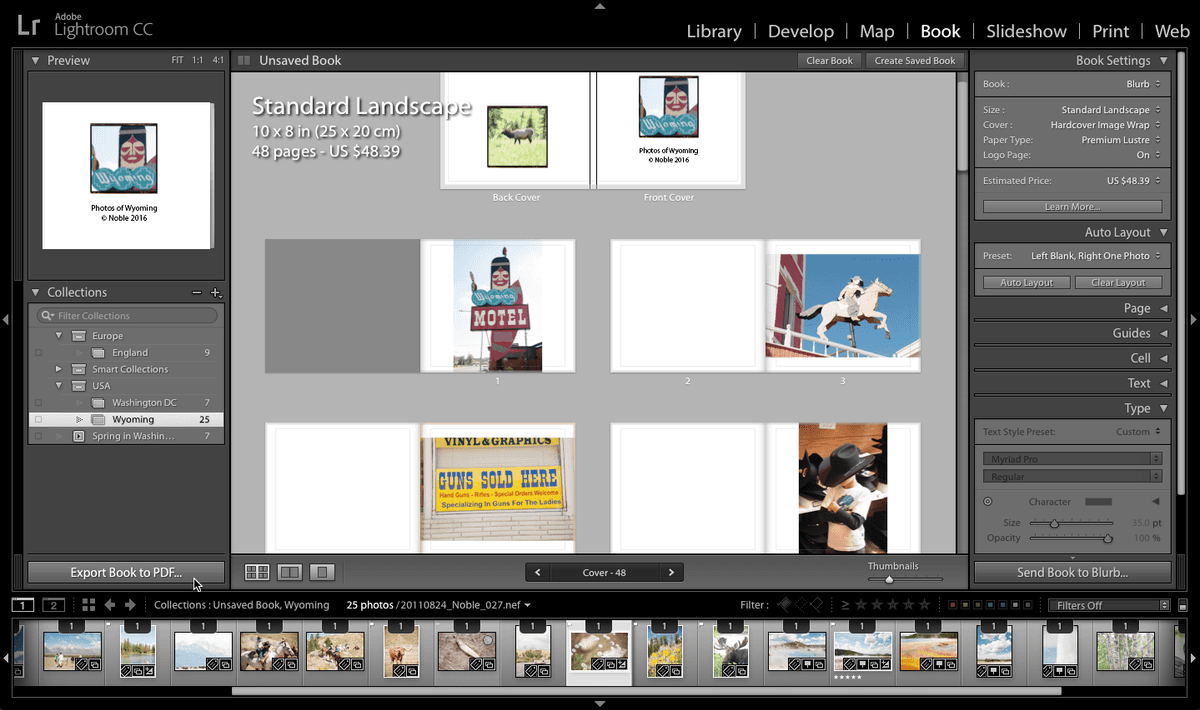
  2. In the Collections panel on the left, expand the USA collection set and click Wyoming. (If you don't see these collections, complete exercises 1A–1C to import these photos and create these collections.)

  3. At the top, click on the Book tab to enter the Book module.

  4. In the Book Settings panel on the right-hand side, configure your book specifications:

    Book: Blurb
    Size: Standard Landscape
    Cover: Hardcover Image Wrap

    These settings establish a professional presentation format that works well for portfolio books and client deliverables. The landscape orientation maximizes visual impact for photography, while the hardcover provides durability and premium feel.

  5. In the Toolbar at the bottom center of the book layout preview, drag the Thumbnails slider all the way to the left. If you don't see the slider, make sure you're in Multi-Page View multi page view.

    NOTE: If the toolbar isn't visible, navigate to View > Show Toolbar.

  6. In the Auto Layout panel on the right, click the Auto Layout button to generate an initial page structure.

  7. Verify your layout matches the configuration below. If you see blank pages or an unexpected structure, follow the troubleshooting steps:

    screenshot book error

    If your layout doesn't match this structure, reset using these steps:

    • At the top, click the Clear Book button.
    • Return to the Library module.
    • In the Catalog panel, select Wyoming.
    • Click the Book tab again to regenerate the layout.
  8. At the top of the book layout preview, double-click the Front Cover photo (the Wyoming Motel image).

  9. At the bottom right corner of the preview, click the down arrow down arrow to access layout modification options.

  10. From the Modify Cover options, select the layout shown below (approximately halfway down the list). This template provides space for both your hero image and essential publication information.

    screenshot front page layout

Book Setup Checklist

0/4
Troubleshooting Layout Issues

If your auto layout doesn't match the expected setup with blank or extra pages, use the Clear Book button and restart from the Library module. This resets the book creation process and resolves common layout inconsistencies.

Page Layout

Now we'll refine the visual presentation, focusing on composition, typography, and the overall aesthetic that will define your book's professional appearance. These details separate amateur layouts from polished, publication-ready designs.

  1. Click on the Front photo (the Wyoming Motel image).

  2. Set the Zoom level to 12% to create a more focused composition.

  3. Drag the photo down to reposition it so only the word "Wyoming" and the head above it remain visible. This technique creates visual hierarchy and draws attention to the title element.

  4. Click into the text box below the photo and enter your copyright information:

    Photos of Wyoming © YourName Year

    For the copyright symbol, use Opt−G (Mac) or ALT−0169 (Windows). Including proper attribution is essential for professional work and establishes your ownership of the imagery.

  5. Select all text using Cmd–A (Mac) or CTRL–A (Windows).

  6. In the Type panel on the right (scroll down if necessary), set the Size to 35 pt for optimal readability and visual balance.

  7. Click the Align center icon align center icon to center the copyright text.

  8. Switch to Multi-Page View multi page view at the bottom left to see your overall book structure.

  9. Double-click on Page 11 (the tourist family photo marked with number 11) to enter Single Page View for detailed editing.

  10. To improve visual breathing room around the photograph, click the down arrow down arrow at the bottom right of the preview.

  11. From the Modify Page options, keep 1 Photo selected and choose the first layout beneath it—the one with generous white space around the photo placeholder. This margin creates a more sophisticated, gallery-like presentation that allows your images to breathe.

Cover Page Customization

1

Select Cover Layout

Double-click the Front Cover photo and choose appropriate layout from Modify Cover options

2

Adjust Photo Positioning

Set zoom to 12% and drag photo to show only desired elements like 'Wyoming' text and relevant imagery

3

Add Copyright Text

Insert copyright notice using special characters and format with 35pt centered text for professional appearance

Copyright Symbol Shortcuts

Use Opt-G on Mac or ALT-0169 on Windows to insert the copyright symbol. Proper attribution protects your work and maintains professional standards in published books.

Deleting Pages

Strategic page management enhances the visual narrative flow of your book. By creating intentional spreads and removing unnecessary pages, you'll craft a more cohesive viewing experience that guides readers through your photographic story.

  1. Return to Multi-Page View multi page view to see your complete layout.

  2. Drag the yellow wildflowers photo from Page 29 to Page 28 to begin creating a cohesive spread.

  3. Move the light purple wildflowers photo from Page 27 to Page 29. This grouping creates thematic continuity across the spread.

  4. Select Page 26, then hold Shift and click Page 27 to select both pages simultaneously.

  5. CTRL–Click (Mac) or Right–click (Windows) on the selected pages and choose Remove Pages to eliminate the now-empty spreads and tighten your book's pacing.

Page Reorganization Process

1

Reposition Photos

Drag yellow wildflowers from Page 29 to Page 28, and purple wildflowers from Page 27 to Page 29 for better grouping

2

Select Multiple Pages

Click Page 26, then Shift-click Page 27 to select both pages for removal

3

Remove Unwanted Pages

Right-click selected pages and choose Remove Pages to create cleaner book flow

Exporting As PDF

The final step transforms your digital layout into a tangible deliverable. Understanding both PDF export and Blurb integration gives you maximum flexibility—whether you need immediate client proofs, print-ready files for alternative vendors, or seamless access to professional printing services.

  1. Click the Export Book to PDF button in the bottom left corner. This creates high-resolution files perfect for client review or alternative printing services, while the Send Book to Blurb button (bottom right) provides direct access to integrated printing and fulfillment.

  2. Navigate to the Desktop for easy file access.

  3. Name the file Wyoming Book and click Save. Lightroom will begin the export process, with progress displayed next to the Lightroom logo in the top left corner.

  4. Once Lightroom completes the rendering process, minimize the application and navigate to your Desktop.

  5. You'll find two separate PDF files:
    • Wyoming Book Cover
    • Wyoming Book

    This separation reflects professional printing requirements—covers are typically printed on heavier stock with different finishing than interior pages, allowing for proper production workflow regardless of your chosen printing partner.

  6. Double-click Wyoming Book.pdf to open the main document.

  7. The book should launch in Adobe Acrobat. If it opens in an alternative PDF viewer, launch Acrobat directly and use File > Open to access the proper viewing tools.

  8. Navigate to View > Page Display > Two Page View to simulate the actual reading experience with facing pages.

  9. Enable View > Page Display > Show Cover Page in Two Page View (if not already activated). This displays the first page independently, matching how the physical book will appear when opened.

  10. Use the Up Arrow and Down Arrow keys to navigate through your completed book and evaluate the overall flow and visual impact.

    You've now mastered the complete Lightroom book creation workflow—from initial concept through final export. This process provides a professional foundation for client deliverables, portfolio presentations, and personal projects that showcase your photography with sophisticated design and seamless production integration.

Export Options Comparison

FeatureSend to BlurbExport to PDF
PurposeDirect printing servicePreview and review
OutputPrinted book orderDesktop PDF files
CostRequires paymentFree export
FlexibilityBlurb service onlyAny printing service
Recommended: Export to PDF first for review, then send to Blurb for printing after approval
Dual PDF Export System

Lightroom exports two separate PDF files: the book content and cover. The cover uses different printing stock and specifications, requiring separate file handling for professional printing services.

Key Takeaways

1Lightroom's Book module provides integrated photo book creation with direct Blurb publishing service connectivity for professional results
2Proper setup requires completing prerequisite exercises to import photos and create collections before accessing the Book module workspace
3Auto Layout feature provides baseline page arrangements that can be extensively customized through layout modification and photo repositioning
4Cover page customization includes photo positioning, zoom adjustment, and copyright text formatting with professional typography settings
5Page management allows photo reorganization and unwanted page removal to improve visual flow and storytelling effectiveness
6PDF export generates two separate files for book content and cover to accommodate different printing stock requirements
7Multi-Page View and Single Page View modes offer different perspectives for efficient editing and detailed customization work
8Export to PDF enables preview and review before committing to expensive printing services or Blurb publishing platform

RELATED ARTICLES