April 1, 2026Dan Rodney/8 min read

Creating a Basic Web Gallery

Master Lightroom Web Gallery Creation and Customization

Core Skills You'll Master

Web Module Navigation

Learn to navigate Lightroom's Web module interface and understand template browser functionality for professional gallery creation.

Custom Branding

Create professional watermarks and identity plates to establish your brand presence across all gallery images.

Template Management

Save and organize custom gallery templates for efficient workflow and consistent brand presentation.

Topics Covered in This Lightroom Tutorial:

The Web Module, Changing the Web Gallery's Appearance, Creating a Watermark, Saving a Template As a Preset

Exercise Preview

lightroom preview4G

Exercise Overview

In this comprehensive exercise, you'll master the essential skills for creating professional web galleries in Adobe Lightroom Classic. You'll establish a new collection for your photographs, build a polished web gallery from scratch, create a custom watermark to protect your intellectual property, and develop a reusable identity plate for consistent branding. By the end of this tutorial, you'll have a complete web gallery optimized for online publication—a crucial skill for photographers building their digital presence in 2026's competitive market.

Complete Workflow Overview

1

Photo Import and Organization

Import new photos into Lightroom Library module and organize them into collections with proper keywords for easy retrieval

2

Gallery Creation and Customization

Create web gallery using templates, customize appearance including colors, spacing, and layout elements

3

Brand Implementation

Add watermarks, set gallery information, and establish professional identity plate for consistent branding

4

Template Preservation

Save custom settings as reusable template for future projects and maintain workflow efficiency

Importing New Photos

Before diving into web gallery creation, we need to import and organize our source material. This foundational step ensures your workflow remains efficient and your collections stay properly categorized for future projects.

  1. Ensure you're working in the Library module, which serves as your primary hub for photo management and organization.

  2. At the bottom of the left panel, click the Import button to launch the import dialog.

  3. On the left side, under Source, navigate to Desktop > Class Files > Lightroom Class and select the Publish folder. This folder contains the curated images we'll use for our web gallery demonstration.

  4. If the photos don't all display checkmarks to their left, click the first photo and Shift–click the last photo to select the entire batch for import.

  5. On the right-hand side, in the text box under Keywords, type: Washington DC. Adding keywords during import streamlines your cataloging process and improves searchability later.

  6. At the top, make sure Add is selected (highlighted) rather than "Copy" or "Move" to maintain your original file structure.

  7. On the bottom right, click the Import button to complete the process.

Photo Import Checklist

0/4

Creating a Web Gallery

Now that your images are imported, we'll organize them into a dedicated collection and prepare them for web publication. Proper organization at this stage saves significant time when managing multiple client projects or personal portfolios.

  1. Press Cmd–A (Mac) or CTRL–A (Windows) to select all the photos you just imported.

  2. Expand the Collections panel on the left if it isn't already expanded. Collections are essential for maintaining organized workflows, especially when handling multiple projects simultaneously.

  3. Click the New Collection icon add new icon and select Create Collection.

  4. In the Create Collection dialog box that appears:
    • Next to Name, type Washington DC.
    • Check on Inside a Collection Set and from the menu select USA. This hierarchical organization becomes invaluable as your portfolio grows.
    • Under Options, make sure only Include selected photos is checked to avoid importing unrelated images.
    • Click Create.
  5. Press Cmd–D (Mac) or CTRL–D (Windows) to deselect all images and prepare for manual arrangement.

  6. Drag the Lincoln Memorial photo (_CAS2230) so that it's the last photo in the grid. Strategic image sequencing creates a more compelling narrative flow in your web gallery.

  7. Drag the third photo (_CAS2190) into the second position to optimize the visual impact of your opening sequence.

  8. At the top-right corner of the screen, click on the Web tab to enter the Web module, where you'll transform your collection into a professional web gallery.

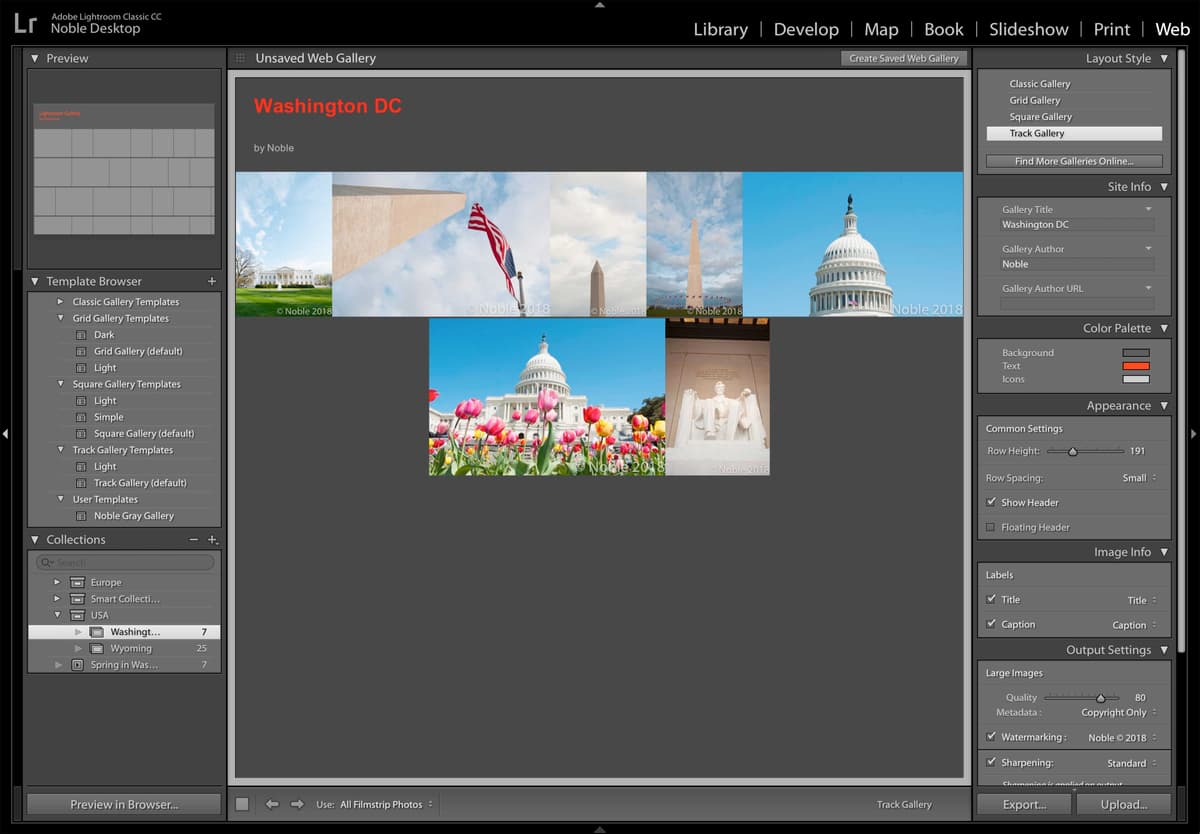
  9. Lightroom will initialize the web gallery interface. Notice on the left side, under Template Browser, you'll find an extensive selection of professionally designed preset templates—each optimized for different presentation styles and client needs.

  10. From the Template Browser list, expand Track Gallery Templates and select Track gallery (default) if it isn't already selected. This template offers clean, modern aesthetics that work well across devices and screen sizes.

  11. Expand the Site Info panel on the right if it isn't already expanded. Proper site information is crucial for SEO and professional presentation. Then set:

    Gallery Title: Washington DC
    Gallery Author: YourName
    Gallery Author URL: YourWebsiteURL (or temporarily use https://www.Noble Desktop.com if you don't have a personal website)
Collection Organization Best Practice

Creating collections within collection sets like 'USA' provides hierarchical organization that scales well as your photo library grows. This structure becomes invaluable when managing hundreds of galleries.

Gallery Setup Process

1

Select and Organize Photos

Select all imported photos and arrange them in desired order by dragging thumbnails in grid view

2

Create Named Collection

Create collection with descriptive name and place within appropriate collection set for organization

3

Enter Web Module

Switch to Web tab where Lightroom initializes gallery creation interface with template options

4

Configure Site Information

Set gallery title, author name, and author URL to establish professional presentation

Styling the Web Gallery's Appearance

Visual consistency and professional presentation separate amateur galleries from those that command attention and respect. The customization options available in Lightroom's Web module allow you to create galleries that align with your brand identity while maintaining optimal user experience across all devices.

  1. Expand the Color Palette panel on the right if it's not already visible (you may need to scroll down to locate it).

  2. Next to Background, click on the color rectangle color rectangle to customize the gallery's background color. Background selection significantly impacts how your images are perceived and can enhance or detract from their visual impact.

  3. At the top, select the fifth gray from the left (the darkest option), and in the top-left corner click on the X to close the color dialog. Dark backgrounds often enhance the perception of image quality and create a more premium viewing experience.

  4. Next to Text, click on the color rectangle color rectangle to customize typography colors.

  5. Click at the top of the Hex color column to access the complete color spectrum and fine-tune your selection.

  6. Select any shade of red you prefer, then click on the X to close the dialog. Consider how your color choice reflects your brand personality—bold colors convey energy and creativity, while muted tones suggest sophistication and restraint.

  7. On the right, expand the Appearance panel if it isn't already open.

  8. Note that you can adjust row height and spacing within the gallery to optimize viewing experience across different devices. For this exercise, we'll maintain the default settings, which are optimized for broad compatibility.

Visual Customization Options

Background Colors

Choose from preset gray options or custom colors to establish mood and brand consistency throughout the gallery.

Text Styling

Customize text colors using full spectrum selection or hex values for precise brand color matching.

Layout Controls

Adjust row height and spacing in Appearance panel to control visual density and viewing experience.

Watermarks

In today's digital landscape, protecting your intellectual property is more critical than ever. Watermarks serve as both copyright protection and subtle marketing tools, ensuring your work remains attributed to you even when shared across social media and other platforms. A well-designed watermark protects without compromising the aesthetic impact of your photography.

  1. Expand the Output Settings panel on the right if not already visible.

  2. From the menu next to Watermarking, select Edit Watermarks to access the comprehensive watermark creation tools.

  3. In the dialog box that appears, type in the text box: © YourName 2026.

    To type the copyright © symbol, use Opt−G (Mac) or ALT−0169 (Windows). Including the current year in your copyright notice ensures legal clarity and demonstrates that your work is current.

  4. In the Watermark Effects section (scroll down if necessary), configure the following settings for optimal protection without overwhelming your images:

    Opacity: 50
    Size: 20
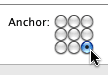
    Anchor: Set to the bottom-right circle as shown below:
    screenshot anchor bottom right

  5. Click Save to preserve your watermark configuration.

  6. In the New Preset dialog box that appears, type: © YourName 2026.

    Remember: the © symbol is Opt−G (Mac) or ALT−0169 (Windows). Saving this as a preset allows you to apply consistent watermarking across all future projects.

  7. Click Create to finalize your watermark preset.

  8. At the bottom-left corner of the screen, click Preview in Browser to see your gallery as your audience will experience it.

  9. After Lightroom completes the preview generation process, it will launch a new browser window displaying your professional web gallery exactly as it will appear online.

  10. In the browser window, click on the first photo to enter the detailed viewing mode.

  11. Click the right arrow several times to navigate through your gallery and observe how the watermark appears consistently across all images.

  12. Notice that your watermark appears on every photo with the opacity and positioning you specified, providing protection while maintaining visual appeal.

  13. Click the X in the top-right corner to return to the gallery's main page with thumbnail navigation.

  14. Close the browser window and return to Lightroom to complete the final step of this workflow.

Copyright Symbol Shortcuts

Use Option-G on Mac or ALT-0169 on Windows to insert the copyright symbol. This professional touch is essential for protecting your work in web galleries.

Watermark Creation Process

1

Access Watermark Editor

Navigate to Output Settings panel and select Edit Watermarks to open customization interface

2

Configure Text and Positioning

Enter copyright text with proper symbol and set anchor position to bottom-right for professional placement

3

Adjust Visual Properties

Set opacity to 50% and size to 20 for visibility without overwhelming the image content

4

Save as Reusable Preset

Create named preset for consistent watermark application across future gallery projects

Saving a Template

Creating reusable templates is essential for maintaining consistency across multiple projects and improving workflow efficiency. Once you've perfected your gallery design, saving it as a template allows you to apply the same professional styling to future collections with just a few clicks—a time-saving strategy that's invaluable for busy photography professionals.

  1. On the left, next to Template Browser, click the Create New Preset icon create new preset.

  2. In the New Template dialog box that appears:
    • Set Template Name to YourName Gray Gallery to create a descriptive, easily identifiable preset name.
    • Click Create to save your custom template.

    Your new template is now saved under User Templates at the bottom of the Template Browser panel, ready for use in future projects.

    Congratulations! You've successfully created a professional web gallery from conception to completion. This workflow—from import and organization through customization and template creation—forms the foundation of efficient, professional gallery production that will serve you well throughout your photography career. The skills you've mastered here will streamline your client deliverables and enhance your online portfolio presence in today's competitive digital marketplace.

Template Efficiency Benefits

Saving custom templates in User Templates section allows instant application of your brand styling, color schemes, and layout preferences to future galleries, dramatically reducing setup time.

Workflow Completion Benefits

Reusable Templates

Custom templates preserve all styling choices and can be applied instantly to new photo collections for consistent branding.

Professional Presentation

Watermarked galleries with custom styling create professional impression for client presentations and portfolio display.

Streamlined Publishing

Browser preview functionality allows quality checking before final publication to ensure perfect presentation.

Key Takeaways

1Organize photos into named collections within collection sets for scalable library management and easy retrieval
2Use keyboard shortcuts like Cmd-A/Ctrl-A for selection and Cmd-D/Ctrl-D for deselection to speed up workflow
3Template Browser offers various preset gallery styles, with Track Gallery Templates providing professional starting points
4Color Palette panel allows precise brand color matching using hex values or spectrum selection for backgrounds and text
5Watermark creation with 50% opacity and bottom-right anchoring provides copyright protection without overwhelming images
6Browser preview functionality enables quality checking before final publication to ensure professional presentation
7Custom template saving in User Templates section enables instant application of brand styling to future projects
8Site information including gallery title, author name, and URL establishes professional identity and credibility

RELATED ARTICLES