April 1, 2026Dan Rodney/6 min read

Organizing Folders: Free Lightroom Tutorial

Master Adobe Lightroom folder organization and file management

Essential Lightroom Organization Skills

Subfolder Creation

Learn to create organized subfolder structures within your Lightroom catalog. Master the technique of moving selected photos into newly created subfolders for better project organization.

Lost Image Recovery

Discover how to identify and reconnect missing images that have been moved or lost. Understand the visual indicators Lightroom uses to signal file location issues.

File System Synchronization

Understand how Lightroom folder changes reflect in your computer's file system. Learn the connection between virtual organization and physical file structure.

Topics Covered in This Lightroom Tutorial:

Creating Subfolders, Locating Lost Images

Prerequisites Required

This tutorial builds on previous exercises 1A-1C. Make sure you have completed those foundational lessons before proceeding with subfolder creation and file management techniques.

Exercise Preview

lightroom preview1D

Exercise Overview

In this comprehensive exercise, you'll master two essential file management skills that separate professional photographers from casual users: creating organized subfolder hierarchies within your Lightroom catalog and efficiently locating images that have been moved or disconnected from your catalog. These fundamental organizational techniques will save you countless hours and prevent the frustration of losing track of your valuable image assets as your photography business grows.

Tutorial Learning Path

1

Setup Verification

Confirm completion of prerequisite exercises and ensure you're working in the Library module with the Folders panel accessible.

2

Subfolder Creation

Learn to create organized subfolders by selecting image groups and using the Add Subfolder function in the Folders panel.

3

File System Integration

Explore how Lightroom changes are reflected in your computer's actual folder structure through Finder or Explorer.

4

Lost Image Recovery

Practice identifying missing files and using Lightroom's reconnection tools to restore broken file links.

Creating Subfolders

Proper folder organization is the backbone of an efficient Lightroom workflow. By creating logical subfolder structures, you'll be able to locate images quickly, maintain consistent naming conventions, and ensure your catalog remains scalable as your image library expands. Let's walk through the process of creating location-based subfolders that mirror real-world shooting scenarios.

  1. If you have not completed the previous exercises (1A–1C), do them before proceeding with this exercise. These foundational steps ensure your catalog is properly configured for the organizational techniques we'll be implementing.

  2. Make sure you're in the Library module, which serves as your command center for all organizational tasks.

  3. We'll use the Folders panel located in the left side panel to create our subfolders. This panel reflects your actual hard drive folder structure, making it essential for maintaining consistency between Lightroom and your operating system. Expand the Folders panel if it is not already open.

  4. In the Folders panel, select the Library folder. This will serve as our parent folder for the location-based organization system we're creating.

  5. Click on the first lighthouse image (20090503_YourName_001) to begin selecting images from your England shoot.

  6. Shift–click on the field image (20090503_YourName_009) to select the entire range of photos from this location. This technique allows you to select multiple consecutive images efficiently.

  7. In the Folders panel, click Create New Folder add new icon and choose Add Subfolder. This creates a new folder within your existing Library structure.

  8. Name the folder England. Using geographic location names is a time-tested organizational strategy that scales well for travel and location photographers.

  9. Make sure the Include selected photos box is checked. This crucial step moves your selected images into the new subfolder automatically.

  10. Click Create. Lightroom will now create both the folder structure in your catalog and the corresponding folder on your hard drive.

  11. Select the motel sign photo (20110820_YourName_010) to begin organizing your Wyoming collection.

  12. Shift–click on the last image of the elk (20110901_YourName_040) to select this entire geographic series.

  13. At the top right of the Folders panel, click the Create New Folder button add new icon and from the menu choose Add Subfolder.

  14. Name the folder Wyoming. This creates a parallel organizational structure that can be replicated for any location-based shoot.

  15. Make sure the Include selected photos box is still checked to automatically move the selected images.

  16. Click Create to finalize your second geographic subfolder.

  17. In the Folders panel, expand the Library folder. The folders you just created are now subfolders within the Library, creating a clean hierarchical structure that reflects your shooting locations.

  18. Click on the Wyoming folder to view only the images from that location. This filtering capability is one of the key benefits of proper folder organization.

  19. If all the photos are still selected, go to Edit > Select None to clear your selection and work with individual images.

  20. CTRL–click (Mac) or Right–click (Windows) on the thumbnail of the first image, the motel sign photo (20110820_YourName_010).

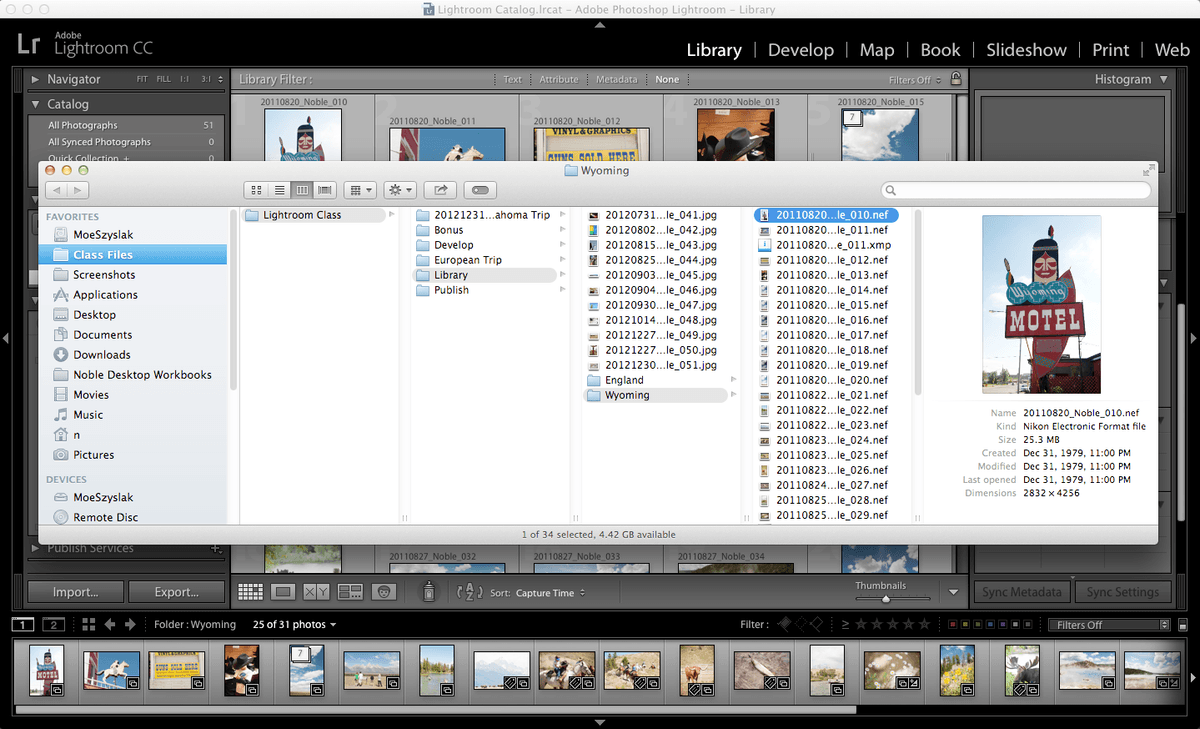
  21. Click on Show in Finder (Mac) or Show in Explorer (Windows). This reveals the actual file location on your hard drive.

  22. The image will open in a Finder (Mac) or Explorer (Windows) window, showing you the physical file structure that mirrors your Lightroom organization.

  23. Notice that the image is in a folder named Wyoming. This demonstrates how Lightroom maintains perfect synchronization between your catalog organization and your hard drive structure.

  24. Navigate one level up to the Library folder (Desktop > Class Files > Lightroom Class > Library) to see the broader organizational structure.

  25. Notice that the two subfolders you created in Lightroom were created in the Library folder on your hard drive. This bi-directional synchronization is what makes Lightroom such a powerful organizational tool for professional photographers managing large image libraries.

Subfolder Creation Workflow

0/6
Selection Efficiency

Use Shift-click to select ranges of photos efficiently. For the England folder, select from the first lighthouse image to field image. For Wyoming folder, select from motel sign photo to the last elk image.

Locating Lost Images

Even the most organized photographers occasionally encounter missing image files—whether due to accidental moves, drive reorganization, or collaborative workflows. Lightroom's reconnection tools are designed to handle these situations gracefully, allowing you to maintain catalog integrity even when files have been displaced. Understanding this process is crucial for maintaining a professional workflow that can handle real-world file management challenges.

  1. In the Finder (Mac) or Explorer (Windows) window, go into the Wyoming folder. Select the first file in the folder (20110820_YourName_10). We're intentionally creating a disconnected file scenario to demonstrate Lightroom's reconnection capabilities.

  2. Move the file out of the Wyoming folder and into the Library folder. This simulates what happens when files are accidentally moved or when folder structures are reorganized outside of Lightroom.

  3. Switch back to Lightroom to see how the application handles missing files.

  4. Find the thumbnail for the first Wyoming image, the motel photo.

    Notice it has a exclamation point (!) in its upper right corner. This visual indicator immediately alerts you that Lightroom cannot locate this image file, while preserving your metadata, editing history, and catalog information.

  5. Click on the exclamation point (!) to initiate Lightroom's file reconnection dialog. This opens the tools you need to reestablish the connection between your catalog and the missing file.

  6. Click Locate to begin the search process. Lightroom will help you navigate to the file's new location.

  7. Navigate to the Library folder (Desktop > Class Files > Lightroom Class > Library) where we moved the disconnected file.

  8. Double–click the picture of the motel sign 20110820_YourName_010 to reconnect it to your catalog.

  9. The file will reconnect successfully, but notice it disappeared from the current view. That's because we are currently viewing only the images in the Wyoming folder, and since we moved the file out of that folder, it's no longer displayed here. This behavior demonstrates Lightroom's logical folder filtering—you only see what belongs in the selected location. Let's relocate it to its proper organizational home.

  10. In the Folders panel, click on Library to view all images in the parent folder, including our recently reconnected file.

  11. Find the motel photo (20110820_YourName_010), which should now be visible in the main Library folder view.

  12. Click on the thumbnail and drag it into the Wyoming folder in the Folders panel. This drag-and-drop technique moves both the catalog reference and the actual file on your hard drive. (Make sure you are dragging it into the Wyoming folder and not a collection in the Collections panel—folder organization affects physical file location, while collections are virtual groupings.)

  13. If a Moving a File on Disk message appears, click Move. This confirmation ensures you understand that Lightroom is physically relocating the file on your hard drive, not just updating catalog references.

  14. In the Folders panel, click on the Wyoming folder and notice that the motel image is once again in this folder, with full metadata and editing capabilities restored. This seamless reconnection and reorganization workflow ensures that temporary file displacement never results in permanent data loss or organizational disruption.

Understanding Missing File Indicators

Exclamation Point Alert

When Lightroom cannot locate an image file, it displays an exclamation point in the upper right corner of the thumbnail. This visual indicator immediately alerts you to file location issues.

Locate Function

Click the exclamation point to access the Locate function. This opens a dialog that allows you to navigate to the file's new location and reconnect it to the catalog.

File Recovery Process

1

Identify Missing File

Look for thumbnails with exclamation points indicating Lightroom cannot locate the image file on your hard drive.

2

Click Exclamation Point

Click the exclamation point symbol to open the file location dialog and begin the reconnection process.

3

Navigate to File Location

Use the Locate button to browse to where the file currently exists on your computer's file system.

4

Reconnect and Organize

Double-click the correct file to reconnect it, then drag it back to the appropriate folder in the Folders panel if needed.

File Movement Consequences

When you move a file out of its subfolder and reconnect it, the image may disappear from the current folder view because it's no longer in that location. Always drag reconnected files back to their proper subfolder location.

Folder Panel vs Collections Panel

When dragging images to reorganize them, make sure you're dragging into the correct folder in the Folders panel, not into a collection in the Collections panel. These serve different organizational purposes.

Key Takeaways

1Complete prerequisite exercises 1A-1C before attempting subfolder creation and file management tasks
2Use the Folders panel in Library module to create organized subfolder structures that reflect both in Lightroom and your computer's file system
3Select multiple images efficiently using Shift-click to choose ranges of consecutive photos for batch organization
4Create descriptive subfolder names and ensure the Include selected photos checkbox is checked when creating new subfolders
5Recognize missing file indicators - exclamation points in thumbnail corners signal that Lightroom cannot locate image files
6Use the Locate function by clicking exclamation points to reconnect missing files and restore broken catalog links
7Understand that Lightroom folder organization changes are reflected in your actual computer folder structure
8Drag images between folders in the Folders panel to reorganize them, being careful to distinguish between folders and collections

RELATED ARTICLES