April 1, 2026Dan Rodney/6 min read

Relinking Missing Files & Folders

Master File Management in Adobe Lightroom Classic

Common File Management Scenarios

Renamed Files

Files moved or renamed outside Lightroom lose their connection. Requires manual relinking to restore catalog integrity.

Missing Folders

Entire folders renamed or moved break organizational structure. Can be relinked while preserving metadata and edits.

Broken Catalog Links

External changes create disconnections between catalog and actual files. Warning indicators help identify issues.

Topics Covered in This Lightroom Tutorial:

Renaming Files, Locating Renamed Files, Finding Missing Folders

Exercise Preview

lightroom preview2C

Prerequisites Required

Complete exercises 1A through 2B before starting this tutorial. These foundational exercises establish the proper file structure and catalog organization needed for this lesson.

Exercise Overview

File management disasters happen to even the most organized photographers. Whether it's a client urgently requesting edited photos or a colleague accidentally moving files outside of Lightroom's catalog system, knowing how to quickly locate and reconnect missing assets is an essential professional skill. In this exercise, you'll master the techniques for finding photos that have been moved or renamed, and learn how to restore folder connections when they've been inadvertently modified outside of Lightroom. These skills will save you countless hours of panic and frustration in real-world scenarios.

Tutorial Learning Path

1

Create Missing File Scenario

Rename files outside Lightroom to simulate common file management problems

2

Identify Broken Links

Learn to recognize visual indicators for missing files and folders in the catalog

3

Relink Individual Files

Use Lightroom's locate function to reconnect renamed or moved files

4

Restore Missing Folders

Reestablish folder connections and maintain proper organizational structure

Renaming Files Outside Lightroom

First, we'll simulate a common workflow disruption by deliberately breaking the link between Lightroom's catalog and your image files. This controlled scenario will teach you the recovery process you'll need when facing actual file management crises.

  1. If you have not completed the previous exercises (1A–2B), finish them now before beginning this exercise. These foundational steps ensure your catalog structure matches the tutorial expectations.

  2. Make sure you're in the Library module, where all file management operations originate.

  3. We're going to intentionally unlink files by renaming them outside of Lightroom's oversight, then demonstrate how to locate and reconnect them using Lightroom's built-in recovery tools.

    On the left, in the Folders panel, select the England subfolder to focus on a specific set of images.

  4. CTRL–click (Mac) or Right–click (Windows) the first photo and choose Show in Finder (Mac) or Show in Explorer (Windows). This command reveals the actual file location on your system, separate from Lightroom's virtual organization.

    Mac only: In the Finder window, make sure Column view column view at the top of the window is selected for the clearest file navigation experience.

  5. Click once on 20090503_YourName_001.nef, wait a second, then click on it again to make the filename editable. This two-step process prevents accidental renaming while ensuring deliberate filename changes.

  6. Rename the file 20090503_YourName_001B.nef. The "B" suffix will help us identify this as our test modification.

  7. Rename 20090503_YourName_005.nef to 20090503_YourName_005B.nef. Having two renamed files will demonstrate how Lightroom handles multiple missing assets.

  8. Close the Finder (Mac) or Explorer (Windows) window and return to Lightroom to observe the impact of these external changes.

File Management Best Practice

Always rename and move files through Lightroom's interface to maintain catalog integrity. External changes break the connection between catalog and files.

File Renaming Process

0/4

Locating Renamed Files

Now comes the critical recovery phase. Lightroom's missing file indicators are your diagnostic tools, and understanding how to interpret and resolve them efficiently can mean the difference between a minor inconvenience and a major workflow disruption.

  1. Back in Lightroom, in the Catalog panel, click on All Photographs to get a comprehensive view of your entire catalog's status.

  2. Notice the small exclamation point (!) on the renamed photos. This warning icon is Lightroom's way of signaling that the catalog reference no longer matches the actual file location or name.

  3. Click on the first photo (20090503_YourName_001) to select it for reconnection.

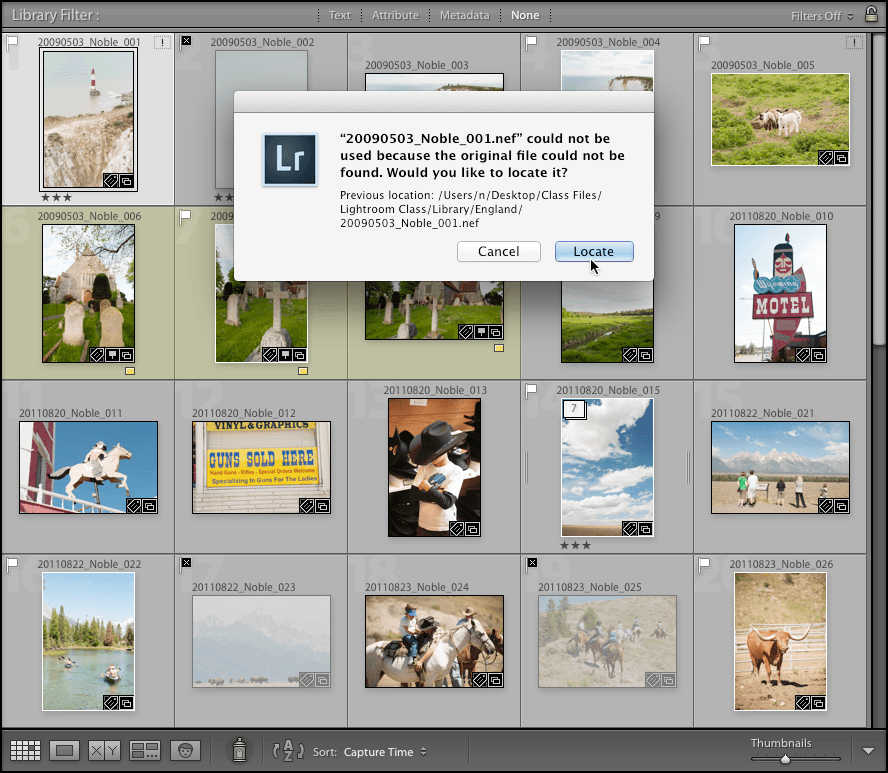
  4. In the top-right corner of its thumbnail, click on the exclamation point (!). This initiates Lightroom's file location recovery process.

  5. In the dialog box that appears asking to locate the missing file, click Locate. Lightroom will open a file browser to help you navigate to the new location.

  6. Navigate into Class Files > Lightroom Class > Library > England. Even though we renamed the files, they remain in the same directory structure.

  7. Double–click on 20090503_YourName_001B.nef to choose it. This tells Lightroom that this renamed file corresponds to the original catalog entry.

  8. A dialog box appears asking to confirm if this is the correct file. Click Confirm. This verification step prevents accidental mismatching of similar files.

  9. On top of the thumbnail, notice the new filename now reflects the actual file name. However, if you look at the sheep photo, it still displays the exclamation point indicating a missing photo. Its filename has not changed even though it's located in the same folder.

    This behavior illustrates a crucial limitation: when files are renamed (as opposed to simply being moved to different folders), Lightroom cannot automatically reconnect related files. Each renamed file must be manually located and linked. This is why establishing and maintaining consistent naming conventions from the start is so important for professional workflows.

  10. Select the sheep photo thumbnail (20090503_YourName_005) to begin reconnecting the second missing file.

  11. Click on the exclamation point (!) in the top-right corner of its thumbnail to initiate the location process.

  12. Click Locate to open the file browser dialog.

  13. In the England folder, double–click on 20090503_YourName_005B.nef. Lightroom will remember the folder location from the previous reconnection, making this step faster.

  14. Click Confirm to finalize the reconnection.

  15. Notice that Lightroom has successfully updated the filename reference, as visible in Grid View. Your catalog is now synchronized with the actual file system state.

Visual Indicators for Missing Files

Look for exclamation point icons on photo thumbnails. These indicate broken links between catalog entries and actual files on your storage system.

File Relinking Process

1

Identify Missing Files

Navigate to All Photographs and locate thumbnails with exclamation point indicators

2

Initiate Locate Function

Click exclamation point on thumbnail and select Locate in dialog box

3

Navigate to File Location

Browse to correct folder and double-click the renamed file

4

Confirm File Match

Verify file identity in confirmation dialog to complete relinking

Individual File Limitation

Unlike moved files, renamed files must be manually relinked one by one. Lightroom cannot automatically detect renamed files in the same folder.

Finding Missing Folders

Folder-level disconnections present different challenges than individual file issues. When entire directories are moved or renamed outside of Lightroom, the recovery process affects multiple images simultaneously. Let's explore how to handle these larger-scale disruptions efficiently.

  1. Minimize or hide Lightroom to access your system's file management tools.

  2. On the Desktop, navigate to Class Files > Lightroom Class and open the Library folder to access the directory structure.

  3. Rename the England folder to France. This simulates the common scenario where folders are reorganized or corrected outside of Lightroom's awareness.

    NOTE: If you encounter an error message preventing the rename operation, you may need to close Lightroom completely before renaming, then reopen Lightroom afterward. This occurs because Lightroom maintains active file system connections that can lock directories.

  4. Back in Lightroom, expand the Folders panel and then the Library folder. The England folder now appears grayed out with a small question mark, indicating that Lightroom can no longer locate the entire directory structure.

  5. CTRL–click (Mac) or Right–click (Windows) on England and select Find Missing Folder. This command initiates folder-level reconnection, which is more efficient than reconnecting files individually.

  6. Navigate to Desktop > Class Files > Lightroom Class > Library to reach the directory containing your renamed folder.

  7. Select the France folder and click Choose (Mac) or Select Folder (Windows). Lightroom will reconnect all files within this directory simultaneously.

  8. In the Folders panel, the folder name now displays as France. However, this creates a metadata inconsistency—these photos were actually taken in England, not France.

  9. CTRL–click (Mac) or Right–click (Windows) on France and select Rename. This allows you to correct the folder name within Lightroom's organizational system.

  10. Type England and click Save. Lightroom will rename the actual folder on your file system to match, maintaining consistency between your catalog organization and physical file structure.

    Excellent work! You've now mastered the essential file recovery techniques that every serious Lightroom user needs. These skills become invaluable when managing large photo libraries, collaborating with team members, or recovering from system migrations. In the following exercise, you'll apply quick, professional-grade edits to these newly reconnected photos, building on the solid organizational foundation you've just established.

Missing Files vs Missing Folders

FeatureIndividual FilesEntire Folders
Visual IndicatorExclamation point on thumbnailQuestion mark on folder name
AppearanceThumbnail visible with iconFolder name grayed out
Resolution MethodClick thumbnail exclamation pointRight-click folder name
Batch ProcessingMust relink individuallyEntire folder relinked at once
Recommended: Folder relinking is more efficient for multiple missing files in the same directory.

Folder Restoration Process

1

Create Missing Folder Scenario

Rename England folder to France outside Lightroom to simulate folder movement

2

Identify Missing Folder

Locate grayed-out folder with question mark in Folders panel

3

Execute Find Missing Folder

Right-click missing folder and select Find Missing Folder option

4

Relink and Rename

Navigate to renamed folder location and restore original folder name

Folder Renaming After Relinking

After relinking a folder, use Lightroom's rename function to correct the folder name. This maintains both the file connection and proper organizational structure.

Key Takeaways

1External file and folder changes break Lightroom catalog connections, requiring manual relinking to restore functionality
2Missing files display exclamation point indicators on thumbnails, while missing folders appear grayed out with question marks
3Individual renamed files must be manually relinked one by one using the Locate function through thumbnail indicators
4Missing folders can be efficiently restored by right-clicking the folder name and selecting Find Missing Folder
5Always perform file management operations through Lightroom's interface to maintain catalog integrity and avoid broken links
6Visual indicators in the catalog help identify connection issues before they impact workflow or cause data loss
7Folder relinking preserves all metadata, edits, and organizational structure while reconnecting to moved or renamed directories
8Proper file management practices prevent catalog corruption and ensure long-term accessibility of photo libraries and associated edits

RELATED ARTICLES