April 1, 2026Dan Rodney/5 min read

Using the Radial Filter Tool

Master Professional Photo Enhancement with Radial Filters

Radial Filter Capabilities

Vignette Highlighting

Create custom vignettes that focus attention on specific subjects rather than being limited to image edges. Perfect for portraits and architectural photography.

Selective Adjustments

Apply exposure, saturation, sharpness, and other adjustments to precise oval-shaped areas. Unlimited filters can be applied to single images.

Professional Glow Effects

Create subtle lighting effects that make subjects pop from the background. Ideal for making key elements stand out dramatically.

Topics Covered in This Lightroom Tutorial:

Creating a Vignette Highlight, Creating a Subtle Glow Effect

Tutorial Prerequisites

This tutorial assumes you have completed Exercise 2E and have the required class files imported. If not, detailed import instructions are provided in the first exercise.

Exercise Preview

lightroom preview4D

Exercise Overview

In this exercise, you'll master the Radial Filter tool—one of Lightroom's most versatile and underutilized features. Unlike traditional vignettes that darken only the corners, the Radial Filter allows you to create custom lighting effects that draw attention to any focal point in your image. This technique has become essential in contemporary photography workflows, where controlling viewer attention is paramount to creating compelling visual narratives.

Radial Filter vs Traditional Vignette

FeatureRadial FilterTraditional Vignette
PositioningCustom placement anywhereFixed to image corners
Shape ControlOval with adjustable sizeRectangular edge fade
Effect TargetingInside or outside selectionCorner darkening only
Adjustment OptionsAll Lightroom adjustmentsLimited to exposure/contrast
Recommended: Radial Filter provides superior flexibility for creative lighting effects

Creating a Vignette Highlight

  1. If you have not imported the photos that were imported in Exercise 2E:
    • Go into the Library module.
    • At the bottom left of the screen, click Import.
    • In the dialog box that appears, on the left under Source, navigate to Desktop > Class Files > Lightroom Class and select the Develop folder.
    • At the top, above the photos, make sure Add is selected (highlighted).
    • On the bottom right, click Import.
  2. In the Library module, select the Washington Monument photo (_CAS2135). This architectural subject provides an ideal canvas for demonstrating how radial filters can transform a standard documentary shot into a dramatic, spotlight-lit composition.

  3. Press the D key to switch to the Develop module.

  4. Below the Histogram panel on the right, click the Radial Filter tool radial filter tool. This tool operates on an inside/outside principle—you'll create an elliptical selection and apply different adjustments to either the interior or exterior areas.

  5. Double–click on the word Effect (in the panel below the tools) to reset all the sliders. This ensures you're starting from a neutral baseline, which is crucial for predictable results.

  6. Set Exposure to – 1.50. This will create the foundation of our vignette effect by darkening the selected area.

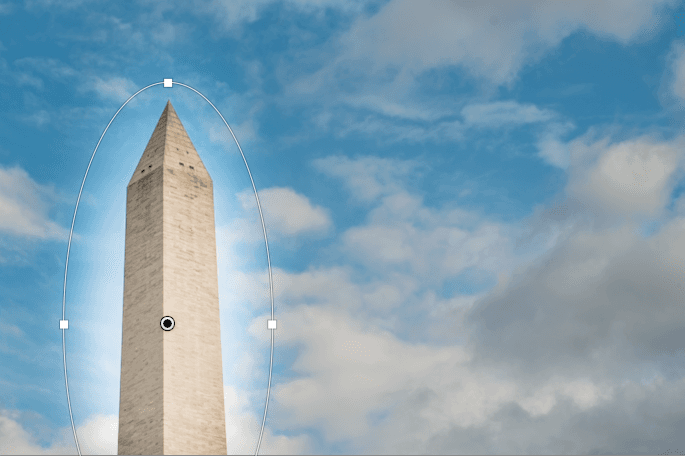
  7. Click on the tip of the Washington Monument and drag outwards; you will see a soft-edged oval appear. The area outside the oval becomes darker because of the Exposure setting we just specified. By default, the Radial Filter settings apply to the area OUTSIDE the oval selection—this is the key concept that makes this tool so powerful for creating natural-looking spotlight effects.

  8. Resize and position the oval so it captures the entire monument. Use the handles around the perimeter to adjust the size and shape, and click and drag from the center pin to reposition the entire selection:

    radial filter tool example

  9. Let's intensify the dramatic effect. Drag the Exposure slider further to the left, to around – 2.20 or whatever setting creates the impact you're seeking. Remember, in professional work, the "right" setting depends on your creative intent and the final output medium—what works for web display might need adjustment for print.

  10. Drag the Feather slider to the left and right, observing how the edge transitions from hard (at 0) to completely soft (at 100). The feathering controls the gradient falloff and is critical for natural-looking results. We recommend around 67 for most applications, as it provides a smooth transition that doesn't call attention to the effect itself.

    This technique exemplifies the power of the Radial Filter tool. Unlike one-size-fits-all vignettes, you can apply multiple radial filters per image and combine any adjustment parameters to achieve precisely the look your image demands.

Now let's explore how this same tool can create entirely different atmospheric effects with a more subtle approach.

Vignette Highlight Workflow

1

Access Radial Filter Tool

In Develop module, click the Radial Filter tool below the Histogram panel. Reset all sliders by double-clicking Effect.

2

Set Initial Exposure

Adjust Exposure to -1.50 to create the base darkening effect. This will affect the area outside your selection by default.

3

Create Selection Area

Click and drag from your subject outward to create an oval selection. The area outside becomes darker due to the exposure setting.

4

Fine-tune Effect

Adjust Exposure to around -2.20 for drama. Set Feather around 67 for natural edge blending between hard and soft transitions.

Feather Control Impact

The Feather slider dramatically affects the transition quality. At 0, edges are hard and obvious. At 100, the transition is very soft and natural. Most professional effects use values between 50-80.

Creating a Subtle Glow Effect

  1. Press the G key to switch to the Library module.

  2. Select the sheep photo (20090503_YourName_005B, 20090503_YourName_005, or _CAS4730). This organic subject will demonstrate how radial filters can enhance natural subjects by mimicking the way our eyes naturally focus on areas of interest.

  3. Press the D key to switch to the Develop module.

  4. Click the Radial Filter tool radial filter tool.

  5. Double–click on the word Effect (in the panel below the tools) to reset all the sliders. Starting fresh ensures consistent results across different applications.

  6. Click and drag on the photograph to create an oval that surrounds the sheep, positioning it as close to the subject's edges as possible. Precision in selection placement is what separates professional-quality results from obvious digital manipulation.

    For this technique, we'll adjust the area outside the oval to create a subtle background recession effect.

  7. Drag the Exposure slider down to about – 0.40. This gentle reduction draws attention to your subject without creating an obvious "spotlight" effect.

  8. Drag the Sharpness slider down to about – 50. This softens the background details, mimicking the shallow depth of field that photographers often seek with expensive fast lenses.

  9. Drag the Saturation slider down to about – 15. This desaturates the background colors, further emphasizing your main subject through color contrast—a principle widely used in cinema and high-end commercial photography.

  10. In the bottom panel, click Done to commit your adjustments.

  11. Click the Before & After icon before after yy button at the bottom left to see the original photo next to your enhanced version. Notice how the sheep now commands attention through multiple visual cues working in harmony.

    The strategic advantage of the Radial Filter over traditional corner vignettes lies in its precision and flexibility. You can position the effect exactly where your composition demands it, combine multiple adjustment parameters simultaneously, and stack multiple radial filters for complex lighting scenarios. This level of control has made the tool indispensable for contemporary photographers who need to compete in an increasingly visual marketplace where every image must immediately capture and hold viewer attention.

Subtle Glow Technique

1

Subject Selection

Create an oval selection that closely follows the edge of your main subject. Precision here determines the quality of the final effect.

2

Multi-Adjustment Approach

Apply Exposure -0.40, Sharpness -50, and Saturation -15 to the background area outside the selection.

3

Effect Evaluation

Use the Before & After view to compare results. The subject should appear to pop from a softer, less saturated background.

Radial Filter Advantages

Pros
Unlimited filters per image allow complex lighting scenarios
All Lightroom adjustments available including color temperature and clarity
Precise positioning anywhere in the frame
Non-destructive editing maintains original image data
Feather control provides natural-looking transitions
Cons
Limited to oval shapes only
Requires practice to achieve natural-looking results
Can appear artificial if overused or poorly positioned
The advantage of the Radial Filter tool is that it focuses the effect around a specific area, whereas a regular vignette effect is confined to the corners of an image.
This flexibility makes Radial Filters essential for creative portrait and landscape photography where traditional corner vignettes would be inappropriate.

Key Takeaways

1The Radial Filter tool creates custom oval-shaped selection areas for targeted adjustments anywhere in your image
2By default, Radial Filter effects apply to the area outside the oval selection, perfect for background adjustments
3Exposure settings between -1.50 and -2.20 create effective vignette highlights for architectural subjects
4Feather values around 67 provide natural edge transitions that avoid obvious selection boundaries
5Multiple adjustment combinations like Exposure -0.40, Sharpness -50, and Saturation -15 create subtle glow effects
6Unlike traditional vignettes limited to image corners, Radial Filters can be positioned precisely on any subject
7The tool supports all Lightroom adjustments and allows unlimited filters per image for complex lighting effects
8Before & After comparison view helps evaluate the effectiveness of Radial Filter adjustments during editing

RELATED ARTICLES