Product Color Chooser
What This Tutorial Covers
Swatch Buttons
Color swatches that switch product images.
Image Swap
Update src on click to show selected color.
Active State
Highlight the currently selected swatch.
Noble Desktop's JavaScript Development Certificate teaches modern JavaScript and React.
Dive into this detailed tutorial as we teach you how to create an interactive product color picker using JavaScript and jQuery, enabling users to visualize products in various colors.
Topics Covered in This JavaScript & JQuery Tutorial:
Creating a Product Color Picker, Using JQuery’s Attr() Method, Using JQuery’s AddClass() Method, Using JQuery’s RemoveClass() Method, Using JQuery’s Hover() Method
Exercise Preview
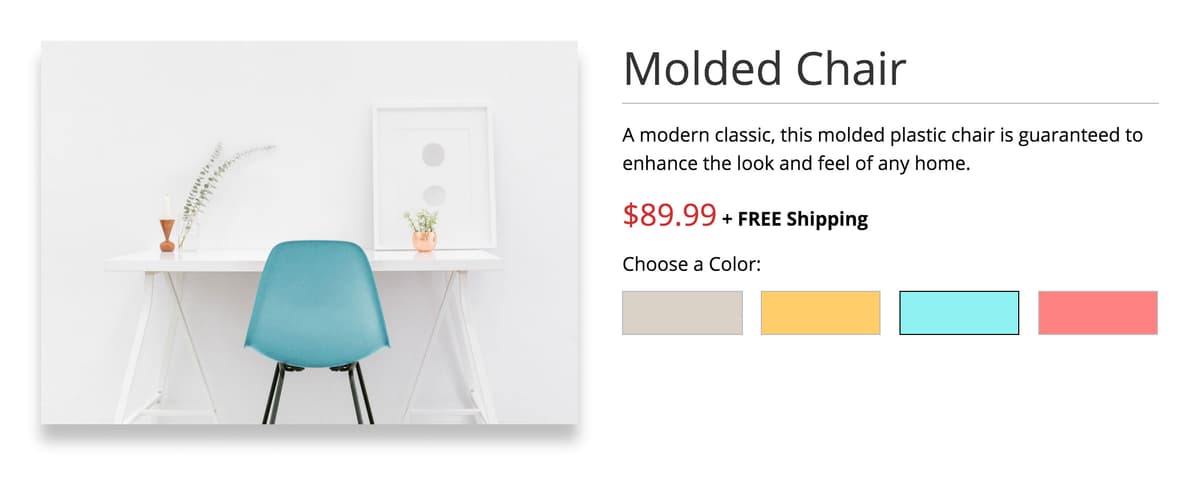
Exercise Overview
When products are available in multiple colors, users need to be able to choose the color they want to receive. In this exercise, you will use jQuery to make a product color picker that lets a user choose a color and then see a photo of the product with the color they selected.
Getting Started
- Open your code editor if it isn’t already open.
- Close any files you may have open.
- For this exercise we’ll be working with the Product-Color-Chooser folder located in Desktop > Class Files > yourname-JavaScript jQuery Class. You may want to open that folder in your code editor if it allows you to (like Visual Studio Code does).
- Open product.html from the Product-Color-Chooser folder.
Preview product.html in Chrome (we’ll be using its DevTools later).
Notice the large product photo showing the chair in one of its available colors. There are color swatches showing the other colors, but if you click on them they won’t do anything yet. When a user clicks one of these color swatches, we want the photo to change to the color they clicked on.
- Leave the page open in Chrome so we can come back to it later.
- Switch back to your code editor.
- Starting on line 21, notice that each of the four swatches have an ID for its color. We’ll make use of those IDs later.
- On line 29, notice there is an img with an ID of product-photo.
Notice the product-photo’s source file is named chair-beige@2x.jpg. We have a total of 4 product images, which are named:
- chair-beige@2x.jpg
- chair-blue@2x.jpg
- chair-red@2x.jpg
- chair-yellow@2x.jpg
- Notice that the color part of the image names listed above (beige, blue, red, and yellow), match the IDs we gave the swatch elements.
- We’re ready to code the JavaScript functionality. To use jQuery, we must link to its script file. On line 32, notice that we’ve already linked to jQuery for you (and an empty script tag below it for you write your JavaScript/jQuery code in).
To ensure that the jQuery code will not run until the document is ready, add jQuery’s document ready code as shown below:
<script)
   $(document).ready(function() {

   });
</script)
Getting the Swatch Buttons to Work
When a user clicks one of the swatches we want to do something. Each of the swatches has a swatch class. Add the following bold code:
$(document).ready(function(){
   $('.swatch').click(function(){

   });
});
When a swatch is clicked we need to change the product photo by changing its src attribute to point to a different image path. We can change that attribute using jQuery’s attr() method. jQuery’s attr() takes two arguments: the attribute we’re changing, and the value we’re setting it to.
Eventually we’ll need to figure out which color image to show, but for now let’s make sure we can change it to a different image. Add the following bold code:
$('.swatch').click(function(){ $('#product-photo').attr('src', 'img/chair-blue@2x.jpg'); });- Save the file and reload the page in Chrome.
Currently the page is showing the beige chair. Click any color swatch and see that the photo changes to the blue chair.
Now that we know we can change the image, we need to figure out which color the user clicked, and then show the appropriate photo.
Figuring Out Which Color the User Clicked on
In an earlier exercise we learned that we can detect which element was just acted upon using JavaScript’s keyword this. We can also use this in jQuery.
- Switch back to your code editor.
- On line 22, notice that we’ve given the yellow swatch an ID of yellow. If the user clicks on the yellow swatch,
$(this)will refer to that element. Near the bottom of the file, add the following bold code:
$('.swatch').click(function(){}); $('#product-photo').attr('src', 'img/chair-blue@2x.jpg'); console.log( $(this) ); });- Save the file and reload the page in Chrome.
- Open the Console by hitting Cmd–Opt–J (Mac) or CTRL–Shift–J (Windows).
Click on the yellow swatch and in the Console, notice that the whole element you clicked on is printed.
We don’t want the whole element, we just want the ID (to use when we build our image’s file path).
- Switch back to your code editor.
Add
.attr('id')as shown below in bold:$('.swatch').click(function(){ $('#product-photo').attr('src', 'img/chair-blue@2x.jpg'); console.log( $(this).attr('id') ); });- Save the file and reload the page in Chrome.
Click on the a few of the swatches and notice in the console that just the ID of the element you clicked on shows up in the console (beige, blue, red, or yellow).
Close the DevTools window.
Switch back to your code editor.
Instead of always switching the product photo to a specific image, we need to assemble the proper image path based on the color that was selected. In the file path img/chair-blue@2x.jpg only the color part (in this case blue) needs to change. Let’s make that color part dynamic.
On the $(
'#product-photo') line, inside the .attr() method, delete the blue and replace it with the following bold code:$('.swatch').click(function(){ $('#product-photo').attr('src', 'img/chair-' + $(this).attr('id') + '@2x.jpg'); console.log( $(this).attr('id') ); });- Save the file and reload the page in Chrome.
Click each of the color swatches to see that they’re working. The photo should change to the color you clicked on. Beautiful!
Change the Border Color of the Selected Element
Currently the first swatch (beige) has a black border around it to indicate it is selected. When the user clicks on a different swatch we need to move the border to that color swatch so they know which color is selected. We’ve applied the border with a selected class.
- Switch back to your code editor.
- We no longer need the console.log line of code, so delete it.
jQuery has an addClass() method that does just what we want. Add the following bold code:
$('.swatch').click(function(){ $('#product-photo').attr('src', 'img/chair-' + $(this).attr('id') + '@2x.jpg'); $(this).addClass('selected'); });- Save the file and reload the page in Chrome.
- Click the red swatch and its border color should change to black.
- Click on the blue color swatch and notice that its border also changes to black, but the red and beige borders are still “stuck” on black. We need them to revert to their original border color. Let’s fix that now.
Before we indicate which swatch gets the selected class, let’s remove that class from all of the swatches. Add the following bold code:
$('.swatch').click(function(){
   $('#product-photo').attr('src', 'img/chair-' + $(this).attr('id') + '@2x.jpg');
      $('.swatch').removeClass('selected');
      $(this).addClass('selected');
   });
Save the file and reload the page in Chrome.
Click through all the color swatches and notice that only the one you click on should get the black border. The others will return to their original border color. Perfect!
Using Hover Instead of Click
The product photo changes when the user clicks on a color swatch, but what if we wanted it to happen on hover?
- Switch back to your code editor.
Change click to hover and shown in below in bold:
$('.swatch').hover(function(){- Save the file and reload the page in Chrome.
Mouse over the color swatches and notice the photo changes on hover. You no longer need to click.
We’re not saying this behavior is preferred, we just wanted to show you how to do both (and that it’s easy to change).
NOTE: If you want to refer to our final code example, go to Desktop > Class Files > yourname-JavaScript jQuery Class > Done-Files > Product-Color-Chooser.