jQuery Form Validation
What This Tutorial Covers
Validation Plugin
Mature jQuery plugin for form validation.
Custom Rules
Define application-specific validation rules.
Modern Alternative
Native HTML5 validation handles most cases without jQuery.
Noble Desktop's JavaScript Development Certificate teaches modern JavaScript and React.
Gain deep knowledge about JavaScript and jQuery by learning how to implement form validation using the jQuery Validation Plugin in our comprehensive tutorial.
Topics Covered in This JavaScript & JQuery Tutorial:
Initializing the Plugin & Setting Options, Customizing the Error Messages, Changing the Location of the Error Messages, Styling the Error Messages
Exercise Preview
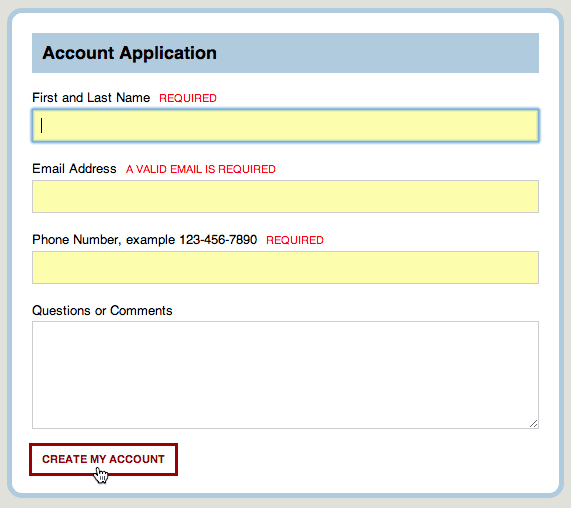
Exercise Overview
Form validation is essential for so many websites. Here we’ll show you how to set up form validation with the popular jQuery Validation Plugin by Jörn Zaefferer, which is easy, fast, flexible, and well-documented.
Getting Started
Open your code editor if it isn’t already open.
Close any files you may have open.
For this exercise we’ll be working with the Form-Validation folder located in Desktop > Class Files > yourname-JavaScript jQuery Class. You may want to open that folder in your code editor if it allows you to (like Visual Studio Code does).
Open application.html from the Form-Validation folder.
Preview the file in a browser.
Without filling out the form, click Create My Account. You’ll be taken to a Thank You page. Obviously, this form needs some validation so that users fill out the proper information.
Hit the back button to return to the form and leave the page open in the browser so you can reload the page as you make changes to the code.
Initializing the Plugin & Setting Options
The jQuery Validation Plugin by Jörn Zaefferer is one of the most popular validation plugins, used by major sites all over the world. We have included it with our class files, but to download future updates, view examples, and read the documentation, go to jqueryvalidation.org
Return to your code editor.
We need to link to the validation plugin. In between the link to jQuery and the link to main.js (around line 67), add the following bold code:
<script src="js/vendor/jquery-2.1.0.min.js"></script>
<script src="js/vendor/jquery.validate.min.js"></script>
<script src="js/main.js"></script>
Save the file.
Now that we’ve linked to the appropriate plugin, we’re ready to initialize it. A single line of jQuery is all we’ll need to select the form and apply the validation plugin.
Open main.js from the js folder in Form-Validation.
Our form has the ID startAccount. Toward the bottom of the file, add this code:
// Form Validation
   $('#startAccount').validate();

});
This says to validate the startAccount form. Pretty easy so far, right?
As shown in bold below, add a set of curly braces
{}inside the validate() method’s parentheses. These will group all the options we’ll add next.$('#startAccount').validate({});In between the curly braces of the validate() method, add the bold code below:
$('#startAccount').validate({
   rules: {

   }
});
We’ve already assigned the name values of the inputs in the HTML markup. Now all we have to do is tell the jQuery plugin which elements of the form should be required by targeting the values of the name attributes for each input. We’ll start with the name field. Add the bold code shown below:
$('#startAccount').validate({
   rules: {
      name: 'required'
   }
});
Save the file.
Switch to the browser and reload application.html.
Without filling out the form, click Create My Account. Look closely to see a message that says, This field is required. The validation plugin puts the error message after the input that has the error. This looks quite confusing, as it sits on the same line as the label for Email Address. We’ll remedy this shortly.
For now, start typing your name into the field and you’ll see the message disappear. Cool beans!
Let’s add the other required fields. Switch back to your code editor.
Add the following bold code. Don’t forget the commas after the first two options!
$('#startAccount').validate({
   rules: {
      name: 'required',
      email: 'required',
      phone: 'required'
   }
});
Save the file.
Switch to the browser and reload application.html.
Without filling out the form, click Create My Account. Now all the fields except the Comments are required, which is fine because comments are optional.
Type anything into the Email field. It will immediately validate, no matter what you type. We’d like to set the plugin up so that it will check to see if the user inputs a proper email address.
Switch back to your code editor.
Next to email, delete
'required'and replace it with curly braces{}, as follows:rules: { name: 'required', email: {}, phone: 'required' }Now we can set more options for the email field. Inside the
{}, set the email to required and tell the validation plugin that a valid email address is required by typing the bold code shown below:rules: { name: 'required', email: { required: true, email: true }, phone: 'required' }Save the file.
Switch to the browser and reload application.html.
Click Create My Account, then try typing into the Email field again. This time you’ll notice that, as you begin to type, the message changes to Please enter a valid email address. Great!
A valid email follows the pattern of something@something.something. After you type what appears to be a valid email address, the error message disappears.
Customizing the Error Messages
Switch back to your code editor.
Let’s add some customized error messages. Add the bold code shown below. Don’t forget the comma and { } curly braces!
$('#startAccount').validate({
   rules: {
Code Omitted To Save Space
},
   messages: {

   }
});
Now let’s put in the messages we want. Add the bold code shown below:
messages: {
   name: 'Required',
   email: 'A valid email is required',
   phone: 'Required'
}
Save the file.
Switch to the browser and reload application.html.
Without filling out the form, click Create My Account. You should see all your custom messages!
Changing the Location of the Error Messages
By default, the form validation plugin puts error messages after their input fields. Instead, we’d like to move the error messages before them, next to the form labels. We can use the errorPlacement option to change the location.
Switch back to your code editor.
Below the messages option, add the bold code shown below. Don’t forget the comma and curly braces!
messages: {
   name: 'Required',
   email: 'A valid email is required',
   phone: 'Required'
},
errorPlacement: function(error, element) {

}
The errorPlacement option accepts a function as its value. The parameter error is the error message, and element is the form element that caused the error. By default, the error message is added after the input element.
Instead, we want to insert the error message before the input. Add the bold code shown below:
errorPlacement: function(error, element) {
   error.insertBefore();
}
The insertBefore() function says to insert the error before “something.” We want that “something” to be the element that is causing the error.
Add the bold code shown below:
errorPlacement: function(error, element) {
   error.insertBefore(element );
}
This says to insert the error message before the element that causes the error. Our input fields cause the error, so this code will insert the error before the input. Perfect!
Save the file.
Switch to the browser and reload application.html.
Without filling out the form, click Create My Account. You’ll see that the error messages are now before the inputs, as requested.
Styling the Error Messages
The error messages are wrapped in a label tag by default. If you use the DevTools Inspect feature, you’ll see that the plugin also assigns an error class to them. To style them, we need to create a style called label.error.
Switch back to your code editor.
Open main.css from the css folder in Form-Validation.
Scroll to the bottom of the document and add the following rule:
label.error {
   color: #f00;
}
Save the file.
Switch to the browser and reload application.html.
Without filling out the form, click Create My Account. Nice, hard to miss red errors!
Let’s finish styling the errors. Switch back to main.css in your code editor.
Edit the label.error style by adding the following property declarations:
label.error {
   color: #f00;
   font-size: 10px;
   text-transform: uppercase;
   margin-left: 5px;
}
Save the file.
Switch to the browser and reload application.html. Without filling out the form, click Create My Account. Looking much better.
It would also be nice to highlight the input fields. Luckily the plugin attaches an error class to the input fields as well, so this is very easy.
Switch back to your code editor.
After the label.error rule, add the following rule:
input.error {
   background-color: #fcffad;
}
Save the file.
Switch to the browser and reload application.html. Without filling out the form, click Create My Account. Now the required input fields are highlighted too, improving the usability of the page.
Optional Bonus: Setting a Default Error Message
In our current form, we’re specifying every error message. What if you have a very long form? It would be a pain to have to set every single one. There is a default message, but it might not be exactly what you want. Let’s see how to set a custom default message.
Return to your code editor.
Switch to main.js.
Go to the validate() method and delete the messages for name and phone (around lines 19 and 21). We can leave the email message because we’d like it to be custom. The messages option should look as shown below. Don’t forget to delete the comma after the email!
messages: {
   email: 'A valid email is required'
},
Save the file.
Switch to the browser and reload application.html.
Without filling out the form, click Create My Account. You’ll see that the default error messages are being displayed again. We want to change them, but before we do so, let’s look at the plugin’s default messages in the JavaScript Console.
Switch back to main.js in your code editor.
The default messages are stored in
$.validator.messages. Before the$('#startAccount').validate code around line 9, add the following bold test code so we can see what’s inside it:// Form Validation console.log( $.validator.messages ); $('#startAccount').validate({ rules: {Save the file.
Preview application.html in Chrome (we’ll be using its DevTools).
Hit Cmd–Opt–J (Mac) or CTRL–Shift–J (Windows) to bring up the Console.
Click on Object in the Console to explore its contents. These are the default messages. Towards the bottom of the list is the default required message that we want to change. Excellent.
Leave the file open in Chrome, with the Console still open as well. We’ll reload the page as we make changes to the code.
Return to your code editor.
Change the log to access the required message (around line 9):
console.log( $.validator.messages.required );Save the file.
Return to Chrome and reload the page.
You should see the default required message displayed. We can change this default message with a single line of code!
Switch back to main.js in your code editor.
Remove the console.log() code (around line 9) and in its place, assign a new required message as follows:
$.validator.messages.required = 'Required';Save the file.
Return to Chrome and reload the page. Without filling out the form, click Create My Account. You’ll now see your custom “Required” error messages.
NOTE: If you want to refer to our final code example, go to Desktop > Class Files > yourname-JavaScript jQuery Class > Done-Files > Form-Validation.