Photo Filter Website: User Friendly Navigation
What This Tutorial Covers
Active Filter States
Visual indicators showing which filter is selected.
Smooth Transitions
Fade effects between filtered states.
Mobile Considerations
Touch-friendly filter controls on smaller screens.
Noble Desktop's JavaScript Development Certificate teaches modern JavaScript and React.
Delve into the workings of JavaScript and jQuery in the creation of a user-friendly photo gallery website filtering system, which narrows down image display based on user selection of filter buttons.
Topics Covered in This JavaScript & JQuery Tutorial:
Using Data Attributes to Track a User’s Selection, Creating Variables to Store Navigation Items, Styling the Selected Buttons, Toggling the Filter Buttons, Refining the Filter Buttons
Exercise Preview
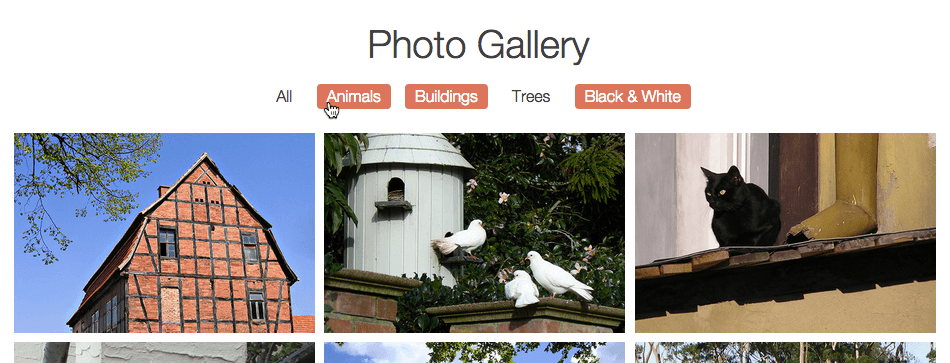
Exercise Overview
Over the course of the next few exercises, we’ll create a filtering system for a photo gallery website. The photographer has taken color and black and white photos of animals, buildings, and trees. By default, all the photos are showing. The ultimate goal is to let the user narrow down the number of images on the page by clicking one or more filter buttons, choosing which image categories they want to see.
In this exercise, we’ll create functionality that will allow a user to see when their filter options are selected and deselected. We’ll add the functionality for actually filtering the photos in the exercise that follows.
Getting Started
Open your code editor if it isn’t already open.
Close any files you may have open.
For this exercise we’ll be working with the Photo-Site-Navigation folder located in Desktop > Class Files > yourname-JavaScript jQuery Class. You may want to open that folder in your code editor if it allows you to (like Visual Studio Code does).
Open index.html from the Photo-Site-Navigation folder.
Preview index.html in Chrome (we’ll be using its DevTools later).
Scroll through the photo gallery to see all the photos displayed. Notice the category links at the top. If you try clicking them, they won’t do anything because it’s just a static HTML layout. Our job is to write the script to make the navigational user-friendly and functional.
In this exercise, we’ll program the navbar so that a user can see whether a filter button is selected or not. We also want to program the All button to visually deselect all the other buttons. We’ll make the filter functional in later exercises.
Leave the page open in Chrome so we can come back to it later.
Using Data Attributes to Track User Selection
New in HTML5, you can write custom attributes known as data attributes to store info and target elements more specifically. This is super helpful because we can avoid creating many classes or IDs that aren’t really meaningful. Data attributes start with data- followed by whatever you want to name it.
Go back to index.html in your code editor.
Let’s take a look at what we have so far. Locate the navigation around lines 13–21. Notice that the hrefs are only linking to JavaScript. This is because, for this exercise, we’ll just be triggering JavaScript with these buttons (not going to URLs).
Let’s begin by tracking whether a filter choice has been selected or not. We can use data attributes to track this. Add the following bold code:
<ul>
   <li><a data-selected="yes" href="javascript:;">All</a></li>
   <li><a data-selected="no" href="javascript:;">Animals</a></li>
   <li><a data-selected="no" href="javascript:;">Buildings</a></li>
   <li><a data-selected="no" href="javascript:;">Trees</a></li>
   <li><a data-selected="no" href="javascript:;">Black & White</a></li>
</ul>
NOTE: All of the photos display when the page loads. This is why we want to have the All filter selected by default, while the rest of the filters remain off until a user clicks them.
The All link will pertain to multiple photo categories, so we want to be able to easily access it. Go ahead and give this link an ID, as shown in bold:
<li><a id="all-button" data-selected="yes" href="javascript:;">All</a></li>
Creating Variables to Store the Navigation Items
Now it’s time to start writing some JavaScript. After the final closing
</div>tag. Add script tags and a window.onload function, around line 146, as shown:</div> <script> window.onload = function() { }; </script>NOTE: The event handler window.onload waits for all content to be loaded before running any code.
We need an easy way to refer to all the links we have in the nav. To do this, let’s use querySelectorAll() and save them to a variable. With querySelectorAll(), we can use the same exact syntax we use for CSS selectors. QuerySelectorAll() selects multiple elements and stores them in an array. While we’re at it, let’s test it in the JavaScript Console. Add the following bold code:
window.onload = function() {

   var filterNav = document.querySelectorAll('nav a');
   console.log(filterNav);

};
Save the file and reload index.html in Chrome.
Open the Console by hitting Cmd–Opt–J (Mac) or CTRL–Shift–J (Windows).
Click the arrow to the left of the log message if it’s not already expanded. You should see the five anchor tags listed. Now we know that the navigation links are being accessed immediately after the window loads—so far, so good!
Let’s add more functionality. Switch back to your code editor.
Around lines 150 and 152, add the following two bold lines of code (you’ll need to replace the console.log() line of test code with the new var reference):
window.onload = function() {

   // grabbing elements
   var filterNav = document.querySelectorAll('nav a');
   var allButton = document.getElementById('all-button');

};
NOTE: We will be logically arranging our code by functionality. To help us remember what each section of the code does, we will be adding comments such as this one, which indicated that this is where we’ll write all our variable declarations. The new variable saves the all-button so it’s easily accessible.
Save the file.
Styling the Selected Buttons
We need to figure out how to keep a button highlighted when it’s selected. The highlight on hover function is already coded into our CSS. We can add onto this rule to get the style we want.
In your code editor, go to Photo-Site-Navigation > css and open styles.css.
Around line 33, find the nav a:hover rule and add another CSS selector as shown below in bold (don’t miss the comma after hover):
nav a:hover,
nav a[data-selected="yes"] {
   color: #fff;
   background: #e07360;
}
NOTE: The CSS selector we just added specifies that, once the data-selected attribute is set to yes, the link should get white text and a red background.
Save the file and reload index.html in Chrome. The All tab in the nav should already be highlighted in red because its data-selected attribute is set to
'yes'by default.
Toggling the Filter Buttons
Now that we have our data attributes in place, our elements stored as variables, and the proper CSS style is ready and waiting, we can start writing the functionality! We need to break down our goals into manageable, self-contained tasks and wrap them each in a function.
Go back to index.html in your code editor and add a new comment around line 154:
var allButton = document.getElementById('all-button');

// functions
Let’s write our first function. The first task we need to perform is to allow a user to see if they have selected or deselected a category when they click on it. In order to make this work, we need to pass in a parameter representing the filter choice the user has made.
As shown below in bold, add a function named toggleCategory(filterChoice) (filterChoice is the name of the parameter we are passing in):
// functions
   function toggleCategory(filterChoice) {

   }
};
The function needs to toggle the data-selected value. If a category’s data-selected value is no (not selected), we need to set it to yes when it’s clicked. If it’s already set to
'yes', we need to set it to'no'.Add the following bold conditional that checks the value of the data-selected attribute and changes it accordingly:
// functions
function toggleCategory(filterChoice) {
   if(filterChoice.getAttribute('data-selected') == 'no') {
       filterChoice.setAttribute('data-selected', 'yes');
   } else {
       filterChoice.setAttribute('data-selected', 'no');
   }
}
NOTE: If a category’s data-selected value is yes, the CSS rule we wrote earlier will be used to visually highlight the chosen filter option.
Now that we’ve fleshed out the toggleCategory(filterChoice) function, we need to call the function. We’ll call it when the user clicks on a filter button. First, we’ll need to loop through all the navigation items to find the correct one. Around line 163, add the following bold comment and for loop:
filterChoice.setAttribute('data-selected', 'no');
      }
   }

   // active code
   for(var i = 0; i < filterNav.length; i++) {

   }
};
NOTE: We added the comment to delineate the section of our code that actually executes the functions.
When the loop finds the element the user clicked on, we want to change that element’s data-selected value. To do that, write the following bold onclick function:
// active code
for(var i = 0; i < filterNav.length; i++) {
   filterNav[i].onclick = function() {
      toggleCategory(this);
   };
}
NOTE: Remember that whenever a function has a parameter, it is asking for information. In order for this kind of function to run correctly, we need to pass arguments to those parameters. We added the keyword this as an argument to pass in the correct navigation item—the one has been clicked.
Save the file.
Go to index.html in Chrome and reload it.
Try clicking on any of the nav buttons and you should see them highlight as they are selected. Click them again to deselect them. Great!
Refining the Filter Buttons
When the All button is selected, none of the other buttons should be highlighted. Likewise, when any of the other buttons are selected, the All category should be deselected. Let’s make a function for this.
Return to index.html in your code editor.
Around line 164, above the //active code comment, add the bold code shown below:
filterChoice.setAttribute('data-selected', 'no');
   }
}

function deselectOthers(filterChoice) {

}

// active code
We first need to detect when the All button is being clicked. Earlier, we created a var reference to keep track of this category. Put it to good use by adding the following bold conditional:
function deselectOthers(filterChoice) {
   if(filterChoice == allButton) {

   }
}
The next thing we need to do is loop through the filterNav and deselect all of them except for the All button. Let’s start the loop at 1 (instead of 0) to exclude the All button, which is the first one in the array:
if(filterChoice == allButton) {
   for(var i = 1; i < filterNav.length; i++) {
      filterNav[i].setAttribute('data-selected', 'no');
   }
}
Add the following bold else statement to specify that the All button should become deselected in the case that any of the other buttons are clicked:
function deselectOthers(filterChoice) {
   if(filterChoice == allButton) {
      for(var i = 1; i < filterNav.length; i++) {
         filterNav[i].setAttribute('data-selected', 'no');
      }
   } else {
      allButton.setAttribute('data-selected', 'no');
   }
}
Now we need to call this function. But where to do that? Remember, we only want to call this function when the user is setting a filter choice from
'no'to'yes'. It makes sense to first deselect all the others and then turn on that one selection. Let’s call the function at that juncture.Up in the toggleCategory(filterChoice) function, around line 154, add the following bold code one line before the data-selected attribute gets changed:
// functions
function toggleCategory(filterChoice) {
   if(filterChoice.getAttribute('data-selected') == 'no') {
      deselectOthers(filterChoice);
      filterChoice.setAttribute('data-selected', 'yes');
   } else {
Save the file and reload index.html in Chrome.
As before, All is selected by default. Click one of the other buttons. The button you clicked should become highlighted, while All becomes deselected.
Click another button (besides All) that is not already selected. It should become highlighted along with the one you previously clicked.
Click All and all the other buttons will deselect.
Fantastic, we’ve got the buttons working! In the next exercise, we’ll start actually filtering the photos.
NOTE: If you want to refer to our final code example, go to Desktop > Class Files > yourname-JavaScript jQuery Class > Done-Files > Photo-Site-Navigation.