Introduction to JavaScript Objects & the DOM
What This Tutorial Covers
Object Basics
Properties, methods, and object literal syntax.
DOM API
How the browser exposes the page structure to JavaScript.
DOM Manipulation
querySelector, addEventListener, and modern DOM patterns.
Noble Desktop's JavaScript Development Certificate teaches modern JavaScript and React.
Immerse yourself in this comprehensive tutorial that guides you step-by-step through the basics of JavaScript objects, covering everything from creating your own object to manipulating objects within an HTML document.
Topics Covered in This JavaScript & JQuery Tutorial:
Intro to Objects, the Global Object, Accessing & Manipulating Objects
Exercise Preview
Exercise Overview
JavaScript is called an object-oriented language because nearly everything in JavaScript is an object. An object is a collection of properties. Each property is a name (key) with a value, which are often called key-value pairs. If an object’s property value is a function, we’d call it a method.
Objects can store many properties, so they can represent complex, real-world things. For example, a car object might include such properties as doors, color, seats, etc.
In this exercise you’ll learn the basics about JavaScript objects. You will create your own object and learn how to access objects inside an HTML document to see how you can manipulate them.
Getting Started
- Open your code editor if it isn’t already open.
- Close any files you may have open.
- In your code editor, hit Cmd–O (Mac) or CTRL–O (Windows) to open a file.
- Navigate to the Desktop and go into the Class Files folder, then yourname-JavaScript jQuery Class folder, then Objects.
Double–click on js-objects.html to open it.
This is a basic page with some styles and an h1 heading with an ID of main-heading.
Preview js-objects.html in Chrome. (We’ll be using its DevTools later.)
All you’ll see is the heading on a gray background. We will be creating our own object and taking a look at objects that are native to the browser.
Leave the page open in Chrome so we can come back to it later.
Intro to Objects
- Switch back to your code editor.
On line 19, add the script tags shown in bold:
<h1 id="main-heading">Introduction to JavaScript Objects</h1>
   <script>

   </script>
</body>
Now create a variable where we’ll save our object:
<script>
   var myObject = {};
</script>
NOTE: myObject is the name of our object. You can name an object anything as long as it doesn’t start with a number. The
{}denotes an object in JavaScript.Inside the object, add the following code shown in bold:
var myObject = {
   name: 'Bob'
};
NOTE: myObject now contains a single property called name that has the string value Bob. Properties can be named anything you like (as long as it starts with a lowercase letter). Properties can also be assigned values of any type (e.g., string, number, boolean etc.). For example, we could set up a married property for myObject and give it the Boolean value false. Properties and their values are often referred to as key-value pairs, where name is the key and Bob is the value.
- Save the file.
- Go back to js-objects.html in Chrome and reload the page.
- Open Chrome’s Console by hitting Cmd–Opt–J (Mac) or CTRL–Shift–J (Windows).
In the Console, type
myObject;then hit Return (Mac) or Enter (Windows).You should see the Console print out: Object {name:
"Bob"}Let’s try using dot syntax to see if we can access the object’s name property. Type the following:
myObject.name;- Hit Return (Mac) or Enter (Windows). Success! The Console prints out only the value of name:
"Bob". - Switch back to your code editor.
As shown below, add a key with a number value. Multiple key-value pairs in an object are separated by commas, so make sure not to miss the comma after
'Bob':<h1 id="main-heading">Introduction to JavaScript Objects</h1> <script> var myObject = { name: 'Bob', age: 23 }; </script>NOTE: The additional values don’t need to start on a new line but it can help make the code look a little neater and easier to read.
Add another key-value pair, this time with a Boolean value:
<script>
   var myObject = {
      name: 'Bob',
      age: 23,
      alive: true
   };
</script>
NOTE: A boolean value can only either be true or false.
- Save the file.
- Reload js-objects.html in Chrome.
- The Console should still be open but if you closed it, hit Cmd–Opt–J (Mac) or CTRL–Shift–J (Windows) to open it.
In the Console, type
myObject;then hit Return (Mac) or Enter (Windows).The Console should print everything in the object (name, age, and alive).
Let’s check Bob’s vitals by looking at just the alive value. Type
myObject.alive;then hit Return (Mac) or Enter (Windows).Phew, it should print out the boolean value true.
Let’s add another key-value pair dynamically here in the Console. For example, let’s say we want to add a hair color value for Bob. Type:
myObject.hairColor = 'brown';NOTE: Remember that any code you write directly to the Console in a browser is only for test purposes and will not be saved in your working document. Make sure not to reload the page, as you will lose your work!
Hit Return (Mac) or Enter (Windows) to apply it.
The Console prints out:
"brown".- To check if this change has been added to our object, type
myObject.hairColor;then hit Return (Mac) or Enter (Windows). - Type
myObject;then hit Return (Mac) or Enter (Windows) to see all the object’s properties, including the hairColor we just added. Bob just had his birthday so we need to change his age. It’s easy to change a value in the Console! Type the following then hit Return (Mac) or Enter (Windows).
myObject.age = 24;Type
myObject;then hit Return (Mac) or Enter (Windows) to see that the age property has been updated to 24. Neat!NOTE: If you’re working in Chrome and want to clear the Console’s code without reloading the page and losing your work, hit Cmd–K (Mac) or CTRL–L (Windows).
The Global Object
All the properties have been added to the global object (also known as the window in the browser environment). The global object/window is literally the browser window. It is the furthest out you can go in front-end development.
- Let’s look inside the global object. In the Console, type
console.dir(window);then hit Return (Mac) or Enter (Windows). - Click the arrow to the left of Window to expand it.
- We’re looking for a property that starts with lowercase. These are listed below the ones that begin with uppercase. Scroll down until you find myObject.
When you find it, click the arrow to the left of myObject to expand it and see the properties we’ve specified.
With JavaScript, you can see everything inside this object as well as the objects inside this object. You may have been wondering, while working on previous exercises, where we can find all the methods and properties we need to manipulate elements on the webpage. Now we can see how to access all of this inside each object.
We’ve included a handy diagram in your class files to help you get a better understanding of this.
- Keep the page open in Chrome (with the Console open), and switch to your Desktop.
On the Desktop, go into Class Files > yourname-JavaScript jQuery Class > Objects and open dom.pdf.
This shows a simplified version of the structure of the window object (showing just a few example objects). First off, everything is contained inside the topmost node, the window/global object. Think of the window object as the browser window. Within the window object, notice the document. This is where all HTML elements live and where you’ll spend most of your time when you’re working in JavaScript.
- Notice that in addition to the document object, we also have access to the location object.
- Keep dom.pdf open so you can refer back to it later.
- Switch back to Chrome.
You should still have the Console open with the Window object still expanded. If you don’t have the Console open:
- Open the Console, type
console.dir(window);and then hit Return (Mac) or Enter (Windows). - Click the arrow to the left of Window to expand it.
- Open the Console, type
- We’re looking for a property that starts with lowercase again (below the uppercase properties at the top). Scroll until you find location: Location.
- Click the arrow to the left of location: Location to expand it.
- Locate href and notice that it shows us the file path of the webpage. In this case it’s a local file path, but for a live site this would start with http.
Let’s access this property of the window object. Type the following into Console:
window.location.href;Hit Return (Mac) or Enter (Windows).
You should see the location (a file path) of the webpage.
The location property belongs to the window object, but because window is the global object and you can’t go back any further than that, we don’t ever have to type in window because it’s already implied.
Into the Console type
location.href;- Hit Return (Mac) or Enter (Windows).
Notice that it returns the same value, even though we omitted the window object.
NOTE: As another example, alert() also belongs to the window object. Because the window object is implied, both window.alert(); or alert(); will work.
Refer back to dom.pdf. Notice there are other objects listed under the window object:
- The history object stores the locations of pages you’ve visited previously within a browser window.
- We’ve already seen how to use the console object to output text to the Console.
HTML Elements Are Objects Too
Just about everything in JavaScript is an object. JavaScript treats HTML elements as objects. Previously, we’ve seen that we can use getElementById() to grab an element. That element is an object in JavaScript, which has properties that we can get and set.
- Let’s find an element on the page. Switch back to Chrome.
- In the Devtools window, click the Elements tab.
- Expand the
<body>element and notice that the<h1>has an ID of main-heading. - Click on the Console tab.
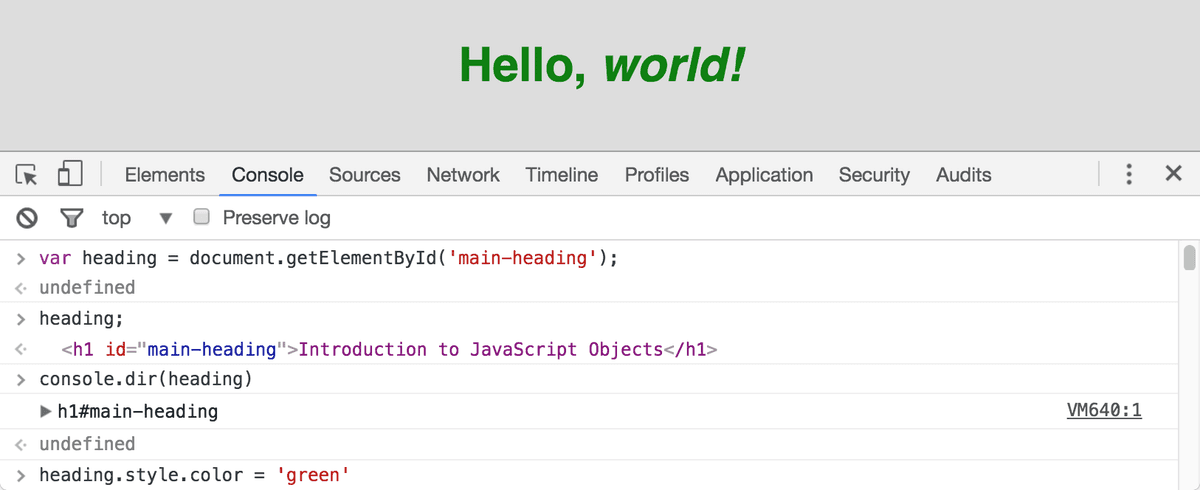
We’re going to want to refer to this h1 element numerous times, so let’s store it in a variable to make it easier to reference. In the Console, type the following:
var heading = document.getElementById('main-heading');- Hit Return (Mac) or Enter (Windows).
- Type
heading;then hit Return (Mac) or Enter (Windows). - The Console will print the HTML code for that element.
Let’s break open this object and see what’s inside it. Type the following then hit Return (Mac) or Enter (Windows):
console.dir(heading);- Expand into h1#main-heading.
- One property that we use a lot is the style property. Expand style: CSSStyleDeclaration.
The style property is another object that contains even more objects/properties (most of which are currently empty). Let’s say we want to change the color. Type:
heading.style.color = 'green';NOTE: You can specify a hexadecimal or RGB value as well.
- Hit Return (Mac) or Enter (Windows) and notice that the heading has turned green (because we dynamically set it with JavaScript).
Let’s also change the actual content of the text. Type the following code, then hit Return (Mac) or Enter (Windows):
console.dir(heading);- Expand into h1#main-heading.
- Scroll down to innerHTML. (If you see
(…)click it to show more.) Take a look at the content. Scroll down further to textContent to see what’s there as well.
Both innerHTML and textContent have the same content right now because there’s no other HTML inside the heading. If we had any tags inside the h1, we’d see them listed in innerHTML. textContent only shows the text inside that element.
If we wanted to edit the HTML content, we’d use innerHTML. If we just wanted to change the text, we’d use textContent.
NOTE: You may have noticed that just below innerHTML was another property called innerText. innerText is a non-standard, proprietary property introduced by internet Explorer and later adopted by WebKit/Blink (Safari/Chrome) and Opera. It can also be used to change text-based content, but because it is non-standard and not supported by Firefox, we recommend using textContent instead.
Let’s test out the textContent property by changing the text. Type the following:
heading.textContent = 'Hello';- Hit Return (Mac) or Enter (Windows) and notice the title change.
Let’s test out the innerHTML property by adding an HTML tag. Type:
heading.innerHTML = 'Hello, <em>world!</em>';- Hit Return (Mac) or Enter (Windows).
- To see what the JavaScript did to our markup, switch to the Elements tab.
- Expand the
<body>element, then expand<h1 id="main-heading" style="color: green;">. Notice the
<em>tags have been added around world!.NOTE: If you want to refer to our final code example, go to Desktop > Class Files > yourname-JavaScript jQuery Class > Done-Files > Objects.