Introduction to For Loops
What This Tutorial Covers
Basic for Loop
Init, condition, increment — the classic three-part syntax.
for...of and for...in
Modern loops for iterating over arrays and object keys.
Array Methods
forEach, map, and filter often replace explicit loops.
Noble Desktop's JavaScript Development Certificate teaches modern JavaScript and React.
Learn how to use JavaScript and jQuery to create a for loop and use it to set menus in this comprehensive tutorial which also includes a practical exercise.
Topics Covered in This JavaScript & JQuery Tutorial:
Creating a for Loop, Using the for Loop to Set Menus, Clearing the Contents of a Menu
Exercise Preview
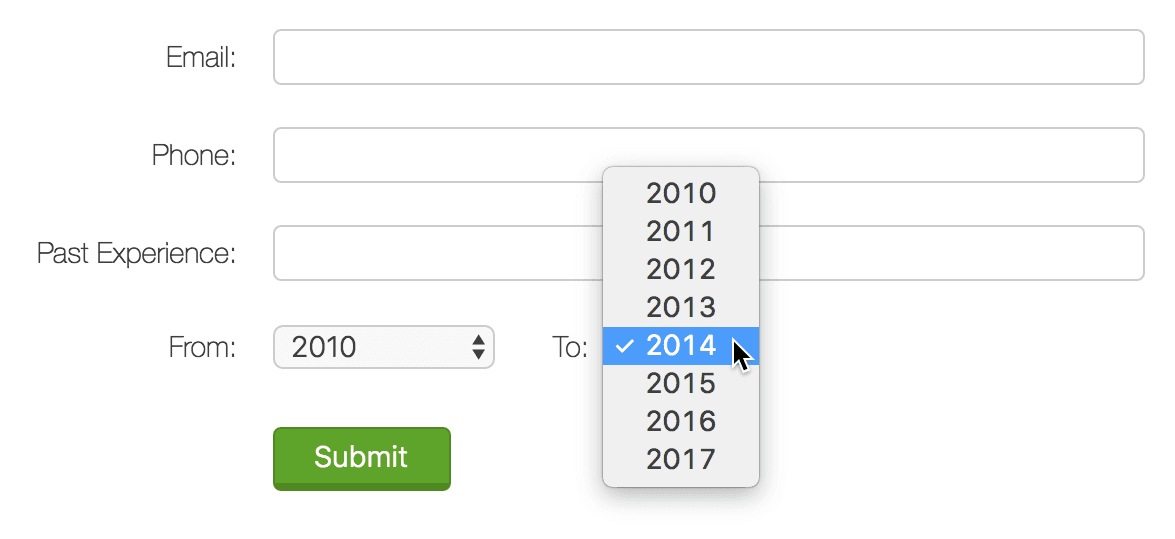
Exercise Overview
One of the things that programming is really good for is repeating the same (or similar) actions very quickly. In this exercise, we’ll look at one way to do this by using a for loop.
Getting Started
- Open your code editor if it isn’t already open.
- Close any files you may have open.
- For this exercise we’ll be working with the Volunteer-Form folder located in Desktop > Class Files > yourname-JavaScript jQuery Class. You may want to open that folder in your code editor if it allows you to (like Visual Studio Code does).
- Open index.html from the Volunteer-Form folder.
Preview index.html in Chrome. (We’ll be using its DevTools later.)
This is a mockup of a form (which doesn’t actually function). The only thing we’re going to focus on are the From/To menus.
Click the menu next to From. Notice the range goes from Before,000 to 2017.
The To field is not selectable yet. We want to set it so that after choosing a From value, the To value only shows years equal to or later than the chosen From value.
- Leave the page open in Chrome so we can come back to it later.
- Return to index.html in your code editor.
- Around line 36, locate the select tag with an ID of from-year. Notice that it contains option tags which we’ve already assigned values (years) to.
Around line 59, notice that the select tag with an ID of to-year is empty. For this select tag, we’ll be generating the option elements using JavaScript.
Creating a for Loop
Before we get further into this, we should take a look at what exactly loops are and how a for loop works.
Around line 66, add script tags as shown in bold:
</div>
   <script>

   </script>
</body>
Within the script tags, write a simple for loop by adding the following bold code:
<script>
   for() {

   }
</script>
The
()are going to take three pieces of information. Inside the{}will be the instructions that we want to execute every time the loop runs.Let’s say we want to count from 0–10. First, we need to add a counter to count how many times it’s going through the loop. Add the following bold code:
for(var i = 0;) {

}
We could name the variable anything but using i is a standard convention for incrementing. We also specified that the counter starts at 0.
Every time the loop runs, it will check to see if a certain condition is true. If it is true, then we need to tell it what to do… inside the
{}. If it’s false, the loop will stop. Tell the loop to keep going as long as i is less than 11 by specifying the condition:for(var i = 0; i < 11;) {Finally, we’ll add the incrementer itself to specify that every time the loop runs, the value of i will increase by 1. Add:
for(var i = 0; i < 11; i++) {NOTE: Alternately, you could write i = i + 1 or i += 1 to achieve the same results as i++ (but with more characters).
Now we need to specify what happens each time the loop runs:
for(var i = 0; i < 11; i++) { console.log('The value of i is: ' + i); }- Save the file.
- Go back to Chrome and reload index.html.
- If the Console isn’t open, open it by hitting Cmd–Opt–J (Mac) or CTRL–Shift–J (Windows).
Notice that the loop ran immediately upon page load and printed out the incrementing of i until it got to 10. Perfect!
Using the for Loop to Set Menus
How will we use for loops in the volunteer application form? When the user chooses a year in the From menu, we want the To menu to show only the years between the selected year up to the current year (nothing earlier).
- Switch back to index.html in your code editor.
Around line 67, delete the loop we wrote:
for(var i = 0; i < 11; i++) {
   console.log('The value of i is: ' + i);
}
We want to get the From and To field years and save them to variables. Type:
<script>
   var fromYear = document.getElementById('from-year');
   var toYear = document.getElementById('to-year');
</script>
We need to trigger an event whenever the user changes the From menu. For now, we want to check that it’s working. Add the following bold code:
var fromYear = document.getElementById('from-year');
var toYear = document.getElementById('to-year');
fromYear.onchange = function() {
   console.log(fromYear.value);
};
NOTE: We’re putting the onchange event handler directly in the JavaScript so we don’t have to add it to the HTML.
- Save the file.
- Go back to Chrome and reload index.html.
- Open the Console by hitting Cmd–Opt–J (Mac) or CTRL–Shift–J (Windows).
- Choose a year in the From menu. The Console should print out the year you chose, showing that it works.
- Switch back to your code editor.
Start the loop around line 70, replacing the console.log() line:
fromYear.onchange = function() {
   for() {

   }
};
Start the counter with the following code:
for(var i = fromYear.value;) {

}
Add the condition that i should be less than or equal to 2017:
for(var i = fromYear.value; i <= 2017;) {Increase the value of i by 1 year:
for(var i = fromYear.value; i <= 2017; i++) {Before we get any further, let’s test our for loop. Add the following bold code:
for(var i = fromYear.value; i <= 2017; i++) { console.log(i); }- Save the file, switch to Chrome, and reload index.html.
- Open the Console if it isn’t already.
Choose a year in the From menu.
In the Console you should see a list of years from the year you selected up to 2017.
Choose a different year in the From menu.
You should see a new list of years from the year you selected through 2017. The variable i is set to fromYear.value, the value you selected. Each time the loop runs, it tests to see if i is less than or equal to 2017. If it is, the loop runs. If not, the loop exits. Lastly, the i is incremented by 1 (i++) and the test is run again.
Switch back to your code editor.
Now we need to add the years we generated into the To menu. So how are we going to create everything that goes into the toYear menu? Fortunately, JavaScript lets us assemble HTML elements, give them attributes, and put content inside them.
For each year, we want to create an option element similar to the ones around lines 37–56. We want to create a new option every time the for loop runs, give the option a value, add text, then insert it into the to-year select tag. To do that we’re going to need a variable that we can save everything in as we’re assembling it.
Around line 69, create the option variable by adding the bold code as shown below:
var toYear = document.getElementById('to-year');
var option;
fromYear.onchange = function() {
NOTE: We’re not assigning the variable to anything initially, which is fine.
Create the option element by replacing console.log(i); with the following code around line 72:
fromYear.onchange = function() {
   for(var i = fromYear.value; i <= 2017; i++) {
      option = document.createElement('option');
   }
NOTE: createElement() is a method that belongs to the document object. You can put whatever element you want to create within the
().Set the value attribute to the selected year:
for(var i = fromYear.value; i <= 2017; i++) {
   option = document.createElement('option');
   option.setAttribute('value', i);
}
NOTE: Within the setAttribute() method, value is the name of the attribute we want to set. We’ll set value equal to i, which is the year currently in the loop.
Next, add the textContent:
for(var i = fromYear.value; i <= 2017; i++) {
   option = document.createElement('option');
   option.setAttribute('value', i);
   option.textContent = i;
}
NOTE: In the previous step we set the value attribute of the option tag we’re creating. In this step we’re setting the content of that option element. If i is 2012, for example, we’ll end up with something like this:
<option value="2012">2012</option>Finally, we need a way to insert the option elements we’re creating into the to-year select tag. Let’s use the appendChild() method:
for(var i = fromYear.value; i <= 2017; i++) {
   option = document.createElement('option');
   option.setAttribute('value', i);
   option.textContent = i;
   toYear.appendChild(option);
}
NOTE: The appendChild() method adds a child element inside a parent element at the end of a list of any other child elements that may be present.
- Save the file.
- Switch to Chrome and reload index.html.
- Choose a year in the From menu.
- Click on the To menu and notice that it only lists years starting with the selected year through 2017.
- Try setting a different From year.
Look in the To menu and notice it doesn’t update appropriately. It keeps adding the next set of years to the end of the list without getting rid of the previous set.
Clearing the to Menu
Fortunately, we can fix this pretty easily. Each time the loop runs, we want to clear out the To menu.
- Switch back to your code editor.
Around line 71 add the following bold code. (Note that those are two single quotes!)
fromYear.onchange = function() {
   toYear.innerHTML = '';
   for(var i = fromYear.value; i <= 2017; i++) {
NOTE: We’re using innerHTML rather than textContent because we need to change more than just the text.
- Save the file.
- Switch to Chrome and reload index.html.
- Choose a year in the From menu.
- Click on the To menu to make sure it only shows the years starting from your chosen year through 2017.
- Choose another year in the From menu.
Click on the To menu again to see that it only shows the appropriate years. Great!
Optional Bonus: Refining the Menu Selection Experience
What we’ve done so far works, but it’s not the best user experience. For example, say the user has chosen a From and To date, but then needs to change just the From date again. When they do that, the To date will automatically reset, requiring them to set it again.
This functionality is acceptable only if the user accidentally chooses a starting year (From year) that is later than the end of their volunteer experience (the To year). In all other cases, we need to make sure the chosen To year stays constant. We’ll remember the To menu’s value by storing it in a variable. We can then use that saved value to reset the To menu after the From menu has changed.
- Switch back to index.html in your code editor.
Around line 69, declare a variable for the value of the To year menu:
var option;
var toYearVal;
fromYear.onchange = function() {
Let’s store the user’s original To year value before we clear it out. Add the following bold code:
fromYear.onchange = function() {
   toYearVal = toYear.value;
   toYear.innerHTML = '';
After the loop is done running, let’s first look to see if the To year value is greater than or equal to the starting point of the From year. Around line 79, add:
toYear.appendChild(option);
   }
   if(toYearVal >= fromYear.value) {

   }
};
If the To year value is greater than or equal to the From year value, we want to make sure the original To year value remains unchanged. We can use the value we stored from the user’s initial selection to make sure of that. Add the bold code shown below:
if(toYearVal >= fromYear.value) { toYear.value = toYearVal; }- Save the file.
- Reload index.html in Chrome.
- Click on the From menu and choose a year.
- Click on the To menu and choose a year.
- Go into the From menu again and change it to an earlier year.
- Notice the To menu should still have the same year you selected before.
- Click on the To menu to see that the year range has been updated to start from the currently selected From year.
In the From menu, choose a year that is later than the current To year. You should see the To year update to the later year.
NOTE: If you want to refer to our final code example, go to Desktop > Class Files > yourname-JavaScript jQuery Class > Done-Files > Volunteer-Form.