Introduction to Arrays & the Math Object
What This Tutorial Covers
Array Basics
Creating, reading, and modifying JavaScript arrays.
Array Methods
map, filter, reduce, and other functional operations.
The Math Object
Random, floor, ceil, and trigonometry built-ins.
Noble Desktop's JavaScript Development Certificate teaches modern JavaScript and React.
Learn about manipulating arrays and using the Math object in JavaScript & jQuery through this detailed tutorial, which includes creating an array, editing an array, and picking a random item from an array.
Topics Covered in This JavaScript & JQuery Tutorial:
Creating an Array, Editing an Array, the Math Object, Picking a Random Item from an Array
Exercise Preview
Exercise Overview
In this exercise, we will learn about arrays and how to create them. We’ll also learn about Math objects and how to use them in conjunction with arrays to display the values we want.
Getting Started
- Open your code editor if it isn’t already open.
- Close any files you may have open.
- For this exercise we’ll be working with the Random-Testimonial folder located in Desktop > Class Files > yourname-JavaScript jQuery Class. You may want to open that folder in your code editor if it allows you to (like Visual Studio Code does).
- Open index.html from the Random-Testimonial folder.
- Preview index.html in Chrome (we’ll be using its DevTools later).
Notice the testimonial NAPS is by far the most significant cultural force of the decade. – New York Times.
We want to use JavaScript to randomly show a different testimonial each time the page is loaded. In order to accomplish this, we’ll be using an array. Think of an array as a list. We can store multiple values in a single array. The array stores items in a numbered list, so we can access any specific value by referring to its number (index) within the list. While you typically number lists starting with 1 (then 2,3, etc.), JavaScript arrays start with 0 (then 1,2, etc.).
Creating an Array
Before we start working on this page, let’s first learn the fundamentals about arrays by experimenting in the Console. We’ll start by create an array. To open Chrome’s Console, hit Cmd–Opt–J (Mac) or CTRL–Shift–J (Windows).
In the Console, type the following but do not hit Return/Enter yet!
var myArray = [];NOTE: The
[]denotes an array in JavaScript.TIP: Adjusting the Console’s Text Size
You can adjust the size of the Console text as follows:
- Mac: Cmd-Plus(+) enlarges the text. Cmd-Minus(-) reduces the text. Cmd-0 resets to the default size.
- Windows: CTRL-Plus(+) enlarges the text. CTRL-Minus(-) reduces the text. CTRL-0 resets to the default size.
So far our array is empty. Add some values to the array as shown in bold:
var myArray = ['Madrid', 'Paris', 'London'];- Hit Return (Mac) or Enter (Windows) to apply it.
The Console will print undefined, which is something we are not concerned with now.
NOTE: Why does it say undefined? Some things in JavaScript return a result when they are executed. Creating an array does not return a value, so the return is undefined. In this case we don’t care about a returned value, so you can proceed to the next step.
- Type
myArray;and hit Return (Mac) or Enter (Windows). - You should see
["Madrid", "Paris", "London"]print out in the Console. How do we get a specific value from this array? To get the first value, type:
myArray[0];NOTE: Remember that arrays are zero-indexed, which means they start numbering with 0.
Hit Return (Mac) or Enter (Windows) to apply it and the string
"Madrid"will print.To get the third value, type:
myArray[2];TIP: You can hit your Up Arrow key to reload the previous Console command.
Hit Return (Mac) or Enter (Windows) and the string
"London"will print.
Editing an Array
To change a value in an array, type:
myArray[2] = 'Beijing';Hit Return (Mac) or Enter (Windows) and “Beijing” will print.
Arrays have a variety of methods and we want to test out some of the commonly-used methods. Type the following so we can look at these methods:
console.dir(myArray);NOTE: dir displays an interactive list of an object’s properties. It stands for directory, as in an informational directory.
Hit Return (Mac) or Enter (Windows).
Expand the array’s list by clicking the arrow to the left of Array[3].
Click the arrow next to
__proto__: Array[0] to see the methods we can use. Let’s try some of these.What if we want to add a value to the array? To do this, type the following code:
myArray.push('New York');NOTE: You can put any value you want to add in the parentheses. Here, we’re adding the value “New York” to the array.
Hit Return (Mac) or Enter (Windows). It prints 4 to show how many values are in the array.
Type
myArray;and hit Return (Mac) or Enter (Windows) and it will show the values in the array:["Madrid", "Paris", "Beijing", "New York"]Checking how many values are in an array is very useful when writing dynamic code. To test it out, type the following:
myArray.length;Hit Return (Mac) or Enter (Windows) and 4 will print.
Sometimes it’s useful to sort an array. JavaScript arrays have a
sort()method that will work here. To test it out, type the following:myArray.sort();Hit Return (Mac) or Enter (Windows) and the Console should print the cities in alphabetical order:
["Beijing", "Madrid", "New York", "Paris"]Leave index.html open in Chrome so we can come back to it later.
Creating an Array of Testimonials
Now that we’ve seen a bit of what arrays can do, let’s get to work on replacing the static testimonial on the page with an array of various press quotes.
- Switch back to index.html in your code editor.
Start adding a new array before the closing
</body>tag (on line 46):</footer> <script> var quotesArray = []; </script> </body>Inside the
[]brackets, add some quotes by adding the following bold code:<script> var quotesArray = [ 'first quote', 'second quote', 'third quote' ]; </script>NOTE: Our values are strings, so each quote must be surrounded by single quotes. Note that each string is separated by a comma, but there’s no comma after the last string.
- Save the file.
- Switch to index.html in Chrome and reload the page.
- Open the Console if it’s not already open.
- Type
quotesArray;and hit Return (Mac) or Enter (Windows). You’ll see the quotes printed. - Now we need to figure out how to switch out the testimonial on the page. Go back to index.html in your code editor.
- On line 32, notice that we’ve given the testimonial p tag an ID of press-quote.
- Let’s see if we can change the testimonial using the Console. Switch back to Chrome.
In the Console, let’s grab the press-quote element:
document.getElementById('press-quote');- Hit Return (Mac) or Enter (Windows) to apply it.
- It should print the HTML element (the entire tag and it’s contents). We only want the text inside the element though.
- Hit your Up Arrow key to reload the previous command.
At the end, add .textContent so you end up with the following:
document.getElementById('press-quote').textContent;- Hit Return (Mac) or Enter (Windows) to apply it.
It should print the text string content:
"NAPS is by far the most significant cultural force of the decade.—New York Times"- Let’s try to change that text. Hit your Up Arrow key to reload the previous command.
At the end, add = quotesArray[2] so you end up with the following:
document.getElementById('press-quote').textContent = quotesArray[2];NOTE: In this case, we’re changing the text of the testimonial to the third quote in the array. Remember that JavaScript arrays start counting with 0!
Hit Return (Mac) or Enter (Windows) and notice the testimonial on the page now says third quote!
Now that we know how to change the testimonial text, we need to find a way to choose a random testimonial.
The Math Object
The Math object contains a lot of very helpful functions for doing various mathematical operations. Let’s investigate to see if it can help us.
In the Console, type
Math;and hit Return (Mac) or Enter (Windows).Click the arrow next to Math (the Math object) to expand it. In it, you can see its properties and functions.
The list starts off with constants (values that are not meant to be changed) such as
PI. Constants are written in UPPERCASE. So for example, if you ever needed to do a mathematical operation that involvesPI, typeMath. PI;and it will give you the value ofPI.What we’ll be focusing on right now is the random() method. Type:
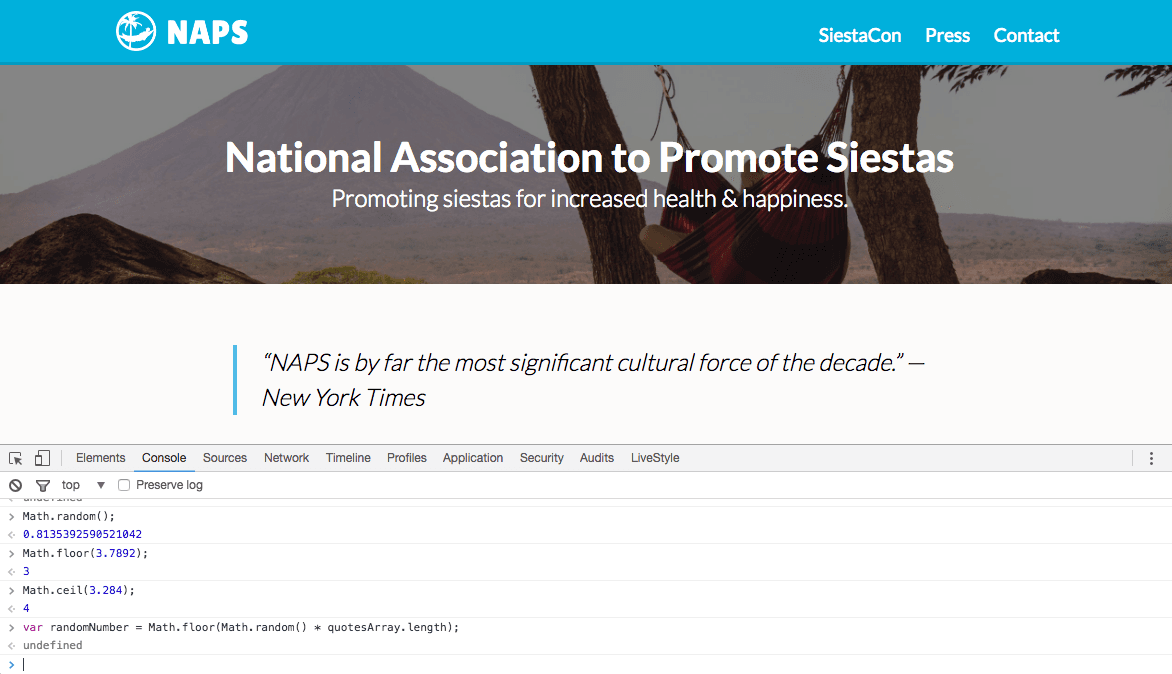
Math.random();Hit Return (Mac) or Enter (Windows). It’ll print a random number between 0 and 1.
- Hit the Up Arrow key to reload Math.random();.
Hit Return (Mac) or Enter (Windows) to see it generates a different random number.
How can we apply this for our purposes? We can have JavaScript choose a random number within a certain range that we specify. Then we can use that number to choose an item from the quotes array. If we have five different testimonials, we’d tell it to pick a number between 0 and 4.
To get a random number between 0 and 4, type the following code:
Math.random() * 4;NOTE: This multiplies the random number by 4 so instead of getting a number between 0 and 1, it outputs one between 0 and 4.
Hit Return (Mac) or Enter (Windows) to see a random number between 0 and 4.
One problem is that the number we get has many decimal places, but we need an integer (a whole number).
The Math.floor() method rounds down to the closest whole number. Type:
Math.floor(3.78);Hit Return (Mac) or Enter (Windows) and it’ll print out 3.
The Math.ceil() function rounds up to the closest whole number. Type:
Math.ceil(3.78);Hit Return (Mac) or Enter (Windows) and it’ll print out 4.
Using the Math Object to Pick Random Testimonials
Now that we know how the Math object works, let’s figure out how we can customize it for our purposes.
- Switch back to your code editor.
- First, let’s add the actual press quotes to our array. We’ve saved you some time by typing out the quotes for you. Go into the snippets folder and open press-quotes.txt.
- Select and copy all the text.
- Close the file. If you aren’t already in index.html, switch to it.
- Select the three placeholder quotes.
- Replace them by pasting the new quotes over them.
- Save the file.
- Switch back to Chrome, and reload index.html.
In the Console, type the following code but do not hit Return/Enter yet!
Math.random() * quotesArray.length;This says to take a random number between 0 and 1 and multiply it by the length of the array. We could specify a certain number to multiply by (such as when we used 4 previously) but it’s better to use a dynamic number. That way if the number of items in the array changes, you won’t have to rewrite the JavaScript.
To round it down, wrap the line in a Math.floor() as shown below in bold (don’t miss the end parenthesis):
Math.floor( Math.random() * quotesArray.length);- Hit Return (Mac) or Enter (Windows) to apply the command. You should get a random integer between 0 and 4.
- Hit the Up Arrow key and then hit Return (Mac) or Enter (Windows) to get another random integer.
Perfect! Now we can add this to our JavaScript. Select and copy the line you typed in the Console:
Math.floor(Math.random() * quotesArray.length);- Switch back to index.html in your code editor.
In the script tag near the bottom of the document, make a new line below the array and paste the code, as shown in bold:
];
   Math.floor(Math.random() * quotesArray.length);
</script>
To make this number easier to refer to, let’s store it in a variable. Add the following code shown in bold:
];
   var randomNumber = Math.floor(Math.random() * quotesArray.length);
</script>
Next we need to grab the testimonial that’s currently on the page and replace it with a random one. Add the following bold code (as a single line of code):
];
   var randomNumber = Math.floor(Math.random() * quotesArray.length);
   document.getElementById('press-quote').textContent = quotesArray[randomNumber];
</script>
Save the file.
Preview index.html in Chrome. (Reload if it’s already open.)
The page will randomly display one of the testimonials.
Reload the page a few more times to see a random testimonial each time. Cool!
NOTE: We are leaving the static —New York Times quote in the HTML as a graceful fallback in case a visitor has JavaScript turned off (and for SEO purposes).
Optional Bonus: Adding Quote Marks Around the Testimonial
The testimonial is looking good, but technically it contains both a testimonial and an attribution. It would be nice if the testimonial portion was surrounded by quotation marks. The testimonial and attribution are separated by an emdash. If you’re not familiar with an emdash, it’s longer than a typical hyphen. We can use JavaScript to split the string on that emdash, and then add quote marks to just the testimonial portion.
Switch back to index.html in your code editor.
The split() method will split a single string into an array of strings. We can specify the character (in this case an emdash) where we want to split the string. Let’s test how split() works. Around line 57, add the following bold code:
document.getElementById('press-quote').textContent = quotesArray[randomNumber];
   console.log( quotesArray[randomNumber].split('') );
</script>
Inside the single quotes of the split method, you’ll need to type an em dash (
—) as follows:- Mac: Hit Shift–Opt–Hyphen(
-) - Windows: Hold ALT as you type 0151 (on the Keypad) and then release ALT. If it doesn’t work, hit the Num Lock key and try again.
You should end up with the following code:
console.log( quotesArray[randomNumber].split('—') );- Mac: Hit Shift–Opt–Hyphen(
- Save the file.
- Switch to index.html in Chrome.
- Reload the page.
- Open the Console if it’s not already open.
You’ll see the new array of testimonial strings such as the example below.
["NAPS has ushered in a new era of sleep. ", " USA Today"]Take note that split() has removed the emdash, and created two items in an array.
Expand the array’s list by clicking the arrow on the left.
We can see that this array has two values, the testimonial (index 0) and the attribution (index 1).
You’ll also notice a space at the end of the testimonial and at the beginning of the attribution. Because we only want to add quote marks at the testimonial, let’s change how we’re splitting the string to get a value containing just the testimonial.
Return to index.html in your code editor.
Add a space on both sides of the emdash so you end up with:
console.log( quotesArray[randomNumber].split('—') );NOTE: Remember that spaces inside the quotes are the ones that matter.
Save the file and switch to index.html in Chrome (reload the page).
Notice that now the two values are just text with no extra spaces.
Return to index.html in your code editor.
We want to add quotes to the testimonial (index 0), so add the following bold code:
console.log( quotesArray[randomNumber].split('—')[0] );Save the file.
Switch to index.html in Chrome and reload the page.
Just the testimonial should show. Great! Now that we know our split is working, we can add it directly to our code.
Return to index.html in your code editor.
Select and copy
.split('—')[0]from the console.log() line.Paste it in the line above, as shown here:
document.getElementById('press-quote').textContent = quotesArray[randomNumber].split('—')[0];
   console.log( quotesArray[randomNumber].split('—')[0] );
</script>
We’re done testing, so add double slashes // to comment out the console.log():
// console.log( quotesArray[randomNumber].split('—')[0] );NOTE: The Console is great for developers, but you should only use it during development. Once you’ve used it to test things, be sure to remove the code (or at least comment it out) so it does not execute on a live site.
- Save the file.
- Switch to index.html in Chrome and reload the page. Only the testimonial should be appearing on the page (it’s now missing the emdash and attribution).
- Return to your code editor.
Let’s begin to add the quotation marks. After the equal sign, type two single quotes, and a plus (with spaces around it) as shown below in bold:
document.getElementById('press-quote').textContent = '' + quotesArray[randomNumber].split('—')[0];Inside the single quotes, type an opening curly quote as follows:
- Mac: Hit Opt–Left Bracket (
[) - Windows: Hold ALT as you type 0147 (on the Keypad) and then release ALT. If it doesn’t work, hit the Num Lock key and try again.
document.getElementById('press-quote').textContent = '“' + quotesArray[randomNumber].split('—')[0];- Mac: Hit Opt–Left Bracket (
Save the file.
- Switch to index.html in Chrome and reload the page. You should see an opening quote (
“) at the start of the testimonial on the page. - Return to your code editor.
Now let’s add the closing quote. After the
.split('—')[0]type a plus (with spaces around it), and two single quotes as shown below in bold:document.getElementById('press-quote').textContent = '“' + quotesArray[randomNumber].split('—')[0] + '';Inside the single quotes, add an closing curly quote as follows:
- Mac: Hit Opt–Shift–[ (that’s left square bracket)
- Windows: Hold ALT as you type 0148 (on the Keypad) and then release ALT.
document.getElementById('press-quote').textContent = '“' + quotesArray[randomNumber].split('—')[0] + '”';- Save the file.
Switch to index.html in Chrome and reload the page.
You should now have quotation marks to the start and end of the testimonial! We’re still missing the attribution, so let’s add it back in.
- Return to your code editor.
To add the attribution (index 1), add the bold code as shown below. Don’t miss adding the + before the new code you’re typing. (Feel free to copy and paste the first split and change 0 to 1.)
document.getElementById('press-quote').textContent = '“' + quotesArray[randomNumber].split('—')[0] + '”' + quotesArray[randomNumber].split('—')[1];Finally, we must add the emdash back in. As shown below, after the closing quote (
”) type an emdash with spaces around it. To type an emdash, use the following keystrokes:- Mac: Hit Shift–Opt–Hyphen (
-) - Windows: Hold ALT as you type 0151 (on the Keypad) and then release ALT.
document.getElementById('press-quote').textContent = '“' + quotesArray[randomNumber].split('—')[0] + '” — ' + quotesArray[randomNumber].split('—')[1];- Mac: Hit Shift–Opt–Hyphen (
- Save the file.
Switch to index.html in Chrome and reload the page a few times. The testimonial should have quotes around it and the emdash and attribution should be back.
NOTE: If you want to refer to our final code example, go to Desktop > Class Files > yourname-JavaScript jQuery Class > Done-Files > Random-Testimonial.