April 1, 2026Noble Desktop Publishing Team/8 min read

Segues Part 1: Free iOS Development Tutorial

Master iOS Navigation with Professional Segue Implementation

Core iOS Development Concepts

Segues

Visual transitions between view controllers that enable data passing and navigation flow in iOS applications.

View Controllers

Fundamental building blocks that manage app screens and user interactions in iOS development.

Data Models

Structured objects that organize and contain information for display across different app views.

Topics Covered in This iOS Development Tutorial:

Segues, Creating a Band Detail Object

Exercise Preview

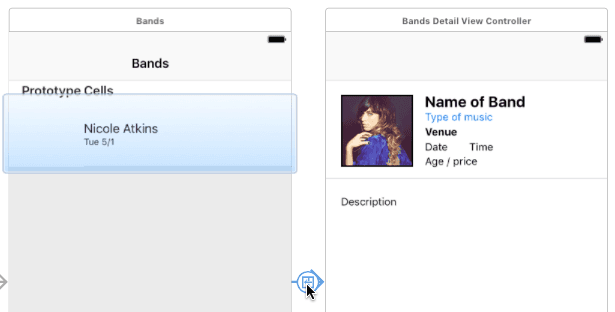
select segue showDetail

Exercise Overview

In this exercise, you'll master one of iOS development's fundamental navigation patterns: creating segues to pass information seamlessly between view controllers. This skill forms the backbone of modern iOS app architecture, enabling you to build sophisticated, data-driven user experiences that feel intuitive and responsive.

Tutorial Implementation Process

1

Project Setup

Open existing Jive Factory project or duplicate the starter files to begin segue implementation

2

Class Creation

Create BandsDetailViewController class to handle detail view functionality

3

Segue Configuration

Implement prepare method and configure segue identifiers for proper navigation

4

Data Object Design

Build BandDetail object with properties to pass comprehensive information between views

Getting Started

  1. If you completed the previous exercise, you can skip the following sidebar. We strongly recommend completing exercises 1B–1E before proceeding, as they establish the foundational components this exercise builds upon.

    If you completed the previous exercise, Jive Factory.xcodeproj should still be open in Xcode. If you closed it, navigate to yourname-iOS Dev Level 2 Class > Jive Factory and reopen the project.

If You Did Not Complete the Previous Exercises (1B–1E)

  1. Close any open files and return to the Desktop.
  2. Navigate to Class Files > yourname-iOS Dev Level 2 Class.
  3. Duplicate the Jive Factory Ready for Segues folder.
  4. Rename the duplicated folder to Jive Factory.
  5. Open Jive Factory > Jive Factory.xcodeproj.
Prerequisites Required

This exercise builds on previous work from exercises 1B through 1E. Starting without completing these exercises may result in missing foundational knowledge and project structure needed for successful implementation.

Creating a Custom View Controller Class

Professional iOS development requires custom view controller classes to handle complex functionality beyond basic UI display. Just as we created a custom class for the Table View Controller in previous exercises, we'll now create a specialized class for our Detail View Controller. This approach follows iOS development best practices and gives us programmatic control over the detail view's behavior.

  1. In the Project navigator, select BandsTableViewController.swift. This ensures our new file will be properly organized within the project structure.
  2. Create a new file by going to File > New > File (or press Cmd–N).
  3. Under iOS and Source, double-click the Cocoa Touch Class template.
  4. From the Subclass of dropdown, choose UIViewController. You can start typing and let Xcode's intelligent autocomplete assist you.
  5. For the Class name, enter BandsDetail at the beginning, creating BandsDetailViewController. Note the plural "Bands"—this naming convention maintains consistency with your existing architecture.

    NOTE: By subclassing UIViewController, your custom class inherits all standard view controller functionality while allowing you to add specialized features. This inheritance pattern is fundamental to iOS development and enables the modular, reusable code that characterizes professional applications.

  6. Click Next.
  7. Verify you're in the Jive Factory folder, then click Create.
  8. Notice that BandsDetailViewController.swift now appears in the Project navigator. The next crucial step is linking this class to the storyboard's visual interface.
  9. In the Project navigator, click Main to open the storyboard.
  10. In the Document Outline, select View Controller (nested within View Controller Scene). A blue outline indicates successful selection.
  11. In the Utilities panel on the right, click the Identity inspector tab identity inspector icon.
  12. In the Class field, type B—Xcode should autocomplete to BandsDetailViewController.
  13. Press Return to establish the connection. Your storyboard view controller is now properly linked to your custom class, enabling programmatic control over the interface.

Understanding Segues: The Foundation of iOS Navigation

Segues represent one of iOS development's most elegant solutions to app navigation. In previous exercises, we implemented a basic segue transitioning users from the table view to the detail view. Now we'll explore segues' sophisticated data-passing capabilities, which enable dynamic, context-aware user interfaces that respond intelligently to user interactions.

  1. Access Apple's comprehensive documentation by going to Help > Developer Documentation.
  2. Search for UIStoryboardSegue and select the first result.

    Understanding segues is crucial for iOS development mastery. Segue objects orchestrate visual transitions between view controllers, but their power extends far beyond simple navigation. Before each transition occurs, the system calls the prepare(for segue: UIStoryboardSegue, sender: Any?) method in the source view controller. This callback provides the perfect opportunity to configure the destination controller with relevant data, creating dynamic, contextual user experiences.

  3. The prepare method is so fundamental to iOS development that Xcode automatically generates it when creating table view controllers. Close the Documentation window and let's examine this essential method.
  4. In the Project navigator, click BandsTableViewController.swift.

    IMPORTANT: Ensure you're in the comprehensive Table View Controller file (100+ lines), not the newly created Detail View Controller file. This distinction is critical for the following steps.

  5. Scroll to the file's bottom and locate this commented code block:

    /*
    // MARK: - Navigation
    
    // In a storyboard-based application, you will often want to do a little preparation before navigation
    override func prepare(for segue: UIStoryboardSegue, sender: Any?) {
       // Get the new view controller using segue.destinationViewController.
       // Pass the selected object to the new view controller.
    }
    */
  6. Remove the opening /* above the // MARK: - Navigation line to begin uncommenting this essential code.

  7. Delete the closing */ below the method's closing brace.

    Now we'll replace the placeholder comments with production-ready code. To streamline your development process, we've prepared the implementation in a ready-to-use format.

  8. Go to File > Open.
  9. Navigate to Desktop > Class Files > yourname-iOS Dev Level 2 Class > Code Snippets and open prepareForSegue.txt.
  10. Press Cmd–A to select all code.
  11. Press Cmd–C to copy.
  12. Close the file.
  13. Delete both comment lines within the prepare method.
  14. Paste the copied code:

    override func prepare(for segue: UIStoryboardSegue, sender: Any?) {
    
       if (segue.identifier == "showDetail") {
          if let indexPath = self.tableView.indexPathForSelectedRow {
             let bandsDetailViewController:BandsDetailViewController = segue.destination as! BandsDetailViewController
          }
       }
    }
  15. Let's analyze this implementation: The prepare method serves as your segue traffic controller. The outer if statement performs identifier verification—checking if the triggered segue matches "showDetail". This pattern becomes invaluable in complex applications with multiple segue types.

    The nested if statement retrieves the selected row's index path, providing crucial context about which table row triggered the segue. This information enables precise data retrieval and contextual detail view configuration.

    The final line establishes a strongly-typed reference to the destination view controller, enabling safe, predictable data transfer between controllers.

    For this logic to execute properly, we must configure our storyboard segue with the "showDetail" identifier that our code references.

  16. In the Project navigator, select Main.storyboard.
  17. In the Editor canvas, click the segue arrow connecting the Table View and Detail View Controllers:

    select segue showDetail

  18. In the Utilities panel, click the Attributes inspector tab attributes inspector icon.
  19. In the Identifier field, type showDetail and press Return.

    Perfect! Your segue now has the proper identifier, enabling the conditional logic in your prepare method to execute during transitions. This connection between storyboard configuration and programmatic logic exemplifies iOS development's visual-code integration approach.

Creating a Band Detail Data Model

Professional iOS applications require robust data models to manage complex information efficiently. Rather than passing individual properties through segues—a practice that becomes unwieldy and error-prone—we'll create a dedicated data object that encapsulates all band-related information. This object-oriented approach promotes code maintainability, type safety, and scalability as your application grows.

  1. In the Project navigator, select BandsDetailViewController.swift to ensure proper file organization.
  2. Create a new file: File > New > File (or Cmd–N).
  3. Double-click Cocoa Touch Class.
  4. From Subclass of, choose NSObject. This foundation class provides essential object functionality while remaining lightweight.
  5. For Class name, enter BandDetail (singular "Band"—this represents individual band data, not a collection).
  6. Click Next.
  7. Verify the Jive Factory folder location and click Create.
  8. Notice BandDetail.swift in the Project navigator.
  9. Click BandDetail.swift to open it.
  10. After the opening brace, add the first property for the band's name:

    class BandDetail: NSObject {
       var bandName: String?
    }
  11. Select the property line you just added.
  12. Copy it (Cmd–C).
  13. Paste it eight additional times (Cmd–V) to create nine total property declarations.
  14. Modify the properties as shown below to create a comprehensive data model:

    class BandDetail: NSObject {
       var bandName: String?
       var bandType: String?
       var bandDescription: String?
       var fullImageName: String?
       var thumbImageName: String?
       var nextShowDate: String?
       var nextShowTime: String?
       var venue: String?
       var showDetails: String?
    }
  15. Save your work: File > Save.
  16. To accelerate development, we've prepared the object instantiation code. Go to File > Open.
  17. Navigate to Desktop > Class Files > yourname-iOS Dev Level 2 Class > Code Snippets and open band-detail-objects.txt.
  18. Select all code (Cmd–A).
  19. Copy the code (Cmd–C).
  20. Close the file.
  21. Open BandsTableViewController.swift.
  22. Locate the viewDidLoad() method and delete the commented line below super.viewDidLoad().
  23. Paste the copied code where the comment was removed:

    override func viewDidLoad() {
       super.viewDidLoad()
    
       let nicoleAtkinsBandDetail = BandDetail()
       nicoleAtkinsBandDetail.bandName = "Nicole Atkins"
       nicoleAtkinsBandDetail.bandType = "Rock"
       nicoleAtkinsBandDetail.bandDescription = "Nicole will knock your socks off."

    Code Omitted To Save Space

    blackAngelsDetails.venue = "Cake Shop"
       blackAngelsDetails.showDetails = "Over 21—$15"
    }

    TIP: If the indentation appears inconsistent, select the pasted code, Control-click or right-click, then choose Structure > Shift Right to align it properly with Xcode's formatting standards.

  24. Review the pasted code structure. Each code block demonstrates the two-step object creation process: first, memory allocation and initialization; second, property configuration. This pattern creates fully-configured data objects ready for segue transmission. The first line instantiates a BandDetail object, while subsequent lines populate its properties with band-specific information.
  25. Save your changes: File > Save.
  26. Excellent progress! You've established the foundation for sophisticated data passing between view controllers. Keep the project open—the next exercise will build upon this architecture to complete the segue implementation and create a fully functional master-detail interface.

Key Takeaways

1Segues provide the foundation for navigation and data passing between iOS view controllers
2The prepare(for segue:sender:) method is essential for transferring information during view transitions
3Creating custom UIViewController subclasses enables extended functionality beyond default behavior
4Data model objects like BandDetail organize complex information for efficient transfer between views
5Proper segue identifier configuration ensures correct navigation flow and method execution
6NSObject subclasses serve as effective containers for structured data in iOS applications
7Xcode automatically generates helpful template code including navigation preparation methods
8Professional iOS development requires systematic organization of classes, data models, and navigation logic

RELATED ARTICLES