Lists: Improving the User Experience Programmatically
What This Tutorial Covers
Cell Customization
Custom layouts beyond default cell styles.
Edit Mode
Built-in support for delete, reorder, and selection.
Smooth Animation
Transition cells smoothly when data changes.
Noble Desktop's Full-Stack Web Development Certificate teaches programming fundamentals that transfer across mobile, web, and desktop development.
Learn how to refine your iOS app interface with this iOS Development tutorial, featuring a detailed exercise that guides you through steps to improve UI elements such as spacing, cell backgrounds, text styles, and navigation bar color.
Exercise Preview
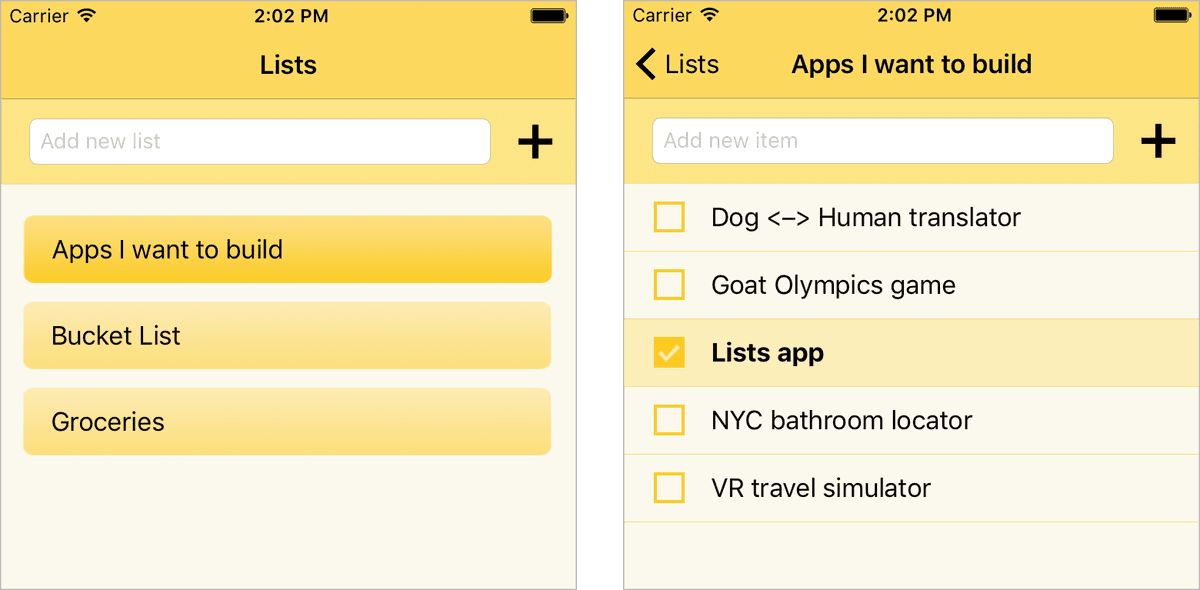
Increasing the Spacing Between the Add New List Area & the First List Title
If the Simulator isn’t still running, go to Xcode and Run
 it now.
Make sure you are on the first screen with the list titles.
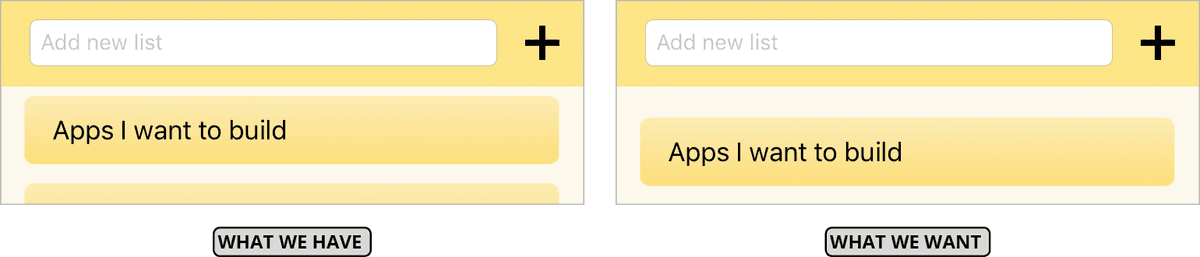
Look at the Add new list area below the navigation bar (with the text field and Plus (+) button), then look at the first list title below it.
The spacing between them looks oppressively cramped. We think it would look better if we add a bit of spacing on top of the first list title, as shown on the right side of the image below:
In Xcode, click on the ListsVC.swift tab (or open a new tab and navigate there now if you closed it).
Near the top of the code, find the viewDidLoad method.
This method gets called once, when the view initially loads. In the previous exercise we added the loadLists() method call that loads all the list titles that were previously saved. It only needs to be called a single time, but the code we want to add may need to be called more than once. This is because the user may add multiple lists, and the topmost list may change thanks to our alphabetical sorting.
This means we’ll need to override another one of Apple’s pre-coded methods for the UIViewController class. Let’s use one that can get called multiple times.
Between viewDidLoad and the MARK comment, add the viewWillAppear method that prepares the view to appear on-screen anytime it visually changes. (Accept Xcode’s suggestion when it’s available, so you get the code shown below.)
override func viewDidLoad() {
      super.viewDidLoad()
      loadLists()
   }

   override func viewWillAppear(_ animated: Bool) {
      code
   }


// MARK:—TableView DataSource methods————————————
To push the top of the table view down without changing any of the other positioning values, add the following line of code:
override func viewWillAppear(_ animated: Bool) {
   listsTableView.contentInset = UIEdgeInsets(top: listsTableView.frame.height/38, left: 0, bottom: 0, right: 0)
}
Let’s break that down:
- By default, there is no inset (extra space) between a table view and its parent container. The contentInset property allows us to change that.
- UIEdgeInsets specify a distance in points. We’re using the default value of 0 everywhere we don’t want any insets. Positive values add more space, shrinking the frame. Negative values expand the frame.
- We’re pushing the frame downward by 1/38 of the Table View’s total height. This dynamically calculated value looks good on any size iPhone—we found it using trial and error.
Run
the Simulator to see the difference. Our list titles have more breathing room!Click on one of the stored list names to highlight it. Then at the top left of the next screen, click the
<Lists button to return to the first screen.By default, the background of a selected cell is light gray. We aren’t using gray elsewhere, so it looks rather unsightly in our app. It would look better with no background color. Because we don’t want the color, we’ll need a way to indicate to the user who the cell is selected. Let’s change its background image!
Changing the Background Images When List Table View Cells Are Selected
To swap out the two possible backgrounds behind the list title, we’ll need to go into the code for the cell and specify a different behavior if the Table View Cell object is selected. We can do that in the setSelected function that Apple helpfully added automatically when we created the file in a previous exercise.
Let’s open the file in a new tab. Press Cmd–T, then in the Project navigator click on ListTitleTVCell.swift.
In the setSelected function, we want to test whether the selected property in the parentheses is true or false. Add the bold if-else statement:
override func setSelected(_ selected: Bool, animated: Bool) {
   super.setSelected(selected, animated: animated)
   if selected {

   }
   else {

   }
}
This function is called every time a cell on the parent Table View (ListsTableView) is loaded or changed.
We want to set the background image based on whether the cell is selected or not. Assign the different images by passing in their file names as arguments:
if selected {
   backgroundImageView.image = UIImage(named: "CellSelectedBackground")
}
else { backgroundImageView.image = UIImage(named: "CellDeselectedBackground") }
Let’s get rid of that gray highlight. We can’t actually remove it, but we can change it to the exact color we used for the cell background using RGBA values (RGB plus alpha transparency). Switch to the Main.storyboard tab or open it in a new tab.
On the first View Controller (the middle one in our 3-controller setup), click slightly to the left or right of the gradated yellow background behind the List Name label. If the Document Outline is open, the ListTitleTVCell should be selected.
We can check the color, make sure the Attributes inspector
 is selected.
In the Attributes inspector next to Background, click on the bar.
In the pop-up that appears, take note of the RGB values as well as the Opacity. You should have Red: 250, Green: 247, and Blue: 235. Opacity should be 100%.
Let’s use these values in our code! Dismiss the Color pop-up and switch back to the ListTitleTVCell.swift tab.
Change the background color for the contentView that contains the cell’s visuals by adding the bold line of code:
if selected {
   backgroundImageView.image = UIImage(named: "CellSelectedBackground")
   contentView.backgroundColor = UIColor(displayP3Red: 250/255, green: 247/255, blue: 235/255, alpha: 1)
}
Let’s test it out! Run
the Simulator once more.Highlight the cell and you’ll see that the image changes and it now blends in well with our overall design! (You may have to go back a screen to get a better look.)
If you aren’t on the second screen that displays list items, click on a list name to navigate there.
Do the following to see these two areas for improvement:
- Click on the title of one of the list items to select it. There’s that pesky gray again! Let’s change this background color to a nice peppy yellow.
- Check an unchecked item. It’s nice that the Check button’s image changes, but the image change might be too subtle for users who are in a hurry or otherwise distracted to gauge which items have been completed. Let’s make the text bold.
Displaying a Completed List Item’s Text in Bold
In Xcode, click on the ListItemTVCell.swift tab (or open a new tab and navigate there now if you closed it).
To change the background color for selected cells from light gray to light yellow, fill in the provided setSelected method as follows:
override func setSelected(_ selected: Bool, animated: Bool) {
   super.setSelected(selected, animated: animated)
   if selected { contentView.backgroundColor = UIColor(displayP3Red: 252/255, green: 238/255, blue: 183/255, alpha: 1) }
}
NOTE: We haven’t used this exact color elsewhere in our interface, but it matches our color scheme. The RGBA values (and hex code we aren’t using) were provided to us by the designer, as is expected. If your designer forgets to give you these values, just ask for them.
In the checkButtonTapped custom method that gets executed whenever the user taps this button, change the font weight based on whether or not the item is checked off by adding the following ternary conditional operator (as a single long line of code):
checkButton.setImage(item.checked ? UIImage(named: "Checked") : UIImage(named: "Unchecked"), for:.normal)
itemNameLabel.font = item.checked ? UIFont.systemFont(ofSize: 17, weight: UIFontWeightBold) : UIFont.systemFont(ofSize: 17, weight: UIFontWeightRegular)
saveLists()
Just like the ternary conditional operator we added in a previous exercise, we’re checking whether the item is checked (using the ? operator). If so, we’re setting its font weight to bold. Otherwise (:) it will be regular weight.
NOTE: We also needed to specify that it will remain the 17 px default system font (San Francisco) that we’ve been using. Otherwise, the font will look the same as before.
If you remember from the previous exercise, a Table View Cell cannot hold on to its checked/unchecked state! Remember that this is because Table View Cells (but not their content) get recycled. This means we need to add this code in the parent Table View. Select the entire itemNameLabel.font line shown below and copy it.
itemNameLabel.font = item.checked ? UIFont.systemFont(ofSize: 17, weight: UIFont. Weight.bold) : UIFont.systemFont(ofSize: 17, weight: UIFont. Weight.regular)Click on the ListItemsVC.swift tab (or open a new tab and navigate there now if you closed it).
In the TableView DataSource methods section’s cellForRowAt method, paste the code as shown in bold:
func tableView(_ tableView: UITableView, cellForRowAt indexPath: IndexPath) -> UITableViewCell {Code Omitted To Save Space
listItemTVCell.itemNameLabel.text = listItemTVCell.item.title
   itemNameLabel.font = item.checked ? UIFont.systemFont(ofSize: 17, weight: UIFont. Weight.bold) : UIFont.systemFont(ofSize: 17, weight: UIFont. Weight.regular)
   listItemTVCell.checkButton.setImage(listItemTVCell.item.checked ? UIImage(named: "Checked") : UIImage(named: "Unchecked"), for:.normal)

   return listItemTVCell
}
The itemNameLabel and checked properties were declared in the listItemTVCell. To make the red error go away, add the bold code:
listItemTVCell. itemNameLabel.font = listItemTVCell. item.checked ? UIFont.systemFont(ofSize: 17, weight: UIFont. Weight.bold) : UIFont.systemFont(ofSize: 17, weight: UIFont. Weight.regular)Run
the Simulator again. When it loads, click on a list name to see the items inside it.Select any list item by clicking anywhere except the Check button. Great, there’s our yellow highlight!
Click any item’s Check button on and off to see the font weight change. It will be bold when it is checked, and regular size when it isn’t.
Feel free to do this with multiple items to see that the font weight always changes like we told it to do. This is because we’re not relying solely on the Table View Cell to maintain the state of the font weight inside it.
Darkening the Header in the Navigation Controller
Now that our two screens look nice and punchy, the pale yellow header (the status and navigation bar area) looks a little weak. We can change its background color to a darker yellow, but we cannot do so on the Storyboard. Let’s create a file with a new class so we can change the color programmatically.
Go back to Xcode if you aren’t already there.
To ensure the new file gets organized in the proper place, go to the Project navigator
 and click on the Lists folder (not the name of the project).
Go to File > New > File or use the shortcut Cmd–N.
Under iOS and Source, double–click on the Cocoa Touch Class template.
Create a subclass of the UINavigationController that is managing the navigation for our app:
Subclass of: UINavigationController (Remember to set this first!) Class: NavigationController Click Next, then in the next screen click Create.
The new file should appear automatically in the Editor. Delete everything except the following code:
import UIKit

class NavigationController: UINavigationController {

   override func viewDidLoad() {
      super.viewDidLoad()
   }

}
Let’s customize our navigation controller by adding a background image with the color we want. This only needs to happen once—when the view initially loads. So add the bold line of code inside the viewDidLoad method:
override func viewDidLoad() {
   super.viewDidLoad()

   navigationBar.setBackgroundImage(UIImage(named: "NavigationBarBackground"), for: UIBarMetrics.default)
}
NOTE: Our custom background image is a tiny 9 X 9 pixel image that will get tiled both horizontally and vertically to fill the space. If you want to take a look, feel free to open the image (from the Images folder) in a new tab.
We just added a custom background image to the navigation bar. This changes how Swift decides whether or not to make the bar semi-transparent. If any of the pixels are semi-transparent, the header will also be semi-transparent. Now that we have a better color, we want this effect. However, our custom image is 100% opaque. To get some translucency, add the following line:
super.viewDidLoad()
navigationBar.isTranslucent = true
navigationBar.setBackgroundImage(UIImage(named: "NavigationBarBackground"), for: UIBarMetrics.default)
This changed the default value of false (for an opaque image with an alpha value of 1.0) to true, so we will get the semi-transparency we want.
Run
the Simulator.The navigation bar looks… the same as before?! Oops, we forgot to tell the Navigation Controller that it’s associated with the file we just created! It’s easy to overlook this step but luckily the fix is equally easy.
Back in Xcode, click on the Main.storyboard tab (or open a new tab and navigate there now if you closed it).
Go to the top right and switch to the Identity inspector
 tab.
tab.Remember that because it’s the initial controller, the Navigation Controller is the leftmost of our three controllers. If you can’t see it, scroll there now.
In the Editor, click in the center of the Navigation Controller (anywhere in the gray area).
At the top of the Identity inspector
next to Class, start typing NavigationController. Once it gives you the correct suggestion, press Return.Run
the Simulator again.Now that Xcode knows which file contains the relevant code, our header now has the color we want!
Click on a list title to advance to the next screen. Great, the header looks nice here too. Remember that because the Navigation Controller controls the entire flow of navigation (the two View Controllers that actually display visuals), the header for all the screens will be the custom color.
Our app looks and functions exactly how we want, so we are finally done. Congratulations, you can check this app off of your to-do list!
Return to Xcode and Stop
 the Simulator.
Save and close the project but leave Xcode open for the next exercise.