April 1, 2026Noble Desktop Publishing Team/8 min read

Embedding Video into the App

Master video embedding in iOS applications step by step

What You'll Learn in This Tutorial

YouTube Video Integration

Learn to embed YouTube videos directly into your iOS app using WebKit views and HTML strings.

UI Component Management

Master moving and positioning WebKit views within your app's interface for optimal user experience.

Code Organization

Practice proper cleanup techniques by removing unused view controllers and maintaining clean project structure.

Topics Covered in This iOS Development Tutorial:

Embedding YouTube Videos in iOS Apps, Implementing Dynamic Video Content in Band Detail Views

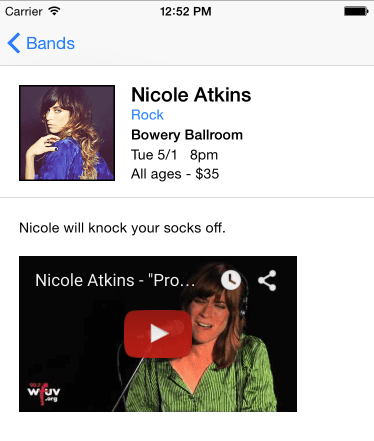
Exercise Preview

ex prev embed video

Exercise Overview

In this hands-on exercise, you'll master the art of embedding YouTube videos directly into your iOS application. This essential skill allows you to create rich, multimedia experiences that keep users engaged within your app rather than redirecting them to external websites. You'll learn both the technical implementation and the strategic considerations behind in-app video integration—a crucial component of modern mobile app development.

Prerequisites Required

This tutorial builds on exercises 1B through 3A. If you haven't completed the previous exercises, use the provided Jive Factory Ready for Embedding Video folder to get started.

Getting Started

  1. Before diving into video implementation, ensure your development environment is properly configured. If you completed the previous exercise, you're ready to proceed immediately.

    If you completed the previous exercise, Jive Factory.xcodeproj should still be open. If you closed it, re-open it (from yourname-iOS Dev Level 2 Class > Jive Factory).

If You Did Not Complete the Previous Exercises (1B–3A)

  1. Close any files you may have open and switch to the Desktop.
  2. Navigate to Class Files > yourname-iOS Dev Level 2 Class.
  3. Duplicate the Jive Factory Ready for Embedding Video folder.
  4. Rename the folder to Jive Factory.
  5. Open Jive Factory > Jive Factory.xcodeproj.

Project Setup Process

1

Navigate to Class Files

Close any open files and navigate to Desktop > Class Files > yourname-iOS Dev Level 2 Class

2

Duplicate Project Folder

Duplicate the 'Jive Factory Ready for Embedding Video' folder and rename it to 'Jive Factory'

3

Open Xcode Project

Navigate to Jive Factory folder and open Jive Factory.xcodeproj to begin the exercise

Adding a Video

User experience research consistently shows that in-app video content dramatically increases engagement rates. Rather than redirecting users to external websites—where you lose control of the experience—we'll implement a seamless video integration that keeps users within your app ecosystem.

  1. In the Project navigator, click on WebViewController.swift.
  2. We'll strategically replace the external website redirect with embedded video content. This approach reduces bounce rates and creates a more cohesive user experience. Let's comment out the existing website linking code:

    let jiveURL = URL(string: "http://www.thejivefactory.com")
    let myRequest = URLRequest(url: jiveURL! as URL)
    siteWebView.load(myRequest as URLRequest)
  3. Press Cmd–/ to comment out the code.
  4. Now we'll create the foundation for our video embedding system. This approach allows for dynamic content management and future scalability. After the commented code, add the following:

    //   let jiveURL = URL(string: "http://www.thejivefactory.com")
    //   let myRequest = URLRequest(url: jiveURL! as URL)
    //   siteWebView.load(myRequest as URLRequest)
    
          let htmlString = ""
    
          // Do any additional setup after loading the view.
    }

    This string will contain our responsive HTML wrapper for the YouTube embed—a critical component for ensuring optimal display across different device orientations and screen sizes.

  5. Open a web browser and navigate to: tinyurl.com/nicole-promised
  6. Below the video and view count, click the Share link.
  7. Click Embed to access YouTube's embed options. You'll see HTML code in the right panel—this is the foundation of our integration.
  8. Uncheck Show suggested videos when the video finishes. This prevents YouTube from potentially directing users to competitor content or irrelevant videos.
  9. Click into the HTML code to select it all.
  10. Press Cmd–C to copy the embed code.
  11. Close the web browser window.
  12. Return to Xcode to implement our enhanced responsive solution.

    YouTube's default embed code lacks responsive design capabilities—a significant limitation for modern mobile development. We've prepared optimized code that ensures your video adapts flawlessly to different screen sizes and orientations.

  13. Go to File > Open (or hit Cmd–O).
  14. Navigate to Desktop > Class Files > yourname-iOS Dev Level 2 Class > Code Snippets and open flexible-video.txt.
  15. Paste the YouTube code on a new line after the existing code. Notice how our enhanced version replaces fixed dimensions with flexible CSS properties—this is what enables true responsive behavior.
  16. Extract the video identifier from YouTube's embed code. In the YouTube code you just pasted, select only the video URL:

    //www.youtube.com/embed/Go9k14yrxeQ?rel=0
  17. Press Cmd–C to copy this URL segment.
  18. In the responsive code template above, locate and select PASTE_LINK_HERE (ensuring you don't select the http: prefix, which is essential for proper video loading):

    <html><body><iframe style=\"position:absolute; top:0; left:0; width:100%; height:100%;\" src=\"http:PASTE_LINK_HERE\" frameborder=\"0\" allowfullscreen></iframe></body></html>

    NOTE: YouTube's current embed system allows developers to choose between HTTP and HTTPS protocols. We're using HTTP here for broader compatibility, though HTTPS is increasingly preferred for enhanced security.

  19. Press Cmd–V to paste the video URL.
  20. Your completed responsive embed code should look like this:

    <html><body><iframe style=\"position:absolute; top:0; left:0; width:100%; height:100%;\" src=\"http://www.youtube.com/embed/Go9k14yrxeQ?rel=0\" frameborder=\"0\" allowfullscreen></iframe></body></html>
  21. Select this complete responsive embed code (not the original YouTube code at the bottom).
  22. Press Cmd–C to copy the optimized version.
  23. Close the text file.
  24. In Xcode, place your cursor between the quotes in the let htmlString = "" line.
  25. Paste the responsive embed code:

    let htmlString = "<html><body><iframe style=\"position:absolute; top:0; left:0; width:100%; height:100%;\" src=\"http://www.youtube.com/embed/Go9k14yrxeQ?rel=0\" frameborder=\"0\" allowfullscreen></iframe></body></html>"
  26. Now implement the core functionality that loads our HTML string directly into the web view. This method provides superior performance compared to URL-based loading:

    let htmlString = "<html><body><iframe style=\"position:absolute; top:0; left:0; width:100%; height:100%;\" src=\"http://www.youtube.com/embed/Go9k14yrxeQ?rel=0\" frameborder=\"0\" allowfullscreen></iframe></body></html>"
    
    siteWebView.loadHTMLString(htmlString, baseURL: nil)
    }

    NOTE: The baseURL parameter is required but set to nil in this implementation. In production applications with multiple videos, you might set this to your content delivery network (CDN) base URL for improved performance and easier content management.

  27. Press Cmd–S to save your changes.
  28. In the Project navigator, click on Main.storyboard.
  29. Navigate to the Bands Detail View Controller.
  30. Double-click the Jive Factory website button, change the text to Play Video, and press Return. This creates a more intuitive user interface that clearly communicates the action.
  31. Click the Run button to test your implementation.
  32. When the Simulator loads, select any band listing.
  33. Tap the Play Video button to launch your embedded video player.
  34. You should see the responsive video player load seamlessly. Click the play button to test video functionality.
  35. After testing playback, click the X button to return to the Web View Controller and verify navigation works correctly.

Responsive Video Implementation

YouTube's default embed code doesn't include responsive design. This tutorial provides custom HTML/CSS code to make videos flexible and properly sized for mobile screens.

Video Embedding Implementation

1

Comment Out Existing Code

Select the three lines linking to Jive Factory website and press Cmd-/ to comment them out

2

Create HTML String

Add 'let htmlString = ""' after the commented code to hold the YouTube embedded video HTML

3

Get YouTube Embed Code

Navigate to the YouTube video, click Share > Embed, uncheck suggested videos, and copy the HTML code

4

Implement Responsive Design

Use the provided flexible-video.txt code and paste only the video link portion into the responsive template

Moving the Video to the Band Detail

Modern app design principles emphasize reducing unnecessary navigation layers. By embedding the video directly in the detail view, we create a more streamlined user experience while reducing the cognitive load on users.

  1. Switch back to Xcode for our interface optimization.
  2. Select the Play Video button on the Bands Detail View Controller and press Delete.
  3. In the Object library search bar object library icon, clear existing text and type: web
  4. Drag a WebKit View to position it below the Description element. WebKit provides superior performance and security compared to legacy UIWebView components.
  5. With the WebKit View selected, access the Size inspector size inspector icon in the Utilities panel.
  6. Configure the WebKit View dimensions for optimal video display:

    X: 20
    Y: 267
    Width: 278
    Height: 156
  7. Switch to the Attributes inspector attributes inspector icon for additional configuration options.
  8. Enable the Assistant editor by clicking assistant editor icon and selecting the Assistant option. This dual-pane view streamlines the connection process between interface elements and code.
  9. If BandsDetailViewController.swift isn't visible in the right pane, use the file selector menu to choose it.
  10. Import the WebKit framework to enable advanced web view functionality:

    import UIKit
    import WebKit
  11. Create a connection between your interface element and code by Control-dragging from the WebKit View to the Swift file, positioning it below the existing IBOutlet declarations.

  12. Configure the outlet with these professional naming conventions:

    Connection: Outlet
    Name: videoWebView
    Type: WKWebView
    Storage: Weak
  13. Click Connect to establish the outlet relationship.
  14. Now we'll migrate our video implementation to the detail view controller. In the Project navigator, select WebViewController.swift.
  15. Copy the complete video embedding implementation:

    let htmlString = "<html><body><iframe style=\"position:absolute; top:0; left:0; width:100%; height:100%;\" src=\"http://www.youtube.com/embed/Go9k14yrxeQ?rel=0\" frameborder=\"0\" allowfullscreen></iframe></body></html>"
    
    siteWebView.loadHTMLString(htmlString, baseURL: nil)
  16. Press Cmd–C to copy this code block.
  17. Navigate to BandsDetailViewController.swift.
  18. Locate the viewDidLoad method (typically around line 24).
  19. Paste the video code at the end of the viewDidLoad method:

    bandImage.image = UIImage(named: currentBandDetail!.fullImageName!)
    
       let htmlString = "<html><body><iframe style=\"position:absolute; top:0; left:0; width:100%; height:100%;\" src=\"http://www.youtube.com/embed/Go9k14yrxeQ?rel=0\" frameborder=\"0\" allowfullscreen></iframe></body></html>"
    
       siteWebView.loadHTMLString(htmlString, baseURL: nil)
    }
  20. Update the web view reference to match your new outlet:

    videoWebView.loadHTMLString(htmlString, baseURL: nil)
  21. Click Run to test the enhanced user experience.
  22. When the Simulator loads, select a band to view the detail screen.
  23. The video should now load seamlessly within the detail view, creating a more integrated experience. Test video playback functionality.
  24. After testing, click the X button to stop playback and verify proper video controls.
  25. Return to Xcode to complete the implementation.

Video Placement Options

FeatureSeparate Web View ControllerEmbedded in Detail View
User ExperienceRequires navigationImmediate access
Code ComplexityMultiple controllersSingle controller
PerformanceAdditional view loadingDirect integration
MaintenanceMore files to manageStreamlined structure
Recommended: Embedding directly in the detail view provides better user experience and cleaner code organization.

WebKit View Integration

1

Add WebKit Import

Import WebKit framework in BandsDetailViewController.swift to enable WebKit view functionality

2

Configure WebKit View

Set precise positioning with X:20, Y:267, Width:278, Height:156 for optimal mobile display

3

Create Outlet Connection

Control-drag from WebKit view to create IBOutlet named videoWebView of type WKWebView

4

Transfer Video Code

Copy HTML string and loadHTMLString code from WebViewController to BandsDetailViewController

Cleaning up

Professional development practices require removing unused code and components to maintain clean, efficient applications. This reduces app size, improves performance, and simplifies future maintenance.

  1. With the video now integrated into the detail view, we can safely remove the standalone Web View Controller. In the Project navigator, select Main. (If the Project navigator isn't visible, click project navigator icon.)
  2. Select the Web View Controller (the controller positioned below the Bands Detail View Controller—not the embedded web view). The entire controller should be outlined in blue when properly selected.
  3. Press Delete to remove the unused view controller.
  4. The corresponding Swift file also requires removal. In the Project navigator, select WebViewController.swift.
  5. Press Delete to remove the file.
  6. When prompted about file disposal, click Move to Trash to permanently remove the unused code.
  7. Press Cmd–S to save all changes.
  8. Keep this project open—in the next exercise, we'll implement dynamic video loading, allowing each band to display its unique promotional content. This creates a more sophisticated, data-driven video experience.

Project Cleanup Tasks

0/4
Tutorial Complete

You've successfully embedded a YouTube video directly into your iOS app's detail view. The next exercise will show you how to load different videos for each band in your app.

Key Takeaways

1YouTube's default embed code lacks responsive design, requiring custom HTML and CSS for proper mobile display
2WebKit views can load HTML strings directly using loadHTMLString method with baseURL parameter
3Commenting out existing code (Cmd-/) allows you to preserve functionality while implementing new features
4Embedding videos directly in detail views provides better user experience than separate web view controllers
5Proper outlet connections require importing WebKit framework and using WKWebView type for WebKit views
6Project cleanup involves removing both storyboard elements and corresponding Swift files to maintain clean architecture
7Control-dragging creates IBOutlet connections between storyboard elements and Swift code properties
8Precise positioning using Size inspector ensures consistent video placement across different device sizes

RELATED ARTICLES