Customizing the App for iPad
What This Tutorial Covers
Universal Targets
Single binary that adapts to iPhone and iPad.
Size Classes
Layout decisions based on regular/compact widths.
iPad-Specific UI
Take advantage of larger screens with split layouts.
Noble Desktop's Full-Stack Web Development Certificate teaches programming fundamentals that transfer across mobile, web, and desktop development.
Dive into this comprehensive tutorial that covers iOS development with a focus on adjusting an iPhone application to function optimally on an iPad, including creating a new iPad storyboard and setting the interface orientation.
Exercise Preview
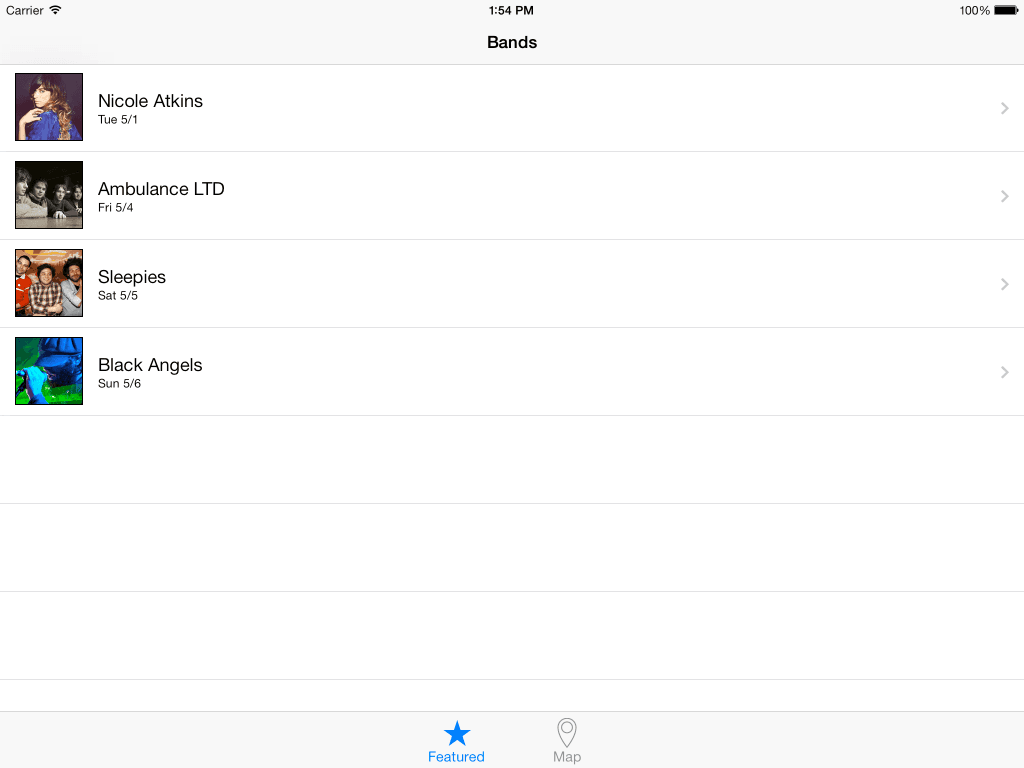
Getting Started
We suggest you complete the previous band app exercises (1B–4D) before doing this one. If you did not do the previous exercises, complete the sidebar below.
If you completed the previous exercises 1B–4D, re-open Jive Factory.xcworkspace (from yourname-iOS Dev Level 2 Class > Jive Factory).
If You Did Not Complete the Previous Exercises (1B–4D)
- Close any files you may have open and switch to the Desktop.
- Navigate to Class Files > yourname-iOS Dev Level 2 Class.
- Duplicate the Jive Factory Ready for Customizing iPad folder.
- Rename the folder to Jive Factory.
- Open Jive Factory > Jive Factory.xcworkspace.
- Before we make any changes, let’s take a look at how our app currently looks on an iPad. At the top left of Xcode, click on iPhone 13 Pro and change the active scheme to
iPad Pro (12.9 inch). - Click the Run button.
When the Simulator finishes loading, notice the app isn’t quite sized right. Even though we’re running the iPad Simulator, the build settings on our app are specific to iPhone.
NOTE: You may need to scroll around the window to see the whole app if the preview is too large for your screen.
- If the simulator is too big for your screen, hover over one of the screen’s corners until you see a resize handle
 . Drag the resize handle so that the simulator fits better.
 - In the bottom right corner, click the 1X button, then click the 2X button to see it at 2x again. Notice that it appears to be low-resolution at 2X. That’s because, as we mentioned, it’s set for iPhone size. The 2X button just scales up the app. While the app functions, we can make it a lot better than this.
Switch back to Xcode.
We want to create a universal app for both iPhone and iPad. We can use the code that we’ve written so far for both by making a few changes.
- Click the Project navigator tab
 if you’re not already in it.
 - Click on the Jive Factory project name (not the folder) at the top of the Project navigator to open the Project Settings Editor.
Slightly to the right of the Project navigator, to the left of the General tab, make sure Jive Factory is selected as a Target.
- If you are not in the General tab, click on it at the top.
You may remember that at the beginning of the book, we told you to set this app for iPhone only. In the Deployment Info section, from the Devices menu, change iPhone to Universal.
NOTE: Xcode will create a Universal app by default.
- Let’s see what that did. Click the Run button.
- When the Simulator finishes loading, notice the app now displays in the iPad layout. Cool!
- At the bottom, click on the Map tab. Looking good.
- At the bottom, click on the Featured tab.
Click on the Nicole Atkins cell to go into the detail view.
As you can see, the content positioning/layout is still designed for the iPhone. With the wider screen size, we really need to rethink how we are laying out this app on the iPad. We should create a new layout for the iPad that takes advantage of the extra screen space.
Switch back to Xcode.
Creating a New Storyboard for IPad
Within the project, we’re going to create a new storyboard, specifically for the iPad layout, so that we can leave our original storyboard for iPhone as is.
- In the Project navigator, click on Main.storyboard. (We want the new storyboard to come after this file.)
- Hit Cmd–N to open a new file.
- In the template dialog, Under iOS and User Interface, double–click on Storyboard.
- Next to Save As, type: Main_iPad.storyboard
- You should be in the Jive Factory folder so click Create.
- Let’s copy all the elements from the original iPhone storyboard to our new iPad storyboard. In the Project navigator click on Main.storyboard.
- If the Document Outline is open, click Hide Document Outline
 .
. - If the Debug area is open, click the Hide the Debug area button
 at the top-right corner of Xcode.
 - Click onto a blank area of the Editor, then press Cmd–A to select all.
- Press Cmd–C to copy.
- In the Project navigator, click on Main_iPad.storyboard.
- Click onto an empty area of the Editor and hit Cmd–V to paste.
- Click the Hide Document Outline button .
- CTRL–click or Right–click on an empty area of the Editor and choose Zoom to 50% so you can see everything.
- Click onto a blank area of the Editor to deselect everything.
- Click the top bar of the Tab Bar Controller to select it.
- Hold Shift and click on the top bar of each of the other controllers until they are all outlined in blue (selected).
- At the bottom of the Editor, click on View as: iPhone 13 Pro… (or whichever device view it is set to) to show the different display options.
- Click on iPad Pro 9.7
". As shown below, arrange the controllers so that they have the same setup as the iPhone storyboard (feel free to zoom out as needed):
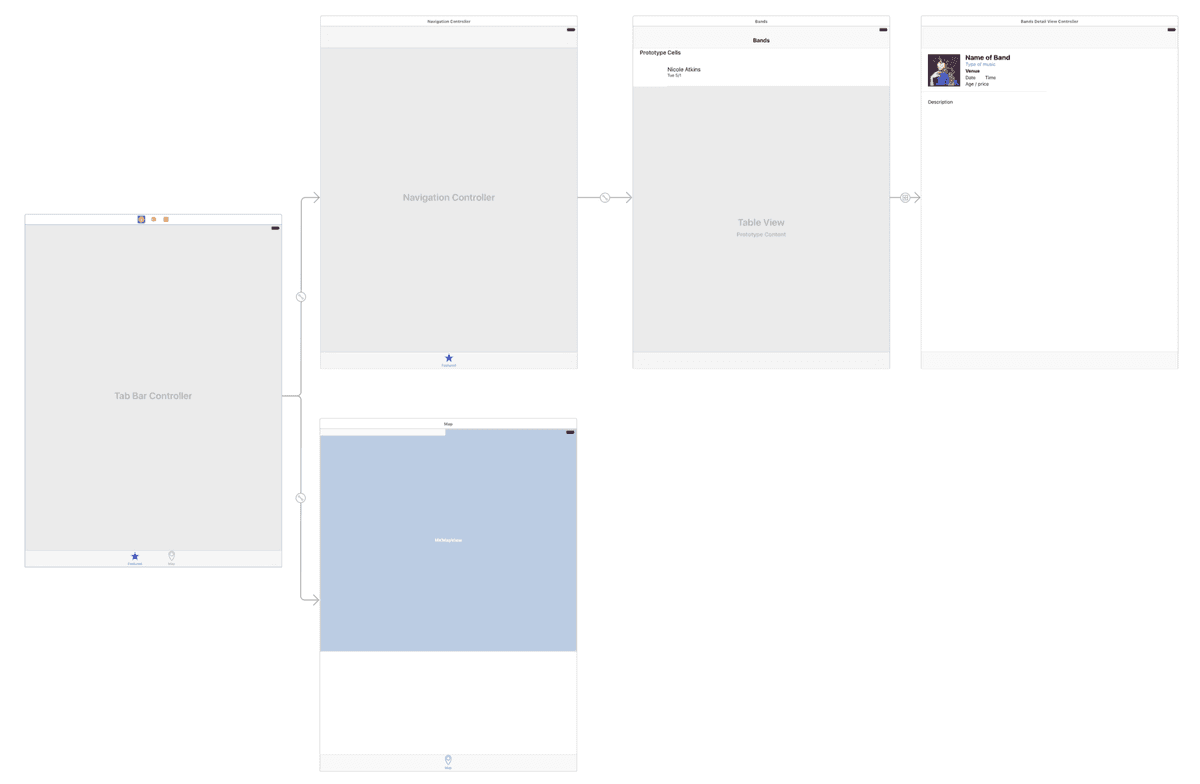
- We also need to specify the Initial View Controller again. Select the Tab Bar Controller.
- In the Attributes inspector tab
 , in the View Controller section, check on
Is Initial View Controller. - Now that we have the iPad storyboard, we need to tell the Xcode project to use it for iPads. In the Project navigator, click on the Jive Factory project name to open the Project Settings Editor.
- In the General tab, in the Deployment Info section, set Devices to iPad.
From the Main Interface menu, choose Main_iPad.storyboard.
Setting the Interface Orientation
For the iPad, it would be nice if we had the bands listed on the left, so that when one is tapped, the details would load on the right. In the next exercise, we’re going to use something called a split view controller to do this. The split view controller works best on a landscape orientation, so we’re going to lock the iPad into landscape orientation. While we’re at it, let’s also lock the iPhone into portrait orientation because our app wasn’t designed for landscape on the iPhone.
- You should still be in the Project Settings Editor. If not, in the Project navigator, click on the Jive Factory project name to open the Project Settings Editor.
- First let’s set the iPhone. Next to Devices, set the menu to iPhone.
- Next to Device Orientation, we only want Portrait to be checked. If any other orientations are checked, uncheck them.
- Now for the iPad. Set Devices to iPad.
- Click the appropriate orientations on or off so only Landscape Left and Landscape Right are checked.
- We want to be able to use this app on all devices, so set Devices to Universal. This will remember the orientation settings we assigned for each type of device.
Click the Run button.
When the Simulator finishes loading, notice the iPad app now defaults to landscape orientation!
- Choose Hardware > Rotate Right to see that it won’t switch even when the device is rotated (which is what we want for this app).
- Choose Hardware > Rotate Left to switch back to normal.
- Switch back to Xcode.
- Click the Stop button.
- In the Project navigator, click on Main_iPad.storyboard.
- Notice the controllers still appear in portrait orientation. Let’s change them to landscape mode. Select the Tab Bar Controller.
At the bottom of the Editor, under View as change the Orientation to Landscape
 .
.Notice all the controllers connected to the Tab Bar Controller have also switched to landscape mode.
- The controllers may be overlapping. If so, move them apart so they have some space between them and no longer overlap.
- Go to File > Save.
Keep this file open. In the next exercise, we’ll make the app look more suitable for the iPad by adjusting the UI and adding a Split View Controller, which is only available for the iPad.