April 1, 2026Noble Desktop Publishing Team/7 min read

Adding a Tab Bar Controller

Master iOS Tab Bar Controllers and Navigation

What You'll Build

Tab Bar Navigation

Create a multi-tab interface for your Jive Factory app with seamless navigation between different views and features.

Custom Icons

Learn to implement both system-provided icons and custom graphics for professional-looking tab bar items.

Navigation Controller Integration

Connect existing navigation controllers with new tab bar controllers for complex app architectures.

Topics Covered in This iOS Development Tutorial:

Setting a Custom Icon for the Map Tab

Exercise Preview

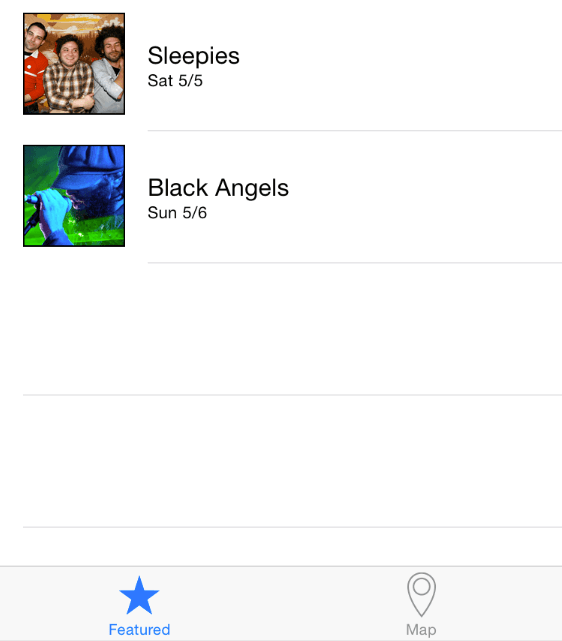
ex prev tabbar

Exercise Development Flow

Step 1

Setup Tab Bar Controller

Add the main tab bar controller and configure basic structure

Step 2

Connect Navigation Controllers

Link existing navigation controller to tab bar system

Step 3

Configure Tab Icons

Set up Featured system icon and custom Map icon

Step 4

Test Implementation

Run simulator to verify tab switching functionality

Exercise Overview

In this exercise, you'll implement a tab bar interface for the Jive Factory app—one of the most fundamental navigation patterns in iOS development. Tab bars provide users with immediate access to the app's primary sections, making them essential for apps with distinct feature sets. Your first tab will showcase the list of upcoming shows, while the second tab will display an interactive map showing the Jive Factory's location. This dual-tab approach mirrors the navigation patterns found in successful apps like Apple Music and Maps, where users frequently switch between content discovery and location-based features.

Getting Started

  1. If you completed the previous exercise, you can skip the following sidebar. We strongly recommend completing the previous exercises (1B–2B) before proceeding, as this exercise builds directly on the navigation controller and table view implementation from those lessons.

    If you completed the previous exercise, Jive Factory.xcodeproj should still be open in Xcode. If you've closed it, navigate to yourname-iOS Dev Level 2 Class > Jive Factory and reopen the project file.

    Prerequisites

    This exercise builds on previous work. Ensure you have completed exercises 1B-2B or use the provided starter files to maintain proper project structure.

    Project Setup Verification

    0/3

If You Did Not Complete the Previous Exercises (1B–2B)

  1. Close any open files and return to your Desktop.
  2. Navigate to Class Files > yourname-iOS Dev Level 2 Class.
  3. Duplicate the Jive Factory Ready for Tab Bar Controller folder.
  4. Rename the duplicated folder to Jive Factory.
  5. Open Jive Factory > Jive Factory.xcodeproj.

Alternative Setup Process

1

Access Starter Files

Navigate to the Class Files directory and locate the pre-configured Jive Factory Ready for Tab Bar Controller folder

2

Duplicate and Rename

Create a working copy of the starter project by duplicating and renaming the folder to Jive Factory

3

Open Project

Launch Xcode and open the Jive Factory.xcodeproj file from your newly created folder

Implementing the Tab Bar Controller

Now you'll add the tab bar controller, which serves as the root navigation component that manages multiple view controllers. This approach is particularly effective for apps where users need quick access to different types of content without losing their context.

  1. In the Project navigator, select Main.storyboard to open Interface Builder.
  2. If the Document Outline is visible, click Hide Document Outline show hide document outline icon to maximize your workspace.
  3. Since you'll be working with multiple controllers simultaneously, reduce the zoom level for better visibility. Control-click or right-click on any blank area in the Editor and select Zoom to 50%.
  4. In the Object library search bar object library icon, type: tab bar
  5. Drag a Tab Bar Controller from the Object library into the Editor area, positioning it to the left of your existing controllers. The exact placement isn't critical—you'll organize the layout shortly.
  6. If the Document Outline reopened during this process, click Hide Document Outline show hide document outline icon again.
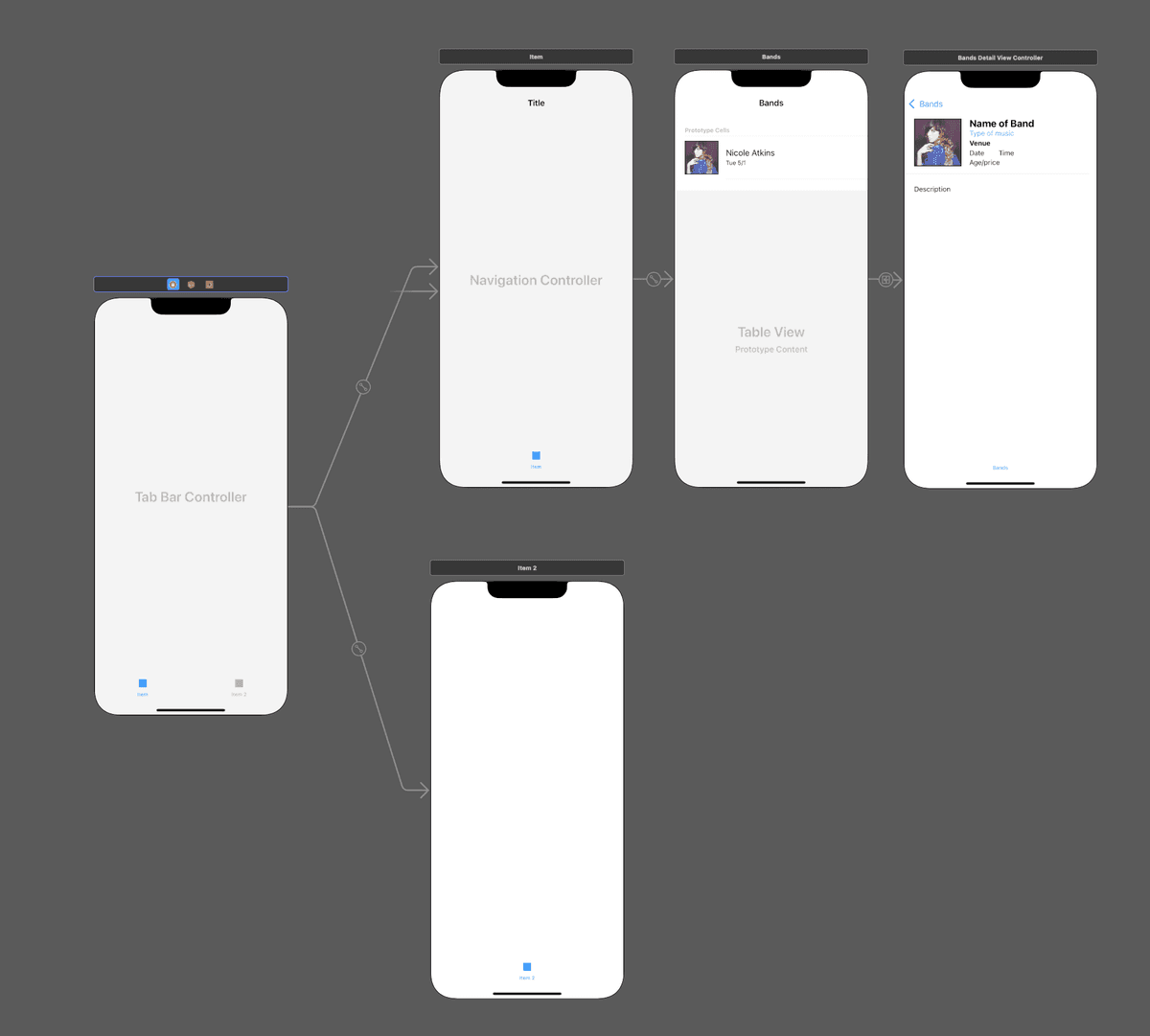
  7. Examine the Tab Bar Controller structure. Notice it includes the main controller on the left connected to two default view controllers on the right, labeled Item 1 and Item 2. These represent the two tabs your users will interact with.

    You'll replace the Item 1 controller with your existing featured band listings navigation controller, creating a more cohesive user experience.

  8. Click on any white background area outside the controllers to deselect the Tab Bar Controller.
  9. Select the Item 1 view controller (the upper controller on the right side of your new tab bar group) until it displays a blue outline.
  10. Press Delete to remove this placeholder controller.
  11. Click on the Tab Bar Controller to select it with a blue outline.
  12. Ensure both the Tab Bar Controller and your original Navigation Controller (leftmost of your initial three controllers) are visible in the Editor area.
  13. In the Utilities panel on the right, select the Connections inspector tab connections inspector icon.
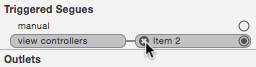
  14. Under Triggered Segues, locate the view controllers section. Hover over Item 2 and click the X to remove this connection, as shown below:

    delete segue connections

    This clears all existing connections, allowing you to establish proper relationships between your tab bar and view controllers.

  15. With the Tab Bar Controller still selected, locate the circle at the far right of view controllers under Triggered Segues. When you hover over it, a + symbol appears.
  16. Hold Control and drag from this + symbol to your Navigation Controller in the Editor area, then release. This connects your existing band listings to the first tab.
  17. Repeat this process for the second connection. Hover over the circle to the right of Item until the + appears.
  18. Hold Control and drag from this + to the remaining Item 2 controller in the Editor area.
  19. Verify your connections match the configuration shown below. Both controllers should now have segues from the Tab Bar Controller:

    triggered segues tabbar

  20. Organize your workspace for clarity. Arrange the controllers in your Editor to match this layout:

    arrange tab bar controller

  21. Control-click or right-click on any blank Editor area and select Zoom to 100% to return to normal viewing size.
  22. Now you'll customize the tab bar items with appropriate icons and labels. Click on the gray tab bar item at the bottom of your Navigation Controller to select it:

    navcontroller item

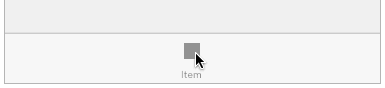
    Note: Depending on your Xcode configuration, you may see a gray box with the Item text positioned behind it, as shown below. Regardless of this visual variation, clicking on the bottom gray area should properly select the tab bar item.

    Gray box

  23. In the Attributes inspector attributes inspector icon, change the System Item dropdown to Featured. This provides both an appropriate icon and label for your band listings tab.
  24. Notice how the Featured icon and label now appear at the bottom of your Navigation Controller, giving users a clear indication of this tab's purpose.

Zoom Strategy

Reduce the Editor zoom to 50% before adding the Tab Bar Controller. This large UI component requires adequate space for proper positioning and connection management.

Tab Bar Controller Components

Main Controller

The central tab bar controller that manages switching between different views and maintains the tab interface.

Default View Controllers

Two pre-connected view controllers labeled Item 1 and Item 2 that serve as starting points for your tabs.

Controller Connection Process

1

Remove Default Controllers

Delete the default Item 1 view controller and disconnect Item 2 to prepare for custom connections

2

Connect Navigation Controller

Control-drag from the Tab Bar Controller to your existing Navigation Controller to establish the first tab

3

Link Second Tab

Create a segue connection between the Tab Bar Controller and the Item 2 controller for the second tab

Setting a Custom Icon for the Map Tab

For the map functionality you'll implement in the next exercise, you'll need a custom icon since iOS doesn't provide a default map icon in its system item collection. Creating custom tab bar icons is a common requirement in professional iOS development, as most apps need icons that reflect their unique functionality and branding.

  1. In the Project navigator, select Assets.xcassets to access your app's image assets catalog.
  2. Switch to your Desktop and navigate to Class Files > yourname-iOS Dev Level 2 Class > Icons.
  3. Press Command-A to select all images in the Icons folder.
  4. With Xcode visible, drag these images into either column of the Assets editor. This adds the icon assets to your project.
  5. Return to your storyboard by clicking Main in the Project navigator.
  6. Select the tab bar item at the bottom of the Item 2 controller by clicking on the gray box labeled Item 2.
  7. In the Attributes inspector attributes inspector icon, configure the Bar Item settings as follows:
  • In the Title field, delete any existing text, type Map, and press Return.
  • From the Image dropdown menu, select locationIcon.
  1. Verify that your tab bar now displays the custom Map icon, as shown below:

    map icon tabbar

  2. Update your app's entry point by changing the Initial View Controller from the Navigation Controller to the Tab Bar Controller. Drag the gray arrow currently pointing to your Navigation Controller and drop it onto the Tab Bar Controller:

    drag initial view arrow

    The arrow should now point to your Tab Bar Controller, making it the first screen users see when launching your app.

  3. Test your implementation by clicking the Run button to launch the iOS Simulator.
  4. When the Simulator loads, observe that your band listings now appear within a Featured tab at the bottom of the screen. This maintains all existing functionality while adding the new navigation structure.
  5. Tap the Map tab to switch views. While this tab doesn't contain content yet, you can see the navigation working correctly. You'll build the map functionality in the next exercise.

    Professional tip: The map icon you've implemented uses a black silhouette on a transparent background—this is the standard approach for tab bar icons. iOS automatically applies the appropriate blue tinting for the active tab and gray tinting for inactive tabs. The PNG-24 format ensures crisp rendering across all device resolutions.

    If you wanted to create a filled icon state that matches Apple's Featured icon behavior, you'd need to provide both outline and filled versions of your icon and implement additional code to handle the state changes. For this tutorial, the current implementation provides excellent visual consistency with iOS design patterns.

  6. Return to Xcode when you've finished testing the tab navigation.
  7. Click the Stop button to end the simulation session.
  8. Save your progress by going to File > Save or pressing Command-S.
  9. Keep this project open as you'll continue building the map functionality in the next exercise, completing your tab-based navigation system.

Icon Types Comparison

FeatureSystem IconsCustom Icons
Setup DifficultySimple dropdown selectionRequires asset import
Visual ConsistencyMatches iOS standardsUnique branding opportunity
Customization LevelLimited to Apple designsFull creative control
File ManagementNo additional files neededPNG-24 assets required
Recommended: Use system icons for standard functions, custom icons for unique features
Icon Technical Requirements

Custom tab bar icons should be black on transparent background and saved as PNG-24. iOS automatically applies color fills and selection states to black areas of the image.

Custom Icon Implementation

1

Import Assets

Add icon files to Assets.xcassets by dragging them from the Icons folder in Class Files

2

Configure Tab Properties

Set the tab title to Map and select locationIcon from the Image menu in Attributes inspector

3

Update Initial View Controller

Drag the gray arrow from Navigation Controller to Tab Bar Controller to set proper app entry point

Automatic Color Management

The blue highlighting of selected tab icons is handled automatically by iOS. The tab bar system applies appropriate colors to your black icon areas without additional programming.

Key Takeaways

1Tab Bar Controllers provide foundational navigation structure for multi-view iOS applications
2Proper controller connections require careful segue management between tab bar and view controllers
3System icons offer quick implementation while custom icons enable unique branding opportunities
4Custom tab bar icons must be black on transparent background and saved as PNG-24 format
5Initial View Controller settings determine app launch behavior and user entry point
6iOS automatically handles tab selection states and color management for standard implementations
7Zoom level management in Xcode improves workflow efficiency when working with large UI components
8Asset organization in Assets.xcassets centralizes image resources for better project management

RELATED ARTICLES