April 1, 2026Dan Rodney/8 min read

The Lawyer Joke Book: Styling the Text

Master professional typography with InDesign paragraph styling

Core InDesign Skills You'll Master

Paragraph Rules

Learn to create visual separators and decorative elements that enhance readability and document structure.

Baseline Grid System

Establish consistent vertical rhythm and alignment across your entire document for professional typography.

Advanced Find/Change

Automate text formatting and style application across large documents with powerful search and replace techniques.

Topics Covered in This InDesign Tutorial:

Paragraph Rules, the Baseline Grid, Find/change with Paragraph Formatting

Exercise Preview

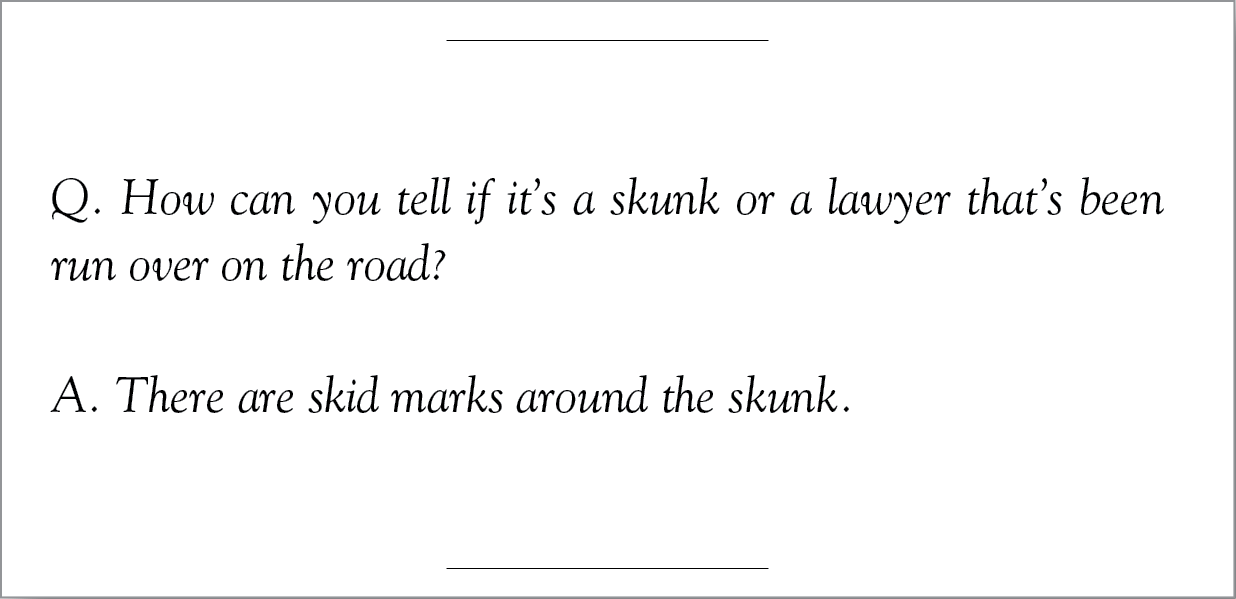
lawyer joke styling ex prev

Document Series Context

This tutorial builds on the first part of the Lawyer Joke Book series. Make sure you have your document file ready before proceeding with the styling exercises.

Exercise Overview

This is the second part of our comprehensive Lawyer Joke Book series. In this advanced exercise, we'll demonstrate professional typesetting techniques that are essential for book production. You'll master paragraph styles for consistency, configure the baseline grid for optimal text flow, and leverage InDesign's powerful Find/Change functionality to automate complex formatting tasks across an entire document. These skills are fundamental to efficient publication design workflows.

  1. Re-open yourname-Lawyer Joke Book.indd if necessary.

Creating Style Sheets

Raw, unformatted text is the enemy of professional publication design. Style sheets are not just convenient—they're absolutely essential for maintaining consistency across long documents and enabling efficient revisions. In this section, we'll create a robust paragraph style that incorporates typography best practices, including proper alignment to baseline grids, intelligent hyphenation, and optimal justification settings.

  1. Navigate to the Paragraph Styles panel. If it's not visible, access it via Type > Paragraph Styles.

  2. Hold Option (Mac) or ALT (Windows) and click the Create new style button new button at the bottom of the panel.

  3. The New Paragraph Style dialog opens with extensive formatting options. We'll configure multiple parameters, so resist clicking OK until all specifications are complete. Begin with the style identification:

    Style Name: Body Text
    Add to CC Library: Uncheck this option if shown
  4. Select Basic Character Formats from the left panel to establish our typographic foundation:

    Font: Adobe Caslon Pro Regular
    Size: 12 pt
    Leading: 16 pt
  5. Navigate to Indents and Spacing to configure paragraph structure and grid alignment:

    Alignment: Left Justify
    First Line Indent: 1p
    Align to Grid: All Lines
  6. Access Keep Options to prevent awkward page breaks and ensure professional text flow:
    • Check Keep Lines Together.
    • Select At Start/End of Paragraph and set both Start and End to 2.
  7. Configure Hyphenation for optimal line breaks and readability:
    • Check Hyphenate.
    • Apply these professional hyphenation standards:
    Words with at Least: 5
    After First: 2
    Before Last: 2
    Hyphen Limit: 1
    Hyphenation Zone: 3p
    • Maintain the hyphenation slider at its default center position.
    • Uncheck the final three options to avoid excessive hyphenation.
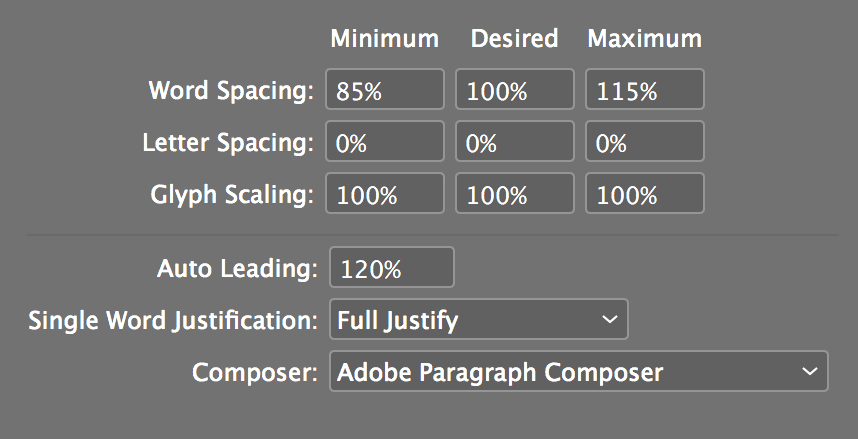
  8. Select Justification to fine-tune word and letter spacing for professional text composition:

    lawyer justification

  9. Click OK to create your professional body text style.

  10. Ensure you're viewing a document page (not the Master Page) to apply the style.

  11. Using the Type tool type tool, click within the main text frame.

  12. Select all text using Edit > Select All.

  13. In the Paragraph Styles panel, click Body Text to transform your raw text into professionally formatted content.

Body Text Style Configuration

1

Create New Style

Hold Option/ALT and click Create new style button to open the dialog immediately

2

Set Typography

Configure Adobe Caslon Pro Regular, 12pt size with 16pt leading for optimal readability

3

Configure Spacing

Set left alignment, 1 pica first line indent, and align all lines to baseline grid

4

Enable Hyphenation

Set hyphenation with 5-letter minimum, 2-letter breaks, and 3 pica hyphenation zone

Setting up the Baseline Grid

You'll notice the text spacing appears inconsistent—this occurs when the baseline grid doesn't match your leading specifications. The baseline grid is InDesign's invisible framework that ensures consistent vertical rhythm throughout your publication, critical for professional typography.

  1. Access InDesign menu (Mac) or Edit menu (Windows) and select Preferences > Grids.

  2. Configure the Baseline Grid to match your typography:

    • Start: 6p6
    • Increment Every: 16 pt

      NOTE: This 16pt increment precisely matches our style's leading, ensuring perfect text alignment.

  3. Click OK. The text now displays proper, consistent spacing.

  4. Deselect all text to view the results clearly.

Grid Alignment Principle

The baseline grid increment should match your paragraph leading. With 16pt leading, set the grid increment to 16pt for perfect alignment.

Baseline Grid Settings

Start Position

Set to 6p6 to align with your document margins and create consistent top spacing.

Increment Value

Match your paragraph leading at 16pt to ensure text sits perfectly on the grid lines.

Formatting the First Paragraphs of Each Joke

Professional publications require visual hierarchy to guide readers through content. We'll create a specialized style for joke beginnings that incorporates paragraph rules—horizontal lines that provide elegant separation between content sections.

  1. In the Paragraph Styles panel, select Body Text and access the panel menu panel menu to choose Duplicate Style.

  2. Name the duplicate 1st Paragraph but wait before clicking OK—we have several modifications to make.

  3. Select Indents and Spacing and modify these parameters for visual differentiation:
    • Change First Line Indent from 1p to 0p.
    • Change Space Before from 0p to 5p.
  4. Navigate to Paragraph Rules to add professional separators:
    • Select Rule Above and check Rule On.
    • Configure the rule specifications:
    Weight: 1 pt
    Color: (Text Color)
    Width: Column
    Offset: 3p6
    Left Indent: 8p
    Right Indent: 8p
  5. Click OK to create your specialized first paragraph style.

  6. Locate paragraphs beginning with five dollar signs ($$$$$)—these markers indicate joke beginnings. Navigate to pages 1 and 2 and apply the 1st Paragraph style to the first three jokes for testing.

  7. The horizontal rules successfully separate jokes, though you'll notice positioning issues when jokes appear at column tops. We'll address this shortly using advanced rule controls.

  8. Rather than manually styling each first paragraph, we'll leverage InDesign's powerful automation features. Access Edit > Find/Change.

  9. Click the Text tab at the panel's top.

  10. Verify Direction is set to Forward.

  11. Set Search to Document for comprehensive coverage.

  12. In Find what, enter $$$$$

  13. Leave Change to completely empty—we're removing these markers, not replacing them.

  14. Click More Options to access advanced formatting controls. (If Fewer Options appears, this step is already complete.)

  15. Clear any existing format specifications by clicking Clear specified attributes trash button under both Find Format and Change Format.

  16. Under Change Format, click Specify attributes to change specify attributes to findChange.

  17. Set Paragraph Style to 1st Paragraph and click OK.

  18. Test the operation with Find Next, then Change to verify results. Once satisfied with the process, click Change All to apply styling throughout the entire document, then click OK.

Creating the 1st Paragraph Style

1

Duplicate Base Style

Start with Body Text style and duplicate it to maintain consistent typography

2

Remove Indent and Add Space

Set first line indent to 0 and add 5 picas of space before to separate jokes

3

Add Paragraph Rule

Create 1pt rule above with 3p6 offset and 8 pica left/right indents for visual separation

Removing the Dollar Signs

Now that we've used the dollar sign markers to identify and style first paragraphs, these temporary indicators serve no purpose and must be removed to maintain professional appearance.

  1. The Find/Change panel should retain our previous search parameters:

    Find what: $$$$$
    Change to: Verify this field is empty
  2. Under Change Format, click Clear specified attributes trash button to remove style specifications.

  3. Click Fewer Options to streamline the interface.

  4. Execute Change All to eliminate all marker instances document-wide.

  5. Click OK, then close the Find/Change panel.

  6. Return to page 1 via Layout > First Page. (Alternative: press Cmd–J (Mac) or CTRL–J (Windows), enter 1 and click OK.)

Automation Achievement

You've successfully applied styling to all joke beginnings and removed placeholder markers in just two Find/Change operations, demonstrating the power of InDesign automation.

Fixing the Rules' Positioning When at the Top of a Column

Professional typography demands consistent alignment and positioning. When jokes begin at column tops, paragraph rules extend beyond the text frame boundaries, creating visual inconsistencies and potential conflicts with headers. InDesign provides precise controls to contain rules within their intended spaces.

  1. Ensure nothing is selected using Edit > Deselect All.

  2. Double-click the 1st Paragraph style in the Paragraph Styles panel to access editing mode.

  3. Select Paragraph Rules from the left panel.

  4. Enable Keep In Frame and click OK to apply the constraint.

  5. Review multiple pages to confirm that rules now remain properly positioned within text frame boundaries, maintaining consistent page alignment across spreads.

Rule Positioning Solutions

FeatureWithout Keep In FrameWith Keep In Frame
Top of Page RulesExtend above text frameContained within frame
Running Head InterferenceRules overlap headersClean separation maintained
Page AlignmentInconsistent across spreadsPerfect alignment achieved
Recommended: Always enable Keep In Frame for paragraph rules to maintain professional document structure.

Finishing up

Document finalization requires attention to page count accuracy and print preparation. InDesign dynamically adjusts page counts during editing, but doesn't automatically remove unnecessary pages when content contracts.

  1. Navigate to the document's end using Cmd–Shift–Page Down (Mac) or CTRL–Shift–Page Down (Windows). (Users without Page Down keys can try Cmd–Shift–Fn–Down Arrow (Mac) or CTRL–Shift–Fn–Down Arrow (Windows).)

    You'll likely find yourself around page 108 with several blank pages. These excess pages resulted from temporary document expansion during baseline grid adjustment. Professional workflow demands removing such artifacts.

  2. In the Pages panel, locate where text actually concludes (typically after page 90). Select the first blank page following content, scroll to the panel's end, and Shift–click the final page. Click Delete selected pages trash button. Confirm deletion if prompted.

  3. Congratulations—you've completed professional book typesetting using industry-standard techniques! For print output, access File > Print and configure these essential settings:
    • Limit your test print to a few pages for efficiency (Range: enter 12–15 for pages 12 through 15).
    • Enable Spreads for proper book layout visualization.
    • In Setup, select Orientation: Landscape landscape button to accommodate spread printing.
    • Monitor the Preview to verify correct output formatting before printing.

Document Cleanup Tasks

0/4

Bonus If You Have Extra Time: Making a Question/Answer Style

Advanced publication design often requires specialized formatting for different content types. Question-and-answer formats benefit from distinct visual treatment that maintains readability while providing clear content structure.

  1. Deselect all elements via Edit > Deselect All.

  2. In the Paragraph Styles panel, select Body Text and choose Duplicate Style from the panel menu panel menu.

  3. Name this specialized style Answer.

  4. In Indents and Spacing, modify formatting for visual distinction:
    • Change First Line Indent from 1p to 0p.
    • Change Space Before from 0p to 1p4.
    • Click OK.
  5. Browse the document for question-and-answer format jokes. When located, select answer paragraphs (beginning with "A") and apply the Answer style. This manual approach helps you understand the formatting before automation.

  6. For comprehensive styling, return to Edit > Find/Change and configure the Text tab:
    • Verify Direction is Forward.
    • Set Search to Document.
    • Enable Case Sensitive case sensitive findChange for precise matching.
    • In Find what, enter A. followed by a space (the period is crucial for accuracy).
    • Access More Options.
    • Under Change Format, click Specify attributes to change specify attributes to findChange.
    • Set Paragraph Style to Answer and click OK.
  7. Test with Find Next and individual Change commands to verify accuracy.

  8. After confirming proper operation, execute Change All for document-wide application.

  9. Close the Find/Change panel and save your professionally formatted document.

Question/Answer Style Implementation

1

Create Answer Style

Duplicate Body Text, remove first line indent, and add 1p4 space before for Q&A separation

2

Manual Application

Locate Q&A format jokes and apply Answer style to response paragraphs for visual distinction

3

Automate with Find/Change

Search for 'A. ' with case sensitivity and apply Answer style automatically throughout document

Case Sensitive Search

Enable case sensitivity when searching for 'A. ' to avoid accidentally formatting other text that contains the letter A followed by a period.

Key Takeaways

1Style sheets are essential for long documents and ensure consistency across all text formatting while allowing global changes
2Baseline grid alignment creates professional typography by ensuring consistent vertical rhythm with grid increments matching paragraph leading
3Paragraph rules provide visual separation between content sections and should use Keep In Frame option to prevent layout issues
4Find/Change with paragraph formatting enables rapid style application across entire documents, dramatically reducing manual formatting time
5Proper hyphenation settings with 5-letter minimums and controlled break points improve readability in justified text
6Document cleanup includes removing automatically generated blank pages and configuring appropriate print settings for book layouts
7Specialized paragraph styles like Answer format enhance document structure by providing visual hierarchy for different content types
8InDesign automation features transform time-intensive formatting tasks into efficient, repeatable processes for professional publishing workflows

RELATED ARTICLES