April 1, 2026Dan Rodney/6 min read

Creating a Table of Contents

Master Professional Table of Contents in InDesign

Core Skills You'll Master

Page Structure Management

Learn to control document flow and prevent unwanted page shuffling when adding new sections.

Paragraph Style Integration

Understand how TOC automation relies on consistent paragraph styling throughout your document.

Professional Numbering Systems

Implement Roman numerals for front matter and restart numbering for main content sections.

Topics Covered in This InDesign Tutorial:

Defining & Building a Table of Contents, Formatting & Updating a Table of Contents

Exercise Preview

toc ex prev

Exercise Overview

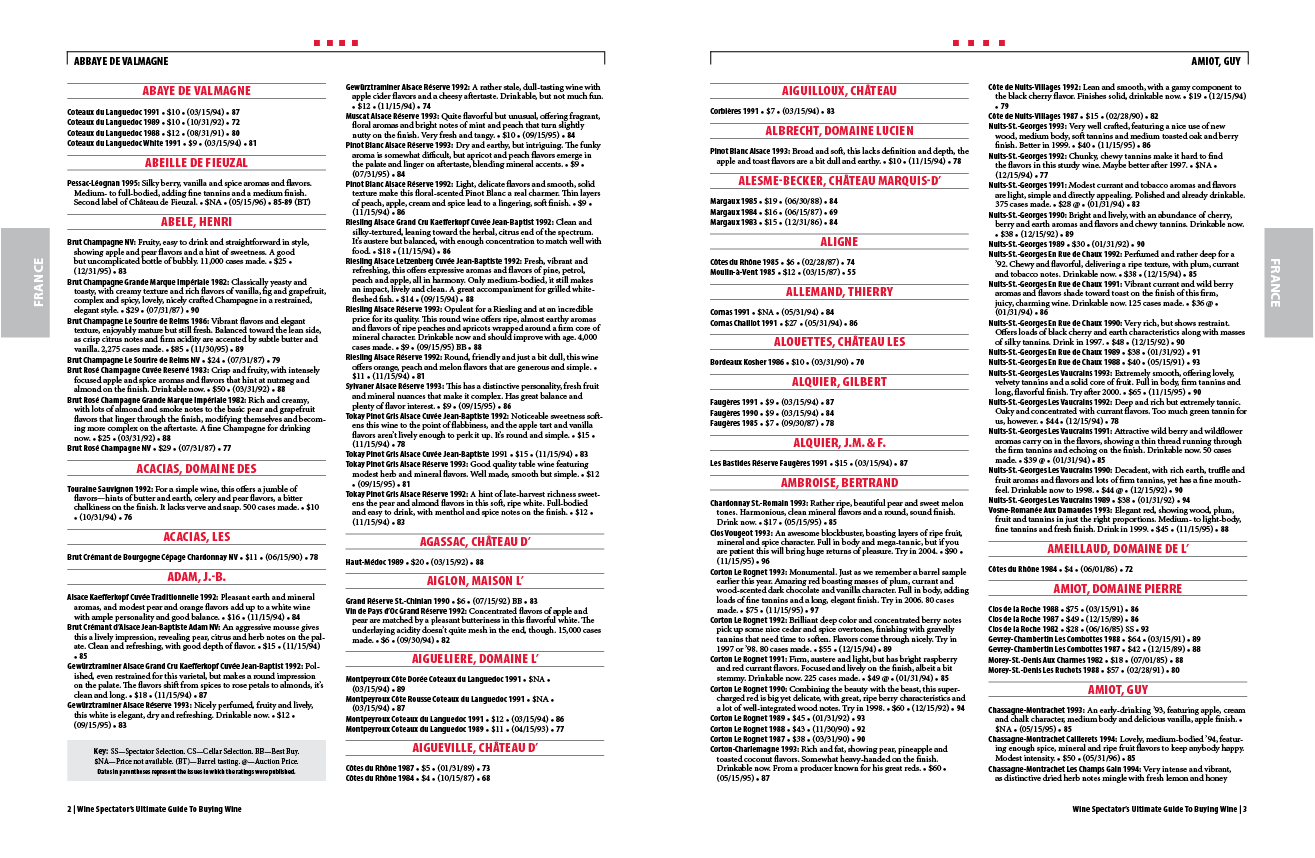
In this exercise, you'll master one of InDesign's most powerful automated features by creating and styling a professional table of contents for a book of French wineries. This skill is essential for any publication workflow, from annual reports to technical manuals.

  1. Open the file Chapter1.indd.

  2. Save it as: yourname-wine1.indd.

  3. Navigate to pages 2–3 to familiarize yourself with the document structure. Notice how this document contains a curated list of French wineries and detailed reviews of their wines. Our goal is to create a sophisticated Table of Contents that automatically references each winery's page number.

    Understanding this foundational concept is crucial: Table of Contents (TOC) creation in InDesign is entirely based on Paragraph Styles. You must consistently apply paragraph styles to format any text you want to include in your TOC. This systematic approach ensures accuracy and enables automatic updates when content changes—a workflow advantage that separates professional publishers from amateur desktop publishers.

Exercise Foundation

This tutorial uses a French winery book project to demonstrate real-world TOC creation. You'll work with the Chapter1.indd file to build a complete table of contents with proper formatting and page numbering.

Making the Page for the Table of Contents

Adding a new page at the document's beginning presents a common layout challenge. Typically, inserting a page would shift all subsequent pages, turning left-hand pages into right-hand pages and disrupting carefully planned spreads. Fortunately, InDesign provides a robust solution to maintain your document's integrity.

  1. Access the Pages panel menu panel menu and uncheck Allow Document Pages to Shuffle. This critical setting prevents unwanted page rearrangement during the insertion process.

  2. With your spreads now protected, return to the Pages panel menu panel menu and choose Insert Pages.

  3. Configure the insertion dialog with these specifications:

    Pages: 1
    Insert: At Start of Document
    Master: T-Table of Contents

    NOTE: While applying a master page to your Table of Contents isn't mandatory, professional publications often require multi-page TOCs. Using a dedicated master page ensures consistent formatting across all TOC pages and demonstrates best-practice document architecture. The T-Table of Contents master has been pre-configured for this exercise.

  4. Click OK to execute the page insertion.

Safe Page Insertion Process

1

Disable Page Shuffling

Uncheck 'Allow Document Pages to Shuffle' in the Pages panel menu to prevent layout disruption

2

Insert New Page

Add 1 page at start of document using the T-Table of Contents master page

3

Preserve Spread Integrity

This method maintains left-hand and right-hand page relationships throughout your document

Critical Step

Always disable page shuffling before adding TOC pages. This prevents left-hand pages from becoming right-hand pages and disrupting your carefully planned spreads.

Defining & Building the Table of Contents

Now comes the technical precision that separates InDesign from basic word processors. The TOC feature intelligently scans your document for specified paragraph styles, extracting the text and corresponding page numbers to create a dynamically linked contents page.

  1. With your cursor positioned on the new TOC page, navigate to Layout > Table of Contents to access InDesign's automated TOC generator.

  2. In the dialog's title field, delete any existing text. For this exercise, we'll rely on the master page design for our title treatment.

  3. From the Other Styles list on the right, locate the winery paragraph style and click the << Add button to include it in your TOC.

    The winery style now appears in the Include Paragraph Styles list on the left, indicating that all text formatted with this style will be captured in your contents.

  4. If necessary, click More Options to reveal additional formatting controls—these advanced settings give you granular control over your TOC's appearance and behavior.

  5. Configure the following options under Style: winery to establish proper formatting hierarchy:

    Entry Style: TOC Body Text
    Page Number: After Entry
    Level: 1

    NOTE: Don't worry that the TOC Body Text style doesn't exist yet. InDesign will intelligently create this paragraph style for you, which you can then customize to match your publication's design standards.

  6. Click OK to generate the TOC. Pay attention—your cursor now carries the generated table of contents text, ready for placement.

  7. Click within the primary text frame on your TOC page to flow the contents into the designated area. The text will automatically populate with your winery names and corresponding page numbers.

TOC Configuration Steps

1

Access TOC Dialog

Navigate to Layout > Table of Contents and clear any existing title text

2

Select Source Styles

Choose 'winery' style from Other Styles list and add it using the << Add button

3

Configure Entry Settings

Set Entry Style to TOC Body Text, Page Number After Entry, and Level to 1

4

Flow Content

Click OK and then place the loaded cursor in the primary text frame

Formatting the TOC

The automatically generated TOC provides the content structure, but professional presentation requires custom formatting. This is where your design expertise transforms functional text into polished publication material.

  1. The default TOC Body Text style needs refinement to meet professional standards. The spacing is too tight and the page numbers lack proper alignment. First, deselect all elements (Edit > Deselect All) to ensure clean style editing.

  2. In the Paragraph Styles panel, double-click the TOC Body Text style to open the modification dialog. We'll enhance both typography and tab alignment in this step.

  3. Select Basic Character Formats from the left panel and set the type size to 9 pt with 13 pt leading. This creates better readability while maintaining an elegant, compact appearance appropriate for reference material.

  4. Click Tabs in the left panel to configure professional dot leader alignment:
    • Click the Right-Justified Tab button right aligned tab button to select the appropriate tab type.
    • Click anywhere on the tab ruler to create a new tab marker.
    • With the tab marker selected, enter 19p4 in the X field to position it precisely.
    • Enter a period (.) in the Leader field to create the dotted line connecting entries to page numbers.
    • Click OK to apply these professional formatting standards.

TOC Body Text Style Considerations

Pros
InDesign automatically creates the TOC Body Text style
Style can be customized after creation
Maintains consistent formatting across updates
Cons
Default formatting often needs adjustment
Requires manual tab and leading configuration
Initial appearance may look unprofessional

Style Enhancement Process

1

Edit Character Formatting

Set 9pt font size and 13pt leading in Basic Character Formats

2

Configure Tab Settings

Create right-justified tab at 19p4 with period leader for page numbers

Page Numbering

Professional publication standards dictate that front matter (including tables of contents, prefaces, and introductions) should use Roman numeral pagination, while the main content begins with Arabic numeral page 1. This convention helps readers distinguish between introductory material and core content.

  1. In the Pages panel, ensure page 1 (your TOC page) is selected.

  2. Access the Pages panel menu panel menu, select Numbering & Section Options, and configure:
    • Check Start Page Numbering at and enter 1 in the adjacent field.
    • From the Style dropdown, select i, ii, iii, iv to apply Roman numeral formatting.
    • Click OK to establish the front matter section.
  3. In the Pages panel, select page ii (your former page 1, now the title page).

  4. Return to the Pages panel menu panel menu, choose Numbering & Section Options again, and set:
    • Select Start Page Numbering at and enter 1 to restart numbering for the main content.
    • From the Style menu, choose 1,2, 3,4 for standard Arabic numerals.
    • Clear any text in the Section Prefix field if present.
    • Click OK to complete the section break.
  5. Verify your document now displays pages i and 1–11 in the Pages panel. With the pagination structure established, you can safely return to the Pages panel menu panel menu and re-enable Allow Document Pages to Shuffle for future editing flexibility.

Front Matter vs Main Content Numbering

FeatureFront MatterMain Content
Numbering StyleRoman numerals (i, ii, iii)Arabic numerals (1, 2, 3)
Starting PagePage 1 (TOC)Page 1 (after front matter)
Typical ContentTOC, preface, acknowledgmentsMain chapters and content
Recommended: Use Roman numerals for front matter to distinguish from main content pagination

Dual Numbering System Setup

1

Set Front Matter Numbering

Select page 1, start numbering at 1 with Roman numeral style (i, ii, iii, iv)

2

Reset for Main Content

Select page ii, restart numbering at 1 with Arabic style (1, 2, 3, 4)

3

Re-enable Page Shuffling

Check 'Allow Document Pages to Shuffle' once numbering is complete

Updating the Table of Contents

One of InDesign's most valuable features is the dynamic relationship between your TOC and source content. When text changes occur, you can update the entire table of contents with a single command—a time-saving advantage that becomes invaluable in real-world publishing workflows with tight deadlines and frequent revisions.

  1. Let's simulate a common editorial change. Navigate to page 2 and locate the first winery entry ABBAYE DE VALMAGNE. Correct this intentional typo by removing the extra B to read ABAYE DE VALMAGNE.

  2. Return to page i and click anywhere within the TOC text frame to select it. This selection tells InDesign which TOC to update if you have multiple contents tables in your document.

  3. Navigate to Layout > Update Table of Contents. InDesign will automatically scan your document for changes to the specified paragraph styles and refresh the TOC accordingly.

  4. Confirm that your TOC now reflects the corrected spelling. This demonstrates the power of style-based automation in professional publishing workflows. Save your document and close the file to complete the exercise.

Dynamic Content Updates

The TOC automatically reflects changes to your source content. When you correct the winery name from 'ABBAYE DE VALMAGNE' to 'ABAYE', simply update the TOC through Layout > Update Table of Contents.

TOC Update Process

0/4

Key Takeaways

1Table of Contents creation in InDesign is entirely dependent on consistent paragraph style usage throughout your document
2Disabling 'Allow Document Pages to Shuffle' is essential before adding TOC pages to preserve spread integrity and page relationships
3Professional documents use Roman numerals for front matter (TOC, preface) and restart Arabic numbering for main content
4InDesign automatically generates TOC Body Text style, but manual formatting adjustments are typically required for professional appearance
5Tab settings with leaders (dots) create the visual connection between TOC entries and page numbers
6TOC content updates dynamically when source text changes, but requires manual refresh through Layout > Update Table of Contents
7Master pages for TOC sections provide consistency when table of contents spans multiple pages
8The T-Table of Contents master page should be applied during page insertion to maintain document design standards

RELATED ARTICLES