April 1, 2026Dan Rodney/10 min read

Style Sheets in a Magazine Article

Master InDesign Styles for Professional Magazine Layouts

Style Types in InDesign

Paragraph Styles

Control entire paragraph formatting including font, size, spacing, and alignment. Essential for consistent body text and headings.

Character Styles

Apply formatting to selected text within paragraphs. Perfect for reviewer names, emphasis, and inline formatting.

Nested Styles

Automatically apply character styles based on text patterns. Advanced feature for consistent formatting without manual selection.

Topics Covered in This InDesign Tutorial:

Paragraph Styles, Character Styles, Nested Styles

Exercise Preview

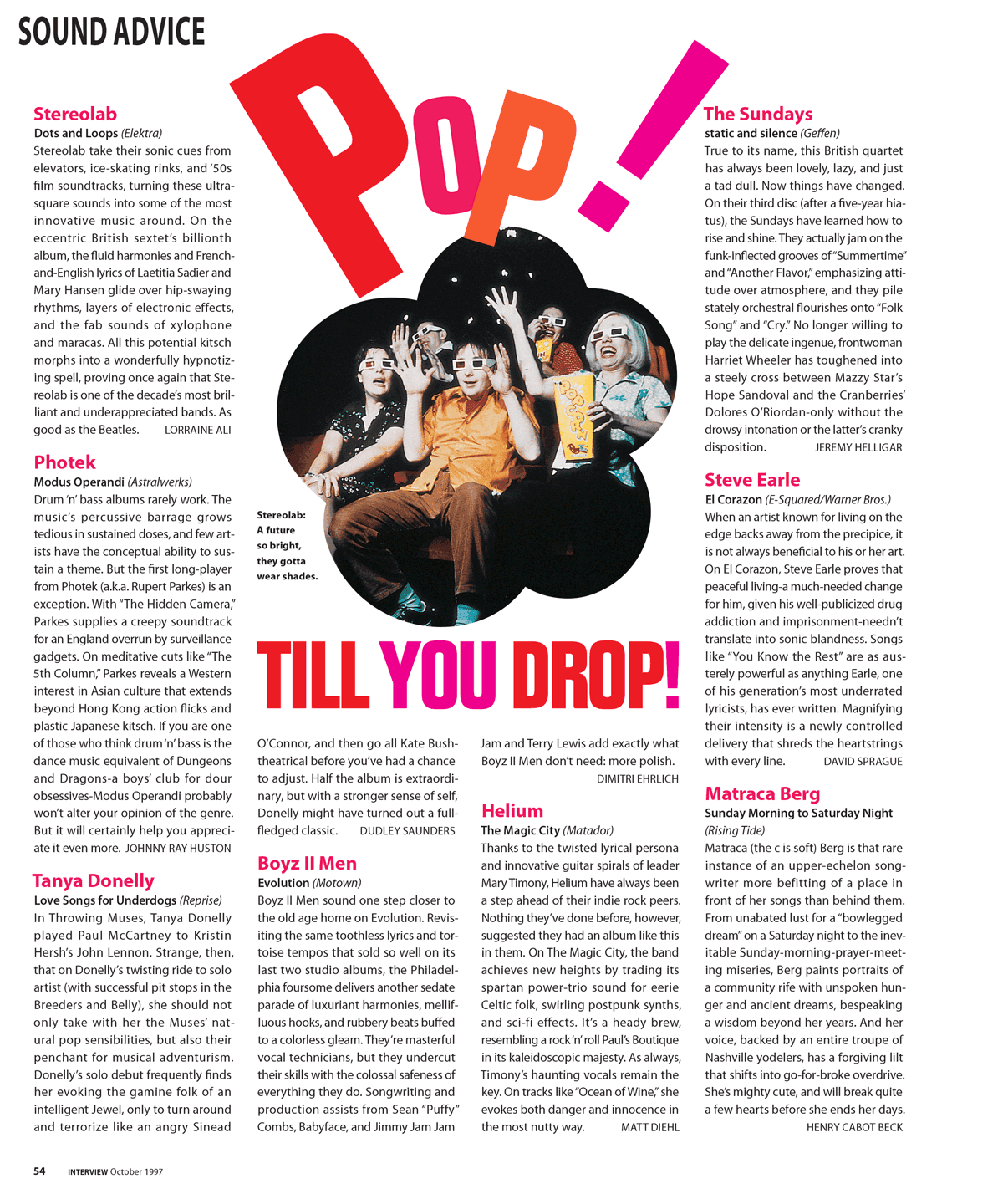
OT Popcorn

Exercise Overview

Paragraph and character styles form the backbone of professional typography in InDesign. Mastering these tools will dramatically accelerate your workflow and ensure typographic consistency across complex documents. This exercise demonstrates fundamental styling techniques alongside advanced nested styles—a powerful feature that automates character formatting based on predictable text patterns, saving hours of manual formatting work.

  1. Open the file Popcorn.indd. (If you encounter a modified links message, click Update Links. The exercise file was created on a different computer, but InDesign will automatically relink the files from their expected folder location.)

  2. Perform a File > Save As and save it as yourname-Popcorn.indd.

  3. Navigate to the InDesign menu (Mac) or Edit menu (Windows), then go to Preferences > Type.

  4. Enable Apply Leading to Entire Paragraphs and click OK. This setting ensures consistent vertical spacing by applying leading changes to complete paragraphs rather than individual lines.

Essential Preference Setting

Always check 'Apply Leading to Entire Paragraphs' in Type Preferences. This ensures consistent line spacing throughout your document and prevents formatting conflicts.

Importing the Text

With our document prepared, we'll import the text content and handle any font issues that may arise during the import process.

  1. Select the Selection tool selection tool and click on the 4-column text box on the page.

  2. Execute File > Place, then choose pop.txt. If you encounter a missing font alert, follow these corrective steps. Otherwise, proceed to the next section:
    • Click the Find Fonts button (alternatively, access this via Type > Find Font if you missed the initial prompt).
    • Select the missing font from the top list (typically Times in this scenario).
    • In the Replace With: Font Family section at the bottom, choose Times or any available font family.
    • Click Change All to apply the substitution.
    • Click Done to complete the font replacement process.

Font Replacement Workflow

1

Access Find Fonts

Click Find Fonts button in missing font alert or go to Type > Find Font

2

Select Missing Font

Choose the missing font from the top list (typically Times)

3

Choose Replacement

Select replacement font from Font Family dropdown at bottom

4

Apply Changes

Click Change All to replace all instances, then Done to close

Styling the Band Name

Professional typographic workflow begins with styling individual elements before creating reusable styles. This approach allows you to experiment with the visual hierarchy and refine your design decisions before committing to systematic formatting.

  1. Enable Type > Show Hidden Characters to reveal paragraph markers and other non-printing characters that will guide your formatting decisions.

  2. Select the opening word: Stereolab (note this constitutes a single-word paragraph).

  3. Apply the following typography: 14/12.5 Myriad Pro Bold.

  4. Before defining our custom color, maintain the text selection and open the Swatches panel via Window > Color > Swatches.

  5. Verify that the type's Fill swatch is active at the top-left of the Swatches panel. If inactive, click to activate it.

    click fill swatch text

  6. Access the Swatches panel menu panel menu and select New Color Swatch.

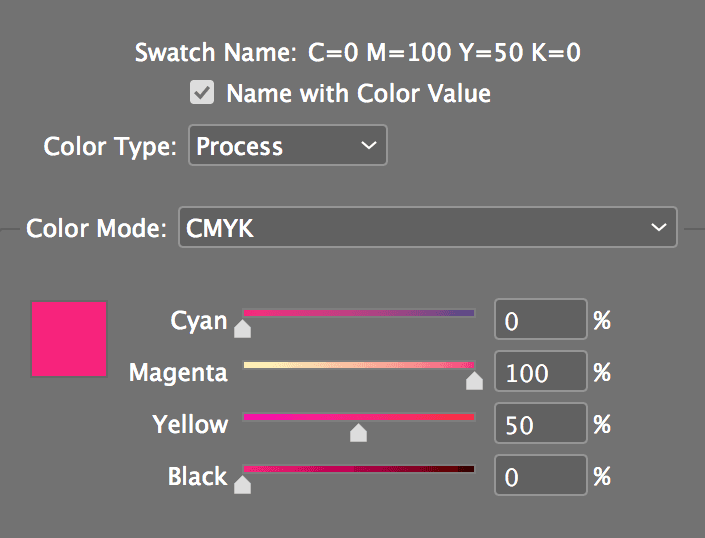
  7. Ensure Add to CC Library remains unchecked if displayed, then configure these CMYK values:

    define color 100m 50y

  8. Confirm the color creation by clicking OK.

  9. The newly created magenta color swatch (labeled C=0 M=100 Y=50 K=0) appears at the bottom of the panel and has been automatically applied to your selected text.

Color Creation Values

Use C=0 M=100 Y=50 K=0 for the pink color swatch. These CMYK values ensure consistent color reproduction in print publications.

Styling the Regular Text

Now we'll establish the foundation typography for body text and implement professional typographic controls for optimal readability.

  1. Select the subsequent two paragraphs: from Dots and Loops through Lorraine Ali.

  2. Apply these comprehensive text attributes:

    Font: Myriad Pro Regular
    Size: 9 pt
    Leading: 12.5 pt
    Alignment: Justify with last line aligned left justified last line left para
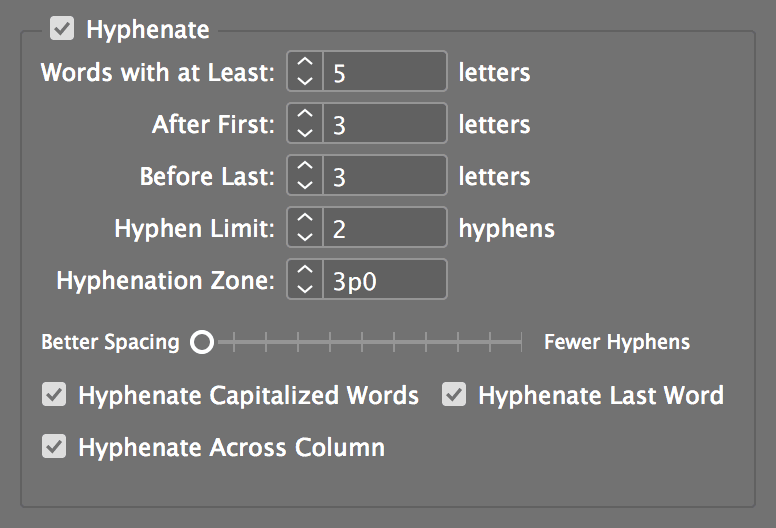
  3. Access the Control panel menu control panel menu and select Hyphenation.

  4. Configure these hyphenation parameters for balanced line breaks:

    pop styles hyphenation

  5. Confirm the settings by clicking OK.

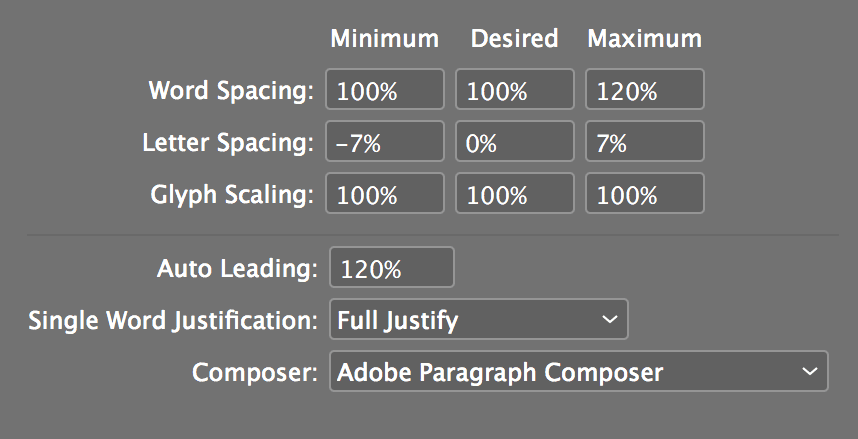
  6. Return to the Control panel menu control panel menu and choose Justification.

  7. Input these justification values to control word and letter spacing:

    pop styles justification

  8. Apply the settings by clicking OK.

  9. Select all three formatted paragraphs: Stereolab through Lorraine Ali.

  10. In the Control panel's Paragraph formatting options controlpanel paragraphformatting, activate Align to baseline grid align to baseline grid. This ensures consistent vertical rhythm across columns.

  11. Focus on the second line: Dots and Loops (Elektra).

  12. Apply these specialized attributes:

    Font: Myriad Pro Italic
    Alignment: Left left aligned paragraph

Typography Settings

Hyphenation Settings

Control automatic word breaking to improve text flow and readability in justified columns.

Justification Settings

Fine-tune word and letter spacing for optimal text appearance in justified paragraphs.

Creating Paragraph Styles

With our individual formatting complete, we'll systematize these design decisions into reusable paragraph styles. This approach ensures consistency and enables rapid formatting changes across the entire document.

  1. Position your cursor within the first paragraph: Stereolab (this single-word paragraph).

  2. Open the Paragraph Styles panel via Type > Paragraph Styles.

  3. Access the Paragraph Styles panel menu panel menu and select New Paragraph Style.

  4. Assign the name Band Name to this style.

  5. InDesign offers cloud synchronization through CC Libraries. For this project, disable Add to CC Library if the option appears, keeping the style local to this document.

  6. Click OK to create the style.

    NOTE: InDesign intelligently captures all formatting attributes from the active paragraph, eliminating manual style configuration!

  7. Create the album information style by clicking within the second line: Dots and Loops (Elektra).

  8. From the Paragraph Styles panel menu panel menu, select New Paragraph Style.

  9. Name this style Album Info and click OK.

  10. For the body text style, position your cursor within the larger paragraph beginning with: Stereolab take their

  11. Access the Paragraph Styles panel menu panel menu and choose New Paragraph Style.

    TIP: Accelerate style creation by holding Option (Mac) or ALT (Windows) while clicking the New style button new button at the panel bottom. Without the modifier key, InDesign assigns generic names.

  12. Designate this style as Body and click OK.

Quick Style Creation

Hold Option (Mac) or ALT (Windows) while clicking the New Style button for faster style creation. InDesign automatically copies formatting from the current paragraph.

Style Creation Best Practices

0/3

Applying the Styles

Our paragraph styles exist but haven't been applied to the text yet. We'll systematically assign these styles to establish a consistent typographic hierarchy throughout the document.

  1. Ensure your cursor remains within the text frame.

  2. Execute Edit > Select All to select all text content.

  3. In the Paragraph Styles panel, click the Body style to establish the base formatting.

  4. Click within the first paragraph (Stereolab).

  5. Apply the Band Name style by clicking it in the panel.

    NOTE: Paragraph styles automatically affect entire paragraphs regardless of cursor position—no need to select the complete paragraph.

  6. Locate the next band name (Photek) and position your cursor anywhere within it.

  7. Apply the Band Name style.

  8. Continue applying the Band Name style to the remaining artist names:

    • Tanya Donelly
    • Boyz II Men
    • Helium
    • The Sundays
    • Steve Earle
    • Matraca Berg
  9. Each band name is followed by a brief album information paragraph. Apply the Album Info style to each of these descriptive lines.

Paragraph Selection Efficiency

You don't need to select entire paragraphs when applying paragraph styles. Simply click anywhere in the paragraph and apply the style.

Modifying Styles After Creation

The true power of paragraph styles becomes evident when making global changes. Rather than manually adjusting each instance, we can modify the style definition to update all applied text simultaneously.

  1. Clear all selections by choosing Edit > Deselect All.

  2. In the Paragraph Styles panel, double-click Band Name to open its definition.

  3. Select the Indents and Spacing category from the left panel.

  4. Set Space Before to 1p (1 pica) and click OK.

    Observe how all band names instantly gain additional vertical breathing room, demonstrating the efficiency of style-based formatting.

Optical Margin Alignment

This advanced typography feature improves the visual alignment of text columns by subtly positioning punctuation marks outside the text boundaries.

  1. Position your cursor within the text box (or select it entirely) and navigate to Type > Story.

  2. Configure the Story panel with these professional typography settings:
    • Enable Optical Margin Alignment.
    • Set the size to 12 pt (typically matching or approximating your primary text size).

    This feature intelligently positions Roman punctuation—quotes, periods, commas—slightly outside the column boundaries, creating visually superior alignment without compromising readability.

Optical Margin Alignment Setting

Set Optical Margin Alignment to 12pt (typically matching your body text size). This hangs punctuation like quotes and periods outside the column for better visual alignment.

Creating & Applying a Character Style

Character styles control formatting for text portions smaller than complete paragraphs, perfect for reviewer names and other inline emphasis elements.

  1. Locate the first reviewer attribution: Lorraine Ali at the end of the opening review.

  2. Using the Control panel, format it as 8 pt and apply All Caps all caps.

  3. Since this affects partial paragraph content, we need a character style rather than a paragraph style. Maintain the selection and open the Character Styles panel via Type > Character Styles.

  4. Access the Character Styles panel menu panel menu and select New Character Style.

  5. Before confirming, name this style Reviewer.

  6. Click in the Shortcut field to create a keyboard shortcut.

  7. Hold Shift and press 1 (using either the main keyboard or number pad). Remember your choice for consistency.

    NOTE: InDesign 2026 supports keyboard shortcuts beyond the traditional number pad, accommodating modern keyboard layouts.

  8. The field displays Shift+1 (or Shift+Num 1), enabling rapid style application through this key combination.

  9. Ensure Add to CC Library remains unchecked if visible.

  10. Click OK to finalize the character style.

    NOTE: InDesign automatically captures the selected text's formatting attributes into the new style definition.

  11. With Lorraine Ali still selected, click Reviewer in the Character Styles panel to officially link the text to the style.

    NOTE: The text appearance remains unchanged, but it's now connected to the style system for future modifications.

  12. Apply the Reviewer style to each reviewer name throughout the document. For efficiency, select each name and use the keyboard shortcut Shift+1 for instant application.

    NOTE: If the final article's reviewer isn't visible due to text overflow, we'll address this after optimizing text flow.

Character Style with Keyboard Shortcut

1

Format Selected Text

Apply desired formatting (8pt, All Caps) to selected text

2

Create New Style

Choose New Character Style from Character Styles panel menu

3

Add Keyboard Shortcut

Hold Shift and press 1 in Shortcut field for quick application

4

Apply Style

Use Shift+1 shortcut to quickly apply style to other text

Creating a Nested Character Style

Nested styles represent one of InDesign's most sophisticated automation features, applying character formatting based on predictable text patterns without manual intervention.

  1. Examine the pattern in the album information line: Dots and Loops (Elektra).

  2. Select only the album title portion: Dots and Loops.

  3. Apply Myriad Pro Semibold to emphasize the title.

  4. Convert this formatting into a reusable character style. Ensure Dots and Loops remains selected.

  5. Access the Character Styles panel (Type > Character Styles).

  6. Choose New Character Style from the Character Styles panel menu panel menu.

  7. Name this style CD Title and click OK.

  8. Rather than manually applying this style to each album title, we'll automate the process. Notice the consistent pattern: Album Title (Label) appears throughout the document.

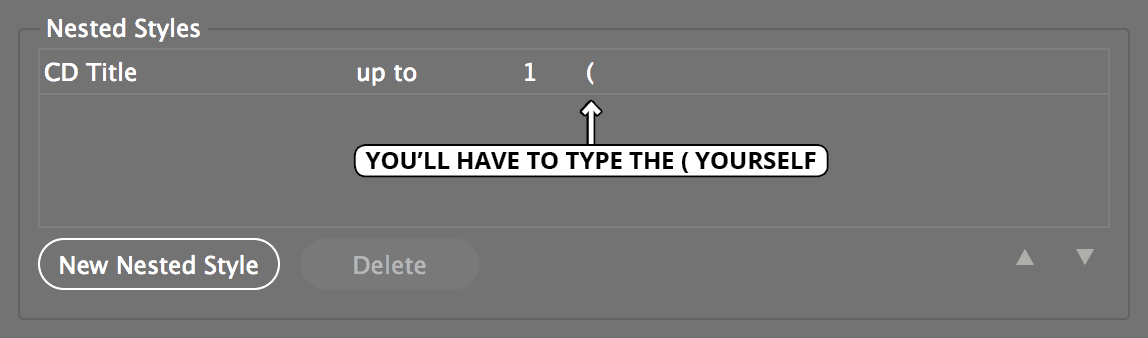
    InDesign can automatically apply the CD Title character style to text preceding the first parenthesis. This automation occurs by "nesting" the character style within the existing Album Info paragraph style.

  9. Clear all selections via Edit > Deselect All.

  10. In the Paragraph Styles panel, double-click the Album Info style to open its definition.

  11. Select the Drop Caps and Nested Styles category from the left panel.

  12. Click New Nested Style and configure these automation settings:

    nested style option

  13. Click OK to implement the nested style automation.

    Observe how all album titles automatically receive the semibold formatting—a perfect example of InDesign's pattern-recognition capabilities saving significant manual effort.

Nested Styles Power

Nested styles automatically format text patterns like 'CD Title (label)'. Instead of manually styling each CD title, the nested style applies formatting up to the first parenthesis automatically.

Adding Space Before Reviewers

Professional typography often requires precise control over white space. We'll use InDesign's advanced tab system to position reviewer names optimally within their text flow.

  1. Notice that reviewer names are preceded by tab characters. For proper right-alignment, we'll replace standard tabs with right-aligned tabs using these techniques:

    If the Name Shares a Line With Other Text:

    • Select the existing tab character (for replacement).
    • Insert a Shift–Tab (creating a right-aligned tab).

    If the Name Occupies Its Own Line:

    • Click immediately before the name and insert a Shift–Tab (right-aligned tab).
  2. Apply the appropriate technique to all reviewers except the final one (which we'll address after resolving text overflow).

Fitting the Text

Text fitting often requires subtle typographic adjustments. We'll optimize InDesign's tracking increments and use professional spacing techniques to achieve optimal layout balance.

  1. InDesign's default tracking increment can be too aggressive for subtle adjustments. Navigate to the InDesign menu (Mac) or Edit menu (Windows), then choose Preferences > Units & Increments.

  2. Adjust Kerning/Tracking to 5 and click OK for finer spacing control.

  3. Evaluate the text flow at each review's conclusion. Some reviews, like the first three, likely display proper formatting with reviewers positioned appropriately.

    Others, such as the Helium review, may exhibit awkward line breaks—for instance, Matt Diehl with only his surname appearing at the top of the fourth column. Address these issues through strategic tracking adjustments:

    • Select the complete review paragraph.
    • Apply subtle negative tracking using
Tracking Limitations

Never track text more than -15 (three applications of -5). Excessive tracking becomes noticeable and degrades readability.

Text Fitting Workflow

1

Adjust Tracking Increments

Set Kerning/Tracking to 5 in Preferences > Units & Increments

2

Select Problem Paragraphs

Identify paragraphs with awkward line breaks or orphaned text

3

Apply Tracking

Use Option-Left Arrow (Mac) or ALT-Left Arrow (Windows) to tighten spacing

4

Fine-tune as Needed

Track partial paragraphs if full paragraph tracking is excessive

Key Takeaways

1Paragraph styles control entire paragraph formatting while character styles format selected text within paragraphs
2InDesign automatically copies formatting from the current paragraph when creating new styles
3Nested styles can automatically apply character formatting based on text patterns, eliminating manual selection
4Keyboard shortcuts for character styles (like Shift+1) dramatically speed up repetitive formatting tasks
5Optical Margin Alignment at 12pt improves visual text alignment by hanging punctuation outside columns
6Tracking adjustments should never exceed -15 to maintain readability and avoid noticeable text compression
7Style sheets enable global formatting changes - modify the style once to update all instances automatically
8Essential preferences include 'Apply Leading to Entire Paragraphs' and setting Kerning/Tracking increments to 5

RELATED ARTICLES