April 1, 2026Dan Rodney/5 min read

More Text Styling: Free InDesign Tutorial

Master Professional Typography and Text Styling in InDesign

Core Typography Skills You'll Master

Advanced Text Formatting

Learn professional techniques for all caps, small caps, baseline shifting, and superscript formatting that elevate your design work.

OpenType Features

Discover how to properly format fractions and leverage advanced OpenType capabilities for professional typography results.

Layout Enhancement

Master the integration of design elements like lines and spacing to create cohesive, visually appealing layouts.

Topics Covered in This InDesign Tutorial:

Master advanced typography fundamentals including Baseline Shift, Small Caps, the Line Tool, and sophisticated OpenType formatting techniques such as proper fraction styling.

Exercise Preview

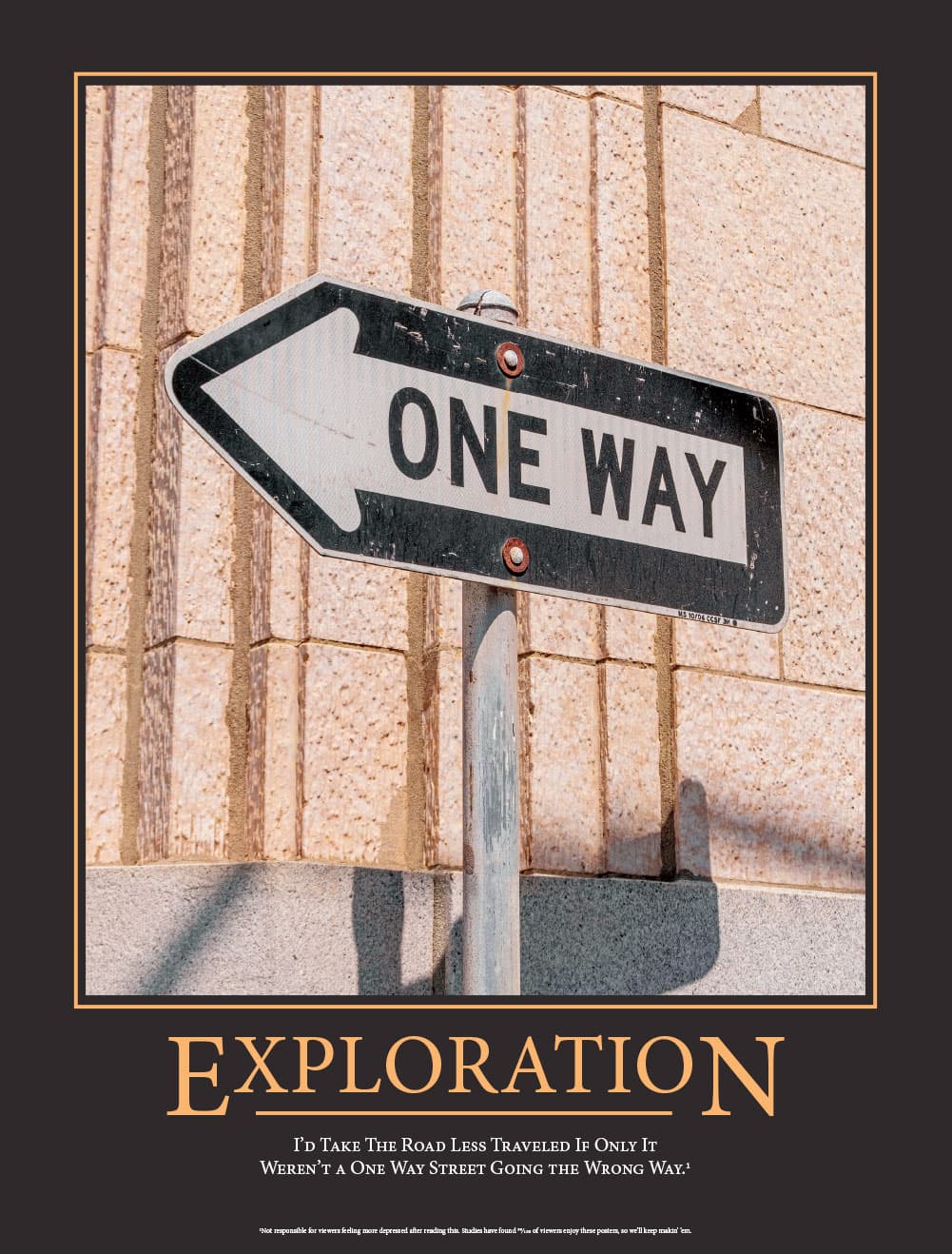
uninspirational poster done

File Setup Important

If you receive a modified links message when opening the exercise file, simply click Update Links. InDesign will automatically find and update the images since they're stored in the same folder as your project file.

Exercise Overview

This hands-on exercise will elevate your typography skills by teaching you professional text formatting techniques that separate amateur layouts from polished, publication-ready designs. You'll master essential typographic treatments including all caps and small caps formatting, advanced OpenType features for proper fraction display, and precision baseline adjustments that create visual hierarchy and professional polish.

  1. From the InDesign Class folder, open the file uninspirational poster.indd.

    If you encounter a message about modified links, click Update Links. This common scenario occurs when exercise files are created on different systems. Since the linked images remain in the same relative folder structure, InDesign will automatically locate and relink them for you—a time-saving feature that maintains your workflow efficiency.

  2. The foundational work is complete—we've input the text and applied basic styling including font family and size selections. Your task is to refine the layout using advanced typography techniques. Zoom in on the text area to work with precision and see the subtle adjustments clearly.

Pre-Exercise Setup Checklist

0/4

Styling the "Exploration" Title

Creating dynamic typography often involves breaking conventional rules. We'll transform this title using varied sizing and baseline positioning to create visual interest while maintaining readability.

  1. Using the Type tool type tool, select the word exploration.

  2. In the Control panel, click the All Caps button all caps to convert the text to uppercase.

    If this option isn't visible, switch to the Character formatting options controlpanel characterformatting using the button on the left side of the Control panel.

  3. Now we'll create visual contrast within the title itself. Select the middle letters XPLORATIO, excluding the opening E and closing N.

  4. Reduce the size of these middle letters to 70 pts, creating a size differential that will serve as the foundation for our layered design approach.

  5. With the middle letters still selected, we'll use Baseline Shift to align them with the top of the larger letters. This technique is fundamental in creating custom lettering effects within standard typography. Use these keyboard shortcuts for precise control:

    Mac: Option–Shift–Up or Down Arrow
    Windows: ALT–Shift–Up or Down Arrow

    Apply the keyboard shortcut repeatedly until the tops of the smaller letters align perfectly with the tops of the E and N.

    NOTE: For precise numerical control or if you prefer manual input, locate the Baseline Shift field baseline shift in the Control panel's Character options controlpanel characterformatting. This field displays your current baseline shift value and allows manual adjustment.

  6. The baseline shift has created an interesting negative space that we'll fill with a graphic element. Select the Line tool line tool from the Tools panel.

  7. Hold Shift to constrain the line to perfectly horizontal, then draw a line that aligns with the baseline of the E and N, filling the space created by the smaller letters above.

    NOTE: The line should automatically adopt the orange color we've pre-selected. In your own projects, you would apply colors through the Swatches panel (Window > Color > Swatches), ensuring color consistency across your document.

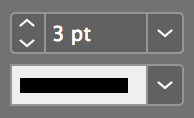
  8. With the line selected, adjust the stroke weight to 3 pt in the Control panel to give the line appropriate visual weight:

    3pt stroke

Creating the Exploration Title Effect

1

Apply All Caps

Select the word 'exploration' and click the All Caps button in the Character options of the Control panel

2

Resize Middle Letters

Select only the middle letters XPLORATIO and reduce font size to 70 points, leaving E and N at original size

3

Baseline Shift Alignment

With middle letters selected, use Option-Shift-Up Arrow (Mac) or Alt-Shift-Up Arrow (Windows) to align tops with E and N

4

Add Connecting Line

Use Line tool with Shift key held to draw horizontal line at bottom of E and N, then set stroke weight to 3 points

Baseline Shift Shortcut

The fastest way to adjust baseline shift is using keyboard shortcuts. You can see the exact shift value in the Control panel's Character options if you prefer manual input over keyboard shortcuts.

Styling the 2-Line Subtitle

Small caps represent one of typography's most elegant solutions for creating emphasis without the visual shouting of all capitals. This OpenType feature maintains readability while adding sophisticated character to body text.

  1. Using the Type tool type tool, select both lines of subtitle text positioned beneath the Exploration title.

  2. In the Control panel, click the Small Caps button small caps to apply this refined formatting.

    If this option isn't visible, ensure you're viewing the Character formatting options controlpanel characterformatting by clicking the appropriate button on the left side of the Control panel.

All Caps vs Small Caps Comparison

FeatureAll CapsSmall Caps
Visual ImpactHigh contrast, boldElegant, refined
ReadabilityCan be overwhelmingEasy on the eyes
Professional UseHeadlines, emphasisSubtitles, body text
Best ForMain titlesSupporting text
Recommended: Small caps provide sophisticated styling perfect for subtitles and secondary text elements

The Disclaimer

Professional footnote formatting requires attention to both superscript styling and consistent referencing. These details distinguish polished publications from amateur layouts.

  1. Position your cursor at the end of the second subtitle line, immediately following "…Wrong Way" to insert our footnote reference.

  2. Type the number 1 to create the footnote reference.

  3. Select the number 1 and apply superscript formatting by clicking the Superscript button superscript in the Control panel.

  4. Navigate to the disclaimer text at the bottom of the page (beginning with "Not responsible…") and type another 1 at the start of this text block.

  5. Select this second number 1 and apply Superscript superscript formatting to match the reference number.

    NOTE: Alternative access to formatting options like All Caps and Superscript is available through the Character panel (Type > Character) via its panel menu panel menu. This menu also displays keyboard shortcuts for efficient workflow development.

Adding Superscript Footnote References

1

Add Reference Number

Place cursor at end of subtitle line 2 after 'Wrong Way' and type the number 1

2

Format as Superscript

Select the number 1 and click the Superscript button in the Control panel

3

Add Disclaimer Marker

Type another 1 at the beginning of the disclaimer text starting with 'Not responsible'

4

Apply Matching Format

Select the disclaimer number 1 and apply Superscript formatting to match the reference

Alternative Access Method

You can also access formatting options like All Caps and Superscript through the Character panel menu (Type > Character). This menu also displays helpful keyboard shortcuts for these formatting options.

Making Proper Fractions

OpenType fraction formatting represents a significant advancement in digital typography, automatically converting standard number combinations into professionally designed fraction characters. This feature eliminates the manual baseline adjustments and size modifications previously required for proper fraction display.

  1. Locate and select the improperly formatted fraction 99/100 within the disclaimer text.

  2. Access the Control panel menu control panel menu on the far right and navigate to OpenType > Fractions to apply automatic fraction formatting.

    OpenType Fraction Benefits

    Professional Appearance

    OpenType fractions create properly proportioned numerators and denominators with appropriate sizing and positioning automatically.

    Instant Formatting

    Simply select your fraction text and choose OpenType > Fractions from the Control panel menu for immediate professional results.

Proper Fractions Without OpenType

OpenType fraction styling remains the gold standard for professional typography, but compatibility limitations persist with TrueType and PostScript fonts. Additionally, not all OpenType fonts include fraction character sets—indicated by square brackets around the [Fractions] menu option. For universal fraction formatting across any font type, consider Dan Rodney's Proper Fraction script, available as a free download at danrodney.com/scripts. This solution proves invaluable for legacy projects or when working with fonts lacking advanced OpenType features.

  • This file will be revisited in subsequent exercises, so save your progress as yourname-uninspirational poster.indd in the InDesign Class folder to maintain version control and easy access for future lessons.

  • OpenType Limitation Indicator

    If you see square brackets around the [Fractions] option in the menu, that means your current font lacks the special fraction characters needed for automatic OpenType fraction formatting.

    Alternative Solution for All Fonts

    Dan Rodney's Proper Fraction Script

    This free script formats fractions professionally regardless of font type, working with TrueType, PostScript, and limited OpenType fonts. Available at danrodney.com/scripts for download.

    Save Your Progress

    Remember to save your completed file as 'yourname-uninspirational poster.indd' in the InDesign Class folder. You'll be working with this file again in future exercises, so proper naming and location are important.

    Key Takeaways

    1All Caps formatting creates bold visual impact for main titles, while Small Caps provide elegant styling for subtitles and supporting text elements
    2Baseline shift techniques allow precise vertical alignment of text elements, with keyboard shortcuts (Option/Alt-Shift-Arrow) providing the fastest adjustment method
    3Professional line integration using the Line tool with Shift key constraint creates clean horizontal elements that enhance title designs
    4Superscript formatting is essential for proper footnote references, linking disclaimer text with corresponding reference points in your layout
    5OpenType fraction formatting automatically creates professional-looking fractions, but requires fonts with built-in fraction character support
    6Font limitations for OpenType features are indicated by square brackets around menu options, signaling when alternative methods are needed
    7Third-party scripts like Dan Rodney's Proper Fraction tool provide solutions for professional fraction formatting across all font types
    8Proper file management and naming conventions are crucial for multi-exercise projects, ensuring continuity across related tutorial sessions

    RELATED ARTICLES