April 1, 2026Dan Rodney/4 min read

Paragraph Spacing & Working with Tabs

Master Professional Typography with InDesign Spacing and Tabs

Essential InDesign Skills You'll Master

Paragraph Spacing

Learn to control space before and after paragraphs for professional document layout. Master the relationship between leading and spacing.

Tab Formatting

Create precise column alignment using tabs and rulers. Position tabbed content with professional precision for data presentation.

Document Setup

Configure proper document settings using picas as units. Set up margins and text frames for optimal typography workflow.

Topics Covered in This InDesign Tutorial:

Paragraph Spacing, Tabs

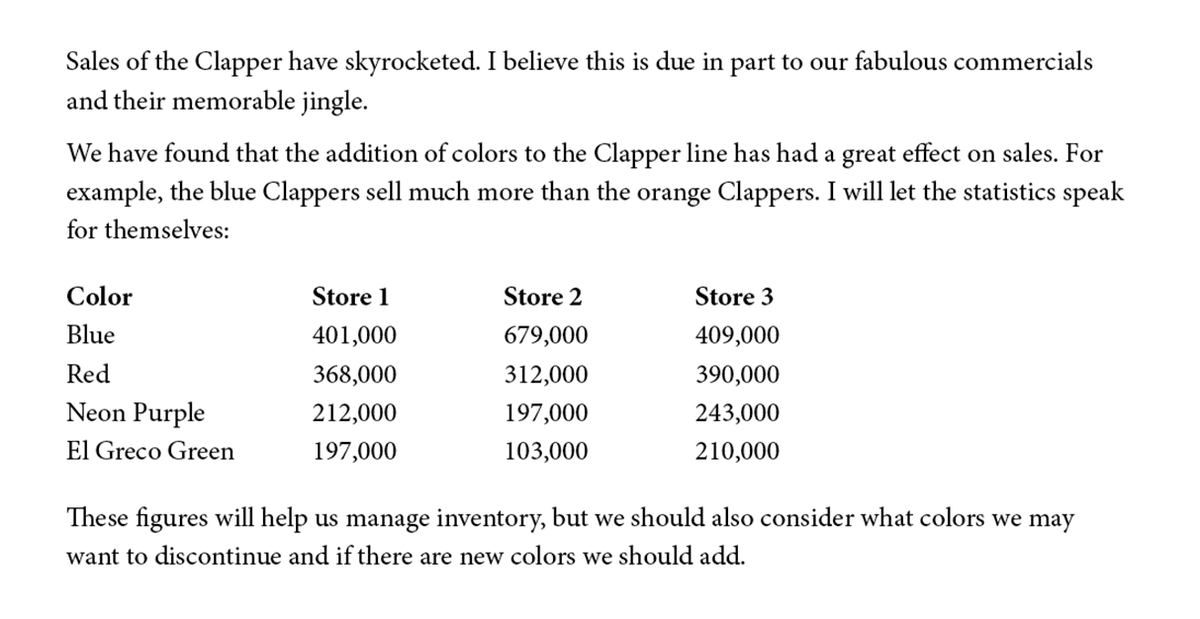
Exercise Preview

tabs done

Exercise Overview

Mastering paragraph spacing and tabs is fundamental to professional typography in InDesign. In this comprehensive exercise, you'll gain proficiency in controlling paragraph space before and after, adjusting leading for optimal readability, and creating clean, professional tabbed layouts that present data clearly and attractively. These skills are essential for everything from business correspondence to financial reports and technical documentation.

Tutorial Learning Path

1

Document Creation

Set up a letter-sized document with proper margins and pica units for professional typography work

2

Text Formatting

Apply paragraph spacing, leading, and character formatting to create readable, well-structured content

3

Tab Configuration

Use the Tabs panel to create precise column alignment for statistical data presentation

Creating the Letter

We'll begin by establishing a professional document structure using industry-standard measurements and layout principles.

  1. Choose File > New > Document.

    • At the top, click on the Print tab.
    • Click once on the Letter (8.5 X 11 in) preset.
    • On the right, set Units to Picas.

      Picas remain InDesign's default measurement system and are the preferred unit among typography professionals for their precision in text layout. One pica equals 12 points, providing finer control over spacing and alignment than inches or millimeters.

    • Uncheck Facing Pages.
    • Expand the Margins section if needed, and make all Margins 1 in (InDesign will automatically convert the 1 in to 6p0 for you.)

  2. Click Create.
  3. Go to File > Place.
  4. In the InDesign Class folder, double–click on Sales info.txt to choose it.
  5. The text will be loaded into your cursor. Position the cursor precisely at the top margin guide (indicated by the pink guide) and click once.

    This creates a text frame that spans the full width of your margin guides, automatically flowing from your click point to the bottom margin. This technique ensures consistent text boundaries and professional spacing.

Why Use Picas for Typography

Picas are InDesign's default units and are preferred for text styling because they provide more precise control over typography measurements than inches or points alone.

Document Setup Requirements

0/4

Formatting the Text

Now we'll apply typographic fundamentals to create readable, professional text formatting that enhances communication effectiveness.

  1. In the View menu, select Zoom In to magnify the text for precise editing.
  2. To reveal paragraph breaks, tabs, and spaces, choose Type > Show Hidden Characters.
  3. With the text frame still selected, activate the Type tool type tool.
  4. In the Control panel (at the top of the screen), apply these professional typography specifications:

    Size type size: 12 pt
    Leading leading: 17 pt
  5. Select the first 2 paragraphs.
  6. In the Control panel, on the far left side, click the Paragraph Formatting Controls button controlpanel paragraphformatting.

  7. In the Control panel, navigate to Space After space after paragraph and enter p6 (refer to the screenshot below if you need to locate this option).

    space after control

    NOTE: The display will show 0p6 but you can efficiently type just p6 as a shortcut.

  8. Select the column labels line (Color Store 1 etc.).
  9. Set the Space Before space before paragraph to p6.

  10. Select the final paragraph of text (These figures will…).
  11. Set the Space Before space before paragraph to 1p.

Text Formatting Specifications

Font Size
12
Leading
17
Space After (First 2 Paragraphs)
6
Space Before (Column Labels)
6
Understanding Pica Notation

When entering spacing values, you can type 'p6' and InDesign will automatically convert it to '0p6' - this shorthand saves time when working with pica measurements.

Tabs: Formatting the Statistics

Professional data presentation requires precise tab alignment. We'll now transform raw tabbed data into a polished, easy-to-scan format that enhances data comprehension.

  1. Select the column labels line (Color Store 1 etc.).
  2. In the Control panel, switch to the Character options controlpanel characterformatting using the button on the left.
  3. In the Control panel, change the font weight from Regular to Bold.

    TIP: For faster workflow, use the keyboard shortcut Command–Shift–B (Mac) or Control–Shift–B (Windows) to apply bold formatting to the current font.

  4. Select the column labels line plus all 4 data rows (5 lines total).
  5. Go to the Type menu and choose Tabs.
  6. At the top left of the Tabs panel, ensure the Left-Justified Tab button tab left aligned tab is selected.

  7. Create your first tab stop by clicking in the light gray area above the ruler—a small arrow tab stop left will appear to mark the position.

    tabs add a tab

  8. Drag the arrow tab stop left until the X field displays approximately 9p0 (precise alignment isn't critical at this stage).

  9. Create a second tab by clicking above the ruler near the 15p mark.

  10. Drag this new arrow to approximately 16p0.

  11. Add your final tab stop at 23p0.

  12. Review your tab alignment in the document. If the layout appears balanced and professional, close the Tabs panel. If adjustments are needed, fine-tune the tab arrows tab stop left before closing the panel.

  13. From the File menu, select Save As.

  14. Name the document yourname-tabs.indd, and choose the appropriate save location:

    Mac: If you're currently in the InDesign Class folder, simply click Save. Otherwise, navigate to Desktop > Class Files > InDesign Class and click Save.
    Windows: If the file path bar displays InDesign Class, click Save. If not, select Desktop from the location menu, then navigate to Class Files > InDesign Class and click Save.

Tab Setup Process

1

Format Column Headers

Select column labels and apply Bold formatting using Character options in the Control panel

2

Select Content Range

Choose the column labels plus 4 statistics lines (5 total lines) for consistent tab formatting

3

Configure Tab Stops

Use the Tabs panel to set Left-Justified tabs at 9p0, 16p0, and 23p0 positions

Keyboard Shortcut for Bold Text

Press Command-Shift-B (Mac) or Control-Shift-B (Windows) to quickly apply bold formatting to selected text without using the Control panel.

Tab Stop Positions

First Tab
9
Second Tab
16
Third Tab
23

Key Takeaways

1Use picas as the preferred unit of measurement in InDesign for precise typography control and professional text formatting
2Configure paragraph spacing using Space Before and Space After options rather than adding extra paragraph breaks for better document structure
3Set proper leading (line spacing) to improve readability - the tutorial uses 17pt leading with 12pt text for optimal spacing
4Use the Tabs panel for precise column alignment instead of multiple spaces, ensuring consistent data presentation across different font sizes
5Show Hidden Characters when working with tabs and spacing to visualize the actual formatting applied to your text
6Apply bold formatting to column headers using Character options in the Control panel to create visual hierarchy in tabulated data
7Create text frames that align with margin guides by clicking at the top margin guide when placing imported text files
8Save InDesign documents with descriptive filenames and .indd extension in organized folder structures for efficient file management

RELATED ARTICLES