April 1, 2026Dan Rodney/4 min read

Drawing Bézier Curves

Master InDesign Bezier Curves with Professional Precision

Essential Design Skill

Bezier curves are fundamental to professional graphic design, enabling precise path creation for text layouts and custom graphic shapes across all design applications.

Topics Covered in This InDesign Tutorial:

The Pen Tool, Segments, Anchor Points, & Curves

Core InDesign Tools You'll Master

Pen Tool Mastery

Learn to create precise vector paths with professional-grade accuracy. Essential for complex design work and custom shapes.

Anchor Point Control

Understand how anchor points define curve shapes and learn to manipulate them for perfect path creation.

Segment Techniques

Master the connection points between curves to create smooth, flowing paths for professional layouts.

Exercise Preview

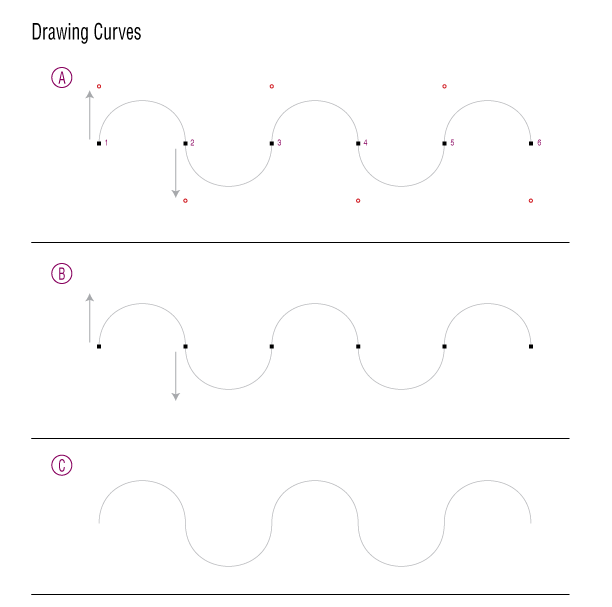
template art curves

File Setup Best Practice

When opening exercise files with modified links, always click Update Links to ensure InDesign automatically finds files in their expected folders.

Display Quality Optimization

1

Check Template Quality

If graphics appear pixelated or low quality, you're likely in preview mode

2

Switch to High Quality

Navigate to View > Display Performance > High Quality Display for crisp template graphics

3

Select Pen Tool

Activate the Pen tool to begin tracing the provided Bezier curve templates

Exercise Overview

Mastering Bézier curves is one of the most valuable skills you can develop as a design professional. In this exercise, you'll learn to draw precise curves that will enable you to create custom text paths, design sophisticated graphic elements, and craft unique layout shapes that set your work apart. While drawing Bézier curves can feel counterintuitive at first, the investment in practice pays dividends—these curves form the backbone of professional vector graphics and advanced page layout techniques. With consistent practice, what initially feels complex becomes second nature, opening up unlimited creative possibilities in your InDesign workflow.

Ready to dive in? Let's start with the fundamentals and build your confidence step by step.

  1. From the InDesign Class folder, open the file Bezier.indd.

    (If you encounter a message about modified links, click Update Links. This is standard behavior when opening exercise files created on different systems—InDesign intelligently locates and reconnects linked assets in their expected folder locations.)

  2. If the template graphic appears pixelated or unclear, you're likely viewing it in InDesign's default low-resolution preview mode, which prioritizes performance over visual fidelity. Choose View > Display Performance > High Quality Display to render the template at full resolution for optimal tracing accuracy.

  3. Select the Pen tool pen tool from the Tools panel. This precision instrument will become your primary tool for creating professional-quality vector paths.

  4. This exercise uses a carefully designed tracing template that progressively builds your Bézier curve skills. As you work through each section, keep these essential techniques in mind:

    Critical Technique for Section A: You must drag from each numbered black point directly to its corresponding red circle in one continuous, fluid motion. This is not a two-step process—avoid clicking first, then dragging. The single click-and-drag motion is what creates the curve's direction handle, which determines the curve's shape and trajectory.

    Don't worry about making mistakes—that's part of the learning process. Simply use Command+Z (Mac) or Ctrl+Z (Windows) to undo and try again.

    Essential Workflow Tip: After completing each curve, you must deselect it before starting the next one. This prevents InDesign from attempting to connect your new curve to the previous path. Use any of these professional deselection methods:

    • Choose Edit > Deselect All (or use the keyboard shortcut Command+Shift+A on Mac, Ctrl+Shift+A on Windows).
    • Switch to the Selection tool selection tool and click on empty space to deselect the current path.
    • Hold Command (Mac) or Control (Windows) to temporarily access the Direct Selection tool, then click away from your path to deselect it—a time-saving technique preferred by many professionals.

    Progressive Learning Design: Each section of this exercise systematically removes visual guides, challenging you to develop an intuitive sense for handle length and direction. This graduated approach mirrors how professional designers develop their expertise—moving from guided practice to independent mastery.

  5. For comprehensive guidance on advanced path-drawing techniques, consult the Quick Reference for Drawing Paths section located in the appendix of your course materials. This resource provides troubleshooting tips and professional shortcuts that will accelerate your learning curve.

Critical Technique Alert

In part A, drag from numbered black points to red circles in ONE continuous motion. Never click then drag separately - this breaks the curve flow and requires undoing.

Path Deselection Methods

0/3

Progressive Learning Structure

Beginner

Part A - Guided Practice

Full visual guidance with numbered points and target circles

Intermediate

Progressive Sections

Training wheels gradually removed to build confidence

Advanced

Advanced Techniques

Complex curves requiring distance and direction judgment

Optional Bonus

Once you've mastered the basic curves and feel confident with the fundamental techniques, challenge yourself with the advanced exercises on the remaining pages of this file. These bonus sections introduce more complex curve combinations and real-world tracing scenarios that mirror professional design challenges. Simply follow the detailed on-screen instructions for each exercise.

However, it's important to maintain perspective on InDesign's role in your design toolkit. While InDesign's Pen tool shares functionality with Adobe Illustrator's Pen tool, remember that InDesign excels as a sophisticated page layout application. For complex vector illustrations, detailed logo creation, or extensive path editing, Illustrator remains the industry standard. InDesign's strength lies in integrating these vector elements into comprehensive layouts—combining typography, imagery, and graphics into polished, professional publications. Understanding when to use each tool is a hallmark of design expertise in today's collaborative creative environment.

InDesign vs Illustrator for Vector Work

FeatureInDesignAdobe Illustrator
Primary PurposePage Layout ProgramVector Drawing Program
Pen Tool CapabilitySimilar FunctionalityAdvanced Vector Tools
Best for Complex IllustrationsBasic Shapes & PathsProfessional Illustrations
Recommended UseText Paths & LayoutDetailed Vector Art
Recommended: Use InDesign for layout-focused paths, Illustrator for complex vector illustrations

Advancing to Bonus Exercises

Pros
Additional drawing techniques beyond basic curves
More challenging tracing templates for skill building
On-screen instructions guide you through advanced methods
Builds confidence with complex vector creation
Cons
Requires solid grasp of basic curve concepts first
More time-intensive than core exercises
May exceed typical InDesign layout needs
Could be better suited for Illustrator workflow

Key Takeaways

1Bezier curves enable creation of custom text paths and graphic shapes essential for professional InDesign layouts
2The Pen tool requires one continuous motion from anchor points - never separate click and drag actions
3Three reliable methods exist for deselecting paths: menu command, Selection tool, or Command/Control shortcuts
4Template exercises use progressive difficulty, removing guidance aids as skills develop through practice
5High Quality Display mode ensures template graphics appear crisp and professional during tracing exercises
6InDesign's Pen tool mirrors Illustrator's functionality but serves layout purposes rather than complex illustration work
7Bonus exercises provide advanced techniques for users comfortable with basic Bezier curve fundamentals
8Quick Reference materials supplement hands-on practice with comprehensive path drawing guidance and tips

RELATED ARTICLES