April 1, 2026Dan Rodney/5 min read

Newspaper Crossword Puzzle

Master InDesign Table Features Through Interactive Design

Tutorial Focus

This comprehensive guide demonstrates how to leverage InDesign's Table feature as a creative design tool beyond traditional data presentation, showcasing practical techniques for interactive puzzle creation.

Topics Covered in This InDesign Tutorial:

Tables, Color Swatches

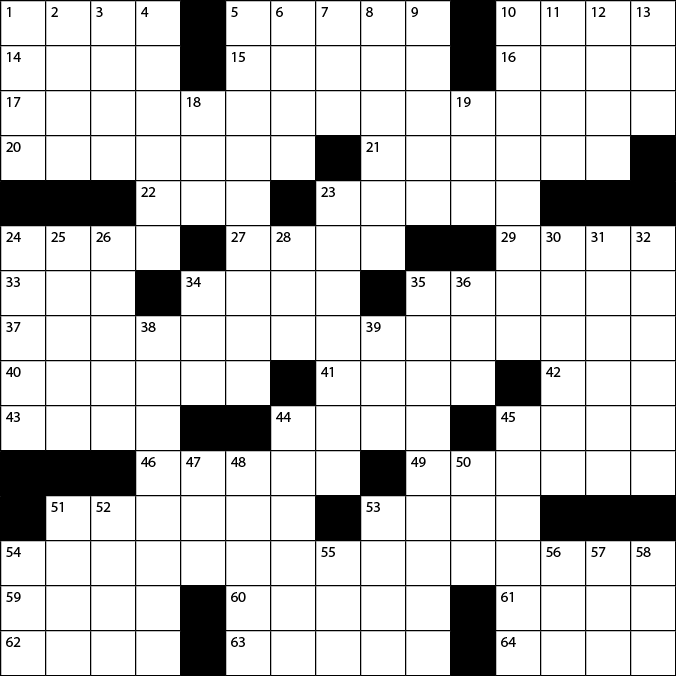
Exercise Preview

crossword done

Project Specifications

15x15
Table Grid Size
15p
Pica Cell Dimension
5pt
Stroke Weight

Exercise Overview

InDesign's Table feature provides an elegant, efficient solution for creating structured layouts like crossword puzzles. While many designers overlook tables as merely functional elements, they're actually powerful design tools that can streamline complex grid-based projects. This exercise demonstrates advanced table manipulation techniques and color swatch workflows that will enhance your InDesign proficiency across multiple project types.

Getting Started

We'll begin by establishing a proper document foundation with precise measurements—a critical step that many designers rush through but which determines the success of grid-based layouts.

  1. Navigate to File > New > Document and configure the following settings:

    • Select the Print tab and click the Letter (8.5 X 11 in) preset for standard document sizing.
    • Change the Units to Picas to the right of Width—picas provide more precise control for typography and grid-based layouts.
    • Uncheck Facing Pages if it's currently selected, since we're creating a single-page layout.
    • Expand the Margins section and set all margins to 6p (equivalent to 1 inch), providing clean breathing room around our puzzle.
  2. Click Create to generate your new document.

Document Setup Process

1

Create New Document

Navigate to File > New > Document and select Print tab

2

Configure Layout

Choose Letter preset and set units to Picas for precision

3

Set Margins

Uncheck Facing Pages and apply 6p margins on all sides

Setting up the Table

Now we'll create the foundation grid using InDesign's table functionality. This approach offers superior control over individual cell properties compared to manual grid creation.

  1. Select the Type tool type tool and create a text frame that precisely fills the margin guides. This ensures your table will be perfectly positioned within your layout boundaries.
  2. With the cursor positioned in the frame, navigate to Table > Insert Table.
  3. Configure the table with 15 body rows by 15 columns, leaving header and footer rows unchecked since crosswords don't require these elements.
  4. Click OK to generate the table structure.
  5. Position your cursor in the first cell, then select the entire table by going to Table > Select > Table. This global selection allows us to apply consistent formatting across all cells simultaneously.
  6. Open the Table panel via Window > Type & Tables > Table to access precise table controls.
  7. In the Table panel, apply these specifications for professional crossword proportions:

    • Set Row Height to Exactly and enter 1p6 for consistent, square cells
    • Match the Column Width to 1p6 as well, ensuring perfect squares essential for crossword aesthetics.

      nytimes tableoptions

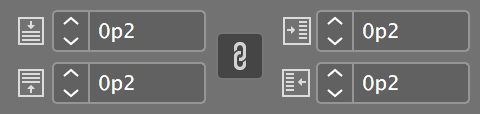
    • Configure all Cell Insets to 0p2 to provide subtle padding around numbers while maintaining the grid's visual integrity.

      table cell insets

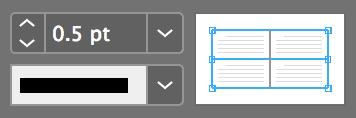
  8. With the table still selected, locate the stroke weight control in the Control panel and adjust it to 0.5 pt for clean, professional grid lines:

    table set stroke weight

  9. Deselect the table by clicking outside it or using Edit > Deselect All to prepare for the next phase.

Table Creation Checklist

0/4
Professional Layout Technique

Setting stroke weight to 0.5pt creates clean, professional grid lines that enhance readability without overwhelming the design structure.

Filling in the Black Boxes

Creating the blocked-out areas is where your crossword takes shape. InDesign offers multiple approaches for cell coloring—we'll explore both individual and batch methods for maximum efficiency.

  1. Reference the Exercise Preview image above to identify which cells require black fills. Strategic blocking creates the word patterns that define crossword puzzles.

  2. Open the Swatches panel and position it where it won't obstruct your view of the table.

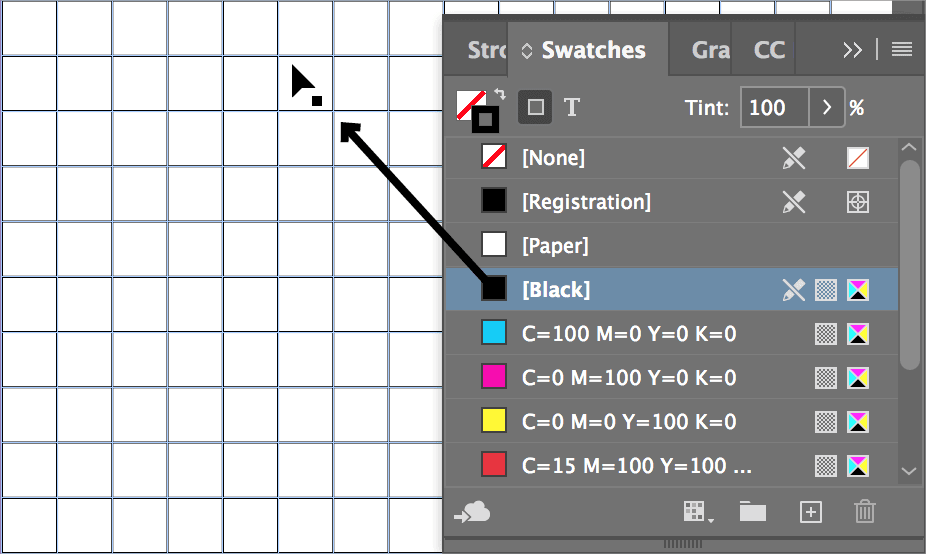
  3. For individual cells, use the drag-and-drop method: drag the [Black] swatch directly onto the target cell and release.

    drag black swatch to cell

    While effective for single cells, this method becomes inefficient for multiple adjacent cells. Let's explore a more productive approach.

  4. Using the Type tool type tool, click and drag to select multiple adjacent cells that all require black fills.

  5. In the Swatches panel, ensure the Fill icon is active (not stroke) and click the [Black] swatch to apply the color to all selected cells simultaneously.

  6. Continue filling the remaining black cells using whichever method feels most natural for each section. This flexibility in workflow is what separates efficient designers from those who rigidly follow single approaches.

Cell Filling Methods

FeatureDrag MethodSelect Method
SpeedSlowerFaster
PrecisionHighMedium
Best ForIndividual cellsMultiple adjacent cells
Recommended: Use drag method for scattered individual cells and select method for groups of adjacent cells to maximize efficiency.

Cell Coloring Workflow

1

Open Swatches Panel

Ensure panel visibility and access to color options

2

Apply Individual Colors

Drag Black swatch directly onto target cells for precise placement

3

Batch Color Selection

Select multiple adjacent cells and click Black swatch for efficiency

Adding the Numbers

The final step transforms your grid into a functional crossword by adding sequential numbering. We'll also create a reusable paragraph style to maintain consistency and enable quick global changes.

  1. Enter numbers into the remaining white cells according to the reference image. Each number marks the beginning of either an across or down word entry.

    TIP: Use the Arrow keys to navigate between cells rapidly—this keyboard shortcut dramatically speeds up data entry in tables.

  2. Select any number you've entered and format it as 6 pt Myriad Pro Regular. This size provides excellent readability without overwhelming the cell space.

  3. Convert this formatting into a reusable paragraph style for consistency. With the formatted number still selected, click the New style button new button in the Paragraph Styles panel.

  4. Double-click the newly created style and rename it Crossword Numbers for clear identification in future projects.

  5. Apply consistent formatting across the entire table by selecting all cells—either drag across the entire table or use Table > Select > Table.

  6. In the Paragraph Styles panel, click Crossword Numbers to apply the style globally, ensuring perfect consistency across all numbered cells.

  7. Excellent work! Your crossword puzzle grid is now complete and professionally formatted. The next logical step would be creating the accompanying clues using consistent typography. Save your document as yourname-Crossword to preserve this foundation for future crossword projects.

Navigation Efficiency

Utilize arrow keys for rapid cell-to-cell movement during number entry, significantly reducing time spent on precise cursor placement.

Text Styling and Automation

1

Format Sample Text

Apply 6pt Myriad Pro Regular to establish consistent typography

2

Create Paragraph Style

Convert formatting to reusable 'Crossword Numbers' style

3

Apply to Entire Table

Select full table and apply style for uniform appearance

Paragraph Style Benefits

Pros
Ensures consistent typography across all numbered cells
Enables quick global formatting changes if needed
Maintains professional design standards
Streamlines workflow for similar projects
Cons
Requires initial setup time for style creation
May be overkill for single-use projects

Key Takeaways

1InDesign's Table feature extends beyond data presentation to creative design applications like interactive puzzles
2Proper document setup with pica units and precise margins creates professional foundation for grid-based designs
3Multiple cell coloring methods provide flexibility between individual precision and batch efficiency
4Paragraph styles ensure consistent typography and enable quick global formatting changes across complex table structures
5Strategic use of cell insets, stroke weights, and uniform dimensions creates clean, readable grid layouts
6Arrow key navigation significantly improves workflow efficiency when entering data across multiple table cells
7Combining InDesign's table tools with color swatches creates versatile templates for puzzle and game design
8Professional crossword creation requires attention to both technical precision and visual design principles

RELATED ARTICLES