April 1, 2026Dan Rodney/5 min read

Books: Creating: Free InDesign Tutorial

Master InDesign Book Creation with Multiple Documents

Tutorial Focus

This comprehensive InDesign tutorial teaches you to combine multiple documents into a single book project with synchronized styles and unified table of contents.

Topics Covered in This InDesign Tutorial:

Using Multiple Files to Create a Book, Synchronizing Files

Core Learning Modules

Document Linking

Learn to connect multiple InDesign documents into a cohesive book structure. Master file organization and project management.

Style Synchronization

Understand how to maintain consistent formatting across all documents. Keep paragraph styles, character styles, and swatches unified.

Table of Contents Management

Create comprehensive TOCs that span multiple documents. Update and manage cross-document navigation seamlessly.

Exercise Preview

wine book

Exercise Overview

InDesign's Book feature transforms how professionals manage multi-chapter publications. Rather than wrestling with separate documents that drift out of sync, you can link multiple files into a cohesive book structure. In this exercise, you'll combine four documents into a unified publication, gaining the ability to synchronize styles and automatically update table of contents across all chapters—essential skills for managing corporate reports, technical manuals, and multi-part publications efficiently.

Project Specifications

4 files
Documents to Link
1 controls all
Master Document
Multiple synchronized
Style Elements

Preparation

Before creating your book structure, you'll need to establish your working files. You've already created the master document, yourname-wine1. Now we'll open the remaining template files and save them with your naming convention to maintain file organization and avoid conflicts in collaborative environments.

  1. Open the file Wine2.indd.

  2. Execute File > Save As, and save it as yourname-wine2.

  3. Open the file Wine3.indd.

  4. Execute File > Save As, and save it as yourname-wine3.

  5. Open the file Wine4.indd.

  6. Save it as yourname-wine4.

  7. Close all the yourname-wine… files to clear your workspace before proceeding.

File Preparation Workflow

1

Open Source Files

Open Wine2.indd, Wine3.indd, and Wine4.indd from the existing locked files

2

Save As New Files

Use File > Save As to create yourname-wine2, yourname-wine3, and yourname-wine4

3

Close All Files

Close all yourname-wine files to prepare for book creation

File Naming Convention

Use consistent naming with your name prefix to maintain organization throughout the project workflow.

Creating the Book

Now that your individual files are prepared, you'll create the book structure that will serve as the master controller for your publication. The Book panel becomes your command center for managing chapter relationships, style consistency, and automated features like page numbering and table of contents generation.

  1. Create a new book by navigating to File > New > Book.

  2. Name it yourname-wine book.indb and save it into the InDesign Class folder. The .indb extension identifies this as an InDesign book file.

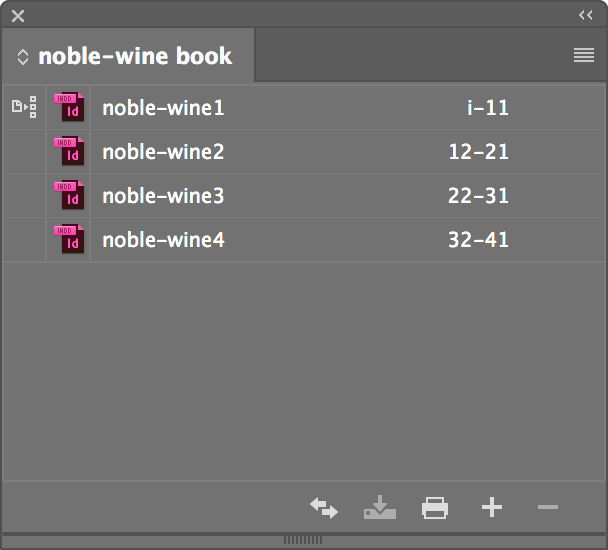
  3. In the Book panel that appears, click the Add documents button add file to book.

    Your first chapter automatically becomes the style source document—the master that controls formatting consistency across all subsequent chapters. Any paragraph styles, character styles, swatches, and other formatting elements in this master will be synchronized to other chapters. Choose yourname-wine1 for this critical role.

  4. Click the Add documents button add file to book again to add your second chapter. Choose yourname-wine2. Repeat this process with yourname-wine3 and yourname-wine4.

    NOTE: For efficiency when managing larger publications, you can select multiple files simultaneously by clicking the first file, then Shift–clicking the last file to select the entire range, then clicking Open.

Book Creation Process

1

Create New Book

Go to File > New > Book and name it yourname-wine book.indb in the InDesign Class folder

2

Add Master Chapter

Click Add documents button and choose yourname-wine1 as the master chapter for style consistency

3

Add Remaining Chapters

Continue adding yourname-wine2, wine3, and wine4 using the Add documents button

Batch File Selection

You can add multiple files at once by clicking the first file, then Shift-clicking the last file to select them all before clicking Open.

Synchronizing the Book

Synchronization is where InDesign's Book feature demonstrates its true power. This process ensures style consistency across all chapters—critical for maintaining professional standards in corporate publications and eliminating the manual tedium of updating styles in individual documents.

  1. In the Book panel, ensure no individual chapters are selected. This step is crucial: with no selection, all documents will be synchronized. If specific chapters are selected, only those documents will receive the synchronization updates.

  2. Click the Synchronize button synchronize book. If InDesign displays a message indicating files may have changed, click OK to proceed—this is normal behavior when styles are being updated across documents.

Critical Selection Step

Make sure no chapters are selected in the Book panel before synchronizing. Selected documents will limit synchronization to only those files.

Synchronization Checklist

0/3

Updating the Table of Contents for the Entire Book

The final step transforms your individual table of contents into a comprehensive book-wide navigation system. This automated process pulls heading information from all chapters, creating a unified TOC that saves hours of manual updating and ensures accuracy across your entire publication.

  1. In the Book panel, double–click yourname-wine1 to open your master document.

  2. Navigate to Layout > Table of Contents.

  3. Configure the following critical options at the bottom left of the dialog window:
    • Ensure Replace Existing Table of Contents is checked to overwrite your single-document TOC.
    • Check Include Book Documents to pull headings from all chapters in your book.
    • Click OK to generate the comprehensive TOC.

    The expanded TOC will require additional pages to accommodate entries from all chapters. Let's add the necessary space now.

  4. Open the Pages panel to manage your document structure.

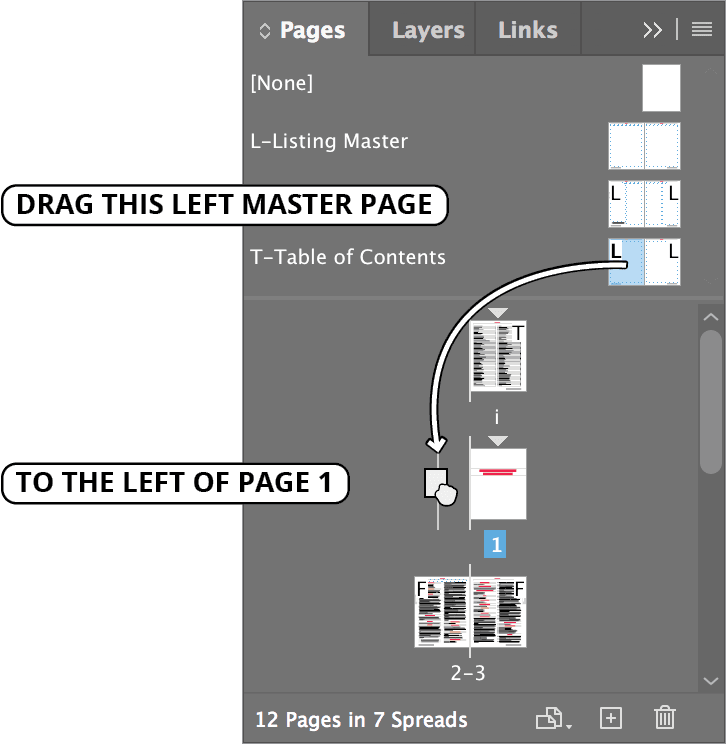
  5. Click on the Table of Contents master page's left page and drag it as shown below to create additional TOC pages:

    drag t master

  6. Navigate to page i of the document.

  7. Locate the red text overflow symbol text overflow indicator at the bottom-right corner of the TOC's text frame. Click it with the Selection tool selection tool to load the overset text for threading.

  8. Navigate to page ii.

  9. Click on the main 2-column text frame to flow the additional TOC content into this page.

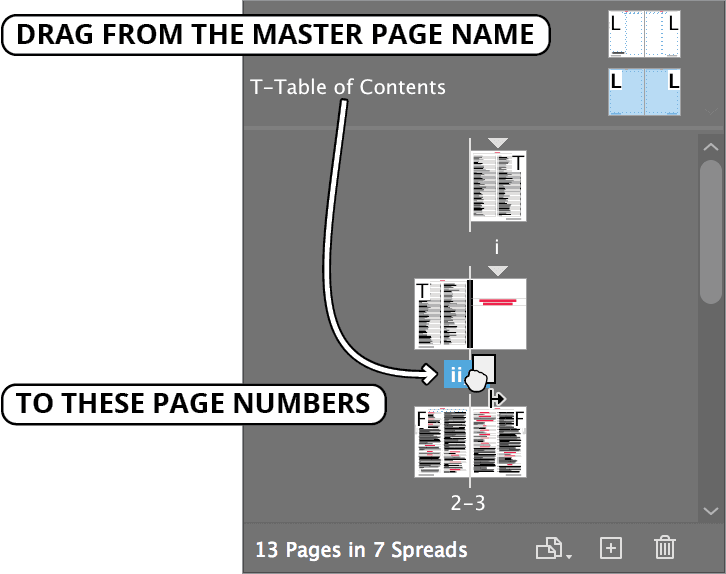
  10. The expanded content will likely require additional pages. To efficiently create multiple pages, access the Pages panel and execute the following drag operation:
    • Drag from the T-Table of Contents master PAGE NAME (not the page thumbnails).
    • Drag to the PAGE NUMBER area beneath the ii–1 spread icons.
    • Ensure your cursor displays the add pages to the right icon as shown below:

    drag t master spread

  11. This action generates two additional pages (iii–iv) positioned correctly before page 1 in your document sequence.

  12. Return to page ii of the document.

  13. Click the red text overflow symbol text overflow indicator at the bottom-right corner to load the remaining overset text.

  14. Click in the 2-column main text frame on page iii to continue the text flow.

  15. Repeat this threading process for any remaining overflow on page iii.

  16. Save the file and close it to preserve your completed table of contents.

  17. In the Book panel, click the Save the book button save book button. Alternatively, access the panel menu panel menu and choose Save Book.

  18. Close the Book panel to complete the exercise.

Table of Contents Update Process

1

Open Master Document

Double-click yourname-wine1 in the Book panel to open the master document

2

Access TOC Settings

Go to Layout > Table of Contents and check Replace Existing Table of Contents and Include Book Documents

3

Handle Text Overflow

Add new pages by dragging from T-Table of Contents master page to accommodate expanded TOC content

4

Flow Overflow Text

Click red overflow symbols and flow text into new page frames until all content fits

Project Completion

Save the file, close it, then click Save the book button in the Book panel or use the panel menu to save the complete book project.

Key Takeaways

1InDesign's Book feature allows you to link multiple documents into a unified project with synchronized formatting and styles across all files
2The first document added to a book becomes the master chapter, controlling paragraph styles, character styles, and swatches for all subsequent chapters
3Proper file preparation involves opening locked source files and saving them with consistent naming conventions before creating the book
4Synchronization requires no documents to be selected in the Book panel to ensure all files receive the master document's formatting
5Table of Contents can span multiple documents when Include Book Documents option is enabled in the TOC settings
6Text overflow from expanded TOCs requires adding new pages using the master page drag method to maintain proper formatting
7The Save the book function preserves all document links and synchronization settings for future editing sessions
8Batch file selection using Shift-click can streamline the process of adding multiple documents to a book project

RELATED ARTICLES