April 1, 2026Dan Rodney/8 min read

The Lawyer Joke Book: Setup

Professional InDesign Layout Skills for Multi-Page Publications

Tutorial Scope

62 pages
Total pages created
8 skills
Key techniques covered
4 components
Master page elements

Topics Covered in This InDesign Tutorial:

Master Pages, Automatic Page Numbering, Automatic Text Flow, Running Heads

Core InDesign Concepts

Master Pages

Create consistent layouts across multiple pages with automated elements and formatting.

Automatic Text Flow

Efficiently distribute large amounts of text across multiple pages with primary text frames.

Running Heads & Page Numbers

Add professional navigation elements that automatically update throughout your document.

Exercise Preview

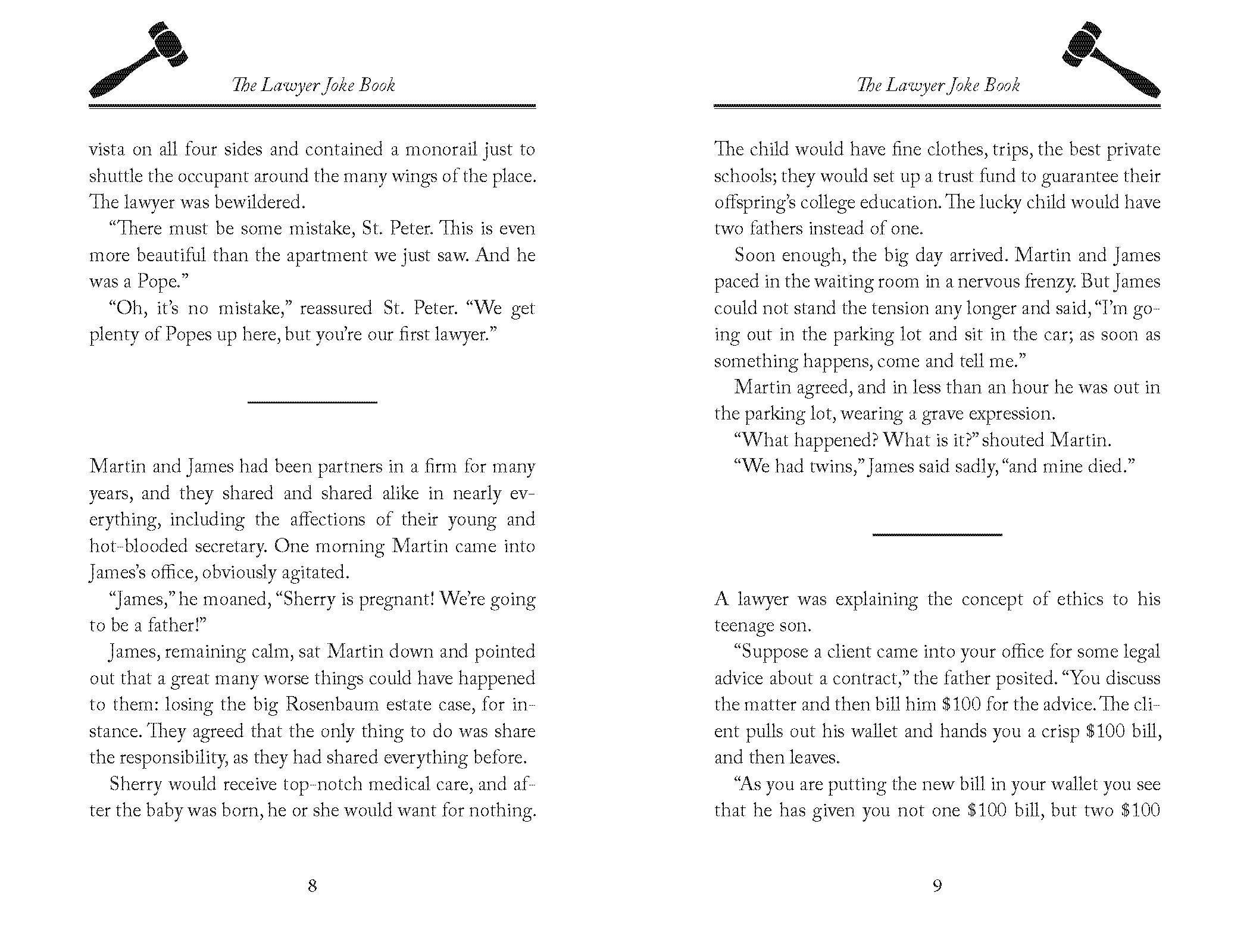
OT Lawyer Joke Book

Exercise Overview

In this comprehensive exercise, you'll master the art of laying out long-form publications efficiently using InDesign's most powerful automation features. Rather than manually formatting each page, you'll leverage master pages to create consistent design elements across dozens of pages, implement automatic page numbering that updates dynamically, and design professional running heads that give your publication a polished, book-quality appearance. These techniques are essential for anyone working with multi-page documents in professional publishing environments.

Tutorial Workflow Overview

1

Document Setup

Configure page dimensions, margins, and basic document properties

2

Text Import

Place large text file and allow automatic flow across multiple pages

3

Master Page Design

Create reusable layout elements including guides, running heads, and page numbers

4

Final Review

Verify design implementation across the entire document

Setting up the Document

The foundation of any successful layout begins with proper document setup. We'll configure a book-sized document with precise margins and columns optimized for readability.

  1. Navigate to File > New > Document and configure the following specifications:
    • To the right of Width, set Units to Picas for professional typography precision.
    • Set Width to 31p6 (5.25 inches) and Height to 48p (8 inches) — dimensions that create an elegant, readable book format.
    • Ensure the Start # is set to 1 for proper page numbering sequence.
    • Enable both Facing Pages (for traditional book layout) and Primary Text Frame (which will save significant time during text flow).
    • Set Columns to 1 and Column Gutter to 1p0 for this single-column design.
    • In the Margins section, unlink link bleed etc. off the values and set margins that account for binding and readability: Top: 6p6, Bottom: 6p6, Inside: 4p6, and Outside: 4p6
  2. Click Create to generate your document foundation.

  3. Select the Selection tool selection tool to begin working with your layout.

Document Specifications

Width (picas)
31.5
Height (picas)
48
Top Margin
6.5
Inside Margin
4.5
Units Matter

Using picas for layout measurements provides more precise control for professional typography and ensures consistent spacing throughout your design.

Importing the Text

Now we'll demonstrate InDesign's powerful automatic text flow capability, which can instantly create dozens of properly formatted pages from a single text file.

  1. You're currently on page 1, where you'll see the primary text frame we configured. To import and flow your text automatically, go to File > Place and:
    • From the InDesign Class folder, select LawyerText.txt.
    • Click Open — then resist the urge to click anywhere else! The cursor is now loaded with your text.
  2. Position the loaded cursor directly over the primary text frame and click once to initiate automatic text flow.

  3. InDesign will now work its magic, automatically creating new pages as needed to accommodate the entire text file. This process may take a few moments as InDesign calculates optimal text flow and generates approximately 62 pages. You can monitor progress by watching the page count at the bottom of the Pages panel.

  4. Save your document as yourname-Lawyer Joke Book.indd in the InDesign Class folder to preserve your work.

Text Flow Process

When placing large text files, InDesign automatically creates new pages to accommodate all content. This process may take a few moments for extensive documents.

Text Import Checklist

0/4

Setting up the Master Page: Adding Guides

Master pages are where InDesign truly shines for long documents. Any element you place on a master page will appear consistently across all pages that use that master — a massive time-saver for professional publications.

  1. You'll notice that your pages currently lack page numbers or running heads — essential elements for professional book design. Let's fix this by accessing the master page. In the Pages panel, double-click on A-Master.

  2. You'll now see a two-page master spread — your design canvas for elements that will appear on every page. First, ensure rulers are visible by going to View > Show Rulers for precise positioning.

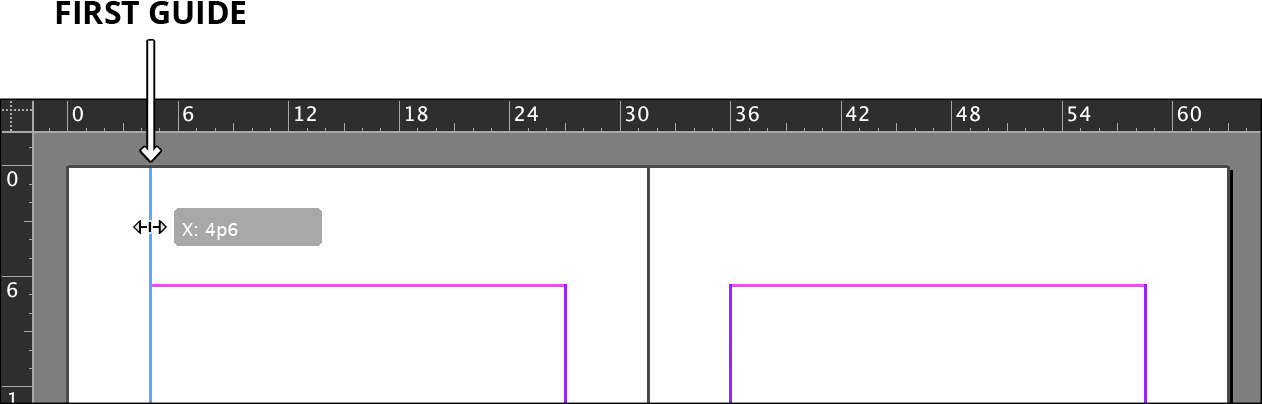
  3. From the left-hand ruler, drag out a vertical guide and snap it precisely to the purple margin guide on the left page, as shown below. This guide will help align your design elements consistently.

    setup guides first

  4. Create three additional guides, positioning each one at the remaining margin guides to establish a complete grid system for your layout:

    setup guides additional

Master Page Efficiency

Changes made to master pages automatically apply to all document pages, saving significant time in multi-page layouts.

Setting up the Master Page: Adding the Running Heads

Running heads serve as navigational aids for readers and add professional polish to your publication. We'll create an elegant design that combines typography, graphics, and rules.

  1. Begin by creating a visual separator between the running head and body text. Select the Line tool line tool, hold Shift to maintain perfect horizontal alignment, and draw a line slightly above the master text frame, spanning between your guides. Reference the sample image from the exercise preview for proper positioning.

  2. With the line selected, access the Stroke panel and apply these professional specifications:

    Weight: 3 pt
    Type: Thick—Thin
  3. Above the line, use the Type tool type tool to create a text frame that spans from guide to guide. Make it approximately quarter to half an inch high (1p6–3p) — sufficient for your running head text.

  4. Type The Lawyer Joke Book in the frame — this will appear on every page of your document.

  5. Format the text as 12 pt Adobe Caslon Pro Italic (found under the C section in your font menu). Adobe Caslon Pro provides excellent readability and professional appearance for book design.

  6. Center the text for balanced visual weight across the page.

  7. Adjust the position of both the text and line elements to achieve visual harmony with your overall page design, referencing the example shown in the next step.

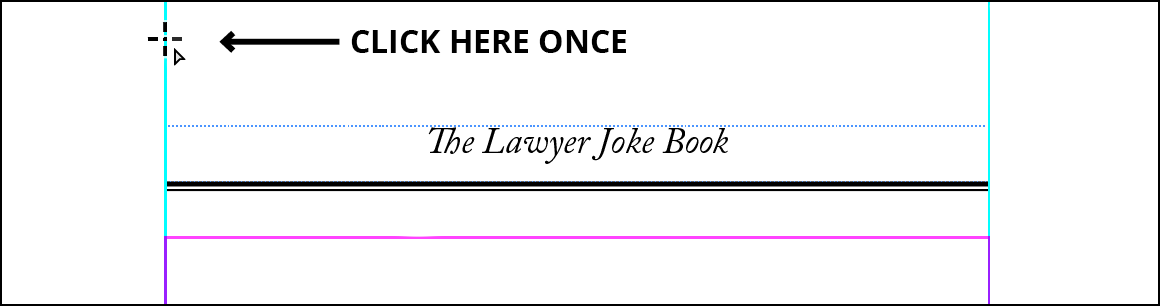
  8. Now we'll add a decorative element to enhance the design. Select the Rectangle Frame tool rectangle frame tool and position the crosshair cursor at the left guide above the text. Click once for precise placement.

    draw frame using guide

  9. In the dialog box, specify dimensions of 5p wide and 3p10 high for optimal proportion with your text elements.

  10. With the frame selected, import your graphic by going to File > Place and selecting GavelLeft.eps.

  11. The imported image will likely exceed your frame size. Correct this by going to Object > Fitting > Fit Content Proportionally to maintain proper aspect ratio while fitting the frame.

  12. Reposition all elements — the frame, text, and line — to create a visually balanced composition. Ensure adequate separation from the master text frame to prevent interference with body text.

  13. To preview your design without guides and frame edges, access the preview modes at the bottom of the Tools panel. Click and hold the Normal button normal mode and select Preview from the menu.

  14. Return to normal view by clicking and holding Preview preview mode and choosing Normal.

    TIP: Use the W key as a quick toggle between Preview mode preview mode and normal view. Ensure you're not actively editing text when using this shortcut!

  15. For a professional book layout, your running head should appear on both pages but with mirrored orientation. Use the Selection tool selection tool to select all three elements: the gavel, text frame, and line. Exercise care to avoid selecting the large master text frame below.

    NOTE: Use the Shift key to click each item individually, or drag a marquee selection around all three elements. Avoid including the master text frame in your selection.

  16. Navigate to Edit > Step and Repeat, enable Preview to see changes in real-time, and enter these specifications:

    Repeat Count: 1
    Vertical Offset: 0 (maintains vertical position)
    Horizontal Offset: 31p6 (matches page width for precise positioning)

    Clicking OK creates a duplicate set of all three elements on the right-hand page.

  17. Clear your selection by choosing Edit > Deselect All for clean navigation.

  18. Using the Selection tool selection tool, click on the right-hand gavel to isolate it for modification.

  19. In the Control panel, ensure the center reference point reference pt center is selected for accurate transformation.

  20. Locate and click the Flip Horizontal button flip horizontal in the center section of the Control panel to create a mirrored image.

  21. Reposition the flipped gavel to the right margin by dragging while holding the Shift key to constrain movement horizontally. Release when the gavel snaps to the rightmost guide for perfect alignment.

  22. Verify your master page design is functioning correctly by double-clicking on page 2 in the Pages panel to see your running heads in action.

  23. Excellent work! Save your progress with File > Save to preserve your master page design.

Running Head Creation Process

1

Draw Separator Line

Create 3pt Thick-Thin line above text frame while holding Shift for perfect horizontal alignment

2

Add Title Text

Create text frame and type title using 12pt Adobe Caslon Pro Italic, centered

3

Place Gavel Image

Create 5p x 3p10 frame and place GavelLeft.eps with proportional fitting

4

Duplicate to Right Page

Use Step and Repeat with 31p6 horizontal offset to copy elements

Preview Mode Shortcut

Press W to quickly toggle between Normal and Preview modes, but ensure you're not editing text when using this shortcut.

Setting up the Master Page: Adding Page Numbers

Automatic page numbering is one of InDesign's most valuable features for long documents. Once configured on the master page, page numbers will update automatically as you add, remove, or rearrange pages.

  1. Return to the A-Master page by double-clicking its name in the Pages panel to complete your master page design with automatic page numbering.

  2. At the bottom of the left-hand page, create a text frame using the Type tool type tool. Draw it to span from guide to guide, matching the width of your master text frame for visual consistency.

  3. With the text cursor active in the frame, insert InDesign's automatic page number marker by choosing Type > Insert Special Character > Markers > Current Page Number, or use the keyboard shortcut Cmd–Opt–Shift–N (Mac) or Ctrl–Alt–Shift–N (Windows).

  4. Select the page number symbol (which displays as an A on the master page) and format it as 12 pt Adobe Caslon Pro Regular with center alignment to match your overall typography scheme.

  5. Switch to the Selection tool selection tool and position the text frame for optimal visual balance. For precise positioning, click the top left reference point reference pt topleft in the Control panel and set Y: 44p3.

  6. With the page number frame selected, duplicate it to the right page using Edit > Duplicate.

  7. InDesign remembers your previous Step and Repeat settings, so the duplicate should position correctly on the right page automatically.

  8. Confirm your master page elements are working properly by double-clicking on page 2 in the Pages panel. You should see your running heads, decorative elements, and page numbers all in place.

  9. Save your document to preserve this foundational work. Your book layout structure is now complete and ready for text styling, which you'll tackle in the next exercise. This master page approach has saved you from manually placing these elements on dozens of individual pages — a testament to InDesign's power for professional publishing workflows.

Automatic vs Manual Page Numbers

Pros
Automatically update when pages are added or removed
Consistent formatting across entire document
No manual updates required for revisions
Professional appearance with minimal effort
Cons
Requires initial setup on master pages
Less flexibility for unique page number styles
Must understand master page concepts

Page Number Implementation

1

Create Text Frame

Draw frame at bottom of left page, spanning from guide to guide

2

Insert Page Number Marker

Use Type menu or Cmd-Opt-Shift-N shortcut to insert automatic page number

3

Format Text

Apply 12pt Adobe Caslon Pro Regular with center alignment

4

Duplicate to Right Page

Use Edit > Duplicate to copy formatted frame to opposite page

Key Takeaways

1Master pages enable consistent design elements across all document pages, significantly reducing repetitive formatting tasks
2Proper document setup with facing pages and primary text frames streamlines the text flow process for multi-page layouts
3Using picas as measurement units provides greater precision for professional typography and layout control
4Automatic text flow can handle large documents efficiently, creating approximately 62 pages from substantial text files
5Running heads with images, text, and separator lines create professional book layouts when properly positioned with guides
6Step and Repeat functionality allows precise duplication of design elements with specific offset measurements
7Automatic page numbering through special character insertion ensures accurate pagination throughout document revisions
8Preview mode (W shortcut) provides quick visual verification of design implementation without affecting the working view

RELATED ARTICLES