April 1, 2026Dan Rodney/3 min read

The Assignments Panel

Master File Management and Version Control Workflows

Essential Panel for Collaborative Work

The Assignments Panel is a critical tool for managing file access and preventing conflicts in collaborative environments where multiple users work on the same content.

The Assignments Panel

Core Assignment Panel Functions

File Checkout Management

Lock files for exclusive editing access. Prevents conflicts when multiple users attempt to modify the same content simultaneously.

User Status Tracking

Monitor who currently has files checked out. Essential for coordinating work and understanding file availability in team environments.

Content Synchronization

Update local content when changes are made by other users. Ensures everyone works with the most current version of files.

What Does the Assignments Panel Do?

The Assignments panel serves as your command center for collaborative workflow management in InCopy, providing essential file control capabilities that prevent conflicts and ensure smooth team coordination. This powerful tool enables you to check files in and out, monitor team member activity, and maintain version control across complex publishing projects. Whether you're working on a magazine layout, corporate publication, or digital content, mastering the Assignments panel is crucial for maintaining editorial workflow integrity and preventing the costly delays that occur when multiple team members attempt to edit the same content simultaneously.

Core Assignment Panel Functions

File Checkout Management

Lock files for exclusive editing access. Prevents conflicts when multiple users attempt to modify the same content simultaneously.

User Status Tracking

Monitor who currently has files checked out. Essential for coordinating work and understanding file availability in team environments.

Content Synchronization

Update local content when changes are made by other users. Ensures everyone works with the most current version of files.

Check Out

Checking out files establishes your exclusive editing rights to specific content, preventing other team members from making conflicting changes while you work. This process is essential for maintaining data integrity in collaborative environments.

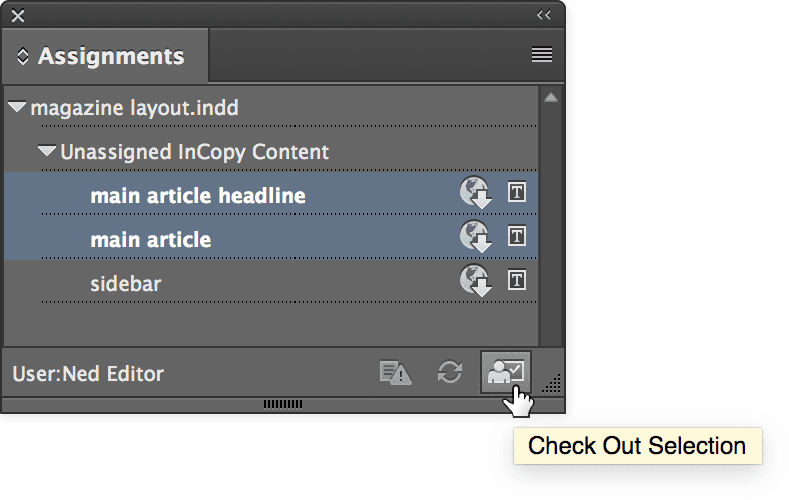
  1. Select the story or stories you want to check out from the panel list.

  2. Click the Check Out Selection button at the bottom, as shown below:
    assignments panel check out

Once checked out, the file status will update to reflect your ownership, and other team members will see that the content is unavailable for editing. This system prevents the editorial nightmares that plagued publishing workflows before robust version control became standard practice.

File Checkout Process

1

Select Target Files

Choose the story or stories you want to work on from the available list in the panel interface.

2

Execute Checkout

Click the Check Out Selection button located at the bottom of the panel to lock the files for your exclusive use.

Multiple File Selection

You can select and check out multiple stories simultaneously, streamlining your workflow when working on related content pieces.

See Who Has Files Checked Out

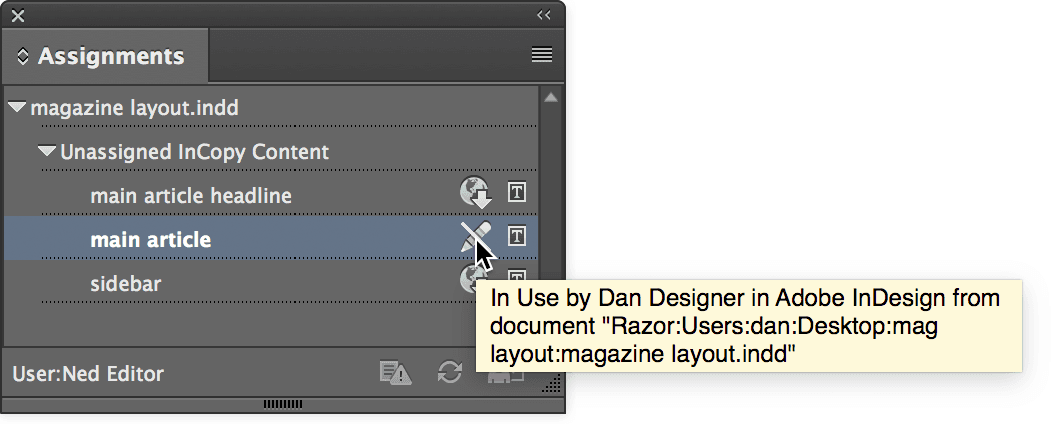
Understanding file availability at a glance prevents workflow bottlenecks and helps you plan your editorial schedule more effectively. When files are unavailable, knowing who's working on them enables direct communication and coordination.

  1. Mouse over the file in question within the Assignments panel.

  2. Wait for the yellow tooltip to appear, which will display the current user's name and checkout status:

    assignments panel someone else has file checked out

This real-time visibility into team activity helps editorial managers allocate resources more efficiently and enables writers and editors to coordinate their efforts without constant status meetings or email exchanges.

Checking File Status

1

Hover Over File

Position your mouse cursor over the file you want to check in the assignments panel interface.

2

Wait for Tooltip

A yellow tooltip will appear displaying the current checkout status and user information for that file.

Check In

Checking in files releases your exclusive editing lock and makes your changes available to the broader team. Prompt check-ins are essential for maintaining workflow momentum and ensuring other team members can access updated content when needed.

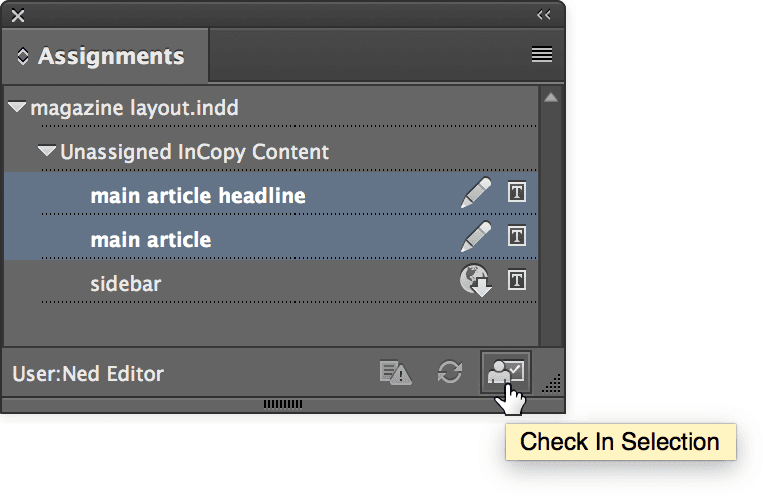
  1. Select the story or stories you've completed and are ready to release back to the team.

  2. Click the Check In Selection button at the bottom, as shown below:
    assignments panel check in

Best practice dictates checking in files promptly after completing your edits, even if the overall project isn't finished. This approach keeps content flowing through your editorial pipeline and prevents other team members from being blocked unnecessarily.

File Check-in Process

1

Select Completed Files

Choose the story or stories you have finished working on and are ready to release back to the shared pool.

2

Execute Check-in

Click the Check In Selection button at the bottom of the panel to make the files available for other team members.

Remember to Check In

Always check in files when you finish working to avoid blocking other team members from accessing and editing the content.

Loading Content Updated by Another User

In dynamic editorial environments, content evolves rapidly as multiple contributors refine and update materials. The Assignments panel provides clear visual indicators when your local version falls behind the current working version, ensuring you're always working with the most recent content.

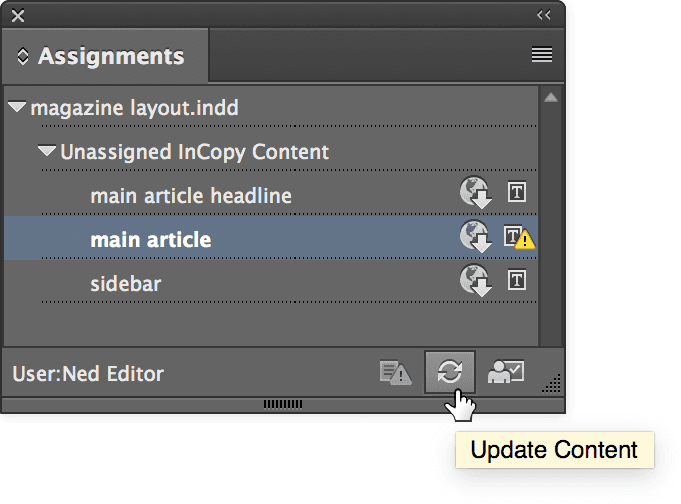
When you have a layout open and a colleague edits a story, you'll notice a yellow warning icon assignments panel out of date icon adjacent to the affected content. This indicator signals that the story has been updated server-side, rendering your local layout version outdated. To synchronize your view with the latest changes:

  1. Select the story displaying the update notification.

  2. Click the Update Content button at the bottom of the panel, as shown:
    assignments panel update content

  3. Once you've successfully updated the content on-screen, the yellow warning icon disappears, confirming synchronization.

This update mechanism ensures that layout decisions are based on current content, preventing the publication errors that can occur when designers work with outdated text or when editorial changes aren't reflected in final layouts. Regular content updates are particularly critical in fast-paced publishing environments where multiple revision cycles occur daily.

Content Update Process

1

Identify Updated Content

Look for yellow warning icons next to stories in your layout, indicating the content has been modified by another user.

2

Select Updated Story

Click on the story that displays the yellow warning icon to select it for updating.

3

Update Content

Click the Update Content button at the bottom of the panel to load the latest version and remove the warning icon.

Version Control Indicator

The yellow warning icon serves as a visual cue that your local version is outdated, helping maintain content accuracy across the team.

Key Takeaways

1The Assignments Panel provides essential file management capabilities including check-out, check-in, and status tracking for collaborative workflows.
2File checkout prevents conflicts by giving users exclusive access to content, ensuring only one person can edit a file at a time.
3The tooltip system allows users to quickly identify who has files checked out, improving team coordination and workflow planning.
4Multiple files can be selected and processed simultaneously for both check-out and check-in operations, enhancing productivity.
5Yellow warning icons alert users when content has been updated by others, preventing work on outdated versions.
6The Update Content button synchronizes local layouts with the latest changes made by other team members.
7Proper check-in practices are crucial for team collaboration, as failing to check in files blocks other users from accessing content.
8The panel serves as a central hub for version control, helping teams maintain content integrity and avoid editing conflicts.

RELATED ARTICLES