April 1, 2026Dan Rodney/2 min read

Printing Layouts & Exporting Text

Master InCopy printing and text export workflows

InCopy Output Options Overview

Print Layouts

Output your InCopy documents directly to physical or digital printers with full layout preservation. Choose between layout and galley views for different purposes.

Text Export

Export your content as Rich Text Format files for use in other applications while maintaining formatting and structure.

Printing Layouts & Exporting Text

InCopy's printing and export capabilities are essential tools for collaborative workflows, allowing you to share content with stakeholders who may not have access to Adobe Creative Cloud applications. Whether you need hard copies for review meetings or portable text files for client approval, these features streamline professional publishing workflows.

Printing from InCopy

InCopy provides flexible printing options that cater to different review scenarios. You can generate layout-accurate proofs that match your InDesign output, or create clean text-only versions that focus reviewers' attention on content rather than design elements.

  1. Navigate to File > Print to access the comprehensive print dialog.

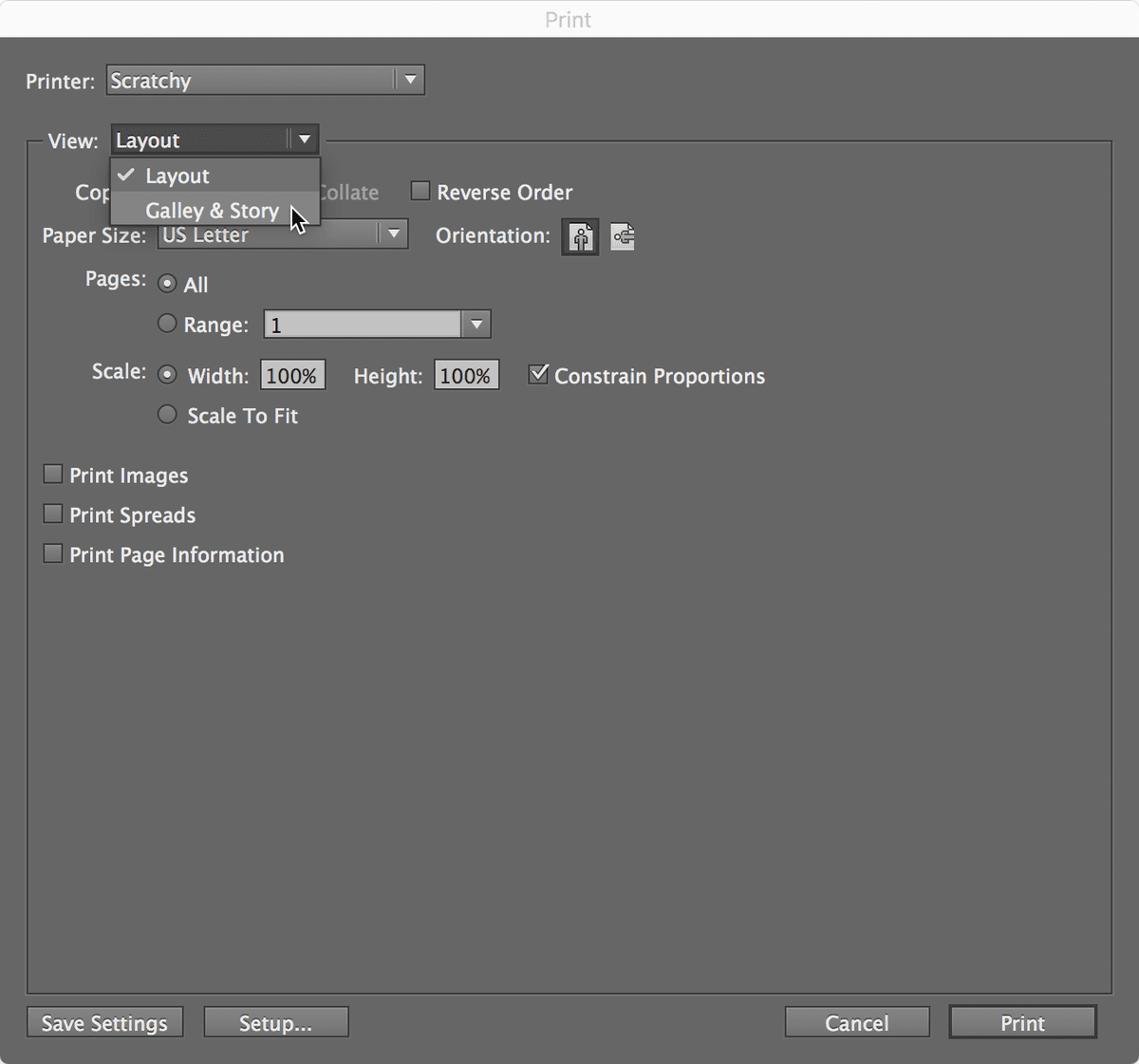
  2. Select your target printer from the Printer dropdown menu at the top of the dialog. For professional workflows, ensure your printer settings match your intended output quality.

  3. From the View menu, choose the most appropriate print format for your needs:
    • Select Layout view to generate proofs that precisely mirror the InDesign layout, including typography, spacing, and design elements. This option is ideal for comprehensive design reviews and client presentations.
    • Choose Galley & Story view to print clean, text-only versions that eliminate design distractions. This format excels for copy editing, proofreading sessions, and content-focused reviews.

    print choose view

Moving beyond print output, InCopy also offers robust export functionality that creates portable file formats for extended collaboration workflows.

InCopy Printing Process

1

Access Print Dialog

Navigate to File menu and select Print to open the printing interface

2

Select Printer

Choose your desired printer from the Printer menu at the top of the dialog

3

Choose View Type

Select between Layout view or Galley & Story view from the View menu based on your output needs

Print View Options

FeatureLayout ViewGalley & Story View
Visual AppearanceMatches InDesign/InCopy layout exactlyText-only display
Content FocusFull design with graphics and formattingPure text content
Best Use CaseFinal proofs and client reviewsEditorial review and proofreading
Recommended: Use Layout view for design validation and Galley view for text-focused editing tasks
Print View Selection

Layout view preserves the exact appearance of your InDesign document, while Galley & Story view focuses purely on text content for editorial purposes.

Exporting Text As a Rich Text File

Rich Text Format (RTF) export creates universally compatible files that preserve essential formatting while remaining editable in virtually any word processor. This functionality proves invaluable when collaborating with team members who use different software platforms or when archiving content for future reference.

  1. Access the export dialog through File > Export to begin the process.

  2. In the export dialog's bottom section, set the Format dropdown to Rich Text Format. RTF files maintain character and paragraph formatting while ensuring cross-platform compatibility with Microsoft Word, Google Docs, and other text editors.

  3. Click Save to generate your RTF file. The exported document will preserve fonts, styles, and basic formatting, making it ready for further editing or distribution to external collaborators.

These export and print features form the backbone of professional publishing workflows, enabling seamless handoffs between design and editorial teams while maintaining content integrity throughout the review process.

Rich Text Export Process

1

Open Export Dialog

Go to File menu and select Export to begin the export process

2

Set Format Type

At the bottom of the export window, change the Format setting to Rich Text Format

3

Save the File

Click Save to complete the export and create your RTF file

Rich Text Format Benefits and Limitations

Pros
Maintains basic text formatting like bold, italic, and fonts
Compatible with most word processors and text editors
Preserves paragraph styles and basic layout structure
Smaller file size compared to native InCopy formats
Cons
Does not preserve complex InDesign layout elements
May lose some advanced typography features
Graphics and images are not included in the export

Pre-Export Verification

0/4

Key Takeaways

1InCopy provides flexible printing options through the File > Print menu with printer selection capabilities
2Layout view printing preserves the exact InDesign document appearance for design validation
3Galley & Story view focuses on text-only output, ideal for editorial review and proofreading tasks
4Rich Text Format export maintains basic formatting while ensuring broad compatibility across applications
5The export process requires setting the format to Rich Text Format at the bottom of the export dialog
6RTF files preserve paragraph styles and basic typography but exclude complex layout elements and graphics
7Print view selection should align with your specific workflow needs - design review versus text editing
8Both printing and exporting workflows follow standard Adobe application patterns for consistent user experience

RELATED ARTICLES