April 1, 2026Dan Rodney/3 min read

Adding Notes: Free InCopy Tutorial

Master collaborative note-taking in Adobe InCopy workflows

Multiple Approaches Available

InCopy provides several methods for adding notes to accommodate different workflows and preferences. Choose the method that works best for your current task and view mode.

Adding Notes

InCopy offers multiple pathways for creating notes, each optimized for different workflows and preferences. Whether you're collaborating with a design team, conducting editorial reviews, or leaving personal reminders, choosing the right method can significantly streamline your annotation process. Master these three approaches to maximize your efficiency.

Adding a Note: Using the Menu

  1. The menu method provides the most comprehensive control over note creation. You can either start with a blank note or transform existing text into an annotation—a particularly useful feature when converting draft copy into editorial comments:

    To create an empty note: With no text selected, go to Notes > New Note.
    To convert text into a note: Select some text and choose Notes > Convert to Note.
  2. Note appearance and functionality adapt dynamically based on your current view mode. This contextual interface ensures optimal readability and workflow integration regardless of your working environment.

    If You Are in the Galley or Story Views:

    Notes display as inline elements with distinctive colored brackets, maintaining the natural flow of your text while clearly delineating commentary from content. This approach minimizes visual disruption during intensive editing sessions. Simply position your cursor within the brackets and begin typing your note.

    note in galley view

    If You Are in Layout View:

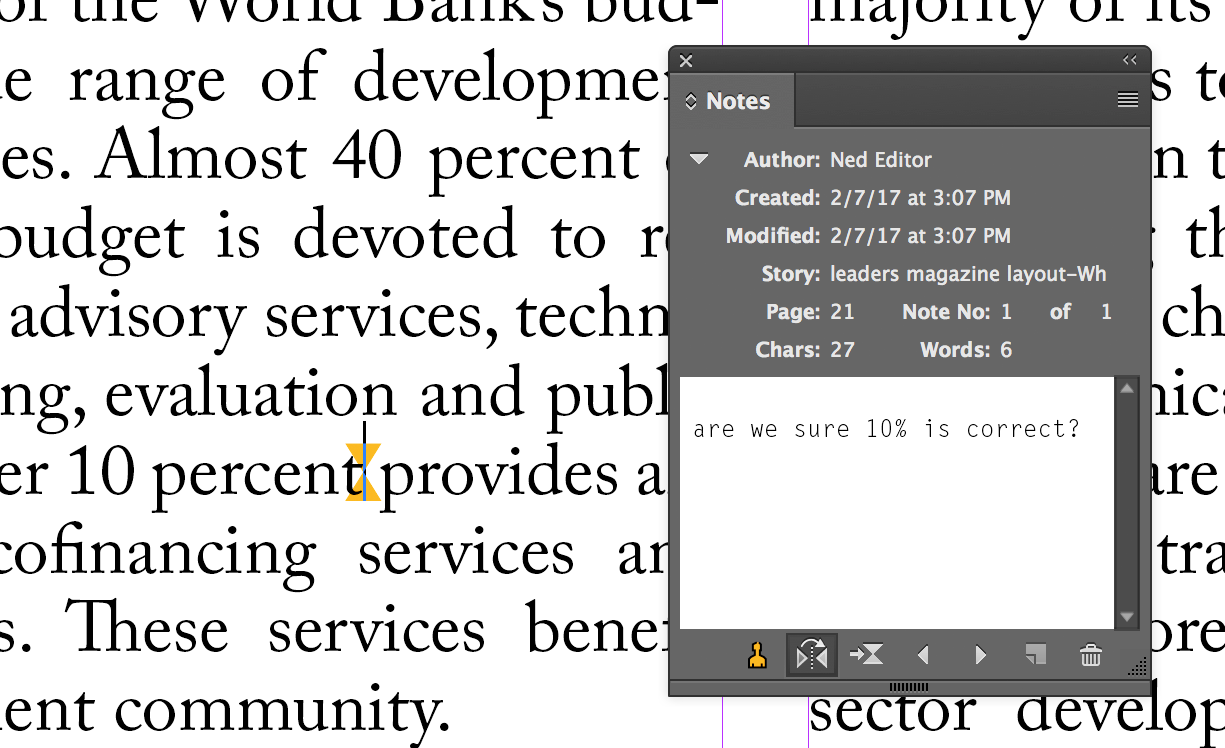
    The system automatically launches the dedicated Notes panel, providing a clean separation between your layout and commentary. A discrete marker note marker for layout view anchors each note to its precise text location, ensuring your feedback remains contextually linked even as layout elements shift during the design process.

    note in layout view

For rapid note creation during active editing sessions, the Note tool offers the most direct approach, eliminating menu navigation entirely.

Menu-Based Note Creation Process

1

Choose Your Approach

Decide whether to create an empty note or convert existing text into a note

2

Access the Notes Menu

Navigate to Notes menu and select either New Note or Convert to Note

3

View-Specific Display

Note appearance varies between Galley/Story views and Layout view

Note Display by View Type

FeatureGalley/Story ViewsLayout View
Note AppearanceColored brackets in textMarker with Notes panel
Editing MethodType directly in bracketsType in Notes panel
Visual IntegrationInline with textSeparate panel interface
Recommended: Choose view based on your editing preference and layout requirements

Adding a Note: Using the Note Tool

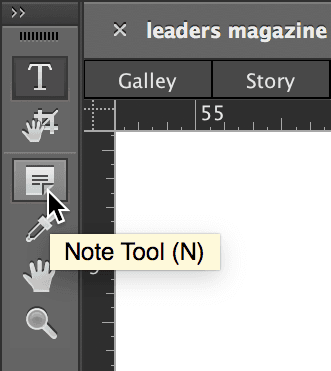
  1. Activate the Note tool note tool from the primary toolbar. This tool remains easily accessible in the top-left position across all InCopy interface configurations, ensuring consistent muscle memory development.

    note tool location in toolbar

  2. Position your cursor precisely where the note should anchor within your text. Consider the logical flow of your content—notes work most effectively when placed at natural pause points or directly adjacent to the relevant material.

  3. Begin typing immediately. The note interface activates instantly, allowing you to capture thoughts without breaking your creative momentum.

When working primarily in Layout view, the Notes panel method provides the most comprehensive note management capabilities, particularly valuable for complex collaborative projects.

Note Tool Workflow

1

Select Note Tool

Locate and click the Note tool at the top left of the InCopy interface

2

Position the Note

Click precisely where you want to insert the note in your text

3

Enter Content

Begin typing your note content immediately after placement

Adding a Note: Using the Notes Panel

  1. Navigate to Layout view using the view tabs at the top of your workspace. This view provides optimal context for understanding how notes integrate with your final design layout.

  2. Click to establish your insertion point within the text where your note should appear. Precise positioning ensures clear communication with collaborators about which specific content requires attention.

  3. Open the Notes panel via Window > Notes or use the keyboard shortcut Command–F10 (Mac) or Control–F10 (Windows). These shortcuts remain consistent across Adobe Creative Suite applications, facilitating seamless workflow transitions.

  4. Click the New Note button new button located at the panel's bottom-right corner. This button provides visual confirmation of your action and maintains panel-based workflow consistency.

  5. Begin composing your note within the panel's text field. The panel interface accommodates longer, more detailed annotations than inline methods, making it ideal for comprehensive editorial feedback or complex revision instructions.

Notes Panel Method

1

Switch to Layout View

Use the tab at the top of the window to change to Layout view

2

Position Cursor

Click in the text where you want to place the note

3

Open Notes Panel

Go to Window > Notes or use keyboard shortcut Command-F10 (Mac) or Control-F10 (Windows)

4

Create and Type

Click the New Note button and start typing your note content

Keyboard Shortcut Efficiency

Remember the Notes panel shortcuts: Command-F10 on Mac or Control-F10 on Windows for quick access without using menus.

Temporarily Using the Note Tool

Professional efficiency tip: While actively using the Type tool type tool, you can instantly create notes without switching tools. Hold Option–Shift (Mac) or ALT–Shift (Windows) and click at your desired note location. This modifier combination temporarily activates note creation, then automatically returns you to the Type tool—an invaluable technique for maintaining writing flow during intensive editing sessions.

Quick Note Creation Shortcuts

Mac Users

Hold Option-Shift and click where you want to add a note while using the Type tool. This temporarily activates note creation without switching tools.

Windows Users

Hold Alt-Shift and click at your desired note location while using the Type tool. This provides instant note access without tool switching.

Workflow Optimization

The temporary Note tool shortcut is ideal for maintaining typing flow while quickly adding editorial comments or reminders without interrupting your main editing process.

Key Takeaways

1InCopy offers four distinct methods for adding notes: menu commands, Note tool, Notes panel, and temporary shortcuts
2Note display varies significantly between Galley/Story views and Layout view, affecting how you interact with note content
3The menu method allows both empty note creation and text conversion to notes for flexible content management
4Layout view users benefit from the Notes panel interface for organized note management and editing
5Keyboard shortcuts Command-F10 (Mac) or Control-F10 (Windows) provide quick Notes panel access
6Temporary Note tool activation using Option-Shift (Mac) or Alt-Shift (Windows) maintains workflow efficiency
7Choose your note-adding method based on current view mode and personal workflow preferences
8The Note tool location at top left of the interface provides dedicated note creation functionality

RELATED ARTICLES