April 1, 2026Dan Rodney/4 min read

What’s Behind the Green Door?

Master Compound Paths in Adobe Illustrator

Tutorial Requirements

This tutorial requires Adobe Illustrator and the provided open-doors.ai file from the Illustrator Class folder. Make sure to save your work as yourname-open-doors.ai before beginning.

Topics Covered in This Illustrator Tutorial:

Compound Paths, the Group Selection Tool

Key Skills You'll Learn

Compound Paths

Learn how compound paths work like cookie cutters, removing shapes from objects to reveal hidden layers beneath. Master the Object > Compound Path > Make command.

Group Selection Tool

Discover how to edit individual components of compound paths using the Group Selection tool for precise adjustments and positioning.

Exercise Preview

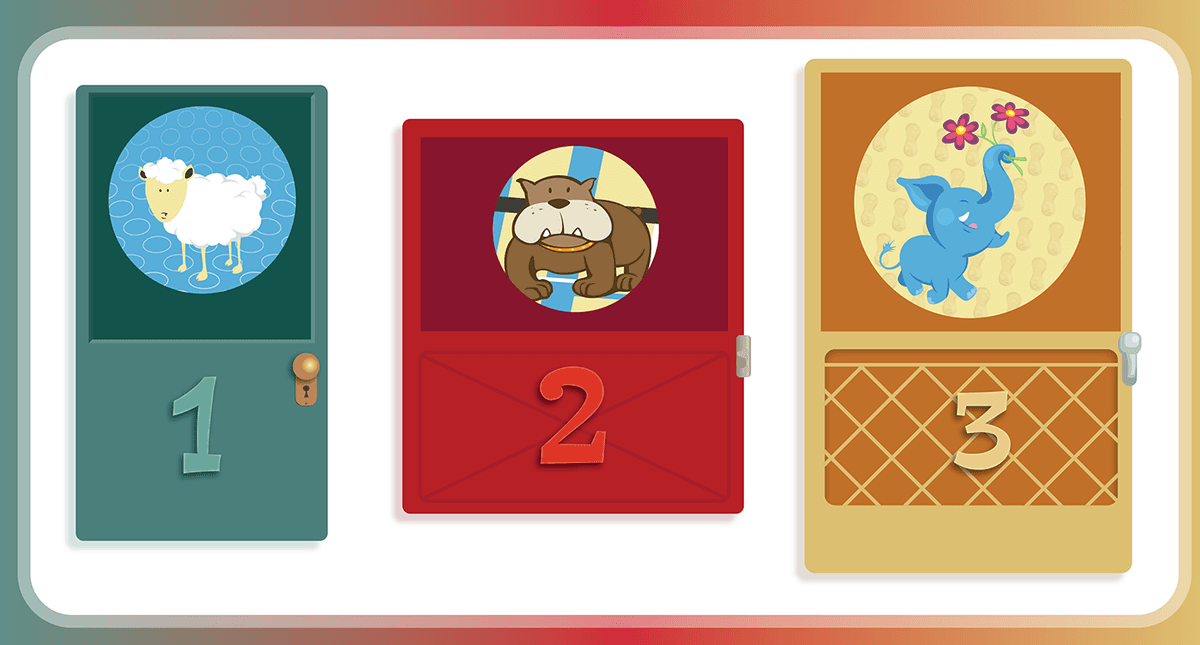
open doors final

Project Workflow Overview

1

Setup Files

Open open-doors.ai from the Illustrator Class folder and save as yourname-open-doors.ai with default options

2

Create Windows

Add circular windows to three doors using the Ellipse tool with different sizes for each door

3

Apply Compound Paths

Use compound paths to cut circular holes that reveal hidden image layers beneath each door

4

Edit and Refine

Adjust window sizes and positions using the Group Selection tool for optimal visibility

Exercise Overview

In this exercise, we'll transform a simple illustration of three doors into an engaging reveal effect by adding circular windows that showcase hidden imagery beneath each door. This technique demonstrates the power of Compound Paths in Illustrator—one of the most versatile yet underutilized features for creating sophisticated cutout effects. Whether you're designing interface mockups, print layouts, or digital illustrations, mastering compound paths will significantly expand your creative toolkit.

  1. In the Illustrator Class folder, open the file open-doors.ai.

  2. Save as yourname-open-doors.ai to preserve the original file.

  3. In the dialog that appears, leave the default options checked and click OK.

Compound Paths in Illustrator make this a snap
Adding circular windows that reveal hidden image layers is simplified using Illustrator's compound path functionality

Paths Within Paths

Now we'll dive into the core concept: creating shapes that cut through other shapes. Think of compound paths as digital cookie cutters—they allow you to create holes, windows, and complex negative spaces with precision.

  1. Select the Ellipse tool ellipse tool.

  2. Option–click (Mac) or ALT–click (Windows) in the center of the dark green rectangle in Door 1. This modifier-click technique creates a shape from a specific center point rather than dragging from corner to corner—essential for precise positioning.

  3. In the Ellipse options dialog, set both the Width and Height to 2 in and click OK. This ensures a perfect circle rather than an oval.

  4. With the Selection tool selection tool, select the circle you just created, then Shift–click on the dark green rectangle behind it. Both objects should now be selected.

  5. Navigate to Object > Compound Path > Make to reveal the hidden image beneath. Notice how the compound path creates a transparent "window" through the door, essentially subtracting the circle from the rectangle. This is the fundamental principle behind all compound path operations.

Ellipse Tool Technique

Use Option-click (Mac) or ALT-click (Windows) to place ellipses from the center point. Make sure to click once only, not click and drag, to access the precise sizing dialog.

Creating Your First Compound Path

1

Position Circle

Option-click in the center of Door 1's dark green rectangle with the Ellipse tool selected

2

Set Dimensions

In the Ellipse options dialog, change both Width and Height to 2 inches and click OK

3

Select Both Objects

Use Selection tool to select the circle, then Shift-click the dark green rectangle behind it

4

Create Compound Path

Navigate to Object > Compound Path > Make to reveal the hidden image layer beneath

Creating a Second Compound Path

Let's reinforce this technique by creating another window with slightly different dimensions. Varying the sizes creates visual interest and demonstrates the flexibility of the compound path workflow.

  1. Select the Ellipse tool ellipse tool once again.

  2. Option–click (Mac) or ALT–click (Windows) in the center of Door 2's dark panel. Remember to click once cleanly rather than clicking and dragging.

  3. In the Ellipse options, set the Width and Height to 1.75 in, then click OK. This slightly smaller circle creates variety in your composition.

  4. Select the new circle and Shift–click the rectangle beneath it, then execute Object > Compound Path > Make. You should now see two doors with perfectly cut circular windows.

Window Sizes for Each Door

Door 1
2
Door 2
1.75
Door 3
1.5
Cookie Cutter Concept

A Compound Path works like a cookie cutter, removing a shape from another object to create windows and reveals in your designs.

Editing Compound Paths

One of the most powerful aspects of compound paths is their non-destructive nature. Unlike raster-based cutouts that permanently alter your artwork, compound paths remain fully editable. This flexibility is crucial for client work where revisions are inevitable, and it's a key advantage that keeps vector workflows efficient in professional environments.

  1. Using the Ellipse tool ellipse tool, Option–click (Mac) or ALT–click (Windows) in the center of the dark panel on Door 3.

  2. Set the Width and Height to 1.5 in and click OK to create the smallest window of the three.

  3. Select both the circle and rectangle for Door 3, then apply Object > Compound Path > Make.

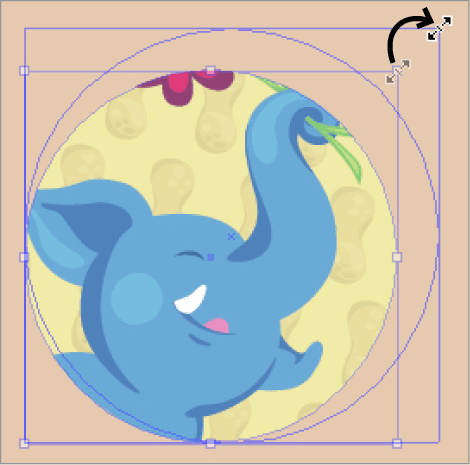
  4. The window might not be showing the most interesting part of the underlying image. To fix this, first deselect everything by clicking on empty artboard space, then use the Group Selection tool group selection tool to target just the circular path within the compound path. You may need to click directly on the circle's edge to select it properly.

  5. With the circle selected, switch to the Selection tool selection tool to reveal the bounding box handles.

  6. Position your cursor over a corner handle, then Shift–click and drag to resize proportionally as shown below. The Shift key constrains the proportions, preventing your perfect circle from becoming distorted into an oval.

    door number3

  7. After resizing, switch back to the Group Selection tool group selection tool to reposition the circle and reveal more compelling portions of the elephant image beneath. This fine-tuning capability demonstrates why compound paths are indispensable for professional design work.

  8. Save your file to preserve your progress.

Non-Destructive Editing

Compound paths remain editable after creation. No need to start over if you make one in the wrong place or wrong size - simply use the Group Selection tool to modify individual components.

Editing Compound Path Elements

0/5

Key Takeaways

1Compound paths in Adobe Illustrator function like cookie cutters, removing shapes from objects to reveal underlying layers
2The Ellipse tool's Option-click (Mac) or ALT-click (Windows) method allows precise center-point placement with exact dimension control
3Creating compound paths requires selecting both the cutting shape and the target object, then using Object > Compound Path > Make
4Different window sizes (2 inches, 1.75 inches, and 1.5 inches) create visual variety across multiple door elements
5Compound paths remain fully editable after creation, allowing for non-destructive modifications to size and position
6The Group Selection tool enables selection of individual components within compound paths for precise editing
7Holding Shift while resizing prevents shape distortion and maintains proper proportions during adjustments
8Proper file management includes saving work with descriptive names and maintaining default export options for compatibility

RELATED ARTICLES