April 1, 2026Dan Rodney/4 min read

Masking with Type: Free Illustrator Tutorial

Master Professional Text Masking in Adobe Illustrator

Core Illustrator Skills You'll Master

Type Tool Mastery

Learn to create and style professional typography with proper alignment and formatting. Essential for any design workflow.

Clipping Masks

Master the technique of using text as a mask to create stunning visual effects. This non-destructive method keeps your text editable.

Image Placement

Understand proper file linking and placement techniques for professional print workflows and file management.

Topics Covered in This Illustrator Tutorial:

The Type Tool, Clipping Masks (editable Type), Filling Text with a Photo, Placing Linked Images

Tutorial Prerequisites

This tutorial assumes basic familiarity with Adobe Illustrator's interface. You'll need the provided chile.psd file and Adobe Illustrator CC or later.

Exercise Preview

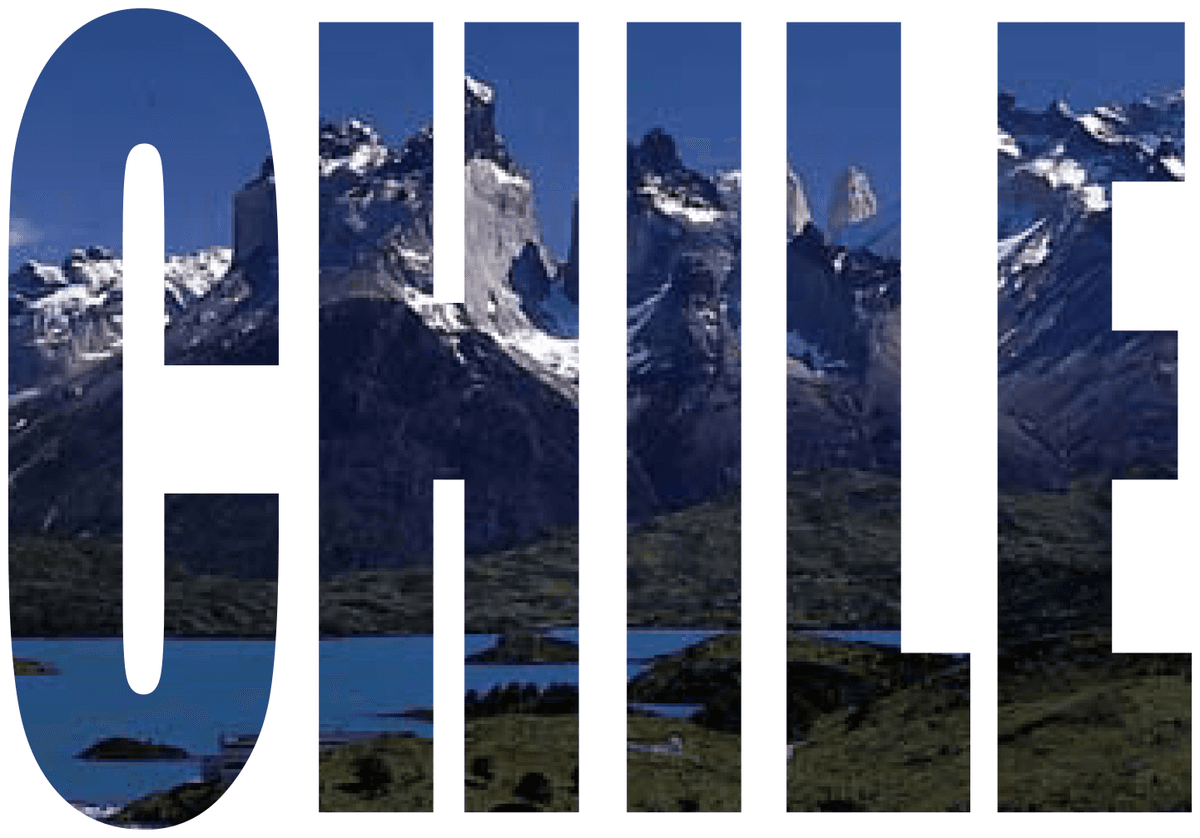
mask with text

Exercise Overview

Text masking stands as one of the most powerful and versatile techniques in Illustrator, allowing designers to create compelling visual narratives where imagery becomes the very substance of typography. This fundamental skill bridges the gap between text and image, enabling you to craft designs that communicate on both literal and visual levels. Whether you're creating poster designs, social media graphics, or brand identity elements, mastering text masks will elevate your design capabilities and open new creative possibilities.

Tutorial Workflow Overview

1

Document Setup

Create a new print document using the Letter preset for proper dimensions and resolution.

2

Typography Creation

Use the Type tool to create and style text with Impact font at 160pt size and 180% vertical scale.

3

Image Integration

Place the chile.psd file as a linked image and arrange it behind the text for proper layering.

4

Mask Application

Create the clipping mask by selecting both objects and applying the mask effect for the final result.

Setting the Type

We'll begin by establishing our typographic foundation with bold, impactful lettering designed to showcase the masking effect effectively.

  1. Go to File > New to create a new document.

  2. At the top of the dialog that opens, click on the Print tab.

  3. Double–click the Letter preset to establish our workspace dimensions.

  4. Select the Type tool type tool from the toolbar.

  5. Click once in the center of your artboard and type the word CHILE in all caps, replacing any placeholder Lorem ipsum text that may appear.

  6. To center-align the text for optimal visual balance, click the Align Center button text center (located in either the Control panel at the top of the screen or the Properties panel's Paragraph section near the bottom).

    TIP: For faster workflow, use the keyboard shortcut Cmd–Shift–C (Mac) or Ctrl–Shift–C (Windows) to center your text instantly.

  7. Double–click the word CHILE to select all the text for styling adjustments.

  8. In the Properties panel's Character section, click the More Options button more options button at the bottom right to reveal all available typography controls.

  9. Configure the following type specifications to create bold, mask-ready lettering:

    Font: Impact
    Size text size: 160 pt
    Vertical Scale text vertical scale: 180%

    These settings create substantial letterforms with strong vertical presence—essential characteristics for effective text masking that ensures your imagery will be clearly visible through the type.

Text Formatting Specifications

Font Size (pt)
160
Vertical Scale (%)
180
Keyboard Shortcut

Use Cmd-Shift-C (Mac) or Ctrl-Shift-C (Windows) to quickly center-align your text without searching for toolbar buttons.

Importing the Picture & Making the Mask

Now we'll bring in our photographic element and execute the masking technique that transforms static typography into a window for visual storytelling.

  1. Navigate to File > Place to import your image asset.

  2. Select the chile.psd file, ensuring the Link option at the bottom of the dialog window remains checked before clicking Place. Mac users may need to click the Options button to access this setting. Linking preserves file size and maintains connection to the original asset for future updates.

  3. Click once in the center of the artboard to place the image at its native resolution. Avoid clicking and dragging, which will resize the image and potentially compromise its quality.

  4. The imported Chilean mountain landscape will appear prominently on your artboard. To reveal your underlying typography, send the image to the back layer using Object > Arrange > Send to Back.

  5. Using the Selection tool selection tool, select your CHILE text and position it centrally over the most visually compelling area of the photograph—this strategic placement will determine which portion of the image shows through your final mask.

  6. Select both the photograph and the text elements simultaneously. This dual selection is crucial for the masking process to function correctly.

  7. Execute the mask by navigating to Object > Clipping Mask > Make. This command transforms your text into a viewing window for the underlying image.

  8. Click elsewhere on the artboard to deselect all objects. Your text now reveals the Chilean landscape imagery through its letterforms, creating a sophisticated integration of type and photography.

  9. To reposition just the text element within the mask, use the Group Selection tool group selection tool. If this tool isn't visible in your toolbar, click and hold on the Direct Selection tool direct selection tool to access it.

  10. Fine-tune the positioning by dragging the text or using arrow keys for precise nudging until you achieve optimal visual composition within the mask.

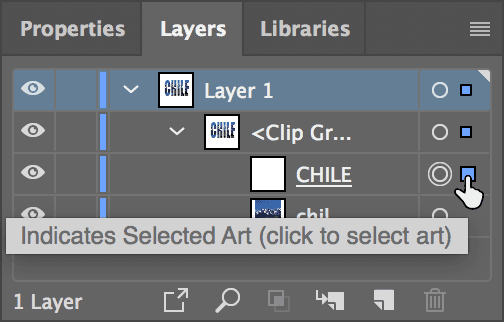
    NOTE: The Layers panel offers an alternative method for selecting specific elements within your clipping mask:

    • Expand Layer 1 by clicking the triangle disclosure arrow to its left.
    • Similarly expand the <Clip Group> to reveal its contents.
    • You'll now see both the CHILE text object and chile image listed separately. Click in the selection area to the right of the target circle to isolate either element for individual editing.

    masking type select layer

  11. The beauty of this technique lies in its editability. To modify your text content or adjust styling attributes, simply select the Type tool type tool and edit as you would any standard text object. The mask relationship remains intact while allowing complete typographic flexibility.

  12. Save your completed project as yourname-Mask With Type.ai to preserve all vector information and maintain future editability.

  13. In the save dialog that appears, accept the default Adobe Illustrator options and click OK to finalize your file.

Critical File Linking Step

Always ensure the Link option is checked when placing images. This maintains file connections and keeps your document size manageable for professional workflows.

Clipping Mask Creation Checklist

0/5

Clipping Mask Advantages & Considerations

Pros
Text remains fully editable after masking
Non-destructive editing preserves original image
Easy to reposition elements independently
Professional workflow for print design
Maintains vector text quality at any size
Cons
Requires proper layer arrangement
Can be complex for beginners to understand
Requires both objects to be selected simultaneously

Key Takeaways

1Clipping masks in Illustrator allow you to fill text with images while keeping the text fully editable
2Always link images when placing them to maintain professional file management and smaller document sizes
3The Impact font at 160pt with 180% vertical scale creates bold, readable text perfect for masking effects
4Proper layer arrangement is crucial - send images to back before creating clipping masks
5Use the Group Selection tool to independently adjust masked text position without affecting the underlying image
6The Layers panel provides precise control over individual elements within clipping mask groups
7Keyboard shortcuts like Cmd-Shift-C (Ctrl-Shift-C) speed up common formatting tasks like text alignment
8Save files with descriptive names and accept default AI options to preserve all editing capabilities

RELATED ARTICLES