April 1, 2026Dan Rodney/6 min read

Combining Shapes with the Pathfinder

Master Adobe Illustrator's Pathfinder for Complex Shape Creation

Core Skills You'll Master

Pathfinder Techniques

Learn to merge, divide, and unite shapes using Illustrator's powerful Pathfinder panel. Transform simple shapes into complex illustrations.

Shape Manipulation

Master cutting, overlapping, and merging various shapes to create detailed artwork without drawing from scratch.

Professional Workflow

Develop efficient techniques for assembling illustrations and moving artwork between documents for real-world projects.

Topics Covered in This Illustrator Tutorial:

Merging Paths (Pathfinder), Transparency Options, Grouping Objects

Tutorial Prerequisites

0/4

Exercise Preview

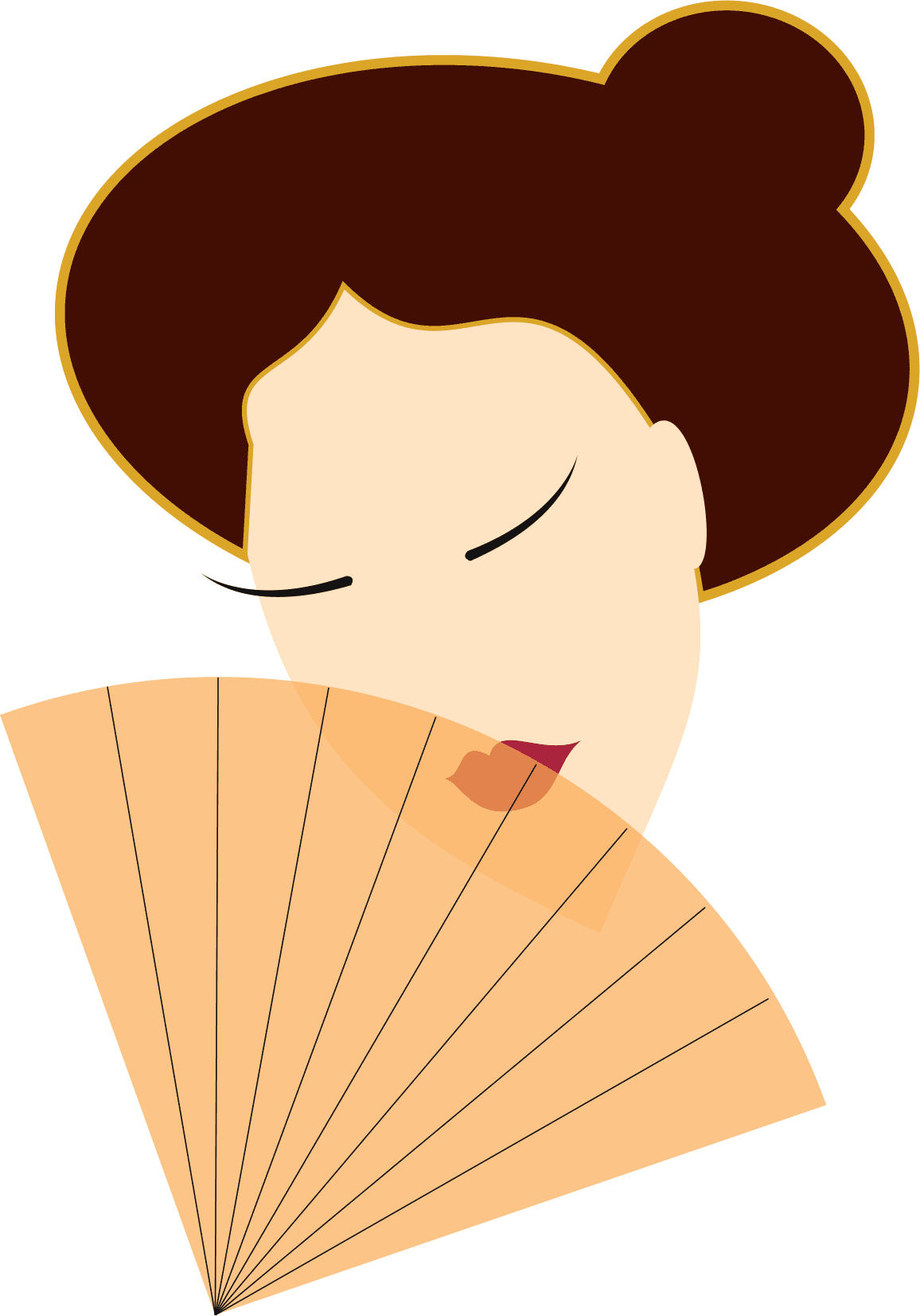
geisha done

Exercise Overview

The Pathfinder panel represents one of Illustrator's most powerful features for creating sophisticated shapes and visual effects without complex manual drawing. Rather than laboriously crafting every curve by hand, you'll master the art of cutting, overlapping, and merging geometric shapes to construct the polished illustration shown above. This approach mirrors how professional designers work efficiently in production environments, where time constraints demand smart workflow strategies.

  1. From the Illustrator Class folder, open the file geisha.ai.

  2. Ensure the Pathfinder panel is visible (navigate to Window > Pathfinder if it's not already open).

Design Philosophy

Instead of drawing complex shapes by hand, the Pathfinder allows you to build sophisticated illustrations by combining simple geometric forms. This approach is often faster and more precise than manual drawing.

Project Workflow Overview

1

Shape Assembly

Combine pre-made ellipses and modified shapes using Pathfinder operations to create the base illustration components.

2

Detail Integration

Add facial features, hair elements, and accessories using various Pathfinder techniques like Unite, Trim, and Divide.

3

Final Composition

Apply transparency effects, group elements, and transfer the completed artwork to a menu cover design.

Creating/Assembling the Illustration

You'll discover an array of carefully prepared shapes that form the building blocks of your illustration. Many of these components have been crafted by strategically modifying basic ellipses using the Direct Selection direct selection tool and Anchor Point convert anchor point tool tools. The Pathfinder panel will serve as your primary instrument for combining these elements into complex, organic shapes that would be significantly more challenging to create through freehand drawing alone. This modular approach is fundamental to professional illustration workflows.

We'll begin by establishing the foundational elements of our portrait, starting with the distinctive hairline that will define our subject's silhouette.

  1. First, we'll craft the signature hairline. Using the Selection tool selection tool, carefully position the Slice Line over the Large Oval. Reference the completed example for precise placement guidance.
  2. Ensure the slice line extends slightly beyond the bottom edge of the hair shape—this overhang is crucial for a clean cut.
  3. With the line still active, navigate to Object > Path > Divide Objects Below. This command uses your slice line as a cutting guide, separating the oval into two distinct pieces.
  4. The smaller resulting fragment is unnecessary for our design. Choose Select > Deselect to clear your current selection.
  5. Locate and delete the unwanted slice by-product, leaving only the hair shape that matches your design intent.
  6. Position the hairpiece over the face shape, taking a moment to appreciate your newfound digital hairdressing skills. Ensure complete coverage with no gaps or white spaces visible through the hair.
  7. Hold Shift and click the face to select both the hair and face simultaneously.
  8. In the Pathfinder panel (Window > Pathfinder), locate the Pathfinders section and click the Trim button pathfinder trim. This operation intelligently reshapes the face, removing the portion that would naturally be hidden behind the hair.
  9. The face and hair are now automatically grouped, but we need them as separate, editable elements. Choose Object > Ungroup to restore individual control.
  10. Select the component labeled Hair Bun and position it so it extends naturally from the upper right portion of the main hair shape.
  11. Hold Shift and click the hair to add it to your selection—both black elements should now be active.
  12. In the Pathfinder panel's Shape Modes section, Option–click (Mac) or Alt–click (Windows) the Unite button pathfinder add to shape to merge the shapes while maintaining their individual editability. The visual change may be subtle initially, but the next step will demonstrate the power of this technique.

  13. With the hair still selected, apply these styling properties:
    • A 3 pt stroke with CMYK values of 15c, 35m, 100y
    • A fill color of 35c, 85m, 85y, 75k

    NOTE: To access CMYK values, click the panel menu panel menu and select CMYK if not already active.

  14. Deselect the hair to observe how Illustrator now treats the combined elements as a unified shape with consistent styling throughout.
  15. Despite this visual unity, you retain individual control over components. Switch to the Group Selection tool group selection tool to demonstrate this flexibility.
  16. Select only the bun circle and experiment with repositioning it. Notice how the entire hair maintains its cohesive appearance while allowing granular adjustments—this is the power of compound paths in professional design work.

    Key Pathfinder Operations

    The Divide Objects Below command cuts shapes using a line as a guide, while the Trim operation removes hidden portions of overlapping objects. These are essential for creating clean, professional illustrations.

    Essential Pathfinder Functions Used

    Divide Objects Below

    Cuts objects into separate pieces using a line or shape as a cutting guide. Perfect for creating precise hairlines and contours.

    Trim Operation

    Removes the portions of shapes that are hidden behind other objects. Keeps visible areas while eliminating overlap.

    Unite Function

    Combines multiple selected shapes into a single compound path. Essential for creating cohesive design elements.

The Pathfinder Panel

Understanding Pathfinder behavior is crucial for efficient workflow: Shape Modes automatically merge multiple paths into single, simplified objects by default. To create compound paths that preserve all original paths as distinct, editable components, you must Option–click (Mac) or Alt–click (Windows) the Shape Mode buttons. This technique provides maximum flexibility for future design revisions.

With the hair structure complete, we'll now add the remaining facial features that bring our portrait to life.

  1. Our portrait currently lacks a crucial anatomical detail. Using the Selection tool selection tool, drag the piece labeled Ear to its anatomically correct position. Consult the reference example for proper placement if needed.
  2. Hold Shift and click the face to select both elements, then click the Unite button pathfinder add to shape in the Pathfinder panel's Shape Modes section to merge them seamlessly.
  3. Position the Eyebrows and Lips on the face, taking care to create natural, balanced facial proportions that enhance the overall composition.
  4. Drag the Fan into position so it partially conceals the lips, creating an element of mystery and cultural authenticity typical of traditional geisha portraiture.
  5. Click elsewhere to deselect the fan and prepare for the transparency effect.
  6. Switch to the Group Selection tool group selection tool and click specifically on the orange portion of the fan to target just that component.
  7. In either the Properties panel or the Control panel at the top of your workspace, adjust the Opacity to 70%. This creates a subtle transparency effect that allows the lips to show through naturally.
  8. Select the complete Geisha illustration and choose Object > Group to consolidate all elements into a single, manageable unit.

    Your portrait construction is now complete—a sophisticated example of how geometric shapes can be transformed into organic, expressive artwork!

  9. Save your work by selecting File > Save As and naming it yourname-geisha.ai.

    NOTE: If Illustrator displays an alert regarding spot colors and transparency, simply click Continue to proceed.

Shape Modes vs Compound Paths

FeatureDefault BehaviorAlt/Opt-Click Behavior
Path StructureAutomatically merges into single pathMaintains distinct editable objects
EditabilityLimited post-merge editingFull individual object control
File ComplexitySimpler file structureMore complex but flexible
Best Use CaseFinal artwork completionWork-in-progress designs
Recommended: Use Alt/Opt-click for compound paths when you need to maintain individual shape editability during the design process.
Color Mode Settings

Ensure your color panel is set to CMYK mode for print projects. The tutorial uses specific CMYK values like 15c, 35m, 100y for the hair stroke to achieve professional print-ready colors.

Moving the Illustration onto a Cover

Now we'll integrate your completed illustration into a practical design context, demonstrating how individual artwork elements become part of larger compositions in professional design workflows.

  1. Select your completed Geisha illustration and copy it using Cmd–C (Mac) or Ctrl–C (Windows).

  2. Open the MenuCover.ai file to access the cover template.

  3. Navigate to the Layers panel by clicking its tab in the panel dock on the right side of your workspace.

  4. Access the Layers panel menu panel menu oldstyle and verify that Paste Remembers Layers is unchecked. If it's currently active, click it to disable this option—this ensures your artwork integrates cleanly into the existing layer structure.

  5. Paste your illustration using Cmd–V (Mac) or Ctrl–V (Windows).

  6. Position the geisha within the designated red area of the cover design.

  7. Fine-tune the size by scaling the Geisha to 90% of its current size. Double-click the Scale tool scale tool and enter this value in the Uniform field for proportional scaling.

  8. Perfect! Save your completed cover design as yourname-MenuCover.ai.

  9. In the save dialog, maintain the default options and click OK to finalize your file.

    This exercise demonstrates a fundamental principle in professional design: strategic construction often proves more efficient and effective than creating artwork entirely from scratch. As you advance in your design career, you'll find this modular approach invaluable for meeting tight deadlines while maintaining high creative standards.

Professional File Transfer Process

1

Prepare Source Artwork

Group all illustration elements and save the file with a descriptive name before copying to maintain organization.

2

Configure Layer Settings

Disable 'Paste Remembers Layers' to ensure artwork pastes to the current layer in the destination document.

3

Scale and Position

Use precise scaling (90% uniform) and position artwork accurately within the designated design areas.

Professional Workflow Tip

When working with transparency and spot colors, always click 'Continue' on alerts and maintain consistent file naming conventions using 'yourname-filename.ai' format for client work.

Key Takeaways

1The Pathfinder panel enables creation of complex illustrations by combining simple geometric shapes rather than drawing everything manually
2Divide Objects Below command cuts shapes using lines as guides, while Trim removes hidden portions of overlapping objects
3Alt-clicking (Mac) or Ctrl-clicking (Windows) Pathfinder buttons creates compound paths that maintain individual object editability
4Default Shape Mode operations automatically merge paths into single shapes, limiting future editing capabilities
5Transparency effects like 70% opacity can be applied to individual elements within grouped objects using the Group Selection tool
6Professional file transfer requires disabling 'Paste Remembers Layers' and using consistent naming conventions
7CMYK color mode is essential for print projects, with specific values ensuring accurate color reproduction
8Building illustrations through shape combination is often more efficient and precise than manual drawing techniques

RELATED ARTICLES