April 1, 2026Dan Rodney/7 min read

Super Hero: Free Illustrator Tutorial

Master Vector Design with Professional Illustrator Techniques

Core Illustrator Skills You'll Master

Image Trace Mastery

Transform hand-drawn sketches into crisp vector graphics. Learn advanced settings for perfect line conversion and detail preservation.

Live Paint Workflow

Efficiently color vector artwork using Live Paint groups. Master the bucket tool and swatch navigation for professional results.

Background Integration

Combine multiple elements seamlessly. Learn silhouette creation and layering techniques for compelling compositions.

Topics Covered in This Illustrator Tutorial:

Live Trace & Live Paint, Tracing Hand-drawn Images, Coloring Live Paint Objects, Brushes, the Flare Tool

Essential Features Covered

0/4

Exercise Preview

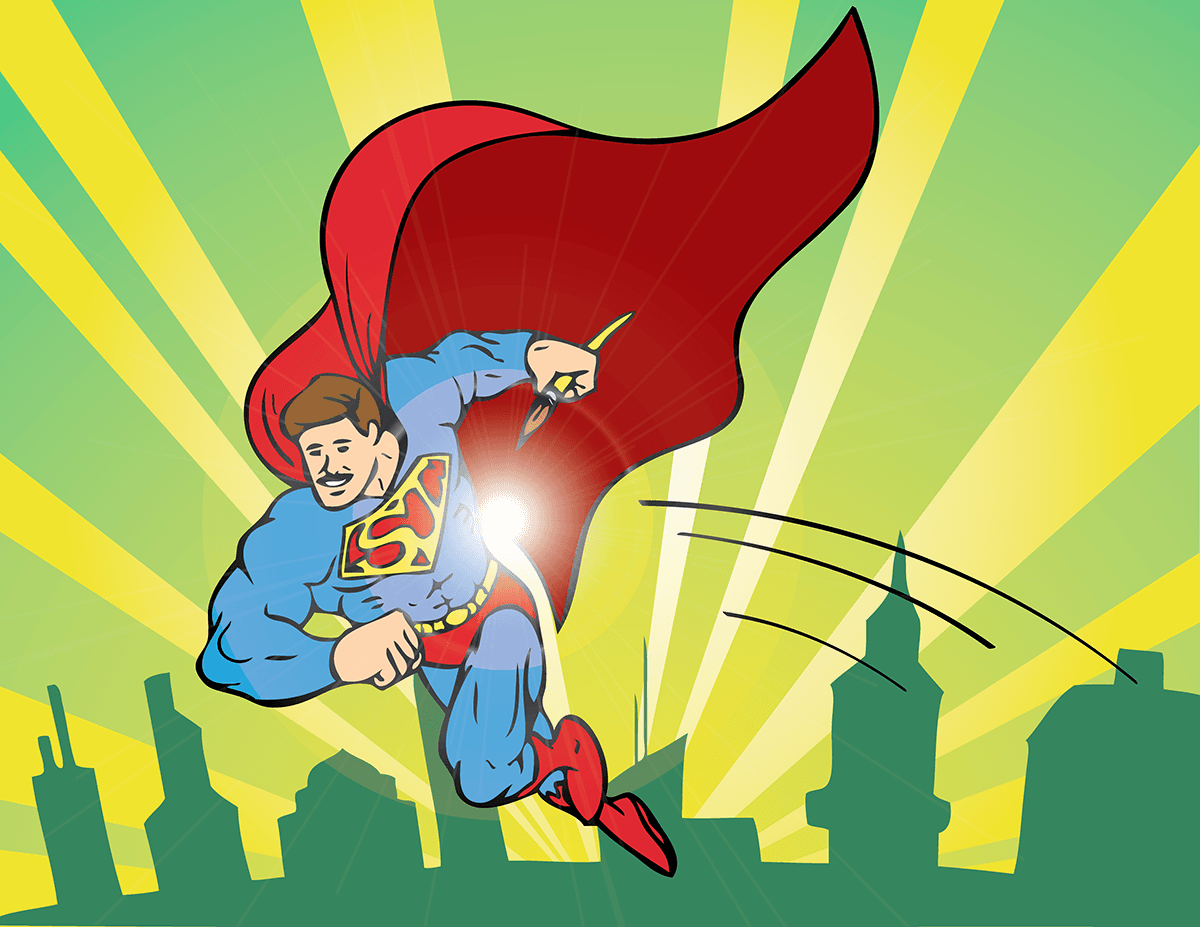
super hero done

Exercise Overview

Converting hand-drawn sketches into scalable vector graphics is a fundamental workflow in professional illustration. Illustrator's Image Trace feature transforms this traditionally time-intensive process into an efficient, repeatable workflow. This exercise demonstrates how to leverage advanced tracing parameters to maintain sketch authenticity while creating clean, editable vectors. You'll master the complete workflow—from initial trace optimization through Live Paint coloring and final composition refinement.

Project Workflow Overview

1

Import and Trace

Place the hand-drawn sketch and convert to vectors using Image Trace with optimized settings

2

Color Application

Convert to Live Paint group and systematically fill regions with appropriate colors

3

Background Creation

Add cityscape silhouette and position elements for dynamic composition

4

Final Enhancement

Apply action lines and flare effects for professional polish

Tracing the Superhero Sketch

  1. From the Illustrator Class folder, open the file super hero.ai.

  2. Save as yourname-the super hero.ai, then hit Save.

  3. In the dialog that appears, leave the default options checked and click OK.

  4. Choose the Selection tool selection tool.

  5. Go to File > Place.

  6. Locate super hero sketch.psd and click Place.

  7. Click once anywhere in the artboard to place the file at its actual size. Avoid clicking and dragging, which will distort the original proportions and compromise trace accuracy.

  8. Make sure it's still selected, and in the Control panel (at the top of the screen), click the Align To button align to selection and choose Align to Artboard.

  9. Next to it, click the Horizontal Align Center button align horizontal center.

  10. Also, click the Vertical Align Center button align vertical center.

  11. Still in the Control panel, click the Image Trace button.

  12. The superhero scan has now been traced using Illustrator's default parameters, but you'll notice significant detail loss. Professional tracing requires custom optimization. Open the Image Trace panel (Window > Image Trace) to access advanced controls.

  13. In the panel that opens, ensure Preview is checked at the bottom to see real-time adjustments.

  14. At the top, set the Preset to Sketched Art—this preset is specifically optimized for hand-drawn artwork.

  15. In the Image Trace panel, click the triangle to the left of Advanced to reveal granular controls.

  16. Set Noise to 1 px and hit Tab. This critical adjustment eliminates scan artifacts while recovering previously lost sketch details—you'll see dramatic improvement in line fidelity.

  17. Set Threshold to 180 and Paths to 90% (hit Tab both times). These values optimize the balance between detail retention and vector efficiency.

  18. Click the Trace button to finalize the conversion. If Trace appears grayed out, the Preview function has already applied your adjustments.

  19. In the Control panel, click the Expand button to convert the live trace into editable vector paths.

    File Placement Best Practice

    Always click once to place files at actual size rather than clicking and dragging. This preserves the original dimensions and prevents unintentional scaling that can affect image quality.

    Critical Image Trace Settings

    Sketched Art Preset

    Optimized for hand-drawn artwork with balanced detail retention and clean vector conversion.

    Noise Reduction

    Set to 1px to eliminate scanning artifacts while preserving important line details.

Image Trace

Once you've optimized your Live Trace parameters and achieved professional vector quality, choose your next workflow step strategically:

  • Maintain Live State: Leave the artwork as a live trace object to preserve the ability to adjust parameters later—ideal for client work where revisions are expected.

  • Expand for Manual Editing: Click the Expand button (in the Control panel) to render editable vector outlines. This enables precise manual refinement but locks your trace settings permanently.

  • Convert to Live Paint: After expanding, use the Live Paint Bucket tool live paint tool to create a Live Paint group for intuitive coloring workflows.

Now that you have a clean vector trace, the next phase involves adding professional color treatment using Illustrator's Live Paint workflow.

Image Trace Options Comparison

FeatureLive StateExpanded State
EditabilitySettings adjustableFixed vector paths
Tool AccessLimited toolsFull tool access
Live PaintNot availableCan convert to group
File SizeSmallerLarger
Recommended: Expand when ready for detailed editing and Live Paint conversion

Adding Some Color

  1. Go to Object > Live Paint > Make. The visual appearance remains unchanged, but your artwork is now a Live Paint Group—indicated by the distinctive starburst bounding box handles live paint bounding.

  2. Deselect the artwork by clicking off of it.

  3. Choose the Live Paint Bucket tool live paint tool. If it's not visible, click and hold the Shape Builder tool shape builder tool to access the tool group.

  4. Notice the color swatches positioned above the bucket cursor—this provides immediate access to your color palette.

    live paint cursor

    NOTE: If only one color swatch appears above the cursor, click the Properties panel's Fill swatch to access the Swatches panel, then select any swatch to populate the cursor palette.

  5. Press the Left and Right Arrow keys to cycle through available swatches—this allows precise color selection without interrupting your workflow.

  6. Move the cursor over the superhero without clicking yet. Live Paint automatically detects fillable regions and highlights them with bright red outlines—this intelligent detection prevents color bleeding between areas.

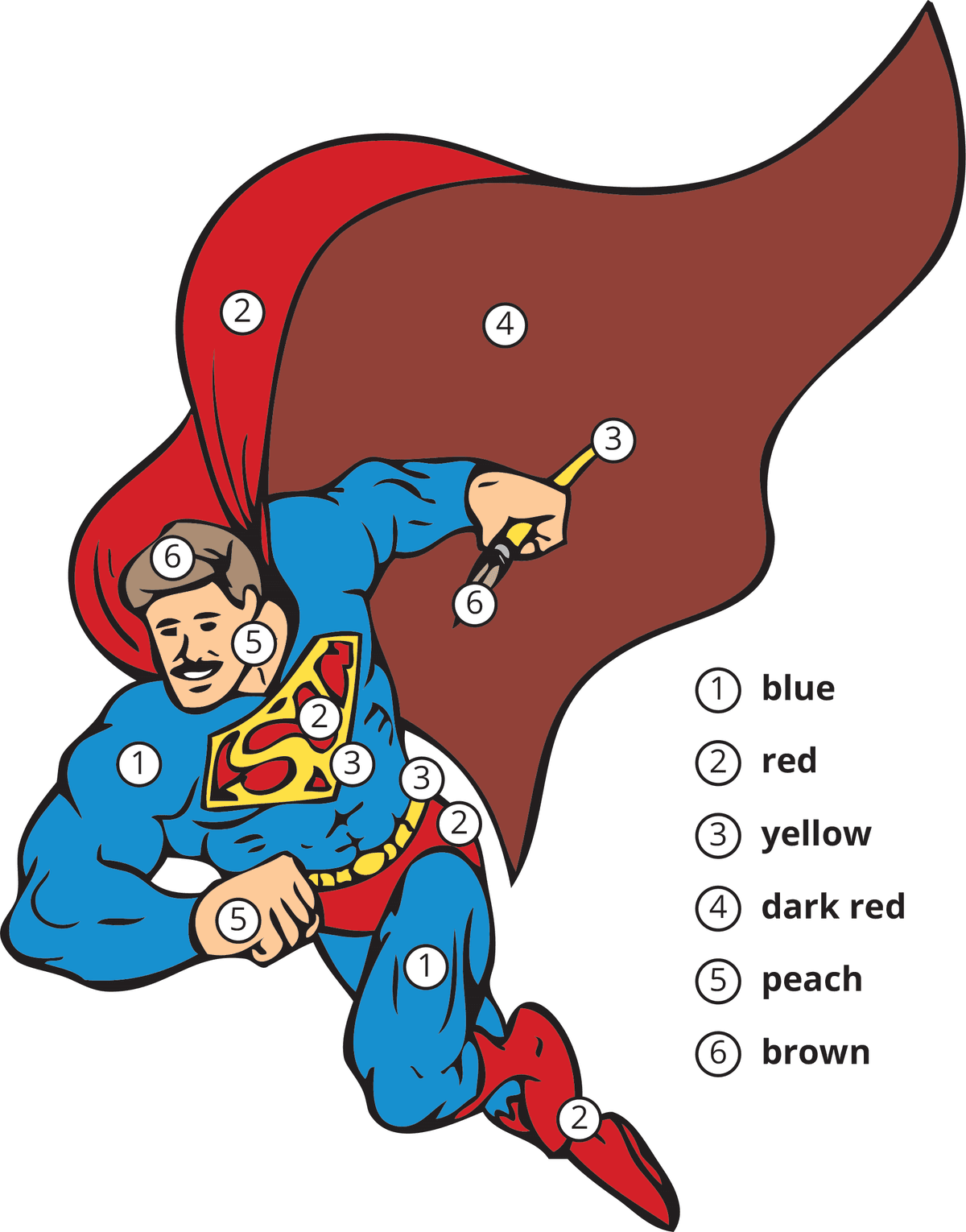
  7. Use the Arrow keys to select appropriate colors, then click on outlined regions to apply fills. Reference the guide below for professional color choices:

    superhero color guide

    • Exercise caution with black strokes: These render as fills in Live Paint groups and can be accidentally recolored. Use Undo immediately if you inadvertently change line work.
    • Don't overlook details: Fill teeth with white for professional finish quality.
    • Zoom for precision: Use high magnification levels when targeting small or intricate areas to ensure accurate color placement.

With your character fully colored, the next step involves creating an environmental context that enhances the overall composition.

Black Stroke Warning

Be careful when filling with Live Paint - black strokes are actually fills that can be accidentally colored. Always keep undo ready when working in detailed areas.

Live Paint Coloring Process

1

Create Live Paint Group

Convert expanded artwork using Object > Live Paint > Make for fillable regions

2

Select Live Paint Bucket

Access tool and observe color swatches above cursor for swatch navigation

3

Navigate and Fill

Use arrow keys to cycle swatches and click red-outlined regions to apply color

4

Detail Work

Zoom in for small areas and remember to fill teeth white for realism

Adding a Background

  1. Go to File > Place.

  2. In the Illustrator Class folder, locate city sketch.psd and click Place.

  3. Click once on the left side of the artboard to place the file at actual size. Maintain original dimensions to preserve the intended scale relationship between character and environment.

  4. Choose the Selection tool selection tool.

  5. Position the city sketch at the bottom of the document to establish a ground plane.

  6. With the city sketch selected, access the Image Trace panel and change the Preset to Silhouettes—this creates dramatic contrast perfect for background elements.

  7. Under Advanced in the Image Trace panel, uncheck Ignore White to ensure complete trace coverage.

  8. In the Control panel or Properties panel, click the Expand button to convert to editable vectors.

  9. Click off the artwork to deselect it.

  10. Choose the Group Selection tool group selection tool. If it's not visible, click and hold the Direct Selection tool direct selection tool to access it.

  11. Select the white sky area above the cityscape and press Delete to remove it—this creates transparency that allows for more sophisticated layering effects.

  12. Choose the Selection tool selection tool.

  13. Select the cityscape again.

  14. In the Properties panel under Appearance, click on the swatch next to Fill.

  15. In the Swatches panel that opens, apply the dark green fill to create environmental cohesion.

  16. With the city still selected, go to Object > Arrange > Send to Back.

    Note that the cityscape doesn't move behind the superhero because they exist on separate layers—this layer structure provides compositional flexibility.

  17. Select the superhero.

  18. In the Tools panel, double-click the Scale tool scale tool to access precise scaling options.

  19. Next to Uniform, enter a Scale of 110% and click OK to create stronger visual dominance.

  20. Choose the Selection tool selection tool and position the character optimally within the center of the document.

  21. Press Cmd–Shift–A (Mac) or Ctrl–Shift–A (Windows) to deselect all elements.

The final phase involves adding dynamic visual elements that convey motion and energy, transforming a static illustration into compelling action artwork.

Silhouette Settings

The Silhouettes preset with 'Ignore White' unchecked creates clean cityscape shapes while preserving the sky area for easy deletion.

Background Integration Techniques

Group Selection Tool

Essential for selecting specific parts of grouped artwork like the white sky area for deletion.

Layer Arrangement

Use Send to Back to position cityscape behind character while maintaining layer organization.

Adding Finishing Touches

  1. Select the Paintbrush tool paintbrush tool.

  2. Near the bottom of the Properties panel in the Brush section, click the Brush Libraries button brush library (far right). From the menu, choose Artistic > Artistic_Calligraphic to access specialized brush collections.

  3. From the panel that opens, select the 5 pt. Oval. For clarity, access the Brush panel menu panel menu oldstyle and select List View to display all brushes with descriptive names.

  4. In the Properties panel, set the Stroke to black and ensure Fill is set to none for clean line work.

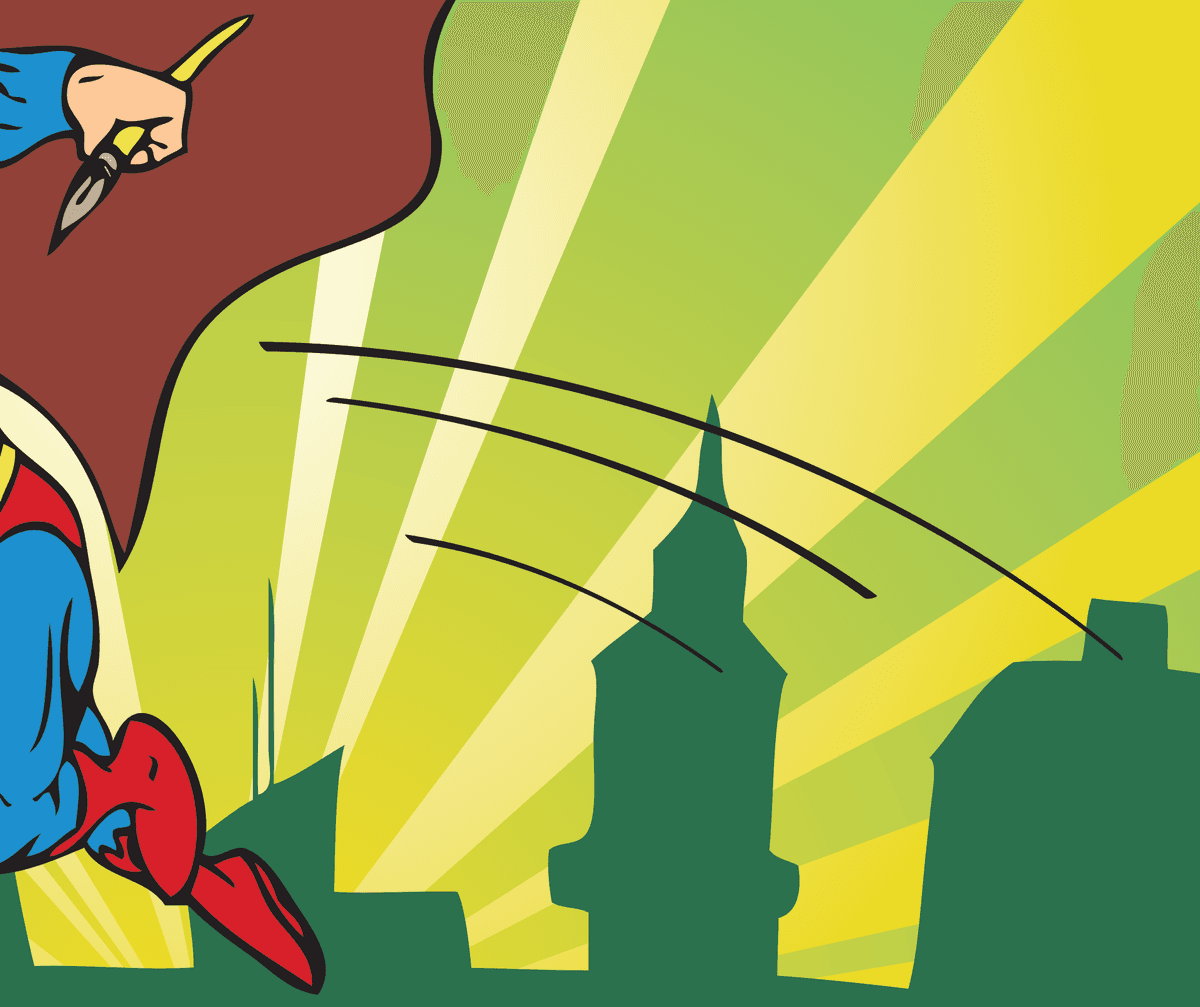
  5. Using the Paintbrush tool paintbrush tool, create dynamic action lines emanating from the hero's back. These motion lines are essential visual language in comic and action illustration—they convey speed, direction, and heroic arrival.

    super hero swooshes

  6. When finished, close the Artistic_Calligraphic brush panel to declutter your workspace.

  7. Choose the Flare tool flare tool. Locate it by clicking and holding on the Rounded Rectangle tool rounded rectangle tool (or Rectangle tool) to access the shapes tool group.

  8. Position your cursor at the back of the hero's belt area and click-drag to create a large solar flare effect. This adds dramatic lighting that enhances the superhero's powerful presence. If the initial result doesn't meet your vision, simply undo and experiment with different drag directions and lengths.

  9. Select File > Save and close the file. You've successfully completed a professional illustration workflow that can be applied to any hand-drawn artwork requiring vector conversion and digital enhancement.

Professional Finishing Effects

Action Lines

Use 5pt Oval brush from Artistic Calligraphic library to create motion effects. Black stroke with no fill for clean lines.

Solar Flare Effect

Click and drag with Flare tool at belt area for dramatic lighting. Experiment with size and positioning for best impact.

Professional Polish Complete

The combination of motion lines and lighting effects transforms a simple colored illustration into dynamic superhero artwork ready for professional use.

Key Takeaways

1Image Trace with Sketched Art preset and 1px noise setting preserves hand-drawn details while creating clean vectors
2Live Paint groups enable efficient coloring workflow with bucket tool and arrow key swatch navigation
3Expanding traced artwork is essential before converting to Live Paint groups for color application
4File placement should always be done with single clicks to maintain original dimensions and image quality
5Silhouette preset with unchecked 'Ignore White' creates clean background elements suitable for layering
6Group Selection tool provides precise control for editing specific parts of complex grouped artwork
7Professional finishing requires strategic use of brushes and effects like action lines and flares
8Proper layer arrangement using Send to Back maintains visual hierarchy in complex compositions

RELATED ARTICLES