April 1, 2026Dan Rodney/5 min read

Will It Blend?: Free Illustrator Tutorial

Master Adobe Illustrator's powerful blend tool techniques

Core Blend Tool Features

Blend Tool

Create smooth transitions between shapes and colors. Works with any two selected objects regardless of selection order.

Blending Options

Control spacing with Specified Steps or Smooth Color modes. Access via double-clicking the Blend tool.

Dynamic Updates

Blends automatically update when you move anchor points or change colors of the original objects.

Topics Covered in This Illustrator Tutorial:

The Blend Tool, Blending Options

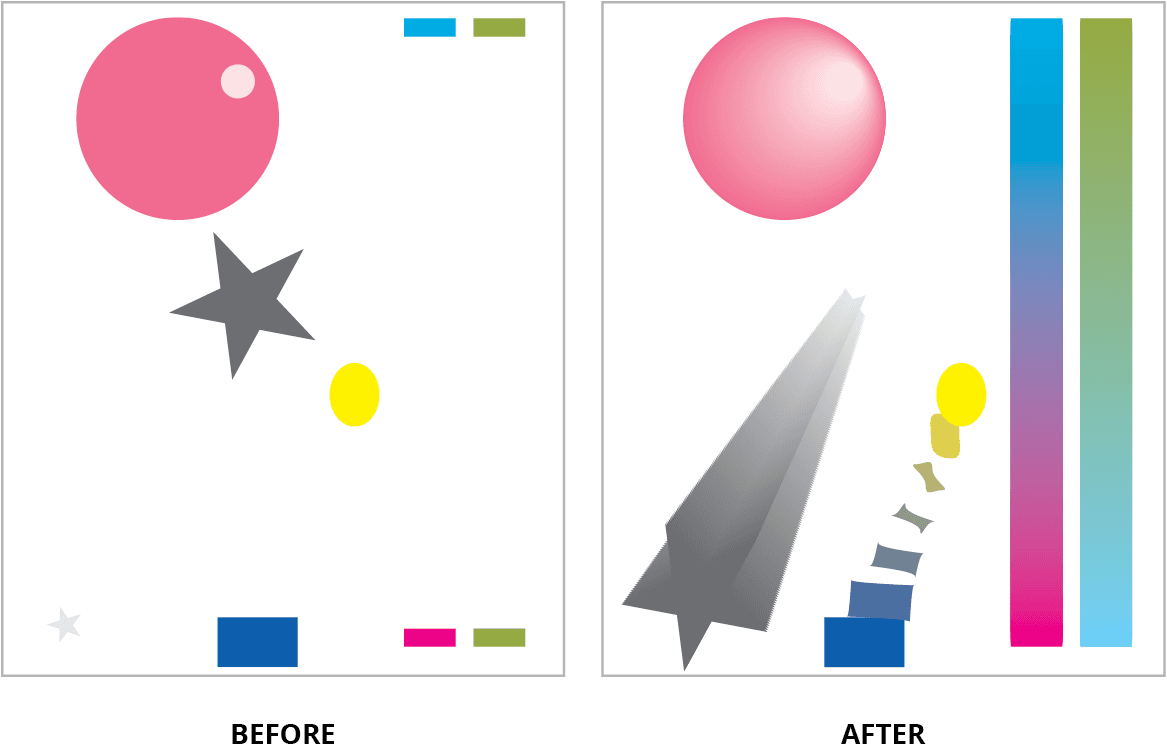
Exercise Preview

will it blend

Exercise Overview

The title says it all—this comprehensive exercise focuses entirely on mastering blends in Adobe Illustrator. You'll create sophisticated blend effects, manipulate their parameters, experiment with color transitions, reverse blend directions, and gain precise control over anchor point targeting. By the end, you'll understand how blends can transform simple shapes into complex, dynamic compositions that are essential for modern design workflows.

Tutorial Learning Path

1

Basic Blending

Start with simple circle blends and explore spacing options

2

Color Manipulation

Work with color blends using rectangles and dynamic color changes

3

Advanced Controls

Master reverse options and anchor point-specific blending

Creating a Blend

Let's start with the fundamentals. The Blend tool creates smooth transitions between objects, morphing both their shapes and colors. This technique is invaluable for creating gradual transformations, complex patterns, and organic-looking progressions in your designs.

  1. From the Illustrator Class folder, open the file will-it-blend.ai.

  2. Select the Blend tool blend tool.

  3. Click on the large pink circle and then click on the small pink circle inside of it. Illustrator will automatically create a smooth blend between them. Note that the order of selection doesn't affect the final result—Illustrator determines the blend direction based on object positioning.

  4. With the circles still selected, double–click on the Blend tool blend tool to access the Blend Options dialog box, where you can fine-tune the blend behavior.

  5. Do NOT click OK until we say! From the Spacing menu, choose Specified Steps. Enter 5 and check on Preview to see the immediate results.

    NOTE: This parameter controls the exact number of intermediate objects (steps) created between your original shapes. Fewer steps create bold, dramatic transitions, while more steps produce smoother, more subtle progressions.

  6. From the Spacing menu, switch back to Smooth Color and observe the difference. This setting lets Illustrator automatically calculate the optimal number of steps for the smoothest possible color transition.

  7. Click OK.

  8. Go to Select > Deselect.

  9. With the Group Selection tool group selection tool, click in the middle of the small circle (avoid clicking directly on the path). Move it around and watch how the blend dynamically updates—this live preview capability makes blends incredibly flexible for iterative design work.

Blend Selection Order

When blending objects, it doesn't matter which object you select first - the results will be identical. This gives you flexibility in your workflow.

Spacing Options Comparison

FeatureSpecified StepsSmooth Color
Control LevelPrecise number controlAutomatic optimization
Best Use CaseFixed intermediate stepsSmooth color transitions
CustomizationManual step countSystem determined
Recommended: Use Specified Steps for precise control, Smooth Color for natural gradients

Color Blends

Now we'll explore how blends handle color transitions, one of their most powerful applications. Color blends are essential for creating gradients that follow specific paths, transitioning between multiple colors, and achieving effects that standard gradients simply cannot produce.

  1. Using the Blend tool blend tool, blend the cyan and magenta rectangles (the cyan rectangle is at the top of the page and the magenta rectangle is at the bottom). Notice how Illustrator creates a smooth color progression through the color spectrum.

  2. Hit Cmd–Shift–A (Mac) or CTRL–Shift–A (Windows) to execute Select > Deselect.

  3. Blend the two green rectangles to see how blends work with similar colors versus contrasting ones.

  4. Execute Select > Deselect.

  5. In the Properties panel next to Appearance, click on the Fill icon to prepare for color modification.

  6. At the top middle of the Swatches panel, click the Color Mixer button color mixer icon to switch to the Color Mixer panel, which gives you precise control over color values.

  7. Create a color distinctly different from green using the mixer controls.

    Drag and drop this new color over either the bottom or top green rectangle. (To drag and drop the color, grab it from either the Fill icon in the Tools panel or the smaller Fill icon at the top left of the Color Mixer panel.) Watch how the blend instantly recalculates to incorporate your new color choice.

    Experiment with different colors multiple times to understand how color relationships affect the blend quality. Complementary colors create vibrant intermediate tones, while analogous colors produce more subtle, harmonious transitions.

  8. When you're ready to continue, close the Color Mixer panel by pressing Return (Mac) or Enter (Windows).

Color Blend Workflow

1

Create Base Blend

Blend cyan and magenta rectangles using the Blend tool

2

Access Color Mixer

Click Fill icon in Properties panel, then Color Mixer button in Swatches

3

Apply Dynamic Colors

Drag colors from Fill icon or Color Mixer to update blend objects

Keyboard Shortcuts

Use Cmd-Shift-A (Mac) or Ctrl-Shift-A (Windows) for quick deselection. Close Color Mixer panel with Return (Mac) or Enter (Windows).

Reversing Blends

Sometimes you need to adjust the direction or layering order of your blend after creation. Illustrator provides powerful options to reverse blends without starting over, giving you complete control over the final appearance.

  1. Create a blend between the two stars using the Blend tool.

  2. With both stars still selected, double–click the Blend tool blend tool to access the options dialog.

  3. Ensure Spacing is set to Smooth Color and click OK.

  4. Navigate to Object > Blend > Reverse Spine. This command reverses the path direction of the blend, effectively flipping the progression.

  5. Next, go to Object > Blend > Reverse Front to Back. This changes the stacking order of the blended objects. Study how these two reverse options create different effects—understanding the distinction is crucial for achieving your intended design outcome.

  6. Execute Select > Deselect.

Reverse Blend Options

Reverse Spine

Changes the direction of the blend path. Found under Object > Blend > Reverse Spine menu.

Reverse Front to Back

Switches the stacking order of blend objects. Access via Object > Blend > Reverse Front to Back.

More Controlled Blends

For advanced design work, you need precise control over how blends connect between objects. By targeting specific anchor points, you can create intentional twists, curves, and rotations that add sophisticated visual interest to your compositions.

  1. Using the Blend tool blend tool, create a blend from the blue rectangle to the yellow oval. Notice the automatic anchor point selection.
  2. Press Cmd–Z (Mac) or CTRL–Z (Windows) to undo that blend.
  3. Select both the blue rectangle and the yellow oval using the Selection tool selection tool.
  4. With the Blend tool blend tool active, click precisely on the right anchor point of the oval. When positioned correctly over an anchor point, the square indicator in the Blend tool's cursor turns black—this visual feedback confirms you're targeting the point accurately.
  5. Click the bottom left anchor point of the rectangle. Observe how the blend creates an intentional twist as it connects these specific anchor points, producing a dynamic spiral effect that's impossible to achieve with automatic blending.
  6. With the blue rectangle to yellow circle blend still selected, double–click the Blend tool blend tool to access the options dialog.
  7. Next to Spacing, choose Specified Steps and enter 15 (ensure Preview is checked to see real-time updates).
  8. Press Tab to update the preview display. Experiment with different step values, pressing Tab after each change to evaluate the visual impact. Lower values create more geometric, stepped progressions, while higher values approach the smoothness of the automatic spacing option.
  9. Click OK when you're satisfied with the result.
Anchor Point Precision

When the Blend tool cursor's square turns black, you're hovering over an anchor point. This allows precise control over blend direction and twist effects.

Advanced Blend Control

1

Select Specific Anchor Points

Use Blend tool to click exact anchor points on each object for controlled direction

2

Adjust Step Count

Set Specified Steps to 15 or experiment with different values using Tab to preview

3

Preview Changes

Enable Preview checkbox and use Tab key to update preview with new values

Key Takeaways

1The Blend tool creates smooth transitions between any two objects regardless of selection order
2Specified Steps mode allows precise control with exact intermediate object counts, while Smooth Color provides automatic optimization
3Blends update dynamically when you move anchor points or change colors of the original objects using the Group Selection tool
4Color blends can be modified in real-time by dragging colors from the Color Mixer panel onto blend objects
5Reverse Spine changes blend direction while Reverse Front to Back switches object stacking order
6Clicking specific anchor points with the Blend tool creates controlled directional blends and twist effects
7The blend tool cursor's square turns black when hovering over anchor points for precise selection
8Preview mode with Tab key updates allows real-time experimentation with different step values

RELATED ARTICLES