1-Page Advertisement
What This Tutorial Covers
Ad Layout
Hierarchy, focal points, and clear calls to action.
Vector Artwork
Crisp visuals at any print size.
Print Specs
Bleeds, color modes, and final export for press.
Noble Desktop's Graphic Design Certificate covers Illustrator alongside Photoshop and InDesign.
Dive into this detailed Illustrator tutorial and learn how to effectively work with type, including adding a drop cap, typing on a path, and filling text with a pattern.
Exercise Preview
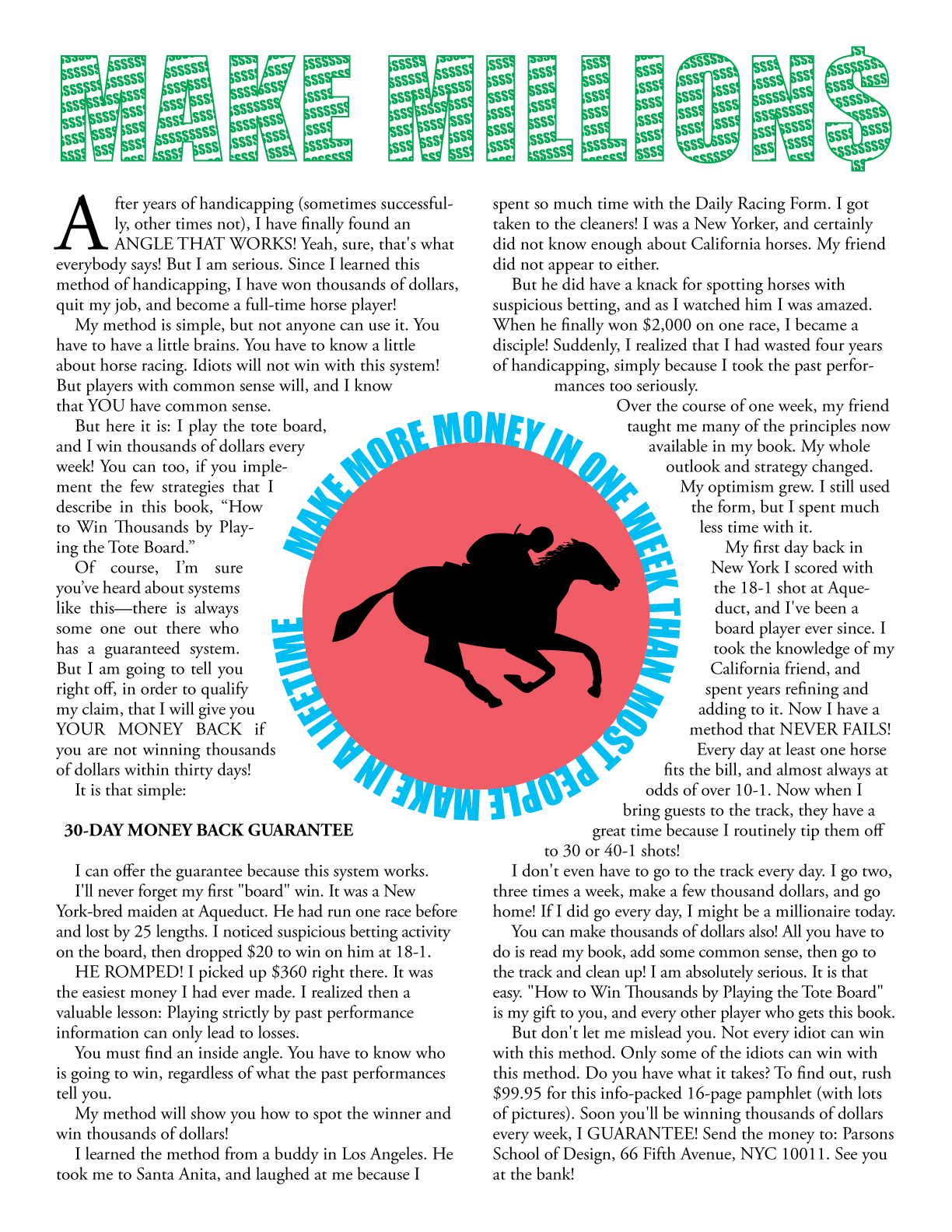
Creating & Positioning the Text Frame
Go to File > Place. Select the HorseText.txt file and click Place.
This is an older text file that was created on a Mac. In the dialog that opens, choose the following options for an older document:
- Platform: Change it to Mac (Intel-based)
- Character Set: ANSI
- Extra Carriage Returns: Keep both options unchecked
- Extra Spaces: Keep Replace 3 or More Spaces with a Tab checked
Click OK.
Click anywhere on the document to place the text.
To set a specific position for the box, we’ll use X/Y coordinates. At the top of the Properties panel, find the Transform section.
NOTE: These same options can also be found in the standalone Transform panel (Window > Transform) or if you have a large enough monitor, the Control panel at the top right of the screen.
The coordinates we want to use are for the top-left corner. To set this Reference point, click the square in the top-left corner
 .
.Enter X: 0.5 in and Y: 1.75 in and hit Return (Mac) or Enter (Windows).
Use the Selection tool
 to select the text frame so we can style the text.
In the Properties panel’s Character section, set:
Font: Adobe Garamond Pro Regular Size  :
:11.5 pt Leading  :
:13 pt At the bottom right of the Properties panel’s Paragraph section, click the More Options button
 to display all the available options in the Paragraph panel.
In the Paragraph section, set First-line left indent
 to 12 pt and press Return (Mac) or Enter (Windows).
NOTE: The standalone Paragraph panel is found in Window > Type > Paragraph.
With the Type tool
 , highlight the line: 30-DAY MONEY BACK GUARANTEE
Make the selected line:
Font: Adobe Garamond Pro Bold (Character section) Alignment: Centered  (Paragraph section)
First-line left indent :0 (Paragraph section—click More Options to see this)
Setting up the Text Frame & Importing the Text
A large, single text box looks rather long and tedious to read. Let’s resize the text frame, and then split it up into two columns. With the text frame still selected (or your cursor still in it), go to Type > Area Type Options.
In the dialog that appears, enter the following and don’t click OK until we say so:
Width: 7.5 in Height: 8.8 in Under Columns, enter the following values:
Number: 2 Gutter: 0.3 in The other values should be correct and your window should have all the options as shown below. If not, please set them now.
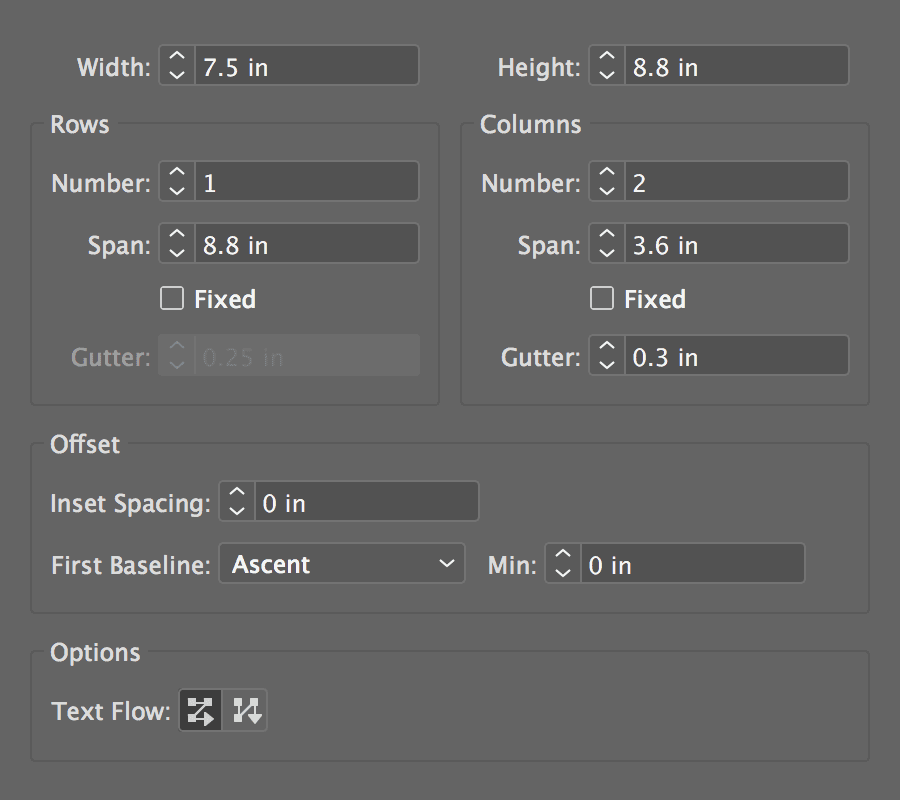
Click OK when done.
Adding a Drop Cap
While page layout programs such as InDesign and QuarkXPress can create drop caps automatically for you, Illustrator can’t. We’ll just have to fake our 3-line drop cap.
Zoom in to the start of the first paragraph (which starts with the text After years of handicapping) so you can see it well.
Delete the first letter, A.
In the Properties panel’s Paragraph section, click the More Options button
.Set the First-line left indent
to 0 pt and press Return (Mac) or Enter (Windows). This change will only affect this paragraph.Hit Cmd–Shift–A (Mac) or CTRL–Shift–A (Windows) to deselect everything.
We’re going to create the drop cap temporarily in the empty space to the left of this text. Then we’ll move it into place at the start of the text.
With the Type tool
, drag in that empty space on the left to make a new square text frame, with a height of about four lines of text.Type in a capital A in the text frame.
Select the A and make it:
Font: Adobe Garamond Pro Regular Size :52 pt Alignment: Left  (Paragraph section)
If the letter disappears, the text frame is too small. Use the Selection tool
to resize it to fit tightly around the A.If the text frame is bigger than the A, use the Selection tool
to resize it to fit tightly around the A.Make sure the text frame is still selected.
To add the text wrap, go into Object > Text Wrap > Make.
If a message comes up telling you about what the text wrap will affect, just click OK.
Go into Object > Text Wrap > Text Wrap Options.
In the dialog that opens, set the Offset to 0 pt and click OK.
Switch to Preview mode (Cmd–Y (Mac) or CTRL–Y (Windows)).
Move the A over the beginning of the type (as shown below) so it looks good. Adjust the width of its frame as needed to control how far the type is away from it.
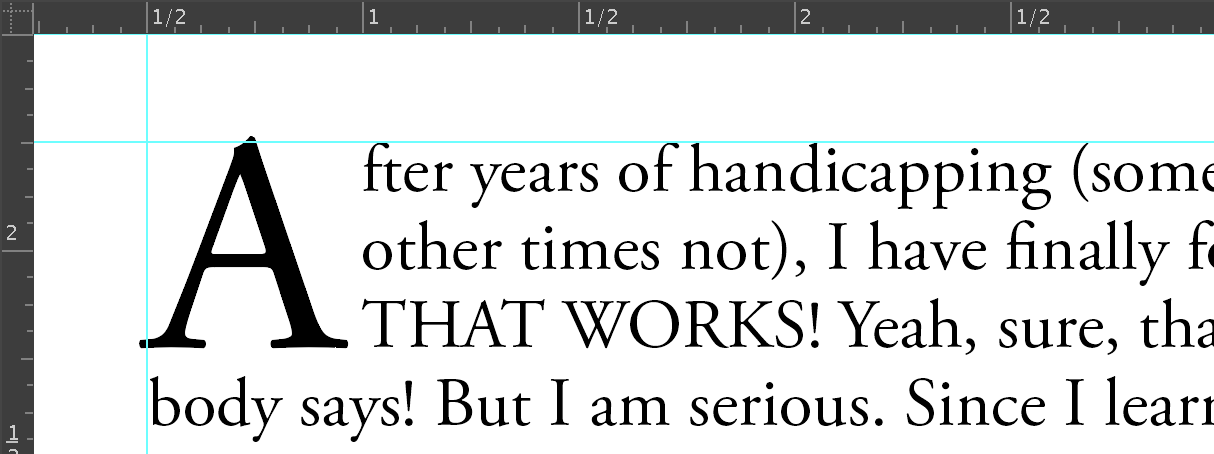
Creating the Center Graphic & Finishing the Body Copy
Zoom to the center where the four guides intersect (between the two text columns).
Select the Ellipse tool
 .
.Position the cursor over the intersection of the two guides.
Hold down Option (Mac) or ALT (Windows) and click once.
In the dialog box, make both the Width and Height 4.25 in and click OK.
Make sure the circle has no fill and no stroke.
With the circle still selected, choose Object > Text Wrap > Make.
Go into Object > Text Wrap > Text Wrap Options.
Set the Offset to 0 pt and click OK.
Notice that on the left of the circle you have more space between the text and the circle. This is because the text is flushed left. Let’s make the two paragraphs on the left of the circle justified so the text wrap looks the same on both sides.
With the Type tool
, select those two paragraphs.In the Properties panel’s Paragraph section, click the Justify with last line aligned left button
 .
.Let’s clean up the typography. Go into Type > Smart Punctuation and set the options shown below:
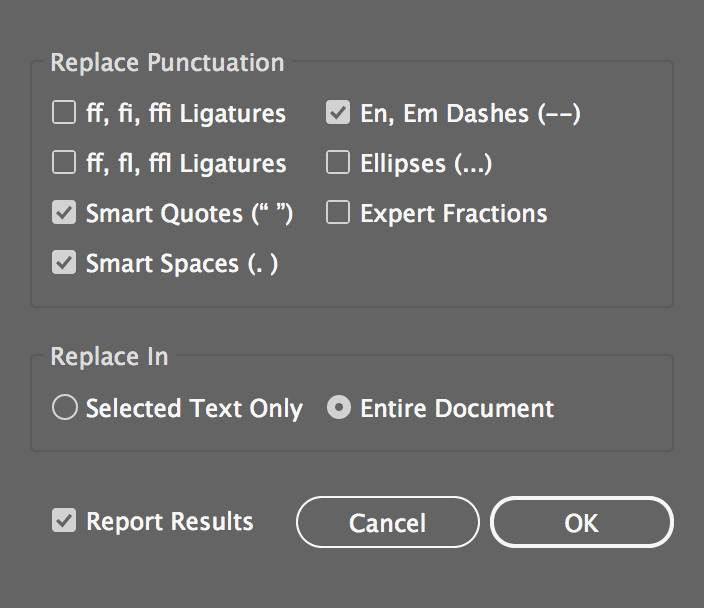
Click OK and Illustrator will report what it has fixed.
Look at the bottom of the right column. That red box
 in the corner means that not all the text fits in the text box.
Let’s fix some of the widows first. (Widow is a typographic term for a word at the end of a paragraph that occupies a line of its own.) Select the second paragraph below the 30-day guarantee (it starts with I’ll never forget my first “board” win).
In the Properties panel’s Character section, enter −10 for Tracking
 . Notice that the 18–1 text now pulls up to the previous line.
To the right of that, select the paragraph that starts with You can make thousands of dollars also!
In the Properties panel’s Character section, enter −10 for Tracking
.Look at the bottom of the right column again. Great! The text all fits now.
The body text should be all set now. Before continuing, deselect everything with Cmd–Shift–A (Mac) or CTRL–Shift–A (Windows).
Select File > Save As and name your file yourname-horse sense.ai.
In the dialog that appears, leave the default options checked and click OK.
Adding the Horse in the Center of the Page
Open the Triangles-the-horse.ai file. You’ll find the outline of a horse and jockey.
This file was last saved in Outline mode. To see what the horse really looks like, switch to Preview mode (Cmd–Y (Mac) or CTRL–Y (Windows)).
NOTE: We wanted you to experience this yourself, as you may encounter files saved this way in your own work.
Select and copy (Edit > Copy) the horse and jockey.
Close that document without saving changes.
Paste (Edit > Paste) the horse into the file you have been working on.
Double–click the Scale tool
 to scale the horse to 35% of its original size.
Switch to Outline mode (Cmd–Y (Mac) or CTRL–Y (Windows)).
Show the Attributes panel (Window > Attributes).
With the horse still selected, go to the Attributes panel and click on the Show Center button
 . (If you don’t see this option, go to the panel menu
  and choose Show All.)
Go to the View menu and make sure Snap to Point is checked. If it isn’t, choose it.
Use the Selection tool
to grab the horse by the center point and drag it to the center of the page where the guides intersect.
Adding the Circular Type
Select the Ellipse tool
.Position the cursor in the center of the page where the guides intersect.
Option–click (Mac) or ALT–click (Windows) once to bring up numeric options.
In the dialog box that opens, make the circle 3.1 in wide and high.
We’ll need two circles around the horse, directly over each other. One will be for the type that goes around the circle, the other will be for the color that fills the circle. Select the inner circle you just created.
Copy it.
With the circle still selected, go to Edit > Paste in Front.
Select the Type on a Path tool
 . (Click and hold on the Type tool to get it.)
With the Type on a Path cursor
 , click on the top anchor point of the inner circle and it will fill with Lorem ipsum dummy text. Keep that text selected.
In the Properties panel’s Character section, style the type as follows:
Font: Impact Size :25 pt Tracking :0 Type in all caps: MAKE MORE MONEY IN ONE WEEK THAN MOST PEOPLE MAKE IN A LIFETIME
Choose the Selection tool
.Fill the type with 75c (you will not see the color since you’re currently in Outline mode, but don’t worry, it is colored).
At the bottom of the circle, there’s an upside down
 that lets you move the type along the path. It might be hard to see since it’s over the guide. To help you find it, position your mouse over it and your cursor will change to
  as shown below. Drag it up to the middle right anchor point of the circle.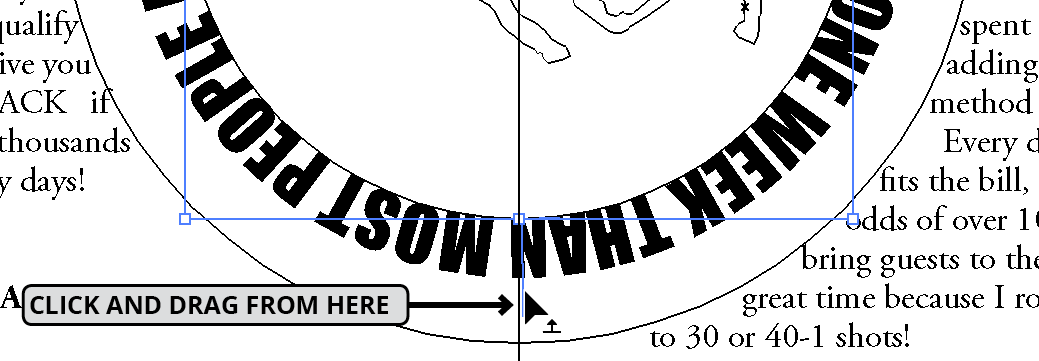
Let’s hide the type circle so we can fill the other inner circle with color. Choose Object > Hide > Selection.
The type disappears. With the Selection tool
, click on the remaining inner circle.Give it a Fill of 79m, 50y (you will not see the color since you’re currently in Outline mode, but don’t worry—it is colored).
Go into Object > Show All.
Switch to Preview mode (Cmd–Y (Mac) or CTRL–Y (Windows)) to see the work.
Oops, the horse is behind the circles! Switch back to Outline mode.
Select the horse and choose Object > Arrange > Bring to Front.
Switch back to Preview mode. Much better.
Creating the Headline
As shown below, with the Type tool
, position the crosshair part of the cursor where the leftmost vertical guide and top horizontal guide intersect. Then drag across the page to make a text frame.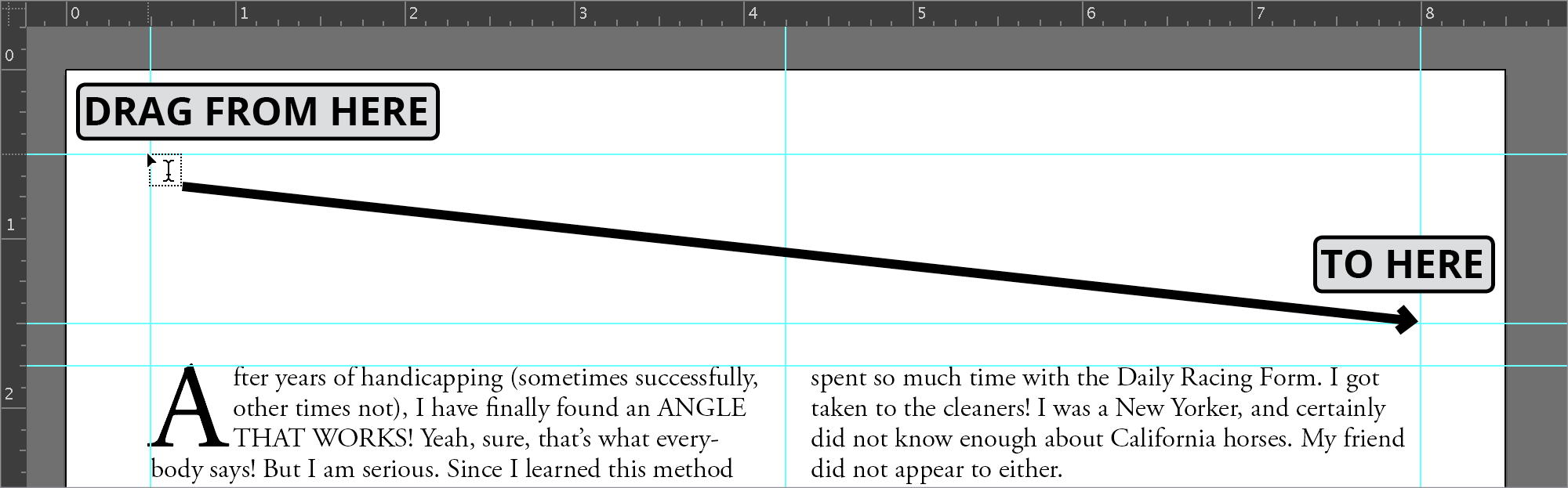
With the Lorem ipsum dummy text selected, style the type as follows:
Font: Impact Size :85 pt Alignment: Left First-line left indent :0 (Paragraph section—click More Options to see this)Type in: MAKE MILLION$ (Note all caps and the Dollar sign instead of an S!).
Go into Type > Fit Headline. This should spread the text across the box. (You must be in the Type tool
with the cursor in the text for this to work.)Press Cmd–Shift–A (Mac) or CTRL–Shift–A (Windows) to deselect everything.
Bonus If Time Allows: Adding a Pattern to the Headline
Let’s make a pattern out of a dollar sign and fill our heading with it. With the Type tool
, click (do NOT drag) in an empty area of the document.Type a $
Select the Dollar sign and give it a Fill of 100c, 100y, with no stroke.
Go to the standalone Swatches panel (Window > Swatches).
Using the Selection tool
, drag the $ into the Swatches panel.Select the newly created swatch.
From the Swatches panel menu
, choose Swatch Options.Name the pattern swatch money and click OK.
You no longer need the $ in your document, so go ahead and delete it.
Select the MAKE MILLION$ text.
Fill the letters with the money pattern (by clicking on it in the Swatches panel). The headline will be difficult to read at first, but we’ll fix it momentarily.
- With the letters still selected, double–click the Scale tool and set the following:
- Check Transform Patterns.
- Uncheck Transform Objects.
- Scale the pattern to 10%.
With the same care, rotate the pattern 10° by double–clicking the Rotate tool
 .
.Finish the letters by giving them a 1 pt stroke of 100c, 100y.
Go into View > Fit Artboard in Window or Fit All in Window.
Choose View > Guides > Hide Guides.
Save the file and you are done!
Illustrator’s Default Text Settings
Illustrator resets the type settings (like font, size, etc.) to the defaults every time you create a new file or open an existing one.