April 1, 2026Dan Rodney/6 min read

Appearance & Graphic Styles

Master Adobe Illustrator Appearance Panel and Graphic Styles

Key Concepts You'll Master

Graphic Styles

Create reusable style templates that can be applied to multiple text elements. Edit once, update everywhere automatically.

Appearance Panel

Access advanced fill and stroke options beyond the basic Properties panel. Layer multiple effects for complex designs.

Auto-sizing Effects

Build boxes that automatically resize with text changes. No manual adjustments needed when content updates.

Topics Covered in This Illustrator Tutorial:

Master essential design techniques including Graphic Styles, the Appearance Panel, Multiple Fills, and Auto-sizing Text Boxes to create professional, scalable design elements.

Exercise Preview

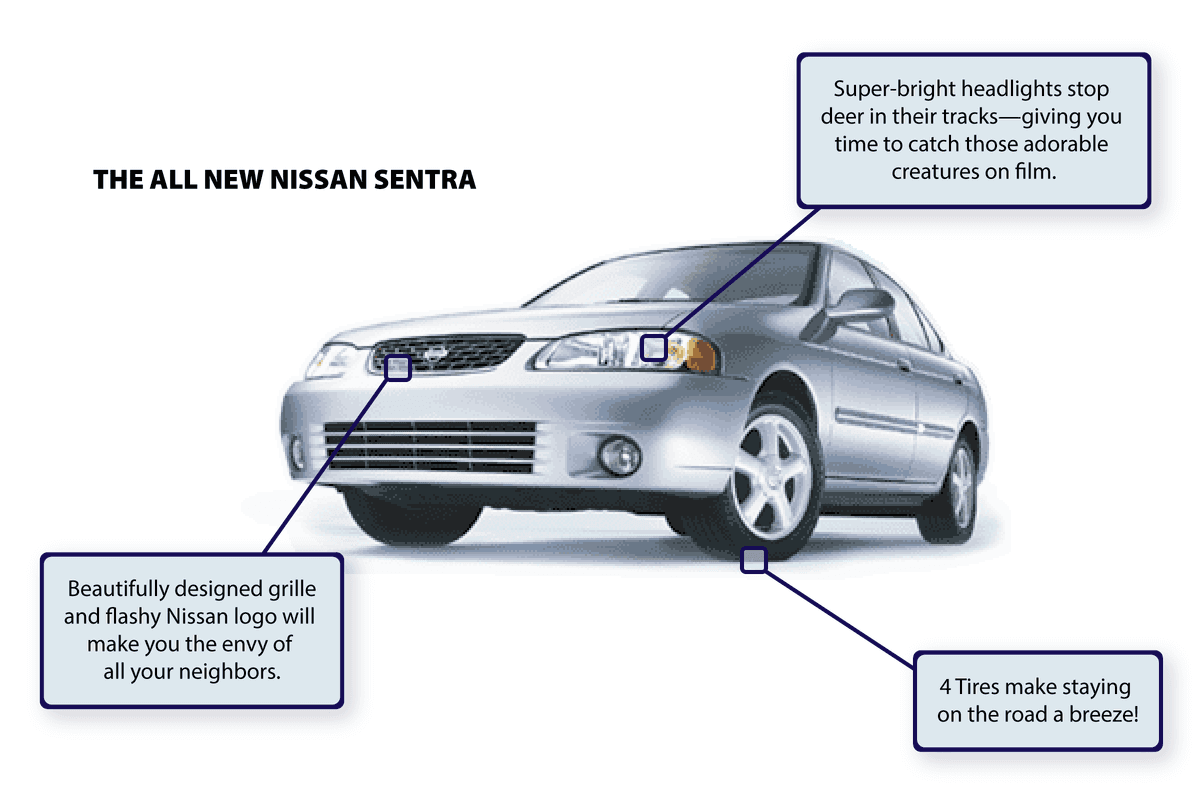
fancy car finished

Time-Saving Workflow

Once you create a style, you can apply it to text throughout the document and make global changes instantly. This eliminates repetitive formatting tasks.

Exercise Overview

In this comprehensive exercise, you'll harness the power of Illustrator's effects system to create sophisticated text treatments that automatically adapt to content changes. By building reusable graphic styles, you'll establish a scalable workflow that allows instant global updates across your entire document—a crucial skill for maintaining consistency in professional design projects. This technique eliminates the tedium of manual adjustments and ensures brand consistency across complex layouts.

Exercise Workflow Overview

1

Create Box Effect

Use the Appearance panel to add fills and apply rounded rectangle effects that automatically size with text

2

Add Stroke Appearance

Duplicate fills and adjust sizing to create a stroke effect around the text box

3

Save as Graphic Style

Convert your appearance settings into a reusable style in the Graphic Styles panel

4

Apply and Edit Globally

Use the style across multiple text blocks and update all instances by redefining the style

Creating the Box Effect

We'll begin by constructing a dynamic text box effect that automatically adjusts to accommodate text changes, demonstrating the efficiency of Illustrator's appearance-based design approach.

  1. In the Illustrator Class folder, open Fancy Car.ai. (If a Missing Fonts dialog appears, simply click Close to proceed with font substitution.)

    Rather than manually drawing static boxes around each text block—a time-consuming approach that breaks when text changes—we'll leverage Illustrator's effects system to create intelligent, responsive containers that automatically adjust to text dimensions. This parametric approach is fundamental to professional design workflows.

  2. Using the Selection tool selection tool, select the text block in the top right beginning with Super-bright headlights.

  3. Access the Appearance panel by clicking the Open the Appearance panel button more options button at the bottom right of the Properties panel's Appearance section, or navigate to Window > Appearance. The Appearance panel is your command center for building complex, layered effects.

  4. The Appearance panel enables advanced fill and stroke manipulation beyond the basic Properties panel capabilities. Click the Add New Fill button new fill appearance panel (second from left) at the panel's bottom.

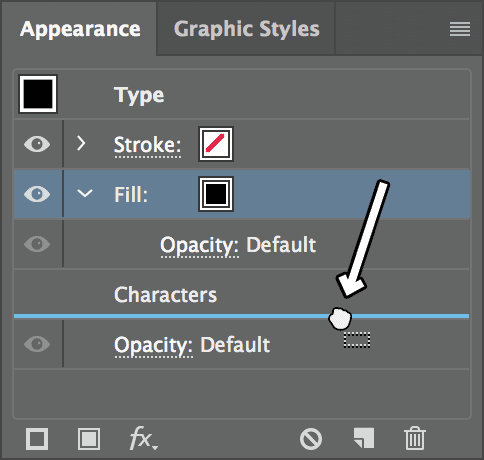
  5. A new Fill appears above Characters in the appearance stack. Understanding layer order is crucial: drag this Fill below Characters to position it behind the text visually. This stacking order determines rendering priority, with lower items appearing behind upper items.

    fancy car move fill

  6. Ensure the Fill is selected by clicking it once—selected items display with highlighting in the appearance stack.

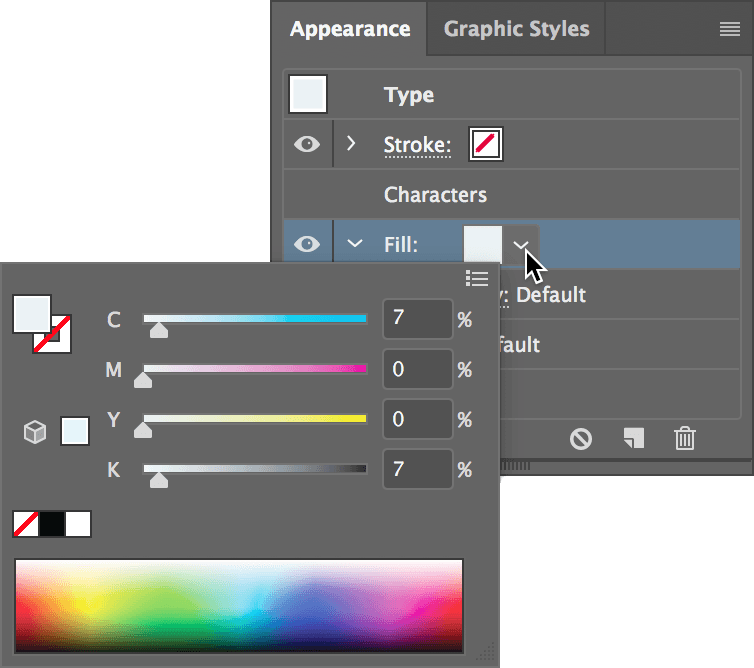
  7. Shift–click the Fill's Color Picker color picker appearance panel. This modifier opens the precise color picker interface rather than the swatches panel, giving you granular control over color values.

  8. Configure the color values as shown: set C: 7, M: 7, Y: 0, K: 0 for a subtle light blue that provides gentle contrast without overwhelming the text.

    fancy car appearance color

  9. Press Return (Mac) or Enter (Windows) to apply the color change. The effect isn't visible yet because we haven't defined the fill's shape—that's our next step.

  10. With the Fill selected in the Appearance panel, navigate to Effect > Convert to Shape > Rounded Rectangle. This powerful effect transforms the text-shaped fill into a geometric form while maintaining its association with the text object.

  11. In the dialog, select Relative sizing to ensure the box scales proportionally with text changes, then enter these values for optimal visual balance:

    Extra Width: 10 pt
    Extra Height: 10 pt
    Corner Radius: 4 pt
  12. Click OK to reveal your dynamic text box—a light blue rounded rectangle that perfectly frames the text with consistent padding.

Box Effect Setup Checklist

0/5
Fill Ordering Matters

Dragging the Fill below Characters in the Appearance panel ensures it renders behind the text. The visual stacking order follows the panel order from top to bottom.

Adding a "Stroke" to the Box

Now we'll enhance the box design by creating a sophisticated stroke effect. Since Illustrator would apply a direct stroke to the text rather than our generated box shape, we'll employ a professional technique using layered fills to simulate a border.

  1. Verify the Fill remains selected in the Appearance panel—this ensures proper duplication context.

  2. Click the Duplicate Selected Item button new button at the panel bottom. This creates an identical fill layer that we'll modify to form the border.

  3. Select the lower Fill in the appearance stack—this will become our border layer, sitting behind the main box fill.

  4. Hold Shift and click the Color Picker color picker appearance panel for the bottom fill to access precise color controls.

  5. Apply these darker values for visual contrast: C: 96, M: 96, Y: 52, K: 0. This creates a rich, professional purple-brown that provides excellent definition against the lighter interior.

  6. Press Return (Mac) or Enter (Windows) to confirm the color selection.

  7. Expand the bottom Fill's effects by clicking the disclosure Arrow arrow to its left, revealing the effect parameters for modification.

  8. Click directly on Rounded Rectangle under the bottom fill to edit its dimensions. Precision is key here—clicking elsewhere may deselect the effect.

  9. Modify the dimensions to create the border effect: set Extra Width and Extra Height to 12 pt, and Corner Radius to 6 pt. Click OK.

    This creates a perfectly proportioned 2-point border by making the background box slightly larger than the foreground box—a technique that maintains crisp edges while offering complete color control.

Creating Stroke Effect with Dual Fills

Duplicate the Fill

Use the Duplicate Selected Item button to create a second fill layer beneath the original.

Adjust Colors and Sizing

Make the bottom fill darker (96c, 96m, 52000) and increase dimensions by 2pt for stroke effect.

Edit Rounded Rectangle Effect

Change Extra Width/Height to 12pt and Corner Radius to 6pt for the bottom fill.

Stroke Simulation Technique

Since Illustrator applies strokes to text characters rather than effects, we create a stroke appearance by layering a larger, darker fill behind a smaller, lighter one.

Creating & Applying a Style

Transform your custom appearance into a reusable asset that maintains consistency across projects and enables instant global updates—a cornerstone of efficient design workflows.

  1. Open the Graphic Styles panel via Window > Graphic Styles. This panel serves as your library for reusable appearance combinations, essential for maintaining design consistency in professional projects.

  2. Configure the style creation settings properly: access the panel menu panel menu oldstyle at the top right and ensure Override Character Color is unchecked. This prevents the style from overriding individual text colors, preserving typographic flexibility.

  3. Create the style by clicking New Graphic Style new button at the panel bottom. Illustrator captures the complete appearance stack as a reusable asset.

  4. Double-click the new style thumbnail and name it Boxed Text—descriptive naming conventions become crucial when managing extensive style libraries in complex projects.

  5. Apply the style to the remaining text blocks using the drag-and-drop method: drag your Boxed Text style from the panel directly onto each text element. This approach works reliably across different selection states and object types.

Graphic Style Creation Process

1

Configure Style Settings

Turn off 'Override Character Color' in Graphic Styles panel menu to preserve text color flexibility

2

Create New Style

Click New Graphic Style button to generate a thumbnail of your current appearance settings

3

Name Your Style

Double-click the new style thumbnail and name it 'Boxed Text' for easy identification

4

Apply to Other Elements

Drag the style from the panel and drop it onto other text blocks to apply instantly

Editing a Style

Experience the power of parametric design by adding a subtle enhancement that automatically propagates across all styled elements—demonstrating why appearance-based workflows are essential for professional efficiency.

  1. Select any styled text block to modify the appearance stack. The beauty of graphic styles lies in their global update capability.

  2. Navigate to Effect > Illustrator Effects > Stylize > Drop Shadow to add depth and visual hierarchy to your text treatments.

  3. Configure these professionally calibrated shadow parameters for subtle but effective depth:

    Mode: Multiply
    Opacity: 30%
    X Offset: 4 pt
    Y Offset: 4 pt
    Blur: 5 pt
    Darkness: 50%
  4. Click OK to apply the shadow effect to the selected text block.

  5. Currently, only the selected element displays the shadow. To update the master style definition, open the Appearance panel to access style management tools.

  6. Access the panel menu panel menu oldstyle at the top right and select Redefine Graphic Style "Boxed Text". This updates the master style definition with your new appearance settings.

  7. Watch as Illustrator instantly applies the enhanced shadow effect to every text block using the "Boxed Text" style—demonstrating the remarkable efficiency of appearance-based design workflows in professional practice.

  8. Save your completed file as yourname-Fancy Car.ai, maintaining the default options in the save dialog. This preserves all appearance data and ensures compatibility across different Illustrator versions and collaborative workflows.

Global Style Updates

After adding effects to any styled object, use 'Redefine Graphic Style' from the Appearance panel menu to automatically update all instances throughout your document.

Drop Shadow Enhancement

Shadow Settings

Apply Drop Shadow effect with Multiply mode, 30% opacity, 4pt offsets, 5pt blur, and 50% darkness for subtle depth.

Style Redefinition

Use the Appearance panel menu to redefine the graphic style, instantly updating all text blocks using that style.

Key Takeaways

1The Appearance panel provides advanced fill and stroke options beyond the basic Properties panel capabilities
2Multiple fills can be layered to create complex visual effects like simulated strokes around text boxes
3Convert to Shape effects automatically resize with text changes, eliminating manual box adjustments
4Graphic Styles enable consistent formatting across multiple elements with global update capabilities
5Turning off 'Override Character Color' preserves text color flexibility when creating reusable styles
6Fill stacking order in the Appearance panel determines visual layering from top to bottom
7Style redefinition instantly updates all instances of a graphic style throughout the document
8Effects applied to fills create dynamic, text-responsive design elements that adapt to content changes

RELATED ARTICLES