Juggling Colors & Gradients
What This Tutorial Covers
Color Picker
RGB, HSB, and CMYK color modes for screen and print.
Swatches
Reusable color libraries that scale across documents.
Gradient Tool
Linear, radial, and freeform gradient creation.
Noble Desktop's Graphic Design Certificate covers Illustrator alongside Photoshop and InDesign.
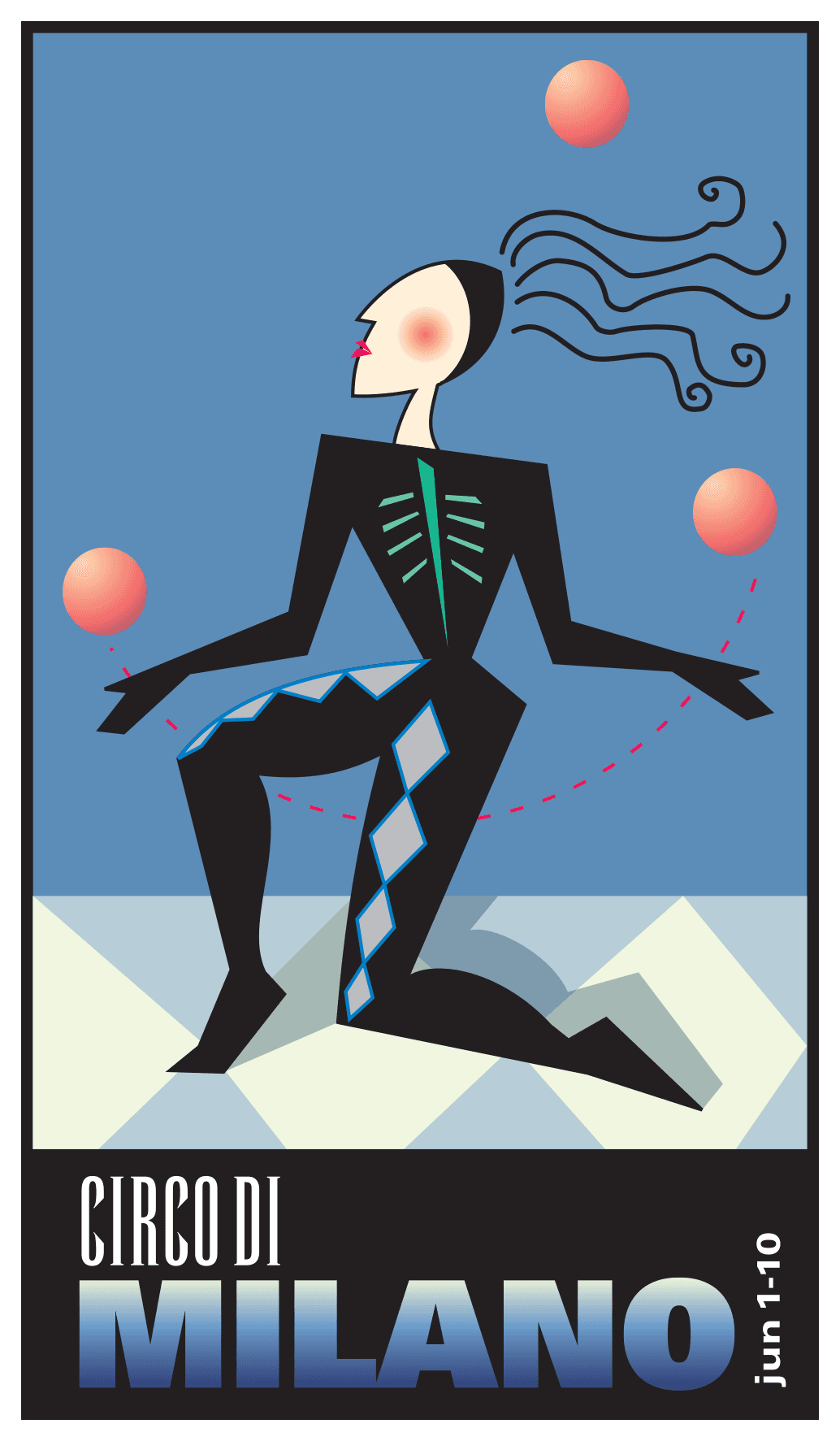
Dive into this comprehensive Illustrator tutorial and learn about using dashed lines, stroke options, saving colors as swatches, blending modes, and more to create a vibrant juggler poster.
Exercise Preview
Coloring the Juggler’s Body
- In the Illustrator Class folder, open the file Juggler.ai.
- This drawing is basically complete, but it needs color. Let’s start by hitting the letter D on the keyboard to get the default white fill and black stroke.
- Select the body of the juggler.
- Using the Properties panel’s Color Mixer, give it a black fill and a 1 pt black stroke. Remember to press Return (Mac) or Enter (Windows) to close the panel.
Select the diamond pattern on the juggler’s legs. Give it a 1 pt stroke and set the color to 100c and 39m (and don’t forget to set 0y and 0,000).
NOTE: If you don’t see CMYK values for this and other color settings, go into the panel menu
 at the top right of the Color Mixer panel and choose CMYK.
- Select the design on the juggler’s chest. You will need to click the sternum and then Shift–click to get the ribs too.
- Make the color 75c, 59y and set the stroke to none.
- Shift–click the sternum to deselect it so that only the ribs are selected.
- You are now going to reduce the saturation of the color in the ribs. First, go to the Properties panel and click the Fill swatch.
Holding down the Shift key, slide the cyan portion of the color to approximately 45%. The yellow will slide with it.
Coloring the Floor
- The floor is composed of one background object and a group of diamond floor tiles in front. Select the background by clicking any of the darker areas on the floor.
- Fill it with 20c, 5m, 5y, 10,000. (You may need to choose CMYK from the panel menu.)
- We want to create a new CMYK color swatch, but first, click on the light diamond floor tiles (they’re grouped).
- Change the Fill color to 6c, 15y.
- Let’s save this color as a swatch. Go into the Color Mixer panel menu and choose Create New Swatch.
In the dialog that opens:
- Change the Swatch Name to floor tiles
- Uncheck Add to my Library.
NOTE: If we did not uncheck Add to my Library, this color would be saved into a shared library available for all files. We only want to use the color in this file.
- Click OK.
- Select the shadows behind or under the juggler’s legs.
- Fill them with 10c, 5m, 20,000.
- With the shadows selected, go to the Properties panel’s Appearance section and click on the word Opacity (not its checkered swatch!) to bring up the Transparency panel.
In the Transparency panel, you’ll see a menu that says Normal. Change this to Multiply. (This uses the shadow shape to darken the colors that are underneath, thus giving the look of a natural shadow.)
To close the Transparency panel, press Return (Mac) or Enter (Windows).
Coloring the Juggler’s Face
- Zoom in and select the outline of the juggler’s face.
- In the Properties panel, click on the Fill swatch.
- We’ve created some swatches for you ahead of time, including one for the skin. At the top middle of the pop-up color panel, click the Swatches button
 .
. - Near the top of the pop-up swatches panel, make sure the Find Field is showing (next to a
 icon). If it is not, go into the panel menu in the top-right corner and choose Show Find Field.
 - In the Find Field, start typing in skintone. Illustrator will narrow down the options to display only the skintone swatch. Click on this swatch to apply it.
- Click the X in the Find Field to clear the search.
- To close the pop-up swatches panel, press Return (Mac) or Enter (Windows).
- Do a Select > Deselect (Cmd–Shift–A (Mac) or CTRL–Shift–A (Windows)).
- Select the juggler’s lips and go to the Properties panel. Make sure it has no stroke, then click on the Fill swatch.
- Let’s create a new color swatch. In the top-right corner or the pop-up color panel go into the panel menu and choose New Swatch.
In the dialog that opens, enter the following:
Swatch Name: Bright Red Color Type: Process Color Global: Check this option on Color Mode: CMYK Color: Mix a color that is 100m, 50y. Add to my Library: Uncheck this option - Click OK.
- Hit Cmd–Shift–A (Mac) or CTRL–Shift–A (Windows) to do a Select > Deselect.
- Now you’ll create some gradient fills. Open the Gradient panel by going to Window > Gradient.
- At the top of the Gradient panel, next to Type click on the second icon for Radial
 . (If you don’t see this option, go into the panel menu and choose Show Options.)
 Below the gradient slider (the preview) are color stops (circles). If there are more than two color stops, delete the extras by dragging them down and off the panel. Leave color stops at the far left and right ends so it looks as shown below:

NOTE: If you don’t see the color stop circles, click on the gradient slider (gradient preview) to get them to show.
- Double–click the left color stop (the circle below the gradient slider).
As shown below, click the Swatches button
on the left of the pop-up panel to view the swatches.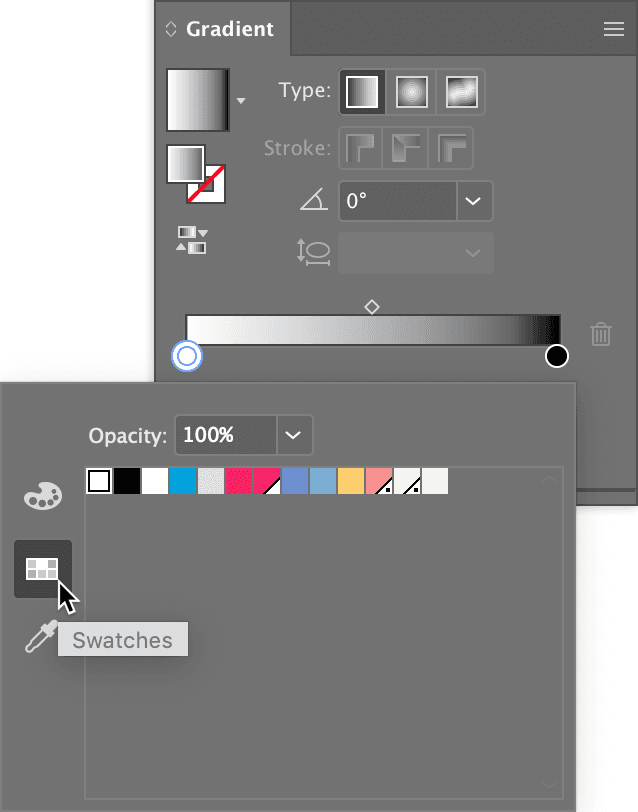
- Select the dull red swatch (hover over a swatch to see its name).
- Click the Color button
 on the left of the pop-up panel.
 - Change the Tint (T) of the dull red to 50% and hit Return (Mac) or Enter (Windows).
- Double–click the right color stop (the circle below the gradient slider) in the Gradient panel.
- Click the Swatches button on the left, then select the skintone swatch.
- Click on an empty part the Gradient panel to close the swatches pop-up panel.
- Now that the gradient is done, we want to add it to the Swatches panel to save it. Let’s do that in the standalone Swatches panel that isn’t tied to the Properties panel, so go to Window > Swatches.
At the bottom of the Swatches panel, click the New Swatch button
 .
.NOTE: Another option for creating a swatch is dragging a swatch from the Gradient panel and dropping it into the Swatches panel.
- Name the new gradient swatch cheek and hit OK.
Make sure the Fill icon is active, and drag and drop the swatch onto the circle of the juggler’s cheek.
Coloring the Juggling Balls
- Select the top juggling ball.
- In the Swatches panel, fill the ball with the yellow to red gradient (it’s already been created for you).
- Let’s change the direction of the gradient. Make sure the ball is selected and choose the Gradient tool
 in the Tools panel.
 - Drag from the upper left of the ball (just outside of it) down to the lower right.
- Let’s copy this colored gradient so you can apply it to the other balls. Double–click the Eyedropper tool
 to see its options.
 - At the top, we want Appearance to be checked on in BOTH columns. If it’s not checked on, do so now. Click OK.
- Do a Select > Deselect.
- Use the Selection tool
 to select the two lower juggling balls, holding the Shift key to get both.
 - Select the Eyedropper tool .
Click on the gradient ball to sample its appearance.
The other two juggling balls are filled with the gradient. Note that the direction and placement of the gradient stays the same too!
- Do a Select > Deselect (Cmd–Shift–A (Mac) or CTRL–Shift–A (Windows)).
- You are now going to edit a gradient. At the top left of the Gradient panel, next to the Gradient thumbnail, click the arrow
 to bring up a list of gradient swatches.
 - Select the yellow to red gradient swatch.
- In the area just below the gradient slider, click anywhere between the start and end color stops (the circles below the gradient slider). This will create a new color stop.
- Drag the new color stop until the Location number is approximately 80%, or just type 80% in the Location field.
- Double–click the new color stop.
- Click the Color button on the left and change this color to 74m, 50y.
- Double–click the last color stop on the right.
Add 28c to its existing CMYK values and hit Return (Mac) or Enter (Windows).
You created a gradient that goes from yellow to red to a darker version of the red.
- To create a new gradient swatch, go to the bottom of the Swatches panel and click the New Swatch button .
- In the dialog that appears, name it juggling balls and click OK.
Drag the new swatch over the juggling balls in the image to change their gradients.
Styling the Hair & Juggling Line
- Using the Selection tool , click on a strand of the juggler’s hair. (All of the hairs should become selected because they are grouped.)
- Zoom in on it so you can see the changes we make.
- In the Properties panel, change the hair to have a stroke of 1.5 pt black.
- With the hair selected, go to the Properties panel’s Appearance section and click on the word Stroke (not its swatch!) to bring up the Stroke panel.
- In the Stroke panel, change the Cap to Round Cap
 .
. - To close the Stroke panel, click in a blank area outside of it.
- Zoom out a bit and select the black line between the juggler’s hands.
- Reopen the Stroke panel (by going to the Properties panel and clicking on the word).
- In the Stroke panel, check the Dashed Line option.
- Type 4 above the first dash field and 6 above the first gap field. Hit Return (Mac) or Enter (Windows) to apply it.
- With the dashed line still selected, set its Stroke color to Bright Red. (Switch to the Swatches if you don’t see this.)
- Press Cmd–Shift–A (Mac) or CTRL–Shift–A (Windows) to deselect and see the effect.
Coloring the Background & Text
- Select the box around the juggler.
- Give it a 3.5 pt black stroke, and Fill it with 61c, 30m, 6y, 10,000.
- Go down to the text underneath the juggler. Select the word MILANO.
- In the Swatches panel, fill the letters with the yellow to dk blue gradient.
Use the Gradient tool
to play with the direction of the blend. Drag over the type to change the gradient’s angle and length.NOTE: You’ll notice that at first the gradient blend occurs once in each letter, but if you use the Gradient tool
while all the letters are selected, it will sweep the gradient fill across all of the letters at once.- Finally, using the Gradient tool , hold Shift (to ensure the gradient will be straight up and down) and drag from the M’s top to its bottom.
Hey, that’s pretty nice. Save your file as yourname-juggler.ai and you’re done!
NOTE: If you get an alert about spot colors and transparency, just click Continue. This is just a warning that converting the file to process colors outside of Illustrator can cause unexpected results. We won’t be doing that, so it’s not a problem.