Progressive Enhancement
What This Tutorial Covers
Baseline Markup
Solid HTML that works in old clients.
Modern Layers
Layer in modern features for capable clients.
Graceful Degradation
Older clients still see a usable email.
Noble Desktop's Web Design Certificate teaches HTML, CSS, and the responsive design patterns behind every modern email and web project.
Dive into this detailed tutorial on enhancing HTML emails with rounded image corners, box shadows, and custom fonts from Google Fonts.
Topics Covered in This HTML Email Tutorial:
Rounding Image Corners with Border Radius, Adding CSS Box Shadow, Custom Web Fonts: Adding Google Fonts
Exercise Preview
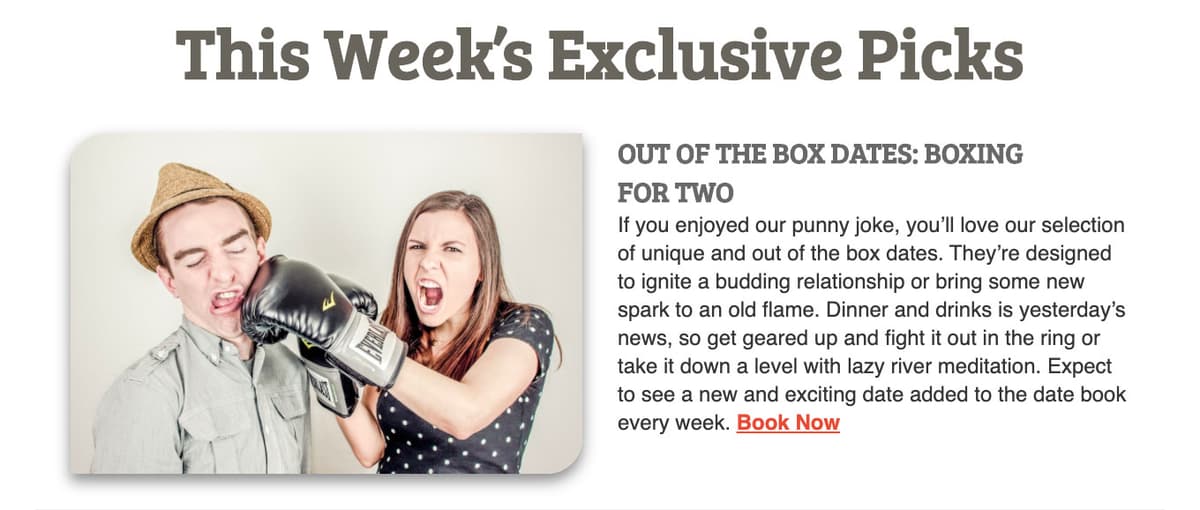
Exercise Overview
In this exercise, you’ll add rounded corners and drop shadows to the 3 date listing images. You’ll also add a custom font from Google Fonts. These may not work everywhere, but will in some email clients. This approach is called progressive enhancement and lets some people benefit, while others (who don’t see the extras) will still receive a nicely styled email.
Getting Started
Open your code editor if it isn’t already open.
We’ll be switching to a new folder of prepared files for this exercise. Close all open files in your code editor to avoid confusion.
For this exercise we’ll be working with the Date Night Progressive Enhancement folder located in Desktop > Class Files > yourname-Responsive HTML Email Class. You may want to open that folder in your code editor if it allows you to.
Open date-night-exclusive-picks.html from the Date Night Progressive Enhancement folder.
Implementing Border-Radius on the Images
Let’s upgrade our design by adding rounded corners to each of the 3 date listing images. This is done with CSS border-radius, which some email clients support. In those that don’t, the corners will remain square.
Let’s find how to target the images with CSS. Scroll to the image of the Couple Fighting (around line 140) and notice it’s in a td with a class of deviceWidth:
<td class="deviceWidth" align="left" width="50%" valign="top" style="padding-right: 10px;">
   <a href="https://www.example.com" target="_blank"><img class="resImage" src="http://www.nobledesktop.com/nl-date-night/img/couple-boxing@2x.jpg" width="290" ALT="Couple Fighting"></a>
</td>
Scroll up to the top of the CSS styles. Below the img rule, add this new rule:
.deviceWidth img {
   border-radius: 20px 0;
}
Save the file.
Preview date-night-exclusive-picks.html in a browser. We’ll keep reloading this file, so leave it open.
Sweet, all three date listing images have top left and bottom right corners that start rounding off when they are 20 pixels away from the images’ borders!
Resize the browser window to see how it looks in all layouts.
Adding Box-Shadows
We also want to add a drop shadow to the date listing images.
Return to your code editor and add box-shadow as shown below in bold:
.deviceWidth img {
   border-radius: 20px 0;
   box-shadow: 0 4px 8px #888888;
}
This property takes 4 parameters in this order: horizontal offset (0px), vertical offset (4px), blur (8px), and color (#888888).
Save the file and reload the browser. Awesome—we have a nice, soft, subtle drop shadow behind each of the 3 date listing images!
Custom Web Fonts: Adding Google Fonts
Let’s see how to add a custom web font. Keep in mind these custom fonts are not supported everywhere, so you’ll want to make sure you test the fallback font which some people will see! Let’s see how to use custom web fonts from Google Fonts, a popular source of free web fonts.
- In a new browser tab, go to fonts.Google.com
- In the search field, type in the font we want to add: Bree Serif
- In the search results, click on Bree Serif.
- Click + Select this style to the right of the Regular 400 weight.
- As side panel should appear. At the top right of that, click on the Embed tab.
Copy the link to the Google-hosted style sheet:
<link href="https://fonts.googleapis.com/css2?family=bree+serif&display=swap" rel="stylesheet">Return to your code editor and paste it around line 6, below the title tag and above the style tag, as shown in bold below:
<title>Date Night Exclusive Picks</title>
<link href="https://fonts.googleapis.com/css2?family=bree+serif&display=swap" rel="stylesheet">
<style>
In the font-family for h1 and h2 (around lines 22 and 29), add the name of the custrom font as the first choice, before the sans-serif fallback font (which will be used if the custom font does not work), as shown below in bold:
h1 {
   color: #69655c;
   font-family: 'Bree Serif',  sans-serif;
Code Omitted To Save Space
}
h2 {
   color: #696969;
   font-family: 'Bree Serif',  sans-serif;
Code Omitted To Save Space
}Save the file and reload date-night-exclusive-picks.html in the browser. The headings and subheadings should all have the custom font!
Web Fonts in Outlook
Some Windows versions of Outlook (2007,2010 and 2013) do not understand custom web fonts. They will default to Times New Roman, even if a sans-serif fallback is defined in our font stack.
In this email, Times New Roman looks fine. But if you were using a sans-serif font, you would need to include a conditional style specific to desktop Outlook, telling it to display a web safe font.
For example, at the top of your styles you would need to add:
<!—[if mso ]>
   <style type="text/css">
   h1, h2 {
      font-family: sans-serif;
   }
   </style>
<![endif]—>