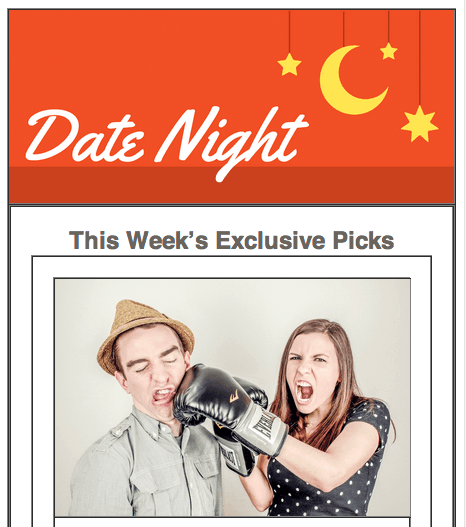
Optimizing Images for Mobile
Master Mobile Image Optimization for HTML Email
Tutorial Focus Areas
Image Quality Balance
Learn to optimize images for high-resolution mobile screens while maintaining manageable file sizes for email delivery.
Responsive Banner Swapping
Implement conditional banner images that adapt to different screen sizes for optimal mobile viewing experience.
Hi-res Screen Optimization
Address pixelation issues on modern mobile devices with proper image sizing and media query techniques.
Topics Covered in This HTML Email Tutorial:
Mastering HTML Email Image Quality Through Strategic Optimization, Implementing Hi-res/Retina Display Support, Dynamic Banner Swapping for Mobile Devices, Advanced Mobile Banner Optimization Techniques
Exercise Preview

Exercise Overview
In today's mobile-first landscape, every smartphone and tablet features high-resolution displays that demand crisp, professional imagery. This exercise will teach you to implement higher-quality images that deliver exceptional visual clarity on hi-res screens while maintaining optimal file sizes for fast loading. You'll also master the technique of swapping banner images—serving mobile-optimized versions to smaller screens while preserving desktop-quality banners for larger devices. This dual-image strategy ensures your emails look professionally polished across all viewing contexts.
If you completed the previous exercise, date-night-exclusive-picks.html should still be open, and you can skip the following sidebar. If you closed date-night-exclusive-picks.html, re-open it now. We strongly recommend completing the previous exercises (1C–1D) before starting this one, as they build essential foundational skills. If you haven't finished them, follow the sidebar instructions below.
Prerequisites RequiredThis exercise builds on previous work (exercises 1C-1D). If you haven't completed them, follow the sidebar instructions to set up the proper starting files before proceeding.
If You Did Not Do the Previous Exercises (1C–1D)
- Close any files you may have open.
- On the Desktop, navigate to Class Files > yourname-HTML Email Class.
- Delete the 2-Column Layout folder if it exists.
- Duplicate the 2-Column Layout Columns Done folder.
- Rename the duplicated folder to 2-Column Layout.
Resize the browser window to simulate mobile viewing. While the 1-column mobile layout functions well structurally, you'll immediately notice a critical image quality issue that undermines the professional appearance of our email.
HTML Email Image Quality: Mastering the Performance vs. Quality Balance
When your layout transforms from 2 columns to 1 column, the exclusive picks images (originally 290 pixels wide) expand dramatically to over 550 pixels wide in the mobile layout. Since these images weren't designed for such large display sizes, they appear noticeably pixelated and unprofessional—a quality issue that can damage your brand credibility.
Understanding display technology evolution is crucial for modern email design. The original iPhone featured a 320-pixel-wide screen, but high-resolution "Retina" displays doubled that pixel density to 640 pixels, creating what we call "2x screens." By 2026, most devices feature even higher pixel densities. Our current 290-pixel images will appear pixelated on virtually all modern mobile devices.
The challenge lies in balancing image sharpness with file size optimization. While crisp, high-resolution images enhance user experience, oversized files can cause slow loading times that lead to user abandonment. For optimal sharpness, we'd ideally use images around 1100 pixels wide (double the largest display width), but this creates prohibitively large file sizes for email delivery. Our solution uses strategically sized 900 X 600 pixel images—large enough to appear crisp on high-resolution screens while maintaining reasonable file sizes for reliable email performance.
Keep the file open in the browser so you can reload the page to see your changes in real-time.
In your code editor, open date-night-exclusive-picks.html from the 2-Column Layout folder if it isn't already open. (We recommend opening the entire folder if your code editor supports project-based workflows.)
We've prepared a reference file containing URLs for the higher-resolution versions of our 3 date listing images. Open large-images.txt from 2-Column Layout > snippets.
Before implementing all the image replacements, let's examine the quality difference firsthand. Around line 2, copy the link for the Couple Boxing 900 X 600 image:
http://www.Noble Desktop.com/nl-date-night/img/couple-boxing@2x.jpgSwitch to your browser and paste this link into a new tab. Notice the exceptional sharpness and detail quality.
Return to the Date Night Exclusive Picks tab to compare image quality side-by-side. Resize the browser window to display the images at their largest width. The quality difference is dramatic—the low-resolution version appears unprofessional and pixelated compared to the crisp high-resolution version.
Close the image tab while keeping date-night-exclusive-picks.html open in the browser for continued testing.
Return to your code editor and the large-images.txt file.
If the Couple Boxing image URL is no longer in your clipboard, copy it again.
Switch to date-night-exclusive-picks.html and locate line 86. Replace the img src value as shown:
<a href="https://www.example.com" target="_blank"><img class="resImage" src="http://www.nobledesktop.com/nl-date-night/img/couple-boxing@2x.jpg" width="290" ALT="Couple Fighting"></a>IMPORTANT: We maintain the width="290" attribute because our media queries will override this value for mobile displays, while preserving the appropriate desktop sizing for the 2-column layout.
Now let's upgrade the remaining exclusive pick images with high-resolution versions. You can copy the provided URLs or simply edit the existing filenames. We follow the industry-standard naming convention where high-resolution images include @2x in the filename.
Around line 103, update the second image's src value to: http://www.Noble Desktop.com/nl-date-night/img/beer-bar-label@2x.jpg
Around line 120, update the third image's src to: http://www.Noble Desktop.com/nl-date-night/img/milan-canal@2x.jpg
Close large-images.txt if you still have it open.
Save date-night-exclusive-picks.html and reload the browser. The image quality improvement should be immediately apparent—crisp, professional imagery that maintains its quality across all device sizes.
Implementing Dynamic Banner Replacement for Mobile Optimization
Now let's address a sophisticated challenge: creating device-appropriate banner experiences. While our current banner functions adequately, it's not optimized for the unique constraints and opportunities of mobile viewing.
Focus on the Date Night banner image behavior as you resize your browser window. When the viewport reaches mobile dimensions (320-414 pixels—the standard range for smartphone screens), the banner text becomes disproportionately small and the overall composition feels cramped.
Professional email design requires tailoring visual elements to their viewing context. We'll implement a mobile-specific banner featuring larger, more legible text and composition optimized for narrow screens, while preserving the desktop banner for larger displays.
Return to your code editor to begin implementing our dual-banner system.
Our strategy involves hiding the desktop banner on mobile devices while displaying a mobile-optimized background image in the same container. This approach ensures seamless responsive behavior without disrupting the email's structural integrity.
Locate the banner image around line 71:
<a href="https://www.example.com" target="_blank"><img class="resImage" src="http://www.nobledesktop.com/nl-date-night/img/header.png" width="680" ALT="Date Night"></a>This image already uses the resImage class with existing styles. However, we need additional targeting capabilities.
CRITICAL: HTML email clients often fail to process elements with multiple classes, which would break our media query functionality. We must use a different targeting approach.
Since this image is the only content within its table cell, we'll add a class to the containing cell. Around line 70, add the mobileBanner class to the td element:
<td class="mobileBanner" align="center" width="100%"> <a href="https://www.example.com" target="_blank"><img class="resImage" src="http://www.nobledesktop.com/nl-date-night/img/header.png" width="680" ALT="Date Night"></a>In the media query, locate the .deviceWidth rule and add the following mobile banner rule immediately after:
width: 100%!important; } .mobileBanner img { display: none!important; }.resImage {Address a critical Yahoo Mail compatibility issue: Yahoo's mobile app strips !important declarations when there's a space before the exclamation mark. Remove the space in the display property:
.mobileBanner img { display: none!important; }Apply the same fix to other display properties throughout your CSS. Remove spaces before !important in the following rules:
- .wrapper
- .deviceWidth
Save and reload the browser. Test the responsive behavior: the banner should display normally on desktop widths and disappear on mobile widths.
Now we need to implement our mobile background image strategy. The challenge is maintaining proper proportions—we need the container to hold its shape even when the desktop image is hidden, so our background image displays with the correct aspect ratio.
Let's examine our mobile banner specifications. Open mobile-header.txt from 2-Column Layout > snippets.
Copy the mobile banner URL:
http://www.Noble Desktop.com/nl-date-night/img/header-mobile@2x.pngOpen this URL in a new browser tab to examine the image.
Note the dimensions: 1200 X 520 pixels. This high-resolution PNG maintains a small file size due to its limited color palette—an important optimization technique for email design.
Calculate the aspect ratio by dividing height by width: 520 ÷ 1200 = 43.33%. We'll use this percentage to maintain proper proportions across all screen sizes.
Close the image tab and return to your code editor.
In date-night-exclusive-picks.html, add a new rule in the media query above the .mobileBanner img rule:
width: 100%!important; } .mobileBanner { padding-top: 43.33%!important; }.mobileBanner img {This padding-top percentage creates a responsive height that scales proportionally with the container width, maintaining our desired aspect ratio across all screen sizes.
Save and reload the browser. Resize the window to trigger mobile view and observe how the space maintains consistent proportions as the screen width changes.
Return to your code editor. Copy the mobile header image URL from mobile-header.txt if it's not still in your clipboard.
Add the background image property to the .mobileBanner rule:
.mobileBanner { background-image: url(http://www.Noble Desktop.com/nl-date-night/img/header-mobile@2x.png)!important; padding-top: 43.33%!important; }Save and reload the browser. The background image appears but needs sizing adjustment to fit properly within its container.
Add the background-size property to ensure perfect fitting:
.mobileBanner { background-image: url(http://www.Noble Desktop.com/nl-date-night/img/header-mobile@2x.png)!important; background-size: cover!important; padding-top: 43.33%!important; }The cover value ensures the background image fills the entire available space while maintaining its aspect ratio. Combined with our calculated padding, this creates a perfect fit.
Save and reload the browser. Test the responsive behavior—you should now see crisp, appropriately sized banners for both desktop and mobile viewports.
Advanced Mobile Banner Optimization: Multi-Breakpoint Strategy
Professional responsive email design requires considering the full spectrum of device sizes, not just the extremes. Let's refine our banner system to provide optimal experiences across all viewing contexts.
When you resize your browser to the first breakpoint (680 pixels) where the layout transitions to single-column, the mobile banner appears disproportionately large on wider mobile screens like tablets. While our primary focus remains on smartphone screens (320–414 pixels), we want to ensure professional appearance across all devices.
The solution is implementing a more sophisticated breakpoint strategy. The desktop banner actually performs well on larger mobile screens, so we'll preserve it until the viewport reaches 480 pixels or smaller—the point where mobile-specific optimization becomes essential.
Let's implement a dedicated media query for smaller screens and reorganize our banner rules accordingly.
Above the closing style tag around line 73, add a new media query targeting screens 480 pixels and smaller:
margin-top: 15px!important; } } @media only screen and (max-width: 480px) { } </style>Locate and cut both .mobileBanner rules (lines 54–61 approximately) from the existing media query.
Remove any extra whitespace left behind.
Paste the rules inside your new 480px media query:
@media only screen and (max-width: 480px) { .mobileBanner { background-image: url(http://www.Noble Desktop.com/nl-date-night/img/header-mobile@2x.png)!important; background-size: cover!important; padding-top: 43.33%!important; }.mobileBanner img { display: none!important; } }Save and reload the browser. Test the new behavior: the desktop banner should remain visible during the transition to single-column layout, only switching to the mobile-optimized version when the viewport reaches 480 pixels or smaller.
We have one final refinement to address. Resize to a width where the desktop image displays and hover over the banner—notice the cursor becomes a pointer
, indicating the clickable link functionality.Now resize to mobile width and hover over the mobile-optimized banner. The cursor remains normal because our display: none rule has collapsed the link element, removing its clickable functionality.
This breaks user experience consistency. We need to restore the link's clickable area while keeping the desktop image hidden.
Return to your code editor to implement the link restoration.
Inside the max-width: 480px media query, add a new rule targeting the link element within our mobile banner:
display: none!important; } .mobileBanner a { display: block!important; } }Ensure there's no space between "block" and "!important" to avoid the Yahoo Mail bug.
Move the padding responsibility from the table cell to the link element for proper clickable area sizing. Cut this line from the .mobileBanner rule:
padding-top: 43.33%!important;Paste it into the .mobileBanner a rule:
.mobileBanner a { display: block!important; padding-top: 43.33%!important; }Save and reload the browser. The desktop view should remain unchanged.
- Resize to mobile width to trigger the mobile banner display.
Hover over the mobile banner—the cursor should now properly change to a pointer
, indicating restored link functionality.Keep this page open in both your browser and code editor for the next exercise, where we'll continue building out advanced newsletter functionality.
ACCESSIBILITY NOTE: Background images cannot include ALT text, which impacts screen reader accessibility. For a comprehensive solution to this limitation, refer to our bonus exercise ALT Text on Banner Swap.
Key Takeaways