April 1, 2026Dan Rodney/4 min read

Creating & Naming Slices in Photoshop

Master Photoshop Email Design and HTML Export

Key Skills You'll Learn

Photoshop Slicing

Learn to divide complex designs into manageable image sections for HTML email creation. Master the slice tool for precise image segmentation.

HTML Email Optimization

Understand how to prepare image-heavy emails with proper naming conventions and accessibility features for professional deployment.

Web Integration

Configure ALT text and link URLs directly in Photoshop for seamless HTML export and improved user experience.

Topics Covered in This HTML Email Tutorial:

Slicing a Photoshop File, Naming Slices, Adding ALT Text, Adding Link URLs

Tutorial Focus

This tutorial covers the complete workflow from Photoshop file preparation to HTML-ready email with proper slicing, naming, and link configuration.

Exercise Preview

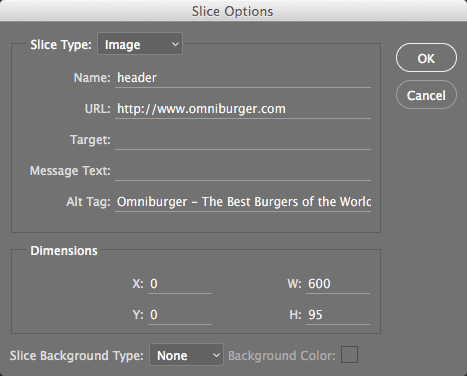
slice options

Exercise Overview

While modern email development favors responsive HTML and CSS, there are still scenarios where image-heavy designs cannot be recreated with code alone—particularly for one-off campaigns with complex visual elements or tight deadlines. In these situations, creating an entire email with sliced images becomes a practical necessity, despite its inherent limitations.

This approach comes with significant trade-offs: larger file sizes, poor accessibility for users with images disabled, and reduced deliverability in spam-sensitive environments. However, Photoshop's slice-and-export functionality can handle most requirements for single-use campaigns and often proves faster than custom coding complex layouts from scratch. The key limitation is flexibility—Photoshop generates static, non-reusable code that's unsuitable for email templates or campaigns requiring multiple variations.

For this exercise, we'll walk through the complete process of slicing a restaurant email design, setting up proper naming conventions, and configuring accessibility and linking attributes that will translate into clean HTML output.

Image-Heavy Email Design Trade-offs

Pros
Preserves complex graphic designs that HTML cannot replicate
Faster development than coding from scratch
Photoshop handles most email requirements efficiently
Perfect for one-time promotional campaigns
Cons
Large file sizes impact loading speed
Poor experience for users with disabled images
Code is not flexible or reusable
Not recommended for recurring email templates
Important Limitation

Photoshop does not produce flexible, reusable code. This approach is not recommended for emails that will be used more than once.

Slicing the File

We'll begin by setting up our workspace and creating strategic slices that correspond to distinct functional areas of the email design.

  1. Launch Photoshop.

  2. Go to File > Open, and navigate into the yourname-HTML Email Class folder. In the Lunch Menu folder, open Lunch Menu.psd.

  3. If you encounter a warning about missing fonts, proceed through the dialog(s) and select Don't Resolve. Since we're slicing for image export rather than editing text elements, font resolution is unnecessary for this workflow.

  4. Go to File > Save As and name the file yourname-Lunch Menu.psd to preserve the original.

  5. If you receive a compatibility warning, click OK to maintain standard PSD format.

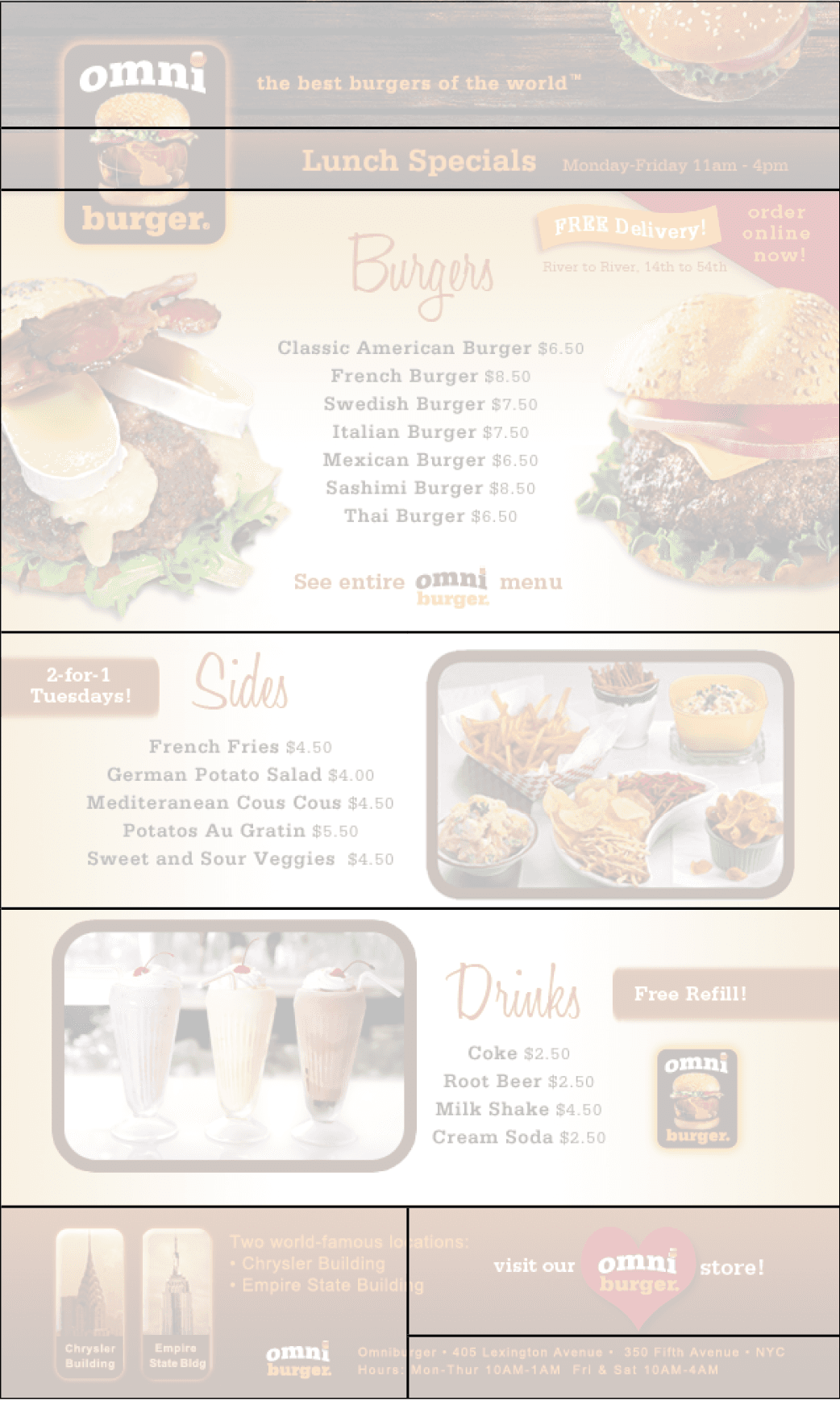
  6. Now we'll create slices that correspond to distinct clickable areas and content sections. In the Tools panel, select the Slice tool slice tool. You may need to click and hold the Crop tool crop tool to access it from the tool group.

  7. Create your first slice by dragging over the top wood area. Use the pink Smart Guides to ensure precise alignment with design elements.

  8. To fine-tune slice boundaries, hover your cursor over any edge until you see the resize cursor, then drag to adjust positioning.

  9. Create a second slice over the Lunch Specials bar, positioning it directly below your first slice with no gaps.

  10. Continue creating slices for each distinct content area as demonstrated in the reference below. Each slice should represent either a unique link destination or a logical content grouping:

    lunch menu create slices

File Preparation Workflow

1

Open and Setup

Launch Photoshop, open the Lunch Menu.psd file from the designated folder, and proceed through any font warnings without resolving them.

2

Save Working Copy

Use File > Save As to create your personalized version named 'yourname-Lunch Menu.psd' and accept compatibility settings.

3

Begin Slicing

Select the Slice tool from the Tools panel and create slices over linkable areas using Smart Guides for precise positioning.

Slice Tool Location

The Slice tool may be hidden under the Crop tool. Click and hold the Crop tool to access it from the dropdown menu.

Naming Slices

Strategic slice naming is crucial for maintaining organized assets and ensuring your exported HTML uses semantic filenames. Well-named slices also make future updates and collaboration significantly easier.

  1. Switch to the Slice Select tool slice select tool by clicking and holding the Slice tool slice tool to reveal the tool group.

  2. Double-click the top slice to open its properties dialog.

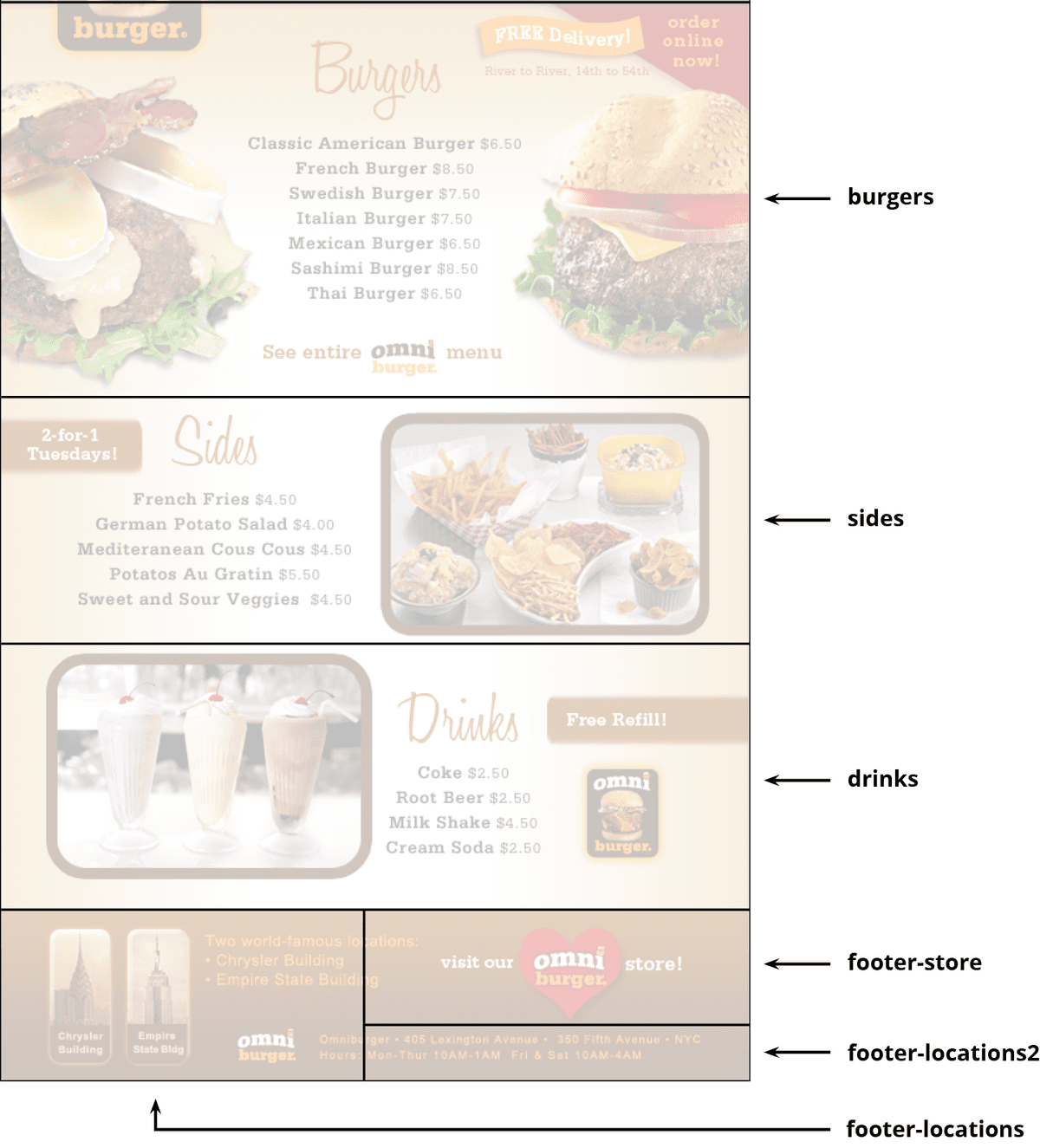
  3. In the Name field, enter: header

  4. Click OK to confirm.

  5. Double-click the Lunch Specials slice to access its properties.

  6. Enter lunch-specials in the Name field and click OK. Note the use of hyphens rather than spaces for web-safe filenames.

  7. Apply descriptive names to all remaining slices following the naming convention shown below. Use lowercase letters and hyphens to ensure cross-platform compatibility:

    lunch menu name slices

Why Slice Names Matter

Slice names become the actual filenames when you export, so descriptive naming is crucial for organized file management and web deployment.

Slice Naming Process

1

Switch Tools

Select the Slice Select tool by clicking and holding the Slice tool to access the dropdown menu options.

2

Access Properties

Double-click any slice to open its properties dialog where you can modify the name and other settings.

3

Apply Descriptive Names

Use clear, descriptive names like 'header' for the top section and 'lunch-specials' for menu areas to maintain organization.

Creating ALT Text & Links

Proper ALT text and link configuration at the slice level ensures your exported HTML meets accessibility standards and provides appropriate fallbacks for users with images disabled. This step is particularly important for email marketing compliance and deliverability.

  1. Using the Slice Select tool slice select tool, double-click the top slice to open its properties panel.

  2. Configure the header slice with appropriate linking and accessibility attributes:

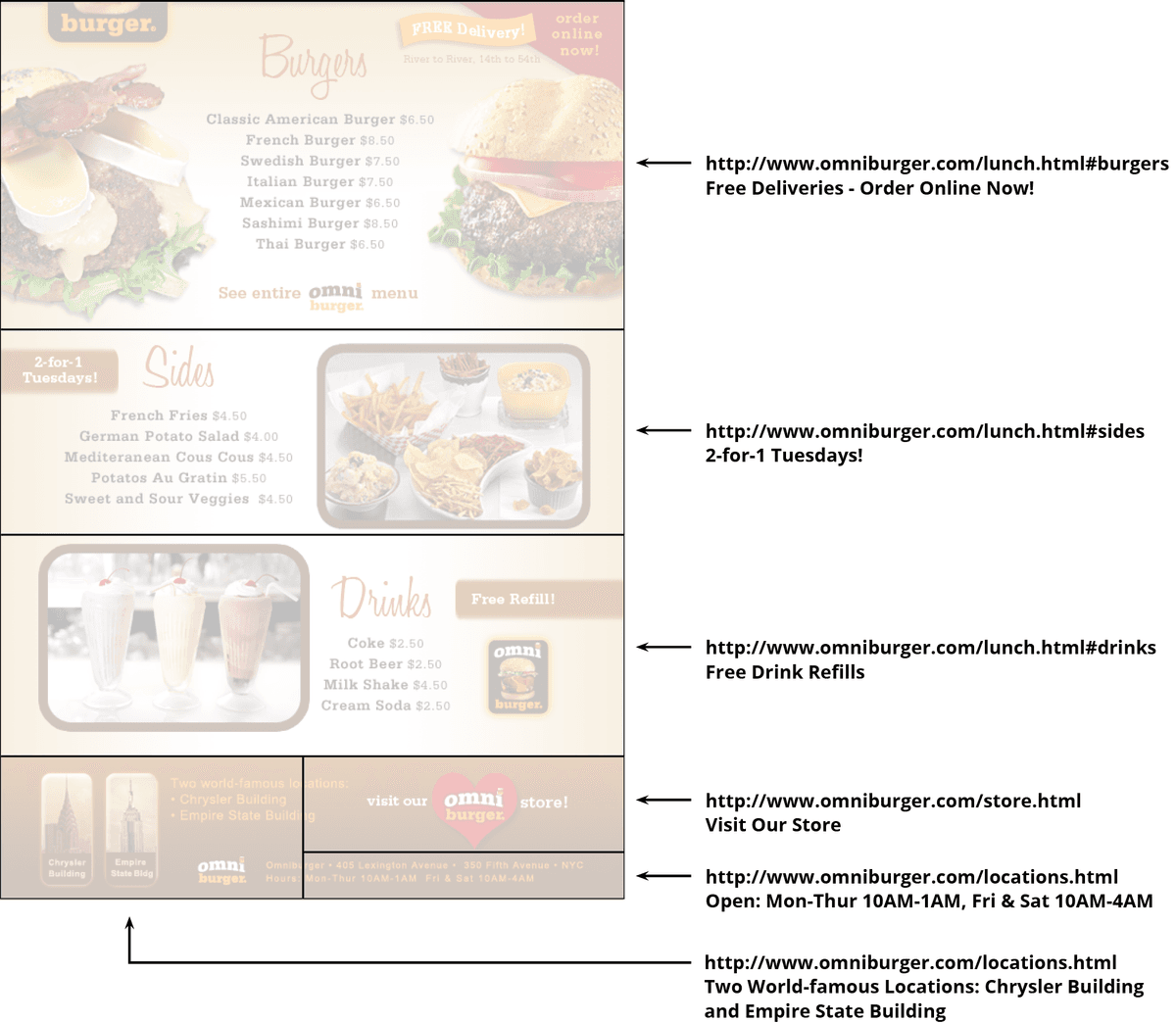
    URL: http://www.omniburger.com
    ALT Tag: Omniburger—The Best Burgers of the World

    Click OK to save these settings.

  3. Double-click the Lunch Specials slice to configure its properties.

  4. Set the lunch specials linking and descriptive text:

    URL: http://www.omniburger.com/lunch.html
    ALT Tag: Lunch Specials Mon-Fri, 11am-4pm

    Click OK to confirm.

  5. Complete the remaining slices by adding appropriate URLs and ALT text for each section. Remember that ALT text should be descriptive and actionable, telling users what they'll find if they click through:

    lunch menu name url and ALT text

  6. Save the file to preserve all slice configurations and metadata.

  7. Keep the file open—you'll need it for the HTML export process in the following exercise.

Essential Link Configuration

URL Integration

Add clickable links directly in Photoshop that will be automatically included in the exported HTML code for seamless functionality.

ALT Text Accessibility

Configure descriptive ALT text for each image slice to ensure accessibility compliance and better user experience when images are disabled.

Link Setup Checklist

0/4

Key Takeaways

1Image-heavy email designs require Photoshop slicing when HTML cannot replicate complex graphics, but this approach has significant limitations including large file sizes and poor accessibility.
2The Slice tool allows precise division of designs into linkable sections, with Smart Guides helping achieve accurate positioning and easy resize functionality for optimal segmentation.
3Proper slice naming is critical since these names become the actual filenames during export, requiring descriptive conventions like 'header' and 'lunch-specials' for organized file management.
4The Slice Select tool provides access to individual slice properties through double-clicking, enabling detailed configuration of names, URLs, and accessibility features.
5ALT text configuration in Photoshop automatically integrates into exported HTML, ensuring accessibility compliance and better user experience when images are disabled in email clients.
6URL integration directly within Photoshop slices creates clickable areas that export seamlessly to HTML, eliminating the need for manual link coding in the final email template.
7This workflow is specifically recommended for one-time email campaigns only, as Photoshop generates inflexible code that is not suitable for reusable email templates or recurring campaigns.
8File preparation includes creating personalized working copies and proceeding through font warnings without resolution, since text editing is not required for the slicing and export process.

RELATED ARTICLES