April 1, 2026Dan Rodney/7 min read

Optimizing the Mobile Layout

Master responsive HTML email design for mobile devices

Mobile Email Optimization Focus Areas

Font Size Adjustments

Increase paragraph text from 12px to 16px on mobile devices for improved readability. Desktop layouts maintain original sizing while mobile gets enhanced legibility.

Spacing Optimization

Remove excessive margins and padding that consume valuable mobile screen space. Strategic reduction maintains visual appeal while maximizing content area.

Visual Clean-up

Eliminate table borders used during development to create a polished, professional appearance across all device layouts.

Topics Covered in This HTML Email Tutorial:

Changing Font Size Across Screen Sizes, Removing Excess Margins on Mobile, Removing the Table Borders

Exercise Preview

preview optimized

Exercise Overview

Your email template is nearly complete, but the mobile experience needs refinement. In this final optimization phase, we'll address three critical usability issues: improving text readability on small screens, maximizing content space on mobile devices, and cleaning up visual distractions. These adjustments will ensure your email performs effectively across all device types — a crucial consideration given that over 60% of emails are now opened on mobile devices in 2026.

  1. If you completed the previous exercise, date-night-exclusive-picks.html should still be open in your editor, and you can skip the following sidebar. If you closed date-night-exclusive-picks.html, re-open it now. We strongly recommend completing the previous exercises (1C–2B) before starting this one, as each builds upon the previous work. If you haven't finished them, follow the setup instructions in the sidebar below.

    Prerequisites Required

    This exercise builds directly on previous exercises 1C through 2B. Ensure you have completed the foundational email layout work before proceeding with mobile optimizations.

If You Did Not Do the Previous Exercises (1C–2B)

  1. Close any files you may have open.
  2. On the Desktop, navigate to Class Files > yourname-HTML Email Class.
  3. Delete the 2-Column Layout folder if it exists.
  4. Duplicate the 2-Column Layout Footer Done folder.
  5. Rename the duplicated folder to 2-Column Layout.

Setup Process for New Students

1

File Management

Navigate to Class Files > yourname-HTML Email Class and delete any existing 2-Column Layout folder to start fresh.

2

Duplicate Foundation

Locate and duplicate the 2-Column Layout Footer Done folder which contains the completed previous exercises.

3

Rename Structure

Rename the duplicated folder to 2-Column Layout to match the expected project structure for this exercise.

Sizing up Paragraph Text on Mobile

Typography readability is paramount in email design, yet it's often overlooked when transitioning from desktop to mobile layouts. Let's address the font sizing hierarchy to ensure optimal readability across all screen sizes.

  1. If date-night-exclusive-picks.html is still open in your browser, reload the page to ensure you're viewing the latest version. Otherwise, open this file in a browser from yourname-Responsive Email Class > 2-Column Layout.

  2. Resize the browser window to observe how the body paragraph font size remains constant across all three layout breakpoints.

    The current desktop layout uses 12-pixel text (admittedly small, but often dictated by design requirements or client preferences). On mobile devices, this size becomes nearly unreadable, creating accessibility issues and poor user experience. We'll implement a mobile-specific 16-pixel font size — the minimum recommended by accessibility guidelines and optimal for thumb-based navigation.

  3. Keep the browser window positioned to show the desktop layout. This will allow you to easily contrast the font sizes when we reload the page after making our changes.

  4. In your code editor, open date-night-exclusive-picks.html from the 2-Column Layout folder if it isn't already open. (If your code editor supports it, open the entire folder for easier file management.)

  5. Before writing CSS for the exclusive picks paragraphs, we need to identify the most efficient selector strategy. Scroll to the paragraph for the boxing date (approximately line 127), and notice it's nested within a table cell with the class deviceWidth:

    <td class="deviceWidth" align="left" width="50%" valign="top" style="padding-left: 10px;">
       <h2>OUT OF THE BOX DATES: BOXING FOR&nbsp;TWO</h2>

    Code Omitted To Save Space

    </td>

    This class structure is consistent across all exclusive picks sections, making it our ideal targeting mechanism for mobile typography adjustments.

  6. In the max-width: 680px media query, add the following rule below the existing .deviceWidth rule:

    .deviceWidth p {
       font-size: 16px!important;
    }

    This targets all paragraph elements within our deviceWidth containers, ensuring consistent mobile typography.

  7. Save the file and reload the browser to see your changes in action.

  8. Resize the browser window to verify the responsive behavior: in the 2-column layout, paragraphs display at 12px, while the single-column mobile layout shows the improved 16px size. This creates a much more readable mobile experience without affecting the desktop design.

Font Size Optimization Strategy

FeatureDesktop LayoutMobile Layout
Paragraph Font Size12px16px
Readability PriorityDesign consistencyUser experience
Target Class.deviceWidth p.deviceWidth p
Recommended: Use CSS media queries to implement responsive font sizing that prioritizes mobile readability while maintaining desktop design integrity.
Efficient CSS Targeting

Target paragraph elements within .deviceWidth table cells using .deviceWidth p selector. This approach ensures all exclusive picks content receives consistent mobile font sizing with minimal code.

Removing Excess Margins on Mobile

Mobile screen real estate is precious. Every pixel of unnecessary whitespace reduces the impact of your content and forces users to scroll more than necessary. Let's optimize the spacing to create a more immersive mobile experience.

  1. If date-night-exclusive-picks.html is already open in Chrome, proceed to the next step. Otherwise, open it from yourname-Responsive Email Class > 2-Column Layout.

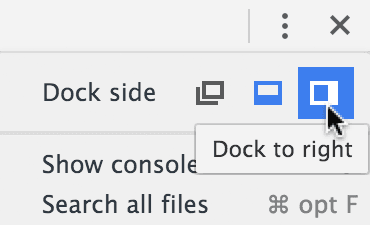
  2. To access Chrome DevTools, CTRL–click (Mac) or Right–click (Windows) anywhere on the page and select Inspect. In the DevTools panel, click the chrome devtools menu three-dot menu and choose Dock to right for optimal screen layout:

    chrome dock to right

  3. Reduce the browser window's content area to less than 400 pixels width — typical smartphone viewing dimensions. Notice how excessive padding on both sides significantly reduces usable content space:

    mobile big margins

    Browsers apply a default 8-pixel margin to all sides of the <body> element — a legacy behavior that wastes valuable mobile space.

  4. Return to your code editor to implement the fix.

  5. At the top of the style tag, add this body rule as shown in bold:

    <style>
       body {
          margin: 0;
       }

    NOTE: While mobile email clients will respect this rule, most desktop clients ignore body styles due to their CSS sanitization processes. Since desktop layouts have ample space, this limitation doesn't impact the user experience.

  6. Save the file and reload the browser. Ensure the browser window remains narrow to see the mobile layout. Excellent! You've just reclaimed 16 pixels of precious screen width (8px on each side).

    Each exclusive picks listing currently uses 20 pixels of padding on all sides — appropriate for desktop viewing but excessive for mobile devices where every pixel counts.

  7. Let's optimize the padding for mobile while maintaining the desktop appearance. Return to your code editor.

  8. Navigate to approximately line 127 to locate the table cell containing the first date listing (currently styled with 20px padding). To enable mobile-specific styling, add the class row as shown in bold:

    <td class="row" align="center" width="100%" style="padding: 20px;">
       <table align="center" border="1" cellpadding="0" cellspacing="0" width="100%">
          <tr>
             <td class="deviceWidth" align="left" width="50%" valign="top" style="padding-right: 10px;">
                <a href="https://www.example.com" target="_blank"><img class="resImage" src="http://www.nobledesktop.com/nl-date-night/img/couple-boxing@2x.jpg" width="290" ALT="Couple Fighting"></a>
  9. The row class name reflects the visual behavior: each date listing appears as a horizontal row in the desktop layout, making this semantic naming both logical and memorable.

    Apply the same row class to the remaining date listing table cells. You'll find the second one around line 144 and the third around line 161.

  10. Return to your CSS section. In the max-width: 680px media query, add this new rule below the existing .wrapper rule:

    .row {
       padding: 15px 10px!important;
    }

    This creates asymmetrical padding: 15 pixels top and bottom (maintaining visual separation) and 10 pixels left and right (maximizing content width).

  11. Save the file and reload the browser with the window still at narrow width. The adjusted padding creates more breathing room for your content while maintaining visual hierarchy.

  12. Expand the browser window until it switches to the 2-column desktop layout. Verify that the original 20-pixel padding remains intact for the optimal desktop experience.

Space Optimization Impact

Browser Default Margin
8
Optimized Margin
0
Original Padding
20
Mobile Padding
15

DevTools Inspection Process

1

Access Developer Tools

CTRL-click on Mac or Right-click on Windows and select Inspect to open browser DevTools for layout analysis.

2

Configure Panel Layout

Click the dock button and choose 'Dock to right' to position DevTools for optimal mobile layout inspection.

3

Test Mobile Width

Resize browser window to less than 400 pixels to identify excessive padding consuming valuable mobile screen space.

Removing the Table Borders

With our spacing optimizations complete, it's time to remove the development borders that have been helping us visualize the table structure. These borders served their purpose during development but now detract from the professional appearance of our finished email.

  1. Return to your code editor to perform the cleanup.

  2. Access the Find and Replace functionality using one of these methods (menu names may vary depending on your code editor):

    • In Visual Studio Code: navigate to Edit > Replace
    • For other text/code editors: try Cmd+F (Mac) or Ctrl+F (Windows)
  3. Enter the following search and replacement values (field labels may differ in your editor):

    Find: border="1"
    Replace: border="0"
  4. Execute Replace All. The operation should replace exactly 9 instances throughout your document — each representing a table border that we initially set for development purposes.

  5. Save the file and reload the browser. Test all three responsive breakpoints to confirm the borders have been completely removed. Your email now presents a clean, professional appearance across all device types.

  6. Keep both the browser and code editor open — we'll put the finishing touches on this newsletter in the next exercise, where we'll address final details and prepare the email for deployment.

Find and Replace Process

1

Access Find and Replace

In Visual Studio Code go to Edit > Replace, or use Cmd-F on Mac or CTRL-F on Windows for other editors.

2

Configure Search Parameters

Set Find field to 'border="1"' and Replace field to 'border="0"' to target all table border attributes.

3

Execute Global Replacement

Click Replace All button to update all 9 instances of table borders throughout the email template.

Development vs Production

Table borders serve as helpful visual guides during development but should be removed for production. This creates a clean, professional appearance across all three responsive layout breakpoints.

Key Takeaways

1Mobile font optimization requires increasing paragraph text from 12px to 16px using CSS media queries for improved readability on small screens
2Browser default margins of 8px should be removed using body margin: 0 rule to maximize available mobile screen space
3Responsive padding adjustment from 20px to 15px vertical and 10px horizontal creates better mobile space utilization while preserving desktop layout
4CSS class targeting strategy using .deviceWidth p selector efficiently applies mobile styles to all paragraph content within specific table cells
5Developer Tools inspection at sub-400px widths reveals mobile layout issues and validates spacing optimization effectiveness
6Find and replace operations can efficiently remove development artifacts like table borders across entire email templates
7Media query implementation at max-width 680px creates the breakpoint for mobile-specific styling rules
8Professional email templates require balancing desktop design requirements with mobile user experience priorities through responsive techniques

RELATED ARTICLES