Intro to Cascading Style Sheets (CSS)
What This Tutorial Covers
Selectors
Target elements by tag, class, or id.
Properties & Values
The building blocks of every CSS rule.
The Cascade
How specificity and order resolve conflicts.
Noble Desktop's Front-End Web Development Certificate teaches HTML, CSS, and JavaScript — the complete front-end foundation.
Get a comprehensive overview of HTML and CSS as you practice creating and styling your own content in this detailed tutorial, featuring topics such as tag selectors, font-family, color, and line-height properties, and hexadecimal color codes.
Topics Covered in This HTML & CSS Tutorial:
The Style Tag, Tag Selectors, the Font-size, Font-family, Color, & Line-height Properties, Hexadecimal Color Codes
Exercise Preview
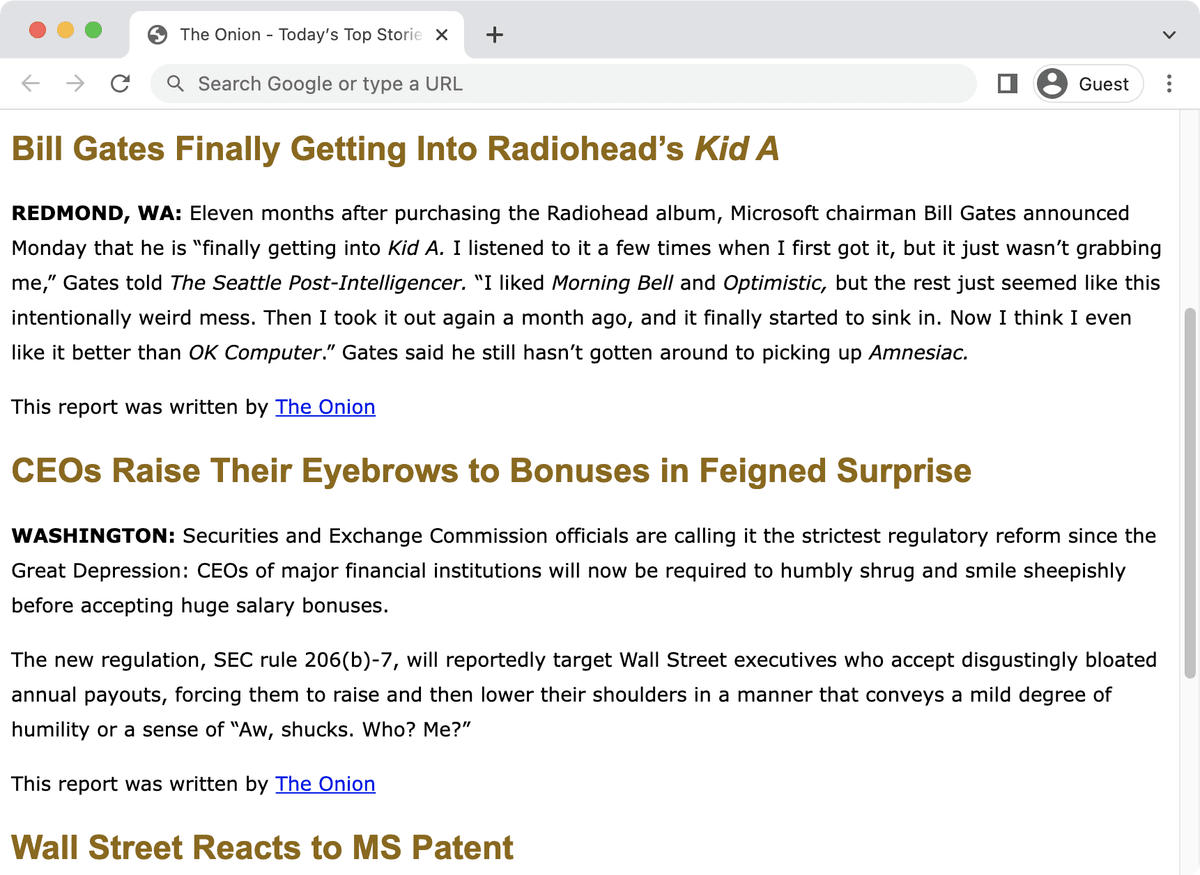
Exercise Overview
In this exercise, you’ll style text (font, color, size, etc.) using Cascading Style Sheets (CSS). HTML defines the type of content: heading, paragraph, list, etc. CSS tells the browser how to style that content.
If you completed the previous exercise, index.html should still be open in your code editor, and you can skip the following sidebar. If you closed index.html, re-open it now (from the News website folder). We recommend you finish the previous exercise (1C) before starting this one. If you haven’t finished it, do the following sidebar.
If You Did Not Do the Previous Exercise (1C)
- Close any files you may have open.
- In your code editor, open index-ready-for-styles.html from the News website folder.
- Do a File > Save As and save the file as index.html, replacing the older version in your folder.
Preview the file in a browser so you can see how it looks. TIP: If you’re using Visual Studio Code with the open in browser extension installed, hit Option–B (Mac) or ALT–B (Windows) and your saved HTML document will open in your default browser.
Notice the main heading (h1), three images, and then three stories. Each story has a subheading (h2) and some paragraphs of text.
Tag Selectors: a Way to Set “Default” Appearance
- Return to index.html in your code editor.
CSS is a list of stylistic rules for the browser to follow. Because CSS works behind the scenes, it is written in the head section rather than in the body. Add the following bold code in the head, just below the title tag:
<title>The Onion—Today’s Top Stories</title>
   <style>

   </style>
</head>
A CSS selector tells the browser where to apply a style. The first type of CSS selector we’ll use is called a tag selector. It tells the browser to find all instances of a particular HTML tag and style them. Add the following bold h1 tag selector inside the
<style>tag:<style> h1 { } </style>This rule will target all the h1’s on the page.
Inside the h1 tag selector add the following bold code:
h1 {
   font-family: Arial, Helvetica, sans-serif;
   font-size: 35px;
   color: #006b3a;
}
A CSS rule is the selector (in this case h1) through the closing curly brace. Inside the curly braces
{}we add property declarations. For each predefined CSS property (font-size, color, etc.) we set a value (35px, #006b3a, etc.).We recommend putting each property on its own indented line, which your code editor may do automatically. It’s not required, but makes the code easier to read.
Save the file.
Return to the browser and reload the page to see that the heading at the top has changed. Awesome!
The Font-Family Property
The font-family property is a wish list. The first font will be applied if it’s available on the user’s computer. The second, third, or any additional fonts will only be used if the preceding font is not available. This list is called the font stack.
Hexadecimal Color Codes
Web colors are commonly coded as a 6-digit hexadecimal value that represents RGB color values: the first 2 digits are red, the next 2 green, and the last 2 are blue. Hexadecimal values must start with a # sign:
#00ff33The letters in hex values are not case sensitive—they can be written in either upper or lowercase.
Return to index.html in your code editor.
Inside the style tags, below the h1 style, add a rule for the subheadings (h2 tags). Type only the new code that is highlighted in bold:
h1 { font-family: Arial, Helvetica, sans-serif; font-size: 35px; color: #006b3a; } h2 { font-family: Arial, Helvetica, sans-serif; font-size: 24px; color: #8f6800; } </style>- Save the file.
- Return to the browser and reload the page again to see your new heading styles. You have styled all elements in the page that have been tagged as h1 or h2.
- Let’s add another rule. Return to your code editor.
Below the h2 rule, add a rule for all paragraphs (type only the new rule that is highlighted in bold):
h2 {
      font-family: Arial, Helvetica, sans-serif;
      font-size: 24px;
      color: #8f6800;
   }
   p {
      font-family: Verdana, sans-serif;
      font-size: 14px;
      line-height: 25px;
   }
</style>
NOTE: We use line-height to adjust the space between lines of text (it’s called leading in print design). Line-height defines how tall a line of text is. Characters are vertically centered within this space, so increasing line-height adds space above and below the characters. Readability can be dramatically improved by increasing line-height, particularly if the lines of text are long.
- Save the file.
Return to the browser and reload the page. What a difference!
Units of Measure for Type in CSS
We measure screens in pixels, so pixels are commonly used to size type in webpages. There are other types of measurement such as ems and rems. They are proportional, and require a bit of math to figure out the type size. We’re starting with pixels because they are easier.