Multiple Backgrounds & Viewport Sizing Units (vw)
What This Tutorial Covers
Layered Backgrounds
Stack multiple background images on one element.
vw & vh Units
Sizes relative to viewport width and height.
Responsive Hero
Build full-width hero sections that scale.
Noble Desktop's Front-End Web Development Certificate teaches HTML, CSS, and JavaScript — the complete front-end foundation.
Learn how to add multiple backgrounds to a single element, colorize a photo by overlaying a transparent gradient, and size text relative to the screen size in this comprehensive HTML & CSS tutorial.
Topics Covered in This HTML & CSS Tutorial:
Multiple Backgrounds on a Single Element, Colorizing a Photo by Overlaying a Transparent Gradient, Using Viewport Sizing Units (vw)
Exercise Preview
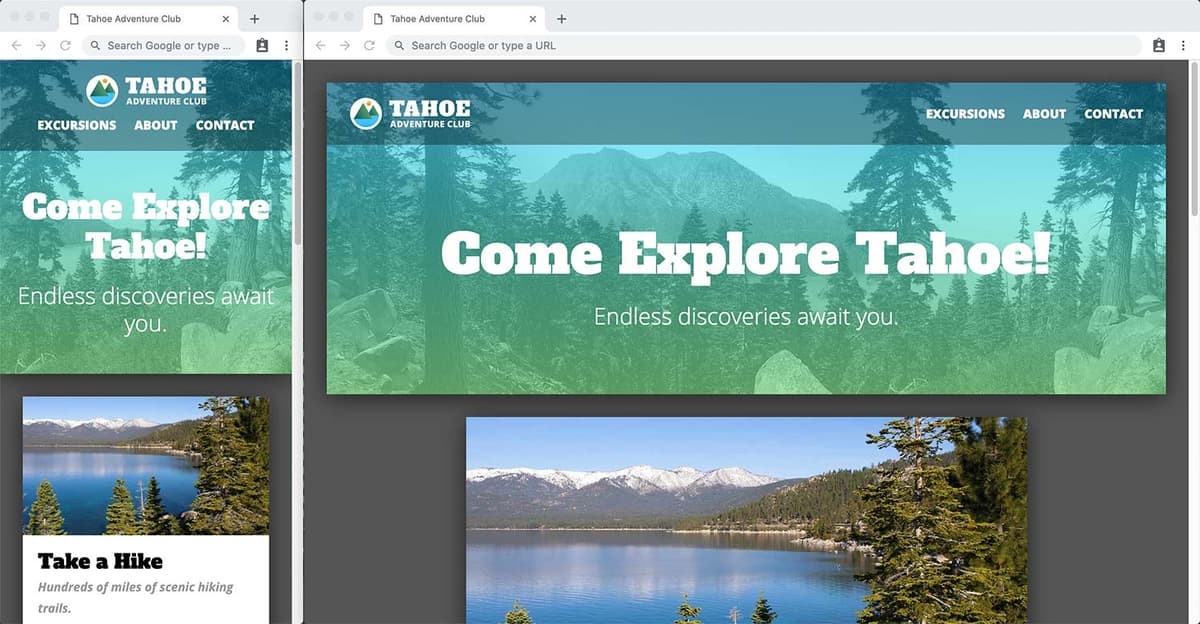
Exercise Overview
In this exercise, you’ll learn how to add multiple backgrounds to a single element. You’ll size type relative to the screen size (so type gets larger on larger screens).
Multiple Backgrounds
We are not limited to only a single background! We can use a comma separated list of backgrounds.
- In your code editor, close any files you may have open.
- We’ll be working with the Tahoe Multiple Backgrounds folder located in Desktop > Class Files > Advanced HTML CSS Class. Open that folder in your code editor if it allows you to (like Visual Studio Code does).
- Open index.html from the Tahoe Multiple Backgrounds folder.
Preview index.html in a browser.
This is the same content we’ve been working with, but we made some design changes. Let’s add a pattern over the header’s background photo.
NOTE: We used some new concepts to create this design (such as drop shadows) which we’ll cover later in this book.
- Switch back to your code editor and open main.css from the css folder (in the Tahoe Multiple Backgrounds folder).
Find the header rule and add the following code shown in bold. Don’t miss the comma at the end!
header {
   background: url(../img/pattern.svg),
               url(../img/masthead.jpg) right top / cover;
   color: #fff;
}
NOTE: The order of backgrounds matter. The first will be on top, the second will be under that, the third would be behind that, and so on.
Save the file and reload the browser.
- You should see a blue diamond patten over the black and white photo.
- We know this doesn’t look good, but we wanted this example to make it easy for you to see how the pattern is on top (because it’s the first background image in the list), and the photo is behind that (because it’s second in the list). Now let’s make something that looks better!
Coloring a Background Image by Overlaying a Gradient
Because CSS gradients are background images, you can combine a background image and a background gradient on a single element!
Return to main.css and change the pattern to a gradient, using the following code shown in bold:
header {
   background: linear-gradient(rgba(0,201,255,1), rgba(146,254,157,1)),
               url(../img/masthead.jpg) right top / cover;
   color: #fff;
}
Save the file and reload the browser.
You should only see the gradient, because we made the alpha setting in our RGBA value 1, which means 100% opaque. Let’s make it transparent so we can see through to the photo behind.
Return to main.css and change the two alpha values from 1 to .6 as show in bold:
background: linear-gradient(rgba(0,201,255, .6), rgba(146,254,157, .6)),
            url(../img/masthead.jpg) right top;
}
Save and preview index.html in a browser.
Sweet, now you can see through the gradient to see the underlying background image. What a cool way to color an image!
Sizing Type to the Viewport
Resize the window from a wide desktop size to a narrow mobile view, noticing the heading font size remains a fixed size.
On small screens the type is a bit big, and on large screens the type is a bit small. Instead of using a fixed pixel size, we can switch to viewport units which are relative to the size of the window/screen.
- Return to your code editor.
In the h1 rule, edit the font-size value as shown below in bold:
h1 {
   font-size: 11vw;
   margin-bottom: 20px;
Code Omitted To Save Space
}NOTE: How does this work? 11vw is like 11% of the viewport width. On a 320px screen, 320 X.11 = 35.2px type. On a 1200px screen, 1200 X.11 = 132px type. So the type will be larger on larger screens!
- Save the file.
Switch back to the browser and reload. Resize the window from narrow to wide and notice how the font size changes in relation to the viewport size. It looks good at a mobile phone size, but huge at a desktop size!
When the window is larger than about 600px, the heading starts dominating the page too much. Let’s reduce the size on larger screens.
- Return to your code editor.
Towards the bottom of the file, inside the min-width: 600px media query add a new rule for the h1 as shown below in bold:
@media (min-width: 600px) { h1 { font-size: 7.5vw; } main {- Save the file.
Switch back to the browser and reload.
- Resize the window from mobile through desktop size to check out the type as the size changes.
- The type size is good on small and medium screens, but is too big on wide screens.
- Return to your code editor.
At the bottom of the file, inside the min-width: 1100px media query add a new rule for the h1 as shown below in bold:
@media (min-width: 1100px) { h1 { font-size: 6vw; } body {- Save the file.
Switch back to the browser and reload. Resize the window from mobile through desktop size and it should now look good from small to big!