April 1, 2026Dan Rodney/15 min read

Creating Columns: Intro to CSS Grid & Media Queries

Master responsive layouts with CSS Grid and media queries

Core Technologies You'll Master

CSS Grid

Create flexible column layouts using fractional units and grid properties. Learn to define grid containers and control item positioning.

Media Queries

Apply conditional CSS based on screen size. Implement responsive breakpoints that adapt your layout across devices.

Mobile-First Design

Start with mobile layouts and enhance for larger screens. Configure viewport settings for proper mobile rendering.

Topics Covered in This HTML & CSS Tutorial:

Master the fundamentals of responsive web design: Creating a sophisticated 2-column layout with CSS Grid, identifying optimal breakpoints for seamless user experiences, and implementing media queries to deliver adaptive layouts across all screen sizes.

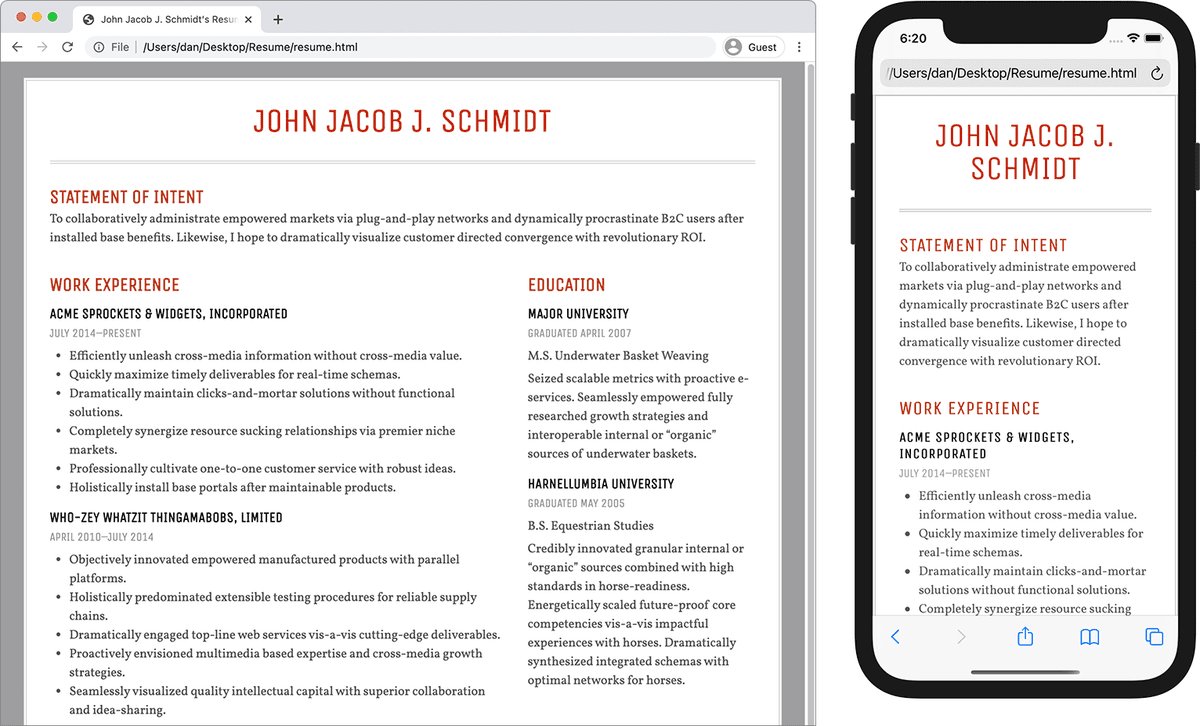
Exercise Preview

preview grids

Exercise Overview

In this comprehensive exercise, you'll harness the power of CSS Grid to create a professional, responsive layout that adapts intelligently to different screen sizes. You'll learn to implement industry-standard responsive design patterns, transitioning seamlessly from a mobile-first single-column layout on smaller screens to an elegant 2-column layout on larger displays. This approach reflects modern web development best practices used by leading organizations worldwide.

By the end of this tutorial, you'll have hands-on experience with CSS Grid's flexible layout system, understand how to identify effective breakpoints through user-centered design thinking, and master media queries—the foundation of responsive web design that ensures your content looks exceptional on everything from smartphones to ultrawide monitors.

Getting Started

  1. In your code editor, close any files you may have open to start with a clean workspace.
  2. For this exercise we'll be working with the Resume folder located in Desktop > Class Files > Web Dev Class. We strongly recommend opening this entire folder in your code editor if it supports folder navigation (like Visual Studio Code, Sublime Text, or Atom) to streamline your workflow.
  3. Open resume.html from the Resume folder.
  4. Preview resume.html in Chrome. We're specifically using Chrome because we'll leverage its industry-leading DevTools for responsive design testing later in this exercise.
  5. Take a moment to examine the current page structure. Notice that while the page includes basic styling, our primary objective is to transform the layout by positioning the Work Experience section on the left and the Education section on the right, creating a professional 2-column design that maximizes screen real estate effectively.

    Pro Tip: Keep resume.html open in your browser throughout this exercise. This allows you to quickly reload the page (Cmd+R or Ctrl+R) to see your changes in real-time—a workflow technique used by professional developers to maintain rapid iteration cycles.

  6. Let's examine the HTML structure that will form the foundation of our grid layout. Switch back to your code editor.
  7. Study the code architecture to understand how the elements will interact within our grid system, focusing on these key structural elements:

    • Line 11 contains the wrapper div—this serves as the primary container that will control the overall page width and centering.
    • Inside the main element (starting on line 15), you'll find 3 distinct primary sections, each with a unique id that we'll target with CSS.
    • Our layout strategy: the statement section (line 16) will span the full width across 2 columns, positioned above the experience section (line 20) in the left column, with the education section (line 55) occupying the right column.
  8. Now we'll implement the CSS that brings this layout to life. Open main.css from the Resume folder.

Project Setup Process

1

Open Project Files

Navigate to Desktop > Class Files > Web Dev Class > Resume folder and open resume.html in your code editor

2

Preview in Chrome

Open resume.html in Chrome browser to see the current layout and prepare for DevTools usage

3

Examine HTML Structure

Review the wrapper div, main element with 3 sections, and identify target elements for grid layout

Creating a 2-Column Layout with CSS Grid

CSS Grid represents the most powerful and flexible layout system available in modern web development. Unlike older layout methods that relied on floats or positioning hacks, Grid allows us to define explicit column and row structures with precise control. We'll establish our grid on the parent container, which automatically transforms its direct children into grid items that can be positioned with surgical precision.

  1. At the bottom of your CSS file, below all existing rules, add this foundational grid configuration:

    main {
       display: grid;
       grid-template-columns: 2fr 1fr;
    }

    Understanding the 'fr' Unit: The fr (fractional) unit represents one of CSS Grid's most elegant innovations. According to the W3C specification (tinyurl.com/fr-unit), an fr unit "represents a fraction of the leftover space in the grid container." Think of fr as "free space"—the browser first calculates any fixed-width elements (like those specified in pixels), then distributes the remaining available space proportionally among elements using fr units. In our case, 2fr 1fr creates a left column that's twice as wide as the right column, automatically adapting to any screen size.

  2. Save main.css and switch to your browser.
  3. Reload resume.html to see your grid in action.

    You'll notice we've successfully created our 2-column structure with the left column appropriately wider than the right. However, the Statement of Intent currently appears cramped in the left column—we'll fix this by making it span both columns. You'll also observe that the Education section has moved to a second row, occupying the left column of that row. This demonstrates CSS Grid's automatic flow behavior.

  4. Return to main.css in your code editor.
  5. Add this rule to make the statement section span across both columns:

    #statement {
       grid-column: span 2;
    }

    The span keyword tells the element to extend across the specified number of columns, creating the full-width header effect we want.

  6. Save main.css and reload resume.html in the browser.

    Excellent! Our layout structure is now correct, but professional layouts require appropriate spacing to enhance readability and visual hierarchy.

  7. Switch back to main.css in your code editor.
  8. Enhance your main rule by adding the gap property:

    main {
       display: grid;
       grid-template-columns: 2fr 1fr;
       gap: 30px;
    }

    The gap property is a modern CSS Grid feature that creates consistent spacing between all grid items, both horizontally and vertically, without the margin calculation headaches of traditional layout methods.

  9. Save main.css and reload resume.html to see the improved spacing.

    Our desktop layout now looks professional and polished. However, responsive design requires us to consider how this layout performs across the full spectrum of devices—from smartphones to tablets to ultrawide monitors. The current 2-column design, while perfect for desktop screens, becomes problematic on smaller devices where horizontal space is at a premium.

The fr unit represents a fraction of the leftover space in the grid container
Understanding fractional units is key to flexible grid layouts that adapt to available space

Grid Column Distribution

FeatureLeft ColumnRight Column
Grid Value2fr1fr
Space Allocation2/3 of available width1/3 of available width
Content PurposeWork ExperienceEducation
Recommended: Use fractional units for responsive layouts that adjust to screen size

Finding an Appropriate Breakpoint

Breakpoint selection is both an art and a science in responsive design. Rather than arbitrarily choosing common device widths, modern best practice involves testing your actual content to find where the design naturally breaks down. This content-driven approach ensures your layout works well for users regardless of their specific device.

  1. Let's evaluate our current design across different screen sizes. Make your browser window as narrow as possible and identify the usability issues that emerge:

    • The 2-column layout becomes illegible when compressed into narrow widths typical of mobile devices. Text columns become too narrow for comfortable reading, creating a poor user experience.

    • The gray margin around the page, while attractive on larger screens, wastes precious screen real estate on mobile devices where every pixel matters for content visibility.

  2. Expand your browser window to a comfortable reading width.

    To determine our optimal breakpoint—the screen width where we should transition between layouts—we'll use Chrome's DevTools, which provide precise viewport measurements unavailable in other browsers.

  3. Open Chrome's DevTools using these keyboard shortcuts:

    • Mac: Cmd+Option+I or F12 (you may need to hold the fn key with F12 on some MacBook keyboards)
    • Windows: Ctrl+Shift+I or F12 (you may need to hold the fn key with F12 on some keyboards)
  4. Gradually resize your browser window while monitoring the top-right corner of the preview area, where Chrome displays real-time pixel dimensions of the viewport. This live feedback is invaluable for identifying natural breaking points.
  5. Identify the width where the 2-column layout begins to feel cramped and content becomes difficult to scan. Through extensive user testing, we've found that around 700 pixels represents an optimal breakpoint for most content-heavy layouts like resumes. This width accommodates most tablet orientations while ensuring comfortable reading on larger screens.
  6. For optimal testing of our upcoming responsive changes:

    • Resize your browser window to be narrower than 700 pixels to simulate mobile viewing conditions
    • Keep both the webpage and DevTools open for continuous testing—this mirrors professional development workflows
Using Chrome DevTools for Breakpoint Testing

Open DevTools with Cmd-Opt-I (Mac) or Ctrl-Shift-I (Windows) and resize the window while watching the pixel dimensions in the top-right corner. Look for the point where the 2-column layout becomes cramped.

Common Breakpoint Ranges

Mobile
480
Tablet
700
Desktop
1,024
Large Desktop
1,200

Using a Media Query to Change the Layout at a Specific Screen Size

Media queries are the cornerstone of responsive web design, enabling us to apply different styles based on device characteristics like screen width, resolution, or orientation. This powerful CSS feature allows a single codebase to deliver optimal experiences across the entire spectrum of devices—a fundamental requirement in today's multi-device world.

  1. Switch back to main.css in your code editor.
  2. We'll implement a mobile-first approach by starting with mobile-optimized styles, then enhancing for larger screens. First, remove the desktop-centric margin by modifying the body rule at the top of the file:

    body {

    Code Omitted To Save Space

    background: #9e9ea0;
       margin: 0;
    }

    This mobile-first approach ensures that smaller screens get maximum content area by default.

  3. Save main.css and switch to Chrome.
  4. Reload resume.html to confirm the gray margin has been removed, giving mobile users more content space.
  5. Return to main.css in your code editor.
  6. At the bottom of your file, below all existing rules, create your first media query:

    #statement {
       grid-column: span 2;
    }
    
    @media (min-width: 700px) {
    
    }

    Let's break down this syntax:

    • The @media rule begins our media query declaration
    • The parentheses contain our condition: (min-width: 700px)
    • The curly braces will contain CSS rules that only apply when the condition is met
    • min-width means "when the browser viewport is 700px or wider"—this targets larger screens like tablets and desktops
  7. Now we can selectively apply desktop-appropriate styling. Add the body margin back for larger screens:

    @media (min-width: 700px) {
       body {
          margin: 20px;
       }
    }

    CSS Cascade in Action: This new rule overrides the margin: 0 we set earlier, but only when the screen is 700px or wider. This demonstrates the CSS cascade—later rules with equal specificity take precedence.

    Implementing Media Query Layout Changes

    1

    Remove Default Margins

    Set body margin to 0 to eliminate gray space on small screens and maximize content area

    2

    Create Media Query

    Add @media (min-width: 700px) block to target screens 700px and wider

    3

    Add Conditional Styles

    Include body margin and grid properties inside media query for large screen enhancements

Media Queries & CSS Style Order

Understanding CSS specificity and source order is crucial for effective media queries. When two rules have identical specificity, the later rule in the source code takes precedence. This is why we place media queries after general styles—the conditional rules override the base styles only when their conditions are met, creating the responsive behavior we want.

  • Save main.css and switch to Chrome.
  • Reload resume.html. With your browser narrower than 700px, the gray margin should remain absent, maximizing content area.
  • Gradually widen your browser window past 700px. Watch for the dramatic moment when the gray margin suddenly appears—this is your media query activating in real-time!
  • Resize back and forth across the 700px threshold to see the responsive behavior in action.

    CSS Specificity and Order

    When two rules have the same specificity, the latter rule wins. This is why media queries are placed below general styles - they override the base styles when conditions are met.

  • Mobile First Design Philosophy

    The mobile-first approach we're using reflects industry best practices established by leading tech companies. By writing CSS for mobile devices first (outside media queries), then progressively enhancing for larger screens (inside min-width media queries), we ensure fast loading and optimal performance on the devices with the most constraints. This methodology also forces us to prioritize content and functionality—if it works on mobile, it will excel on desktop.

  • Switch back to main.css in your code editor.
  • Implement mobile-first grid behavior by modifying the main rule to use a single column by default:

    main {
       display: grid;
       grid-template-columns: 1fr;
       gap: 30px;
    }

    This creates a single column that utilizes all available space—perfect for mobile reading patterns where users scroll vertically through content.

  • Save main.css and reload resume.html in Chrome.
  • You'll notice the layout still tries to create two columns because our #statement rule is still forcing a span of 2 columns. We need to move this desktop-specific rule into our media query.

  • In main.css, cut the entire #statement rule (select it and use Cmd+X or Ctrl+X).
  • Paste it inside the media query:

    @media (min-width: 700px) {
       body {
          margin: 20px;
       }
       #statement {
          grid-column: span 2;
       }
    }

    Now the statement will only span two columns on larger screens where we actually have two columns.

  • Save main.css and reload resume.html in Chrome.
  • Perfect! Now you have a clean single-column mobile layout. Let's add the 2-column behavior for larger screens.

  • In your media query, add the desktop grid configuration:
  • Add a main rule inside your media query:

    @media (min-width: 700px) {
       body {
          margin: 20px;
       }
       main {
          grid-template-columns: 2fr 1fr;
       }
       #statement {
          grid-column: span 2;
       }
    }

    This overrides our mobile single-column layout with the 2-column desktop layout when the screen is wide enough.

  • Save main.css and reload resume.html in Chrome.
  • Test your responsive design by resizing the browser window. You should see a smooth transition between the single-column mobile layout and the 2-column desktop layout at the 700px breakpoint. This is professional-grade responsive behavior!

  • Mobile-First vs Desktop-First Approach

    FeatureMobile-FirstDesktop-First
    Base CSSMobile layoutDesktop layout
    Media Querymin-width for larger screensmax-width for smaller screens
    PerformanceFaster mobile loadingMore mobile overhead
    MaintenanceEasier to enhance upHarder to strip down
    Recommended: Use mobile-first approach for better performance and maintainability

    Disabling Mobile Browser Text Size Adjustment

    Mobile browsers often implement automatic text scaling algorithms, attempting to improve readability by enlarging text they perceive as too small. While well-intentioned, this feature can disrupt carefully crafted responsive designs by creating inconsistent typography. Professional developers disable this behavior to maintain precise control over their designs.

    1. In the DevTools panel, click the Toggle device toolbar button devtools device mode icon to activate Chrome's device simulation mode.
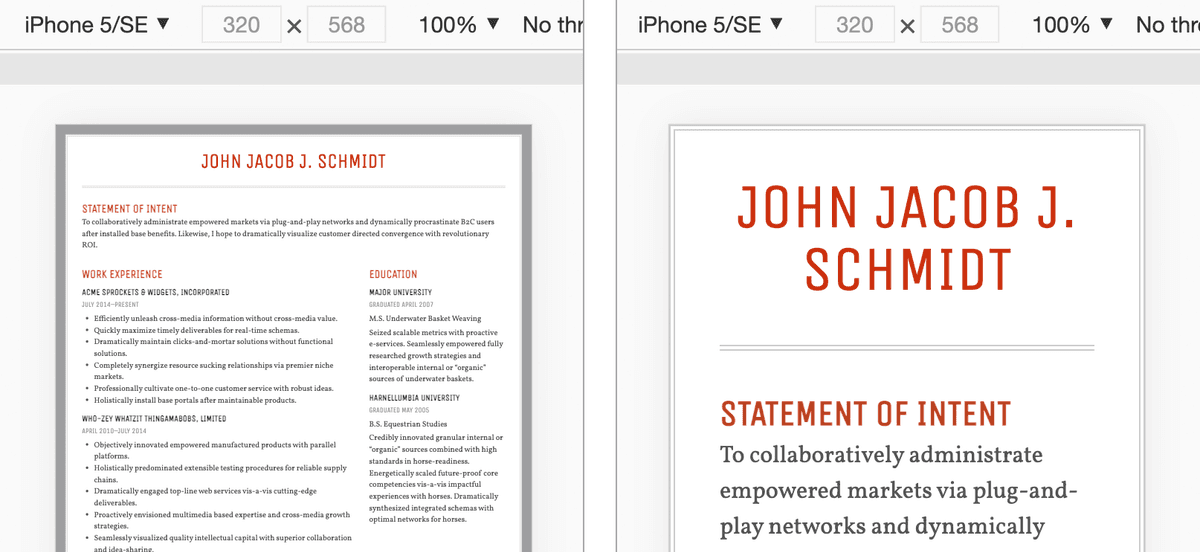
    2. In the device selector dropdown above the webpage preview, choose iPhone 5/SE to simulate a common mobile form factor:

      device preview choose iphone resume

    3. Reload the page using the reload button or Cmd+R (Mac) / Ctrl+R (Windows).
    4. Observe the current behavior: the page appears to show a scaled-down version of the desktop layout rather than our intended mobile-first single-column design. Additionally, notice the inconsistent text sizing—some elements like headings and paragraphs appear less scaled than others. This inconsistency occurs because mobile browsers selectively enlarge text they determine is "too small," disrupting our intentional design hierarchy.
    5. Switch back to your code editor to address this issue.
    6. Navigate to Resume > snippets and open text-size-adjust.css—a CSS snippet we've prepared to solve this common mobile development challenge.
    7. Select all content with Cmd+A (Mac) or Ctrl+A (Windows).
    8. Copy the code with Cmd+C (Mac) or Ctrl+C (Windows).
    9. Close the snippet file.
    10. At the top of main.css, paste the code above your existing body rule:

      html {
         -moz-text-size-adjust: 100%;
         -webkit-text-size-adjust: 100%;
         text-size-adjust: 100%;
      }
      body {

      These vendor-prefixed properties disable automatic text scaling across all major mobile browsers, ensuring your typography remains consistent with your design intentions.

    11. Save main.css and reload the page in Chrome's device mode.
    12. The text sizing is now consistent, but you'll notice we still see the scaled-down desktop layout instead of our responsive mobile design. This occurs because mobile browsers, by default, assume websites weren't designed responsively and render them at a virtual width of 980px before scaling down to fit the screen. We need to override this behavior.

    The Viewport Meta Tag

    The viewport meta tag is essential for responsive design, telling mobile browsers to render your page at the device's actual screen width rather than the default 980px virtual viewport. Without this tag, even the most sophisticated responsive CSS will be ignored as browsers attempt to display desktop layouts on mobile screens.

    1. Keep Chrome in device mode so you can immediately see the impact of this critical change.
    2. In your code editor, switch to resume.html.
    3. In the <head> section, add the viewport meta tag:

      <head>
         <meta charset="UTF-8">
         <meta name="viewport" content="width=device-width, initial-scale=1">
         <title>John Jacob J. Schmidt's Resume</title>

      This meta tag communicates two critical instructions to mobile browsers:

      • width=device-width: Set the viewport width to match the device's screen width
      • initial-scale=1: Don't zoom in or out—display content at actual size
    4. Save the file and reload the page in Chrome's device mode.

      The transformation should be dramatic! You now see your intended mobile-optimized single-column layout instead of the scaled-down desktop version. This single line of HTML is often the difference between a professional responsive website and one that frustrates mobile users.

      viewport meta tag before after resume

      The before-and-after comparison above illustrates why the viewport meta tag is considered essential in modern web development.

    Viewport Meta Tag Impact

    Pros
    Renders at actual device pixel width instead of default 980px
    Enables proper responsive layout on mobile devices
    Prevents unwanted scaling behavior on phones and tablets
    No effect on desktop browsers - only improves mobile experience
    Cons
    Required step that's easy to forget
    Without it, mobile layouts appear broken or scaled incorrectly
    Critical Mobile Configuration

    The viewport meta tag is essential for responsive design. Without it, mobile browsers assume your site was designed for desktop and scale it down, breaking your responsive layout.

    Optional Bonus: Adjusting Text Size Across Screens

    Fine-tuning typography across breakpoints is a hallmark of polished responsive design. While our layout now works well across devices, we can enhance readability by optimizing text sizes for each screen size, ensuring comfortable reading experiences whether users are on phones or large monitors.

    1. Switch back to main.css in your code editor.
    2. In the existing h1 rule, reduce the font size to be more appropriate for mobile screens by changing font-size to 32px.
    3. Inside your media query, add a larger font size for desktop viewing:

      @media (min-width: 700px) {
         body {
            margin: 20px;
         }
         h1 {
            font-size: 42px;
         }

      This approach ensures mobile users aren't overwhelmed by oversized text while desktop users enjoy the visual impact of larger typography.

    4. Save main.css and reload resume.html in Chrome.

      The mobile layout now demonstrates optimal typography scaling. Let's verify our desktop layout maintains its professional appearance.

    5. Click the Toggle device toolbar button devtools device mode icon to exit device simulation mode.
    6. Close the DevTools panel to return to full desktop view.

      Excellent! Your responsive design now delivers optimized experiences across the full spectrum of devices, from smartphones to desktop monitors. This level of attention to detail separates professional web development from amateur attempts.

    Responsive Typography Strategy

    FeatureMobile (Base)Desktop (700px+)
    H1 Font Size32px42px
    ReadabilityOptimized for small screensLarger for impact
    ImplementationDefault CSS ruleMedia query override
    Recommended: Start with mobile-optimized text sizes and enhance for larger screens

    Modern Media Query Syntax

    While you may encounter older media query syntax in legacy codebases that includes verbose declarations like @media only screen and (query), the simplified syntax we've used throughout this tutorial represents current best practices. The only screen and portion was necessary for older browsers that are no longer in significant use, making this additional verbosity unnecessary in 2026. Modern development prioritizes clean, maintainable code that focuses on the essential functionality.

    @media only screen and (query) {
       /* Legacy verbose syntax */
    }

    Key Takeaways

    1CSS Grid with fractional units (fr) creates flexible column layouts that adapt to available space
    2Media queries with min-width enable mobile-first responsive design by applying styles to larger screens
    3The 700px breakpoint effectively separates mobile single-column from desktop multi-column layouts
    4CSS rule order matters - media queries must come after base styles to properly override them
    5The viewport meta tag is essential for mobile responsiveness, preventing unwanted scaling behavior
    6Mobile browsers automatically adjust text sizes unless disabled with text-size-adjust properties
    7Grid properties like grid-template-columns and grid-column span control layout structure and item positioning
    8Chrome DevTools provide real-time pixel dimensions for testing responsive breakpoints during development

    RELATED ARTICLES