Specificity, Shared CSS, & Centering Content
What This Tutorial Covers
CSS Specificity
How browsers resolve conflicting selectors.
Shared Styles
Reusable classes and component patterns.
Centering Techniques
Modern centering with Flexbox and Grid.
Noble Desktop's Front-End Web Development Certificate teaches HTML, CSS, and JavaScript — the complete front-end foundation.
Immerse yourself in this tutorial on HTML and CSS, where you'll delve into topics such as CSS specificity, overriding link rules, and sharing styles across a site, complete with comprehensive exercises and overviews for practical application.
Topics Covered in This HTML & CSS Tutorial:
CSS Specificity, Overriding Other Link Rules, Moving Embedded Styles into an External CSS File, Sharing Styles Across a Site, the Text-align Property, Centering Divs
Exercise Preview
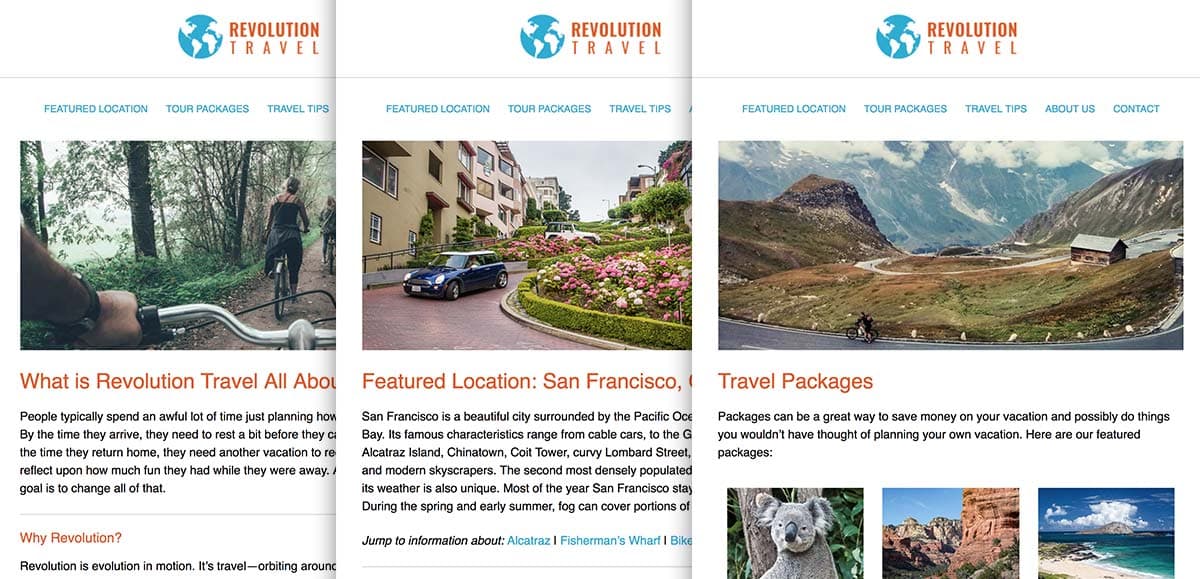
Exercise Overview
In this exercise you’ll finish styling the Revolution Travel site and learn about the following concepts:
- As you finish styling the :visited and :hover states on the navigation, you’ll learn how specific CSS styles override general CSS styles… a concept called specificity.
- CSS styles can be embedded into individual pages (as we’ve been doing) or shared across multiple pages (as you’ll learn about in this exercise). Styles are often shared across pages to ensure consistent styling and to changes easier (one change updates all linked pages). It also reuses the code, making the website load faster.
- The page you’ve been working on has a lot of space on the right on wide screens. In this exercise you’ll learn how to center the content within the window.
If you completed the previous exercise, sanfran.html should still be open, and you can skip the following sidebar. If you closed sanfran.html, re-open it now. We recommend you finish the previous exercises (3B–4C) before starting this one. If you haven’t finished them, do the following sidebar.
If You Did Not Do the Previous Exercises (3A–4B)
- Close any files you may have open.
- On the Desktop, go to Class Files > Web Dev Class.
- Delete the Revolution Travel folder if it exists.
- Duplicate the Revolution Travel Ready for Shared CSS folder.
- Rename the folder to Revolution Travel.
Customizing the Visited & Hover States of the Main Nav
Preview sanfran.html in a browser and notice the following:
We like the link, visited, and hover styles, but we want to make some minor tweaks specifically to the links in the main site navigation. If you’ve visited other pages, those links in the main navbar (at the top of the page) should be gray. If you haven’t, click a link and then use the back button to return to sanfran.html. Now you should see a gray link.
The links for pages you have not visited should be blue. We don’t think it’s necessary to mark visited links in the main site nav, so let’s set the nav links to always be blue.
- Return to sanfran.html in your code editor.
In the previous exercise we saw that we can style just the elements that are within a parent element. Let’s style the link’s visited state, but only for links in the nav section. Below the rule for nav a add the following new rule:
nav a {
   padding: 10px;
   display: inline-block;
   font-size: 13px;
   text-transform: uppercase;
}
nav a:visited {
   color: #13aad7;
}
Save the file and reload the page in the browser and notice:
- All the nav links should now be blue (as we want).
Hover over each link in the nav, and notice that the orange hover color does not work on the visited links. Why is that?
The a:hover rule (which makes hovers orange) targets all links. The new nav a:visited rule is more specific because it only targets links in the nav. CSS specificity is how browsers decide which rule to apply. More specific rules override less specific rules (regardless of their order in the code). Adding the additional tag selector (nav) increases the specificity, so our nav a:visited rule overrides the a:hover rule. To style the hover state of links in the nav, we’ll need to make a rule with a greater specificity than the a:hover rule.
More About CSS Specificity
How specificity is calculated: css-tricks.com/specifics-on-css-specificity
Specificity calculator: codecaptain.io/tools/css-specificity-calculator
Below the nav a:visited rule, add the following new rule:
nav a:hover { color: #e45c09; }- Save the file and reload the page in the browser.
- Hover over each link in the nav and notice the orange hover works again!
- Return to sanfran.html in your code editor.
We don’t want the underline, so to finish our link styling, add the following property to the nav a:hover rule:
nav a:hover {
   color: #e45c09;
   text-decoration: none;
}
While we’re here, we also want this to be the appearance of the focus state. Add a comma and nav a:focus to the selector. Do not miss the comma!
nav a:hover, nav a:focus { color: #e45c09; text-decoration: none; }- Save the file and reload the page in the browser.
Hover over the links in the nav and notice that only the color changes. Simple and clean, just what we wanted.
If you want to test the focus state, press Tab a few times until a nav link is highlighted and you should see the text turn orange.
Creating & Linking to an External Style Sheet
Let’s move these embedded styles into an external style sheet so they can be shared across the entire site.
- Return to sanfran.html in your code editor.
- In sanfran.html select all the rules inside the
<style></style>tag. Start with the body rule and go all the way down to—and include—the closing curly brace of the .img-right rule. - Cut the rules (Cmd–X (Mac) or CTRL–X (Windows)).
- Open main.css in your code editor (it’s in the Revolution Travel folder). This is a blank file we’re providing that should not have any code yet.
- Paste (Cmd–V (Mac) or CTRL–V (Windows)) the rules.
- Save main.css and keep it open.
- Return to sanfran.html in your code editor. Save the file.
Take a moment to preview sanfran.html (NOT main.css) in a browser to note what it looks like without its CSS.
NOTE: Previewing a CSS file only shows the lines of code—with none of the HTML content it styles. So you don’t accidentally preview main.css, we recommend leaving sanfran.html open in your browser so you can reload the page to test the code as you continue.
Return to sanfran.html in your code editor and delete the empty style tags:
<style>

</style>
Where the style tags used to be, type the following line of code:
<link rel="stylesheet" href="main.css">Note the required attributes of the link tag:
- The rel attribute states the relationship of the linked document… it’s a style sheet!
- The href provides the hyperlink reference to the style sheet file.
Save the file and reload your page in the browser to see how that one little line of code pulls in all the styles in the linked file. Your styles can now be shared across the other pages in the site as well.
NOTE: Like images, the CSS file must be uploaded along with the HTML pages to your remote web server in order for visitors to see the styles.
Linking Styles to Other Pages
Now that we have styles in an external style file, we can share them across the entire site. Each page will have to be linked to the CSS file, but then we’ll be able to edit styles for the entire site in one convenient file!
- Return to your code editor.
Copy (Cmd–C (Mac) or CTRL–C (Windows)) the code you just wrote in sanfran.html:
<link rel="stylesheet" href="main.css">- There should be six provided HTML files located in whichever Revolution Travel folder you are working in. (You may have already opened and edited the contact page in an earlier exercise.) There should be no styles—embedded or linked—in these files as of yet.
- Open about.html in the code editor.
Paste the link code into the head tag as shown:
<head> <meta charset="UTF-8"> <title>About Revolution Travel—Revolution Travel</title> <link rel="stylesheet" href="main.css"> </head>- Save the file and then close the file.
With the code still copied on your clipboard, repeat steps 4–6 with the following files. Be certain to paste the link code after the title and above the closing head tag, as shown in the example above.
- Contact.html
- Index.html
- Tips.html
- Make sure you saved all the files and closed them.
Open packages.html and paste the link code into the head tag of the document:
<head>
   <meta charset="UTF-8">
   <title>Featured Travel Packages—Revolution Travel</title>
   <link rel="stylesheet" href="main.css">
   <style>.featured-package {
Note that this file has some embedded styles as well that apply to elements that only appear on this page. Make sure to paste the linked style sheet above the embedded styles as a best practice.
- Save the file and then close it.
Go ahead and preview any HTML page (NOT main.css) in the browser and test out the links in the main site navigation. Enjoy the look and feel of the shared style sheet. Keep the browser open to any of these pages so you can reload the browser to test the code as you continue.
Linked Styles Vs. Embedded Styles
Embedded styles can happily coexist with linked styles from an external style sheet. It’s not an either/or proposition.
Linked style sheets allow you to maintain a cohesive appearance for elements across a site, but there may be elements on a single page that are not repeated elsewhere (so there’s no need to share those styles).
Embedded styles may also be used to override rules from linked styles on a page-by-page basis. To ensure that embedded styles will override rules in a shared style sheet, place the embedded styles below the link to the shared style sheet.
Centering the Logo & Nav Content
- Let’s center the logo in the header. Open main.css in your code editor (if it’s not already open).
Find the rule for header and add the following property declaration (in bold):
header {
   padding-bottom: 20px;
   border-bottom: 1px solid #ccc;
   margin-bottom: 20px;
   text-align: center;
}
The Text-Align Property
Although images are obviously not text, they are inline elements. Inline elements like text, anchor tags, and images will be placed horizontally in a line, rather than stacking like blocks (as paragraphs, headings, and divs do). All inline elements can be aligned horizontally using CSS’s text-align property.
- Save the file.
Reload any of the site’s pages in the browser to see the centered logo.
One change to our CSS file is shared across all the HTML pages that link up to it. Let’s center the content in the navigation the same way.
- Return to main.css.
In the nav rule, add the text-align property (in bold):
nav {
   margin-bottom: 20px;
   text-align: center;
}
Save the file, return to the browser, and reload the page to see how the logo and your nav center up in the browser window.
Centering the Page Content
It would be great if we could change the rest of the content to a centered format. Thanks to our shared CSS, one modification will affect the entire site.
- Return to main.css in your code editor.
In the main rule, add the following new properties (in bold):
main {
   width: 90%;
   max-width: 800px;
   margin-bottom: 30px;
   margin-left: auto;
   margin-right: auto;
}
Save the file and reload any of the site’s pages in a browser. Notice that all the main content is centered across the board. Amazing.
Remember: To center an element, set a width for the element and then specify the margins on the left and the right to be auto. The effect horizontally centers the element within its container (which in this case is the body of the document).
Return to main.css in your code editor and edit the footer rule to center it as well:
footer {
   width: 90%;
   max-width: 800px;
   margin-left: auto;
   margin-right: auto;
}
Save the file and reload any of the site’s pages to see the improved layout.
Fine-Tuning Margins & Padding
We want the border below the header section to go all the way to the edge of the browser window. The default of all major browsers is to render the body element with about 8px of margin. This puts space between the edge of the browser window and the content of the page. Let’s remove that space.
- Return to main.css in your code editor.
Go to the very top and edit the rule for body as follows:
body {
   font-family: sans-serif;
   margin: 0;
}
NOTE: Are you surprised that we’re adjusting margin instead of padding? Typically padding is space inside an element, and margin is space outside. By default the body element has some margin, but no padding. Because the body fills the browser window it’s unique. Its margins and padding both have to fit inside the window.
Save the file and reload any of the site’s pages in a browser to see the changes to the margin around the content of the page.
The border now touches the edges of the browser window, which is an improvement, but the logo needs a little breathing room on top. Let’s edit the header to add some padding on top to complement the padding we have on the bottom.
Return to your code editor and add padding-top to the header rule as follows:
header { padding-top: 20px; padding-bottom: 20px; border-bottom: 1px solid #ccc; margin-bottom: 20px; text-align: center; }- Save the file and reload any of the site’s pages in a browser to enjoy the improved header.
- Go to the Travel Tips page and notice the list items don’t have nice spacing like paragraphs, because we have not styled them.
Return to your code editor and find the p rule. We want to use the same styling for list items, so add a comma and li as shown below. Do not miss the comma!
p, li {
   line-height: 24px;
   margin-bottom: 22px;
}
Save the file and reload the Travel Tips page in a browser to see the list items now look nicer.
Fine-Tuning Heading Styles
- While still in the browser, go to the About Us page and take a look at the headings. The text is bold because that’s the default browser styling for headings, but let’s see how we can remove the bold.
- Return to main.css in your code editor.
We want to change both h1 and h2 tags. Instead of adding repetitive code to both the h1 and h2 rules, let’s create one rule that targets both elements. Above the rule for h1 add the following new rule:
h1, h2 { font-weight: normal; } h1 {- Save the file and reload the About Us page in a browser to see the improved headings. Notice that both the h1 and h2 elements are no longer bold.
- Return to your code editor.
- Take a look at the rules for h1 and h2 and notice they are both the same color. That should really be in our h1, h2 rule.
Add the color property to the h1, h2 rule as follows:
h1, h2 {
   font-weight: normal;
   color: #e45c09;
}
In the h1 and h2 rules, delete the color property, as you no longer need to repeat them. Your final rules for headings should be as follows:
h1, h2 {
   font-weight: normal;
   color: #e45c09;
}
h1 {
   font-size: 28px;
   line-height: 36px;
}
h2 {
   font-size: 18px;
}
Save the file.
Optional Bonus: Styling the Footer Content
Let’s make the copyright less prominent than the other text. We’ll write a style to mute the copyright text color and also move it away from the other page content.
In the footer rule (near the bottom), add the following new properties:
footer {
   width: 90%;
   max-width: 800px;
   margin-left: auto;
   margin-right: auto;
   color: #999;
   font-size: 12px;
   text-transform: uppercase;
}
Save the file and reload the About Us page to see the newly styled copyright text in the footer. Let’s place a subtle border between the copyright content in the footer and the page content.
Return to main.css in your code editor and continue to edit the rule for footer to add the following new border property:
footer {Code Omitted To Save Space
text-transform: uppercase; border-top: 1px solid #ccc; }- Save the file and reload the About Us page to see the footer’s border. Let’s add more space between the border and the footer’s copyright text.
Return to main.css in your code editor and edit the footer to add the following padding property:
footer {Code Omitted To Save Space
border-top: 1px solid #ccc; padding-top: 20px; }- Save the file and reload the About Us page to see the enhanced separation of the footer content. Let’s add the same border between page topics.
Edit the h2 rule (near the top) to add the following properties (in bold):
h2 { font-size: 18px; border-top: 1px solid #ccc; padding-top: 20px; }- Save the file and reload the About Us page.
You can keep these files open in the browser and the code editor. You’ll continue with this site in the next exercise.
How to Create a Brand New CSS File in Most Code Editors:
- Go to File > New File.
- Save the file as main.css (or another name of your choosing), and you’re all set to start coding styles.