TimelineMax: Burger Boy Banner
What This Tutorial Covers
Animation Sequence
Multi-element animation with precise timing.
Eases & Curves
Custom curves for natural-feeling motion.
Modern GSAP
TimelineMax features now consolidated into the unified Timeline class.
Noble Desktop's JavaScript Development Certificate teaches modern JavaScript — the foundation behind GSAP and other animation libraries.
Master the GreenSock Animation Platform with this comprehensive tutorial, covering topics such as creating TimelineMax, animating panels, and integrating TimelineMax's repeat and repeatDelay. Learn how to create a banner animation, preview the finished animation, and examine the DOM structure and JavaScript.
Exercise Preview
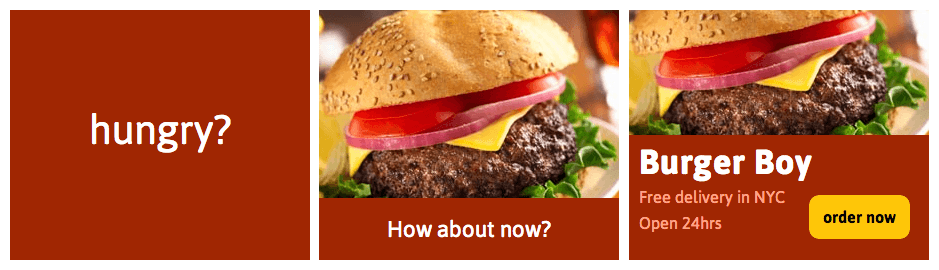
Photo courtesy of istockphoto: Paul Johnson Photography, Image #5739487
Previewing the Finished Animation
To take a look at the animation we’ll be building, open up Google Chrome.
Hit Cmd–O (Mac) or CTRL–O (Windows), navigate to Desktop > Class Files > yourname-GSAP Class > Burger Boy Banner Done, and double–click on index.html.
Watch the animation a few times to get a sense of the pacing and the interaction of the various elements. The eight-second animation might seem complicated at first, but it essentially consists of these three main panels:
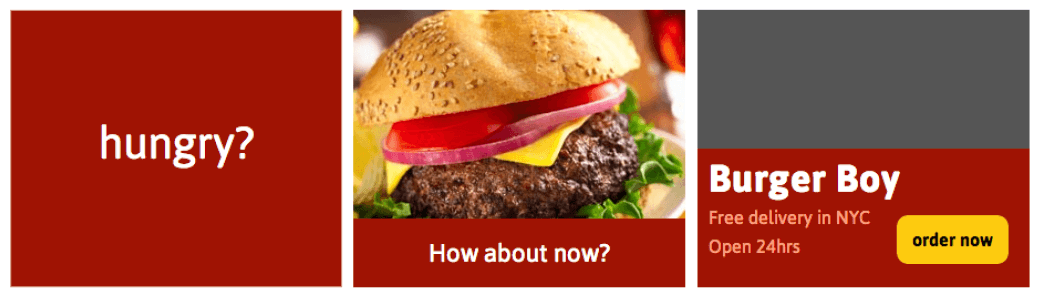
Photo courtesy of istockphoto: Paul Johnson Photography, Image #5739487
Focusing on these three components will make this complicated animation quick and easy to create. Let’s get to work!
Animating the Second Panel
Below is a diagram of the second panel. It has two elements: the burger picture, which is the panel’s background image, and a heading How about now?, with a large red background. The heading is associated with the variable $panel2Text.
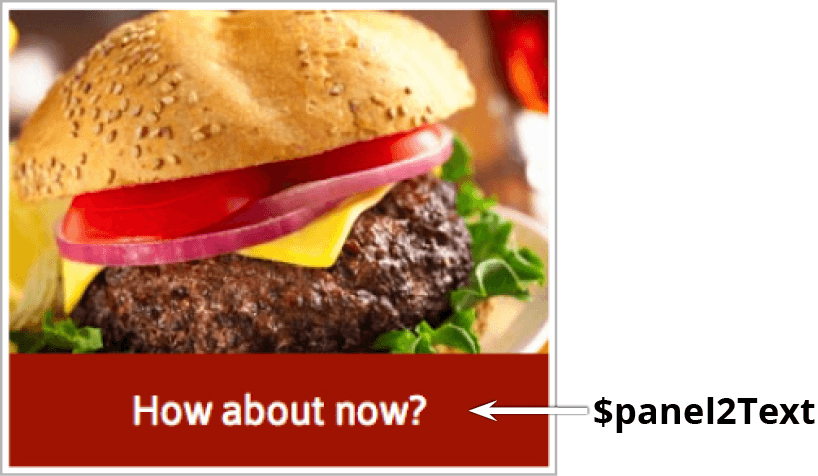
Photo courtesy of istockphoto: Paul Johnson Photography, Image #5739487
First of all, let’s position
$panel2 so it sits directly on top of$panel1 by setting its top position to 0. Add the following bold code:tl.from($panel1,0.5, {opacity:0}).from($panel1Text, 0.5, {scale:0.5, opacity:0, ease:Back.easeOut}) .set($panel2, {top:0})Save the file and preview index.html in the browser.
As soon as the hungry? text fades in,
$panel2 jumps into position to cover it. It’s a little abrupt, but we’re on the right track! Let’s give folks a little time to read the$panel1 text.Switch back to index.html in your code editor.
Add the following bold code to the set() tween you just added:
.set($panel2, {top:0}, "+=2")By adding this position parameter (which is a string value within quotation marks), we have ensured that the audience will have two full seconds to read the hungry? text before
$panel2 appears.Save the file and preview index.html in the browser. That’s much better, but
$panel2 ought to appear with some sort of transition.Switch back to index.html in your code editor.
At the bottom of the timeline, add the following bold code to scale down
$panel2 as it fades in:.set($panel2, {top:0}, "+=2") .from($panel2,0.2, {opacity:0, scale:1.5})Save the file and preview index.html in the browser. The 0.2-second scaling transition is really dynamic—perfect for an eye-catching banner ad.
Switch back to index.html in your code editor.
Add the following bold code to make the How about now? heading slide in from below the panel after viewers have a moment to savor the burger picture:
.from($panel2,0.2, {opacity:0, scale:1.5})
.from($panel2Text, 0.2, {yPercent:100}, "+=0.5")
YPercent (and xPercent) are special properties that CSSPlugin uses for doing percentage-based translations. We want the
$panel2Text to animate up from a position where its top edge is aligned with the bottom of the banner. We could try to determine the height of the element and then offset its y position by that amount, but yPercent does this for us. It basically uses a percentage of the height of the element to change its position, in this case, 100 percent of its height. To learn more about xPercent and yPercent and how they can really help with responsive animations be sure to read: greensock.com/gsap-1-13-1Save the file and preview index.html in the browser. Looking good. You will see that the
$panel2Text nicely appears from the bottom. We want the$panel2Text to disappear again after two seconds; let’s add that tween next.Switch back to index.html in your code editor.
Add the following bold code:
.from($panel2Text, 0.2, {yPercent:100}, "+=0.5")
.to($panel2Text, 0.2, {yPercent:100}, "+=2")
This code means that, after 2 seconds, the
$panel2Text will tween back to sitting perfectly below the stage (the visible area the animation takes place in).Save the file and preview index.html in the browser. Cool.
The second panel is mostly done. However, because the burger image scales in from 1.5 times its regular size, it extends (or “bleeds”) beyond the edges of the panel. This doesn’t look very tidy, so we should clean it up.
In your code editor, open the following file: Burger Boy Banner > css > style.css
Find the rule for the #banner element, which starts on line 8 and change the overflow property as shown below in bold:
#banner {
   position:relative;
Code Omitted To Save Space
overflow:hidden;
}
Save the file and preview index.html in the browser. Good, now the “bleed” is invisible. But
$panel3 is hidden also! No need to worry; it’s still there, and we’ll take care of positioning it atop the other panels momentarily.
Animating the Third Panel
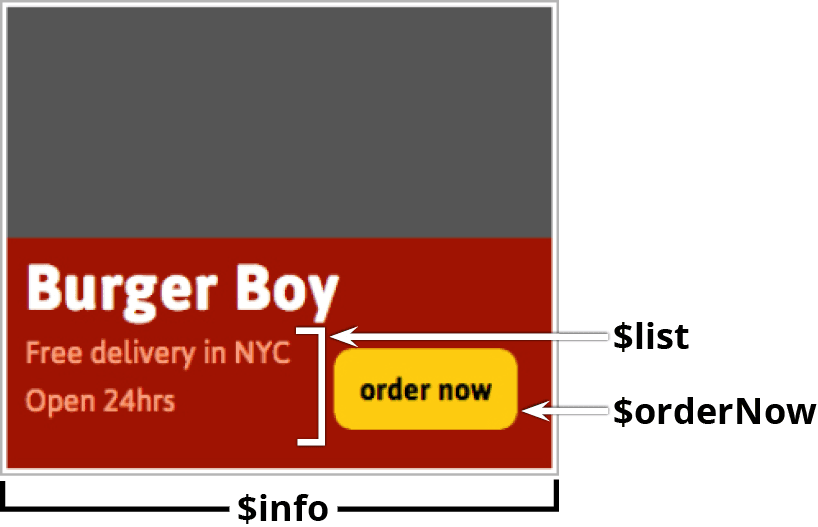
The third panel consists of three elements, as shown below. We want the red $info panel along with the Burger Boy heading to slide up first, then the $list (with two lines of information) to stagger in. Finally, the $orderNow button will appear.
Switch to index.html in your code editor.
Move
$panel3 over the other two panels by typing the following around line 55:.to($panel2Text, 0.2, {yPercent:100}, "+=2") .set($panel3, {top:0})Save the file and preview index.html in the browser. Good,
$panel3 jumps into place at the appropriate time, albeit abruptly.By now you’re probably sick of seeing the first two panels animate. Let’s use a label to skip straight to the set() for
$panel3 while we are developing and testing the rest of the animation. (The great thing about labels is how easy they are to remove when we’re done working.)In your code editor, add the following bold code to the line you just wrote:
.set($panel3, {top:0}, "final")Create a few lines of space after that line (so the seek() method that jumps to the label doesn’t get confused with TimelineMax’s chained tweens) and type:
.set($panel3, {top:0}, "final")

tl.seek("final")
Save the file and preview index.html in the browser. Good, nothing will animate because we skipped to the current position on the timeline.
In index.html in your code editor, add the following code above the seek() method to introduce the
$info panel from the bottom:.set($panel3, {top:0}, "final") .from($info, 0.5, {yPercent:100}, "final") tl.seek("final")Save the file and preview index.html in the browser.
Good, the
$info panel appears to slide up from the bottom. The code we used to animate that element is practically identical to the code for the$panel2Text tween, except that you’ve set the position parameter to use the label"final".By doing so, we can ensure this tween happens simultaneously with the other tweens we’ll create for this section. We’ll see how handy this can be shortly.
Creating Labels
When you provide a label as the position parameter, TimelineLite or TimelineMax will search to see if that label already exists.
If the label DOES NOT exist, TimelineLite or TimelineMax will create the label at the current end of the timeline (that is, the beginning of the tween).
If the label DOES already exist, then the tween will be added at that position.
First let’s remedy an issue: the
$info panel now covers up the meatiest part of the burger! Switch to index.html in your code editor.Add the following bold code (a tween that will move the burger upward a little bit):
.from($info, 0.5, {yPercent:100}, "final")
.to($panel2,0.5, {y:-60})

tl.seek("final")
Save the file and preview index.html in the browser. Better, though it would be nice to have the burger move simultaneously with the
$info panel. To do so, let’s use the"final"label here as well.Switch to index.html in your code editor.
Edit the to() method for
$panel2 by adding the following bold code:.to($panel2,0.5, {y:-60}, "final")Save the file and preview index.html in the browser. Excellent!
Switch to index.html in your code editor. Let’s work on staggering the list items just like we did with TweenMax in a previous exercise. TimelineMax also has a staggerFrom() method and it works similar to the one in TweenMax.
Let’s try it out! Add the following bold code:
.to($panel2,0.5, {y:-60}, "final")
.staggerFrom($list, 0.3, {opacity:0, X:50}, 0.1, "+=0.2")

tl.seek("final")
Let’s review the parameters for this staggerFrom() tween in order. It’s important to learn the proper order of the staggerFrom() parameters:
- The entire staggerFrom() tween will take 0.3 seconds.
- The
$list items will fade in from an opacity of 0. - The
$list items will move in from an initial position of X:50 (thus appearing to move in from the right). - The
$list items will stagger in 0.1 second intervals. - All of this will occur 0.2 seconds after the previous tween has ended, as indicated in the position parameter.
Save the file and preview index.html in the browser. Looking cool!
Switch to index.html in your code editor. Add the
$orderNow button tween, making sure to end it with a semi-colon as it is the last tween in the timeline:.staggerFrom($list, 0.3, {opacity:0, X:50}, 0.1, "+=0.2") .from($orderNow, 0.5, {scale:0, opacity:0, ease:Back.easeOut});Save the file and preview index.html in the browser. Fantastic!
Let’s see the animation all the way from the beginning again. Switch to index.html in your code editor and delete the following line:
tl.seek("final")Save the file and preview index.html in the browser to watch it from the beginning. The banner animation is complete!