Sharing Figma Files: Commenting, Testing, Developers, etc.
What This Tutorial Covers
Share Permissions
Edit, view, and comment access levels.
Comment Threads
Annotate directly on the design canvas.
Dev Mode
Inspect specs, assets, and code snippets.
Noble Desktop's UX/UI Design Certificate teaches Figma in depth alongside the full UX process.
Our comprehensive Figma tutorial guides you through how to effectively share Figma files and prototypes, exploring key processes such as commenting on shared files, viewing a prototype for user testing, and understanding specs for developers.
Exercise Preview
Opening or Uploading the File
If you still have Pulse—Prototyping Done.fig open from a previous exercise, skip the next section (about sharing). Otherwise open it as follows:
In Figma, if you’re not on the homescreen (file browser), do the following:
- In the Desktop app: Click the
 Home tab (Mac users can also choose File > Open File Browser).
 - In the Web app: Click the Main menu button
 and choose Back to files.
- In the Desktop app: Click the
If you previously uploaded the file, double–click on Pulse—Prototyping Done to open it.
If you have not uploaded the file, click
 Import file (may be an icon near the top right). Then navigate into Desktop > Class Files > Figma Class > Pulse and double–click on Pulse—Prototyping Done.fig to open it.
Sharing a Figma File
You can share Figma files or prototypes, which are 2 different things! Let’s start by sharing a file.
- Make sure nothing is selected.
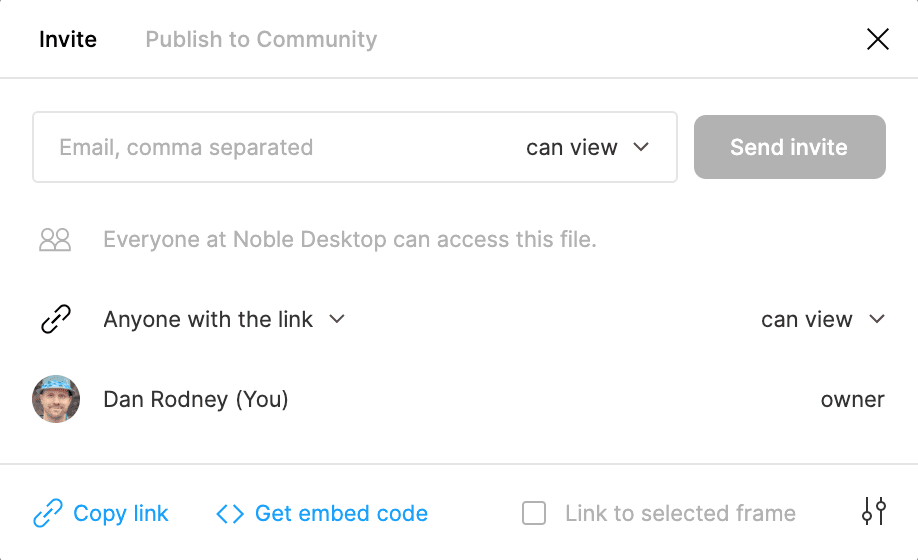
At the top right of the window, click Share.
Here you control who will have access to this file. Your capabilities depend on what plan you have. For example the free Starter plan has limitations explained at tinyurl.com/fig-plans and tinyurl.com/fig-sp
Set the following:
- The permissions should already be set to Anyone with the link but if it’s not and you see Only people invited to this file, change it to Anyone with the link.
- To the right of that, set the menu to can view.
- At the bottom left of the dialog, click Copy link.
In a web browser open a new incognito tab (so you won’t be logged into Figma) as follows:
- In Chrome or Safari hit Cmd–Shift–N (Mac) or CTRL–Shift–N (Windows).
- In Firefox hit Cmd–Shift–P (Mac) or CTRL–Shift–P (Windows).
Paste the link into the address bar and hit Return (Mac) or Enter (Windows) to go there.
People who are not logged into a Figma account can:
- View the file.
- At the top right of the window, click the Present button
 . Some browsers (like Safari) may block the pop-up window unless you give it permission (in Safari an icon will appear in the address bar which you can click to open the pop-up).
People who are logged into their Figma account can do those same things plus:
- Select elements and in the Inspect panel on the right, get specifications on the right (such as CSS), which is useful for coders/developers.
- Select things and in the Export panel on the right, export that selection as you would if you’re using Figma normally (as we learned in the previous exercise).
Use the Comment tool
 (in the toolbar at the top left).
They choose the tool and click anywhere to add a comment. They can type @ and then choose someone specific to mention in their comment.
Close the browser window.
Sharing a Prototype
- Back in Figma (the Desktop app or the website where you’re logged into your account), close the sharing options if they’re still open.
- Make sure nothing is selected.
- At the top right of the window, click Present or hit Cmd–Option–Return (Mac) or CTRL–ALT–Enter (Windows).
- At the top right of the present window, click Share prototype.
Set the following:
- The permissions should already be set to Anyone with the link but if it’s not and you see Only people invited to this file, change it to Anyone with the link.
- To the right of that, set the menu to can view.
- At the bottom left of the dialog, click Copy link.
In a web browser open a new incognito tab (so you won’t be logged into Figma) as follows:
- In Chrome or Safari hit Cmd–Shift–N (Mac) or CTRL–Shift–N (Windows).
- In Firefox hit Cmd–Shift–P (Mac) or CTRL–Shift–P (Windows).
Paste the link into the address bar and hit Return (Mac) or Enter (Windows) to go there.
Unlike last time where you could see the whole file, this will only show you the prototype.
Sharing Files Stored in Drafts Versus a Team Project
You can share files in your personal Drafts folder, but there are more sharing options when your file is in a Team Project (which is like a folder inside a Team). Free accounts only get 1 Project with 3 Figma files in it, while paid accounts get unlimited projects and Figma files.
When a Figma file is in a Team project:
- Other people in the Team get access to the file(s), and each project (which is like a folder in a Team) has its own share settings.
- In addition to can edit and can view, you’ll see a new 3rd option can view prototypes. This new option should only be used when making links to prototypes. If you use that on a file (instead of a prototype) people will get a message they must request access, so only use it on prototypes, not files.
- In addition to Anyone with the link and Only people invited to this file, you’ll see a new 3rd option Anyone with the link and password.
Viewing Comments
A red dot on the Comment tool (in the toolbar at the top left) means you have unread comments. To view them, click on the Comment tool
.In the panel on the right, click on comments to view and respond.
Updating a Figma Design
Keep in mind that when you work on a Figma file, those changes are automatically seen in real-time for people looking at the shared file. There’s no need to create a new link, tell anything to update, etc.
They can even see your cursor moving around and see you working!
Version History
Members of Starter teams can only view 30 days of a file’s version history.
Members of Professional and Education team or Figma Organizations can access a file’s entire version history.
Learn more at tinyurl.com/figma-version-history